Follow these steps to diagnose and resolve charging-related problems with your Finix payment device.
If you're experiencing issues with your device's charger or suspect damage to the power connector, try the following solutions:
- Make sure you are using the cable that came with your device or a compatible charger.
- If you have a second device, test the charger with on the second device of the same model to isolate the issue.
- Carefully examine the connectors on both the charger and device for any signs of damage.
- Clean any dust or debris from the charging ports.
- Power off the device completely.
- Wait for 10 seconds, then turn it back on.
After restarting, check if the charger is now functioning properly and charging the battery (if applicable).
- Try using a new charger compatible with your device model.
- If problems persist with a new charger, the device's power connector may be faulty.
If the above options do not solve the problem, contact the Finix Support Team.
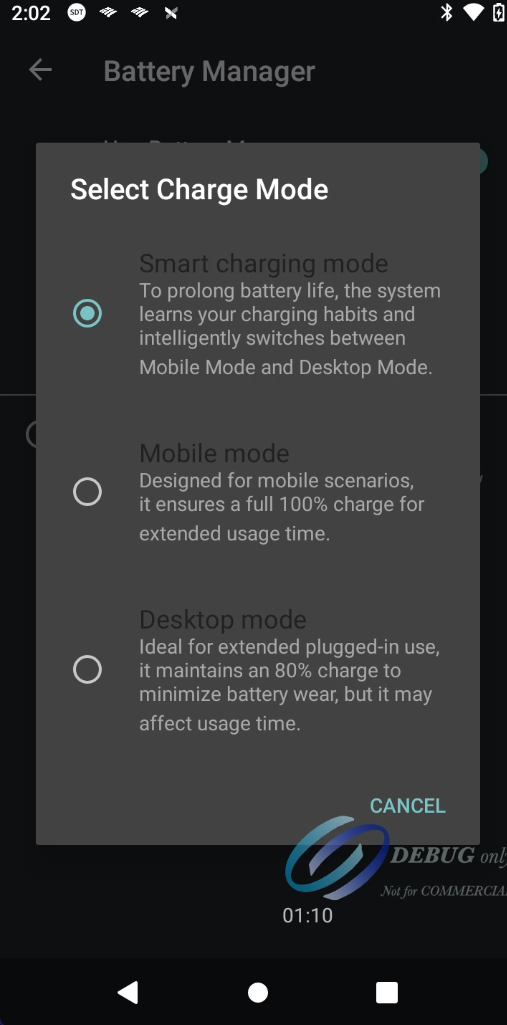
You can set the battery charge mode for your device that best suits your business needs. To access the battery charge mode, follow the steps below:
- Navigate to the Settings
- Click on Battery
- Click on Battery Manager
- Click on Select Charging Mode
- Select the desired battery charge mode.
- Desktop Mode - Device is allowed to charge up to 80%.
- Mobile Mode - Device is allowed to charge up to 100%.
- Smart Charging - Devices will automatically recognize user behavior and adapt to a battery mode every 7 days.
- If time spent on the charger exceeds the amount of time spent not on the charger, terminal battery mode is set to Desktop Mode.
- If time spent off of the charger exceeds time spent on the charger, terminal battery mode is set to Mobile Mode.