Finix Device Store lets you simplify your device ordering process, offering a convenient and centralized platform. Within the Device Store, you can browse, select, and purchase the devices you need, all in one place.
The Device Store offers the following benefits:
- Simplified Checkout: A quick and easy process that allows you to purchase devices with a few clicks.
- Managing and Tracking Orders: Keep track of your orders and view shipping status.
- Device Catalog: Find the perfect device for your needs with our easy-to-navigate catalog.
To order devices in the Finix Dashboard:
- Log into the Finix Dashboard.
- Click Devices > Device Store.
- Review the device catalog and select the device(s) that fit your needs.
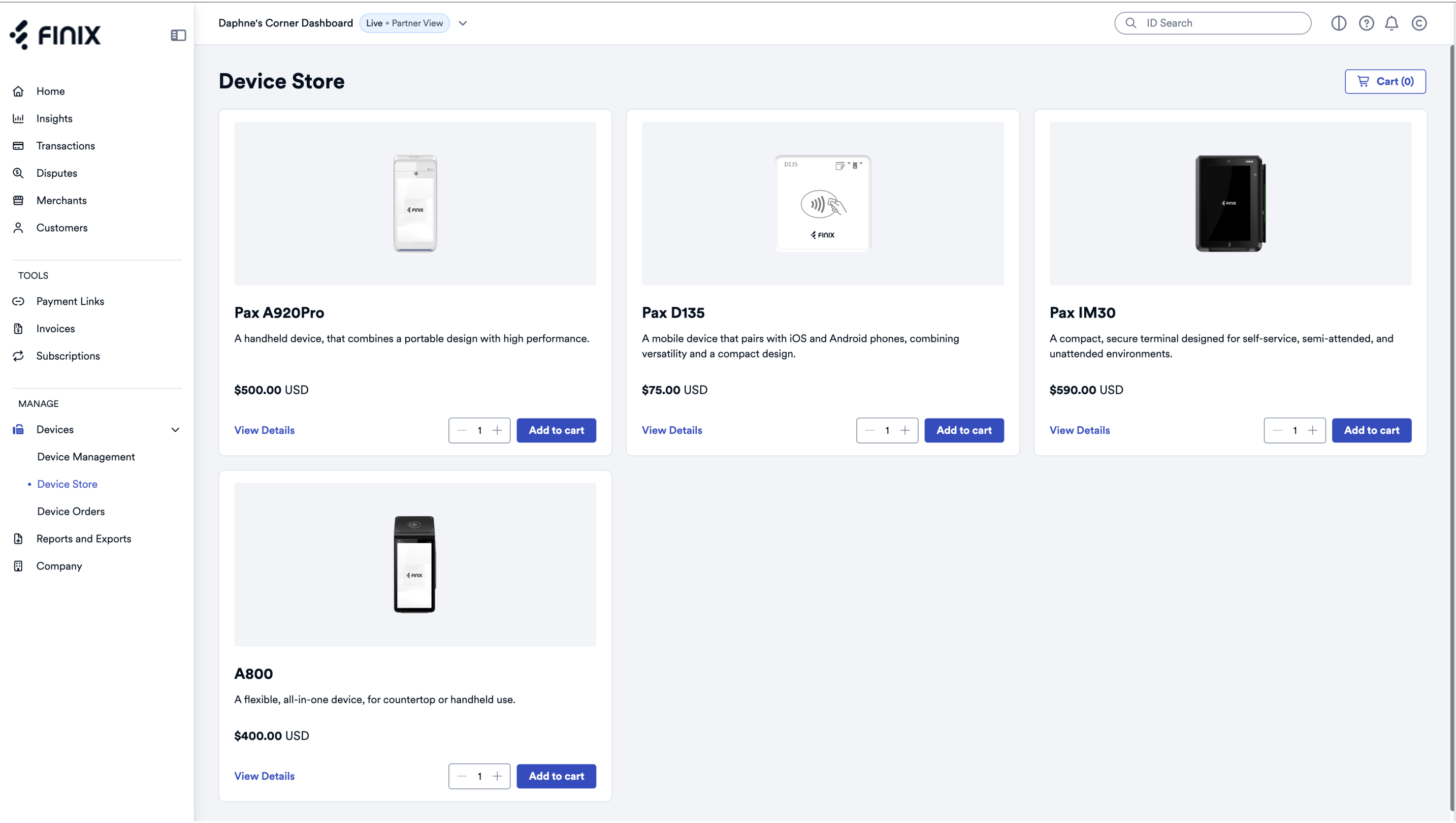
- Decide on the type and quantity of device(s).
- Click on Add to Cart to add the device(s) to your cart.
- Click on the shopping cart icon in the top right corner.
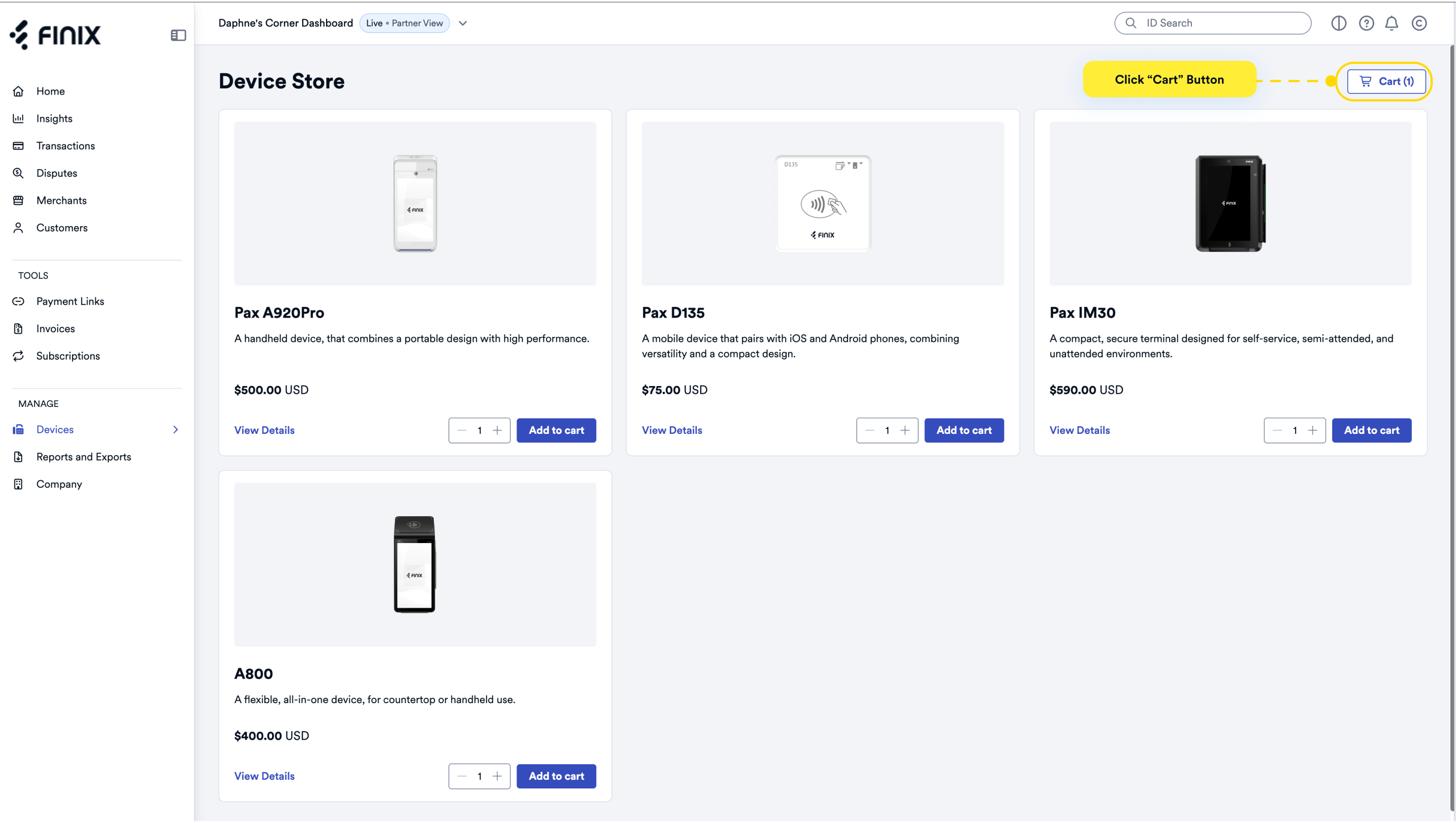
- Review your cart and click Checkout on the bottom right.
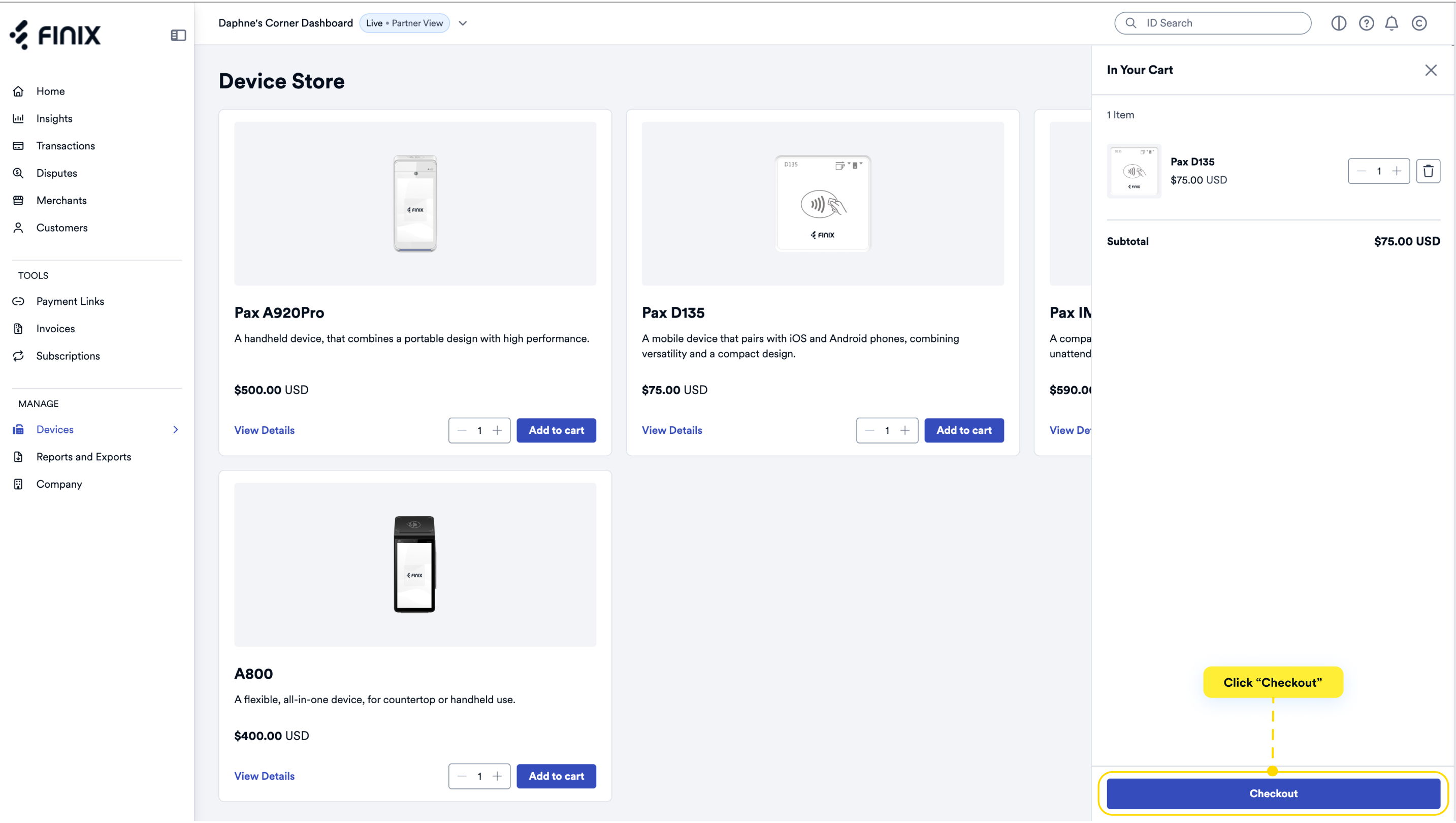
- Review your Order Summary.
- Fill out the form.
- Click Place Order.
After placing your order, you'll be directed to the Device Order Details page. Here, you can
- Verify your Contact Details
- Confirm your Shipping Details
- Check your Billing Details
This page ensures you have all the necessary information about your order at a glance.
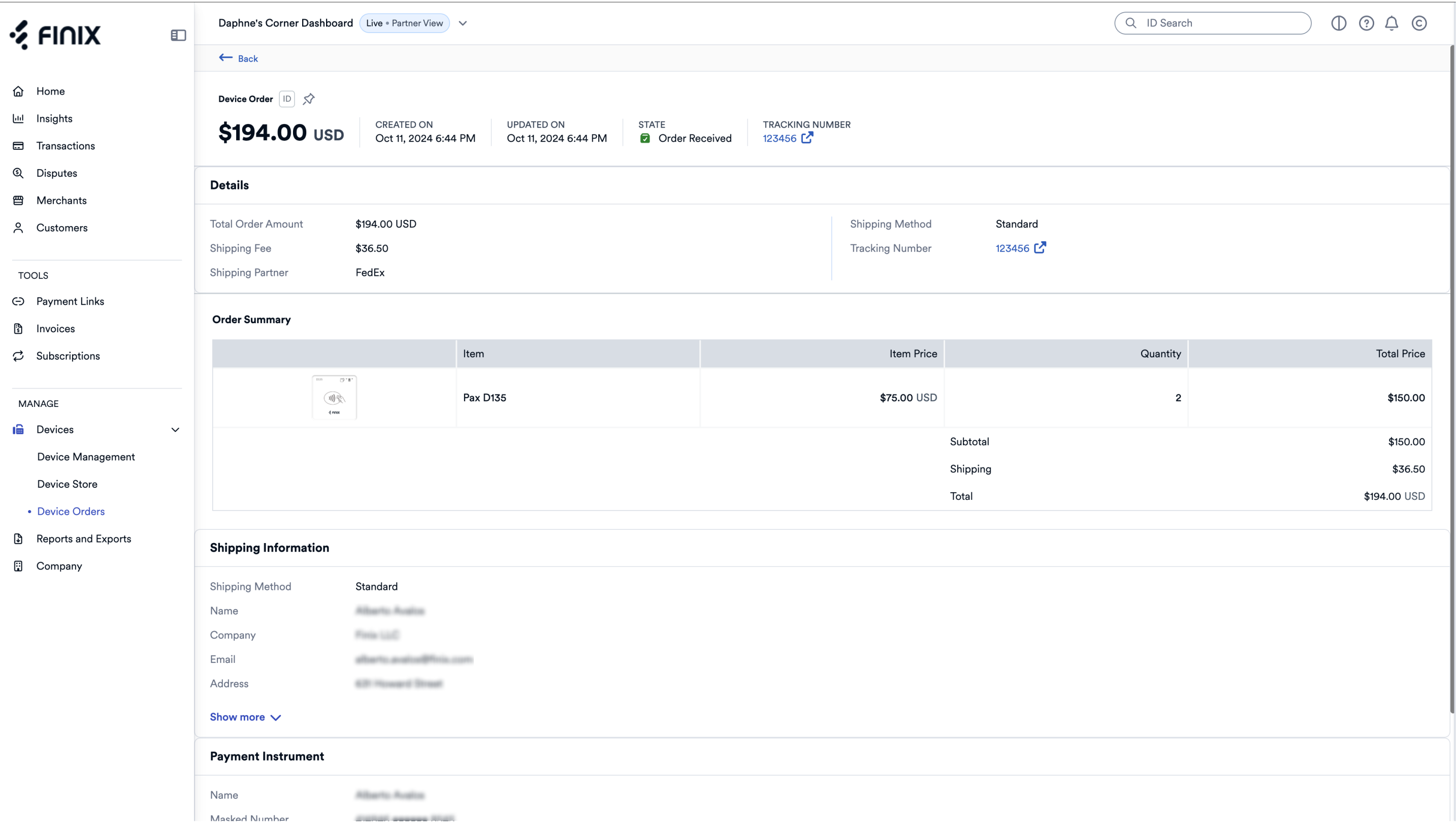
While you may place an order via the Finix Dashboard, our team based on our discretion can cancel an order if Finix is unable to fulfill the order for any reason. Please contact your Finix point of contact or any questions. Finix Device Ordering Terms and Conditions can be found here.
After you place an order, you can view its status, track shipments, and cancel pending orders directly in the Finix Dashboard.
To view device orders on the Finix Dashboard:
- Log into the Finix Dashboard.
- Click Devices > Device Orders.
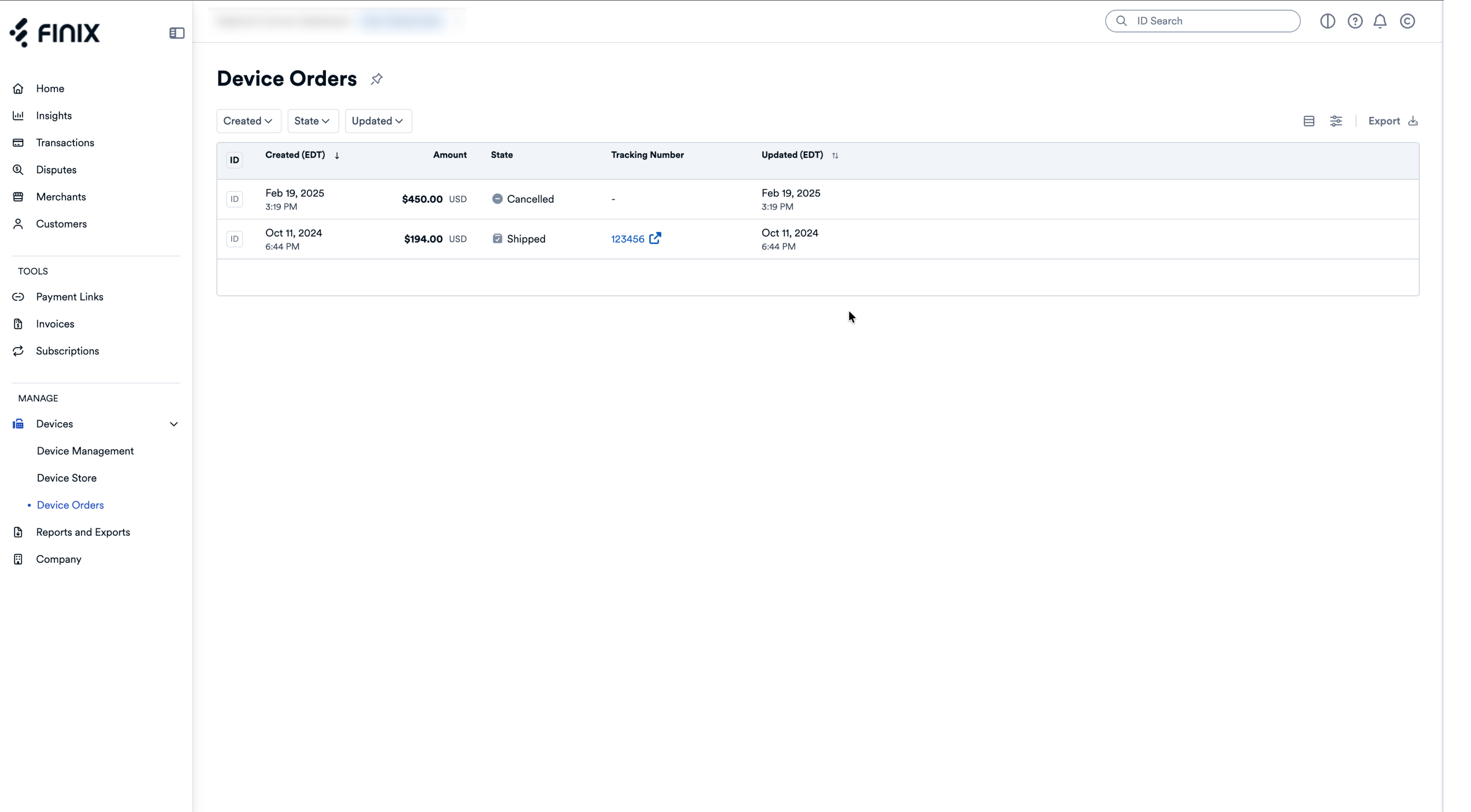
| Status | Meaning |
|---|---|
| Order Received | The order has been received and will be reviewed for approval prior to fulfillment. |
| Confirmed | The order has been approved and is being prepared for shipment. |
| Shipped | The order has been shipped. |
| Cancelled | The order has been cancelled. |
You can only cancel an order if the status is "Order Received". Please contact your Finix Point of Contact for questions regarding refunds on a cancelled order.
To cancel an order:
- Click Devices > Device Orders.
- Select the order you want to cancel.
- Click Action on the top right corner
- Click Cancel Order.
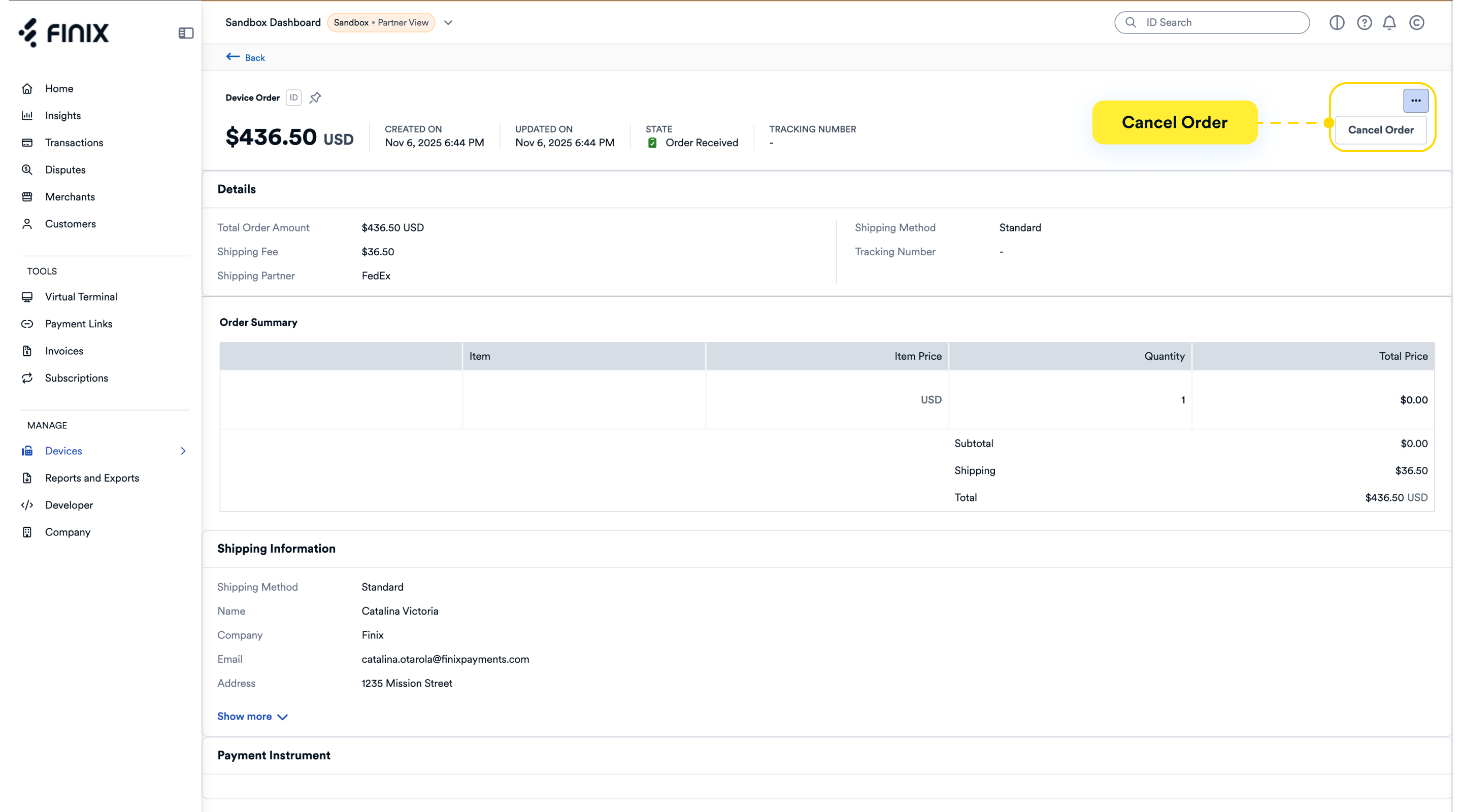
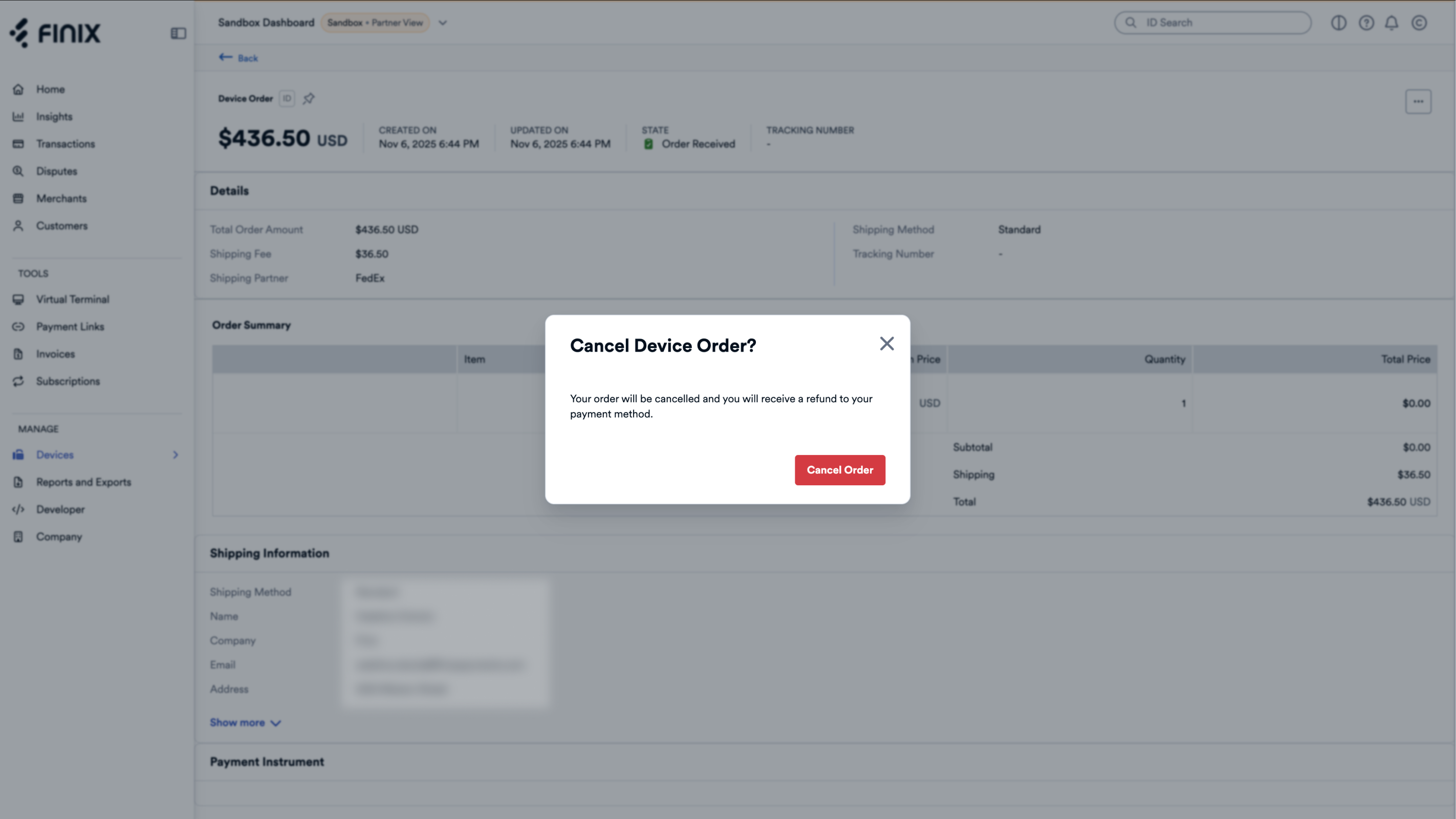
- Click Cancel Order.
Building your Integration
Learn about Finix's POS and mobile in-person payments integrations.