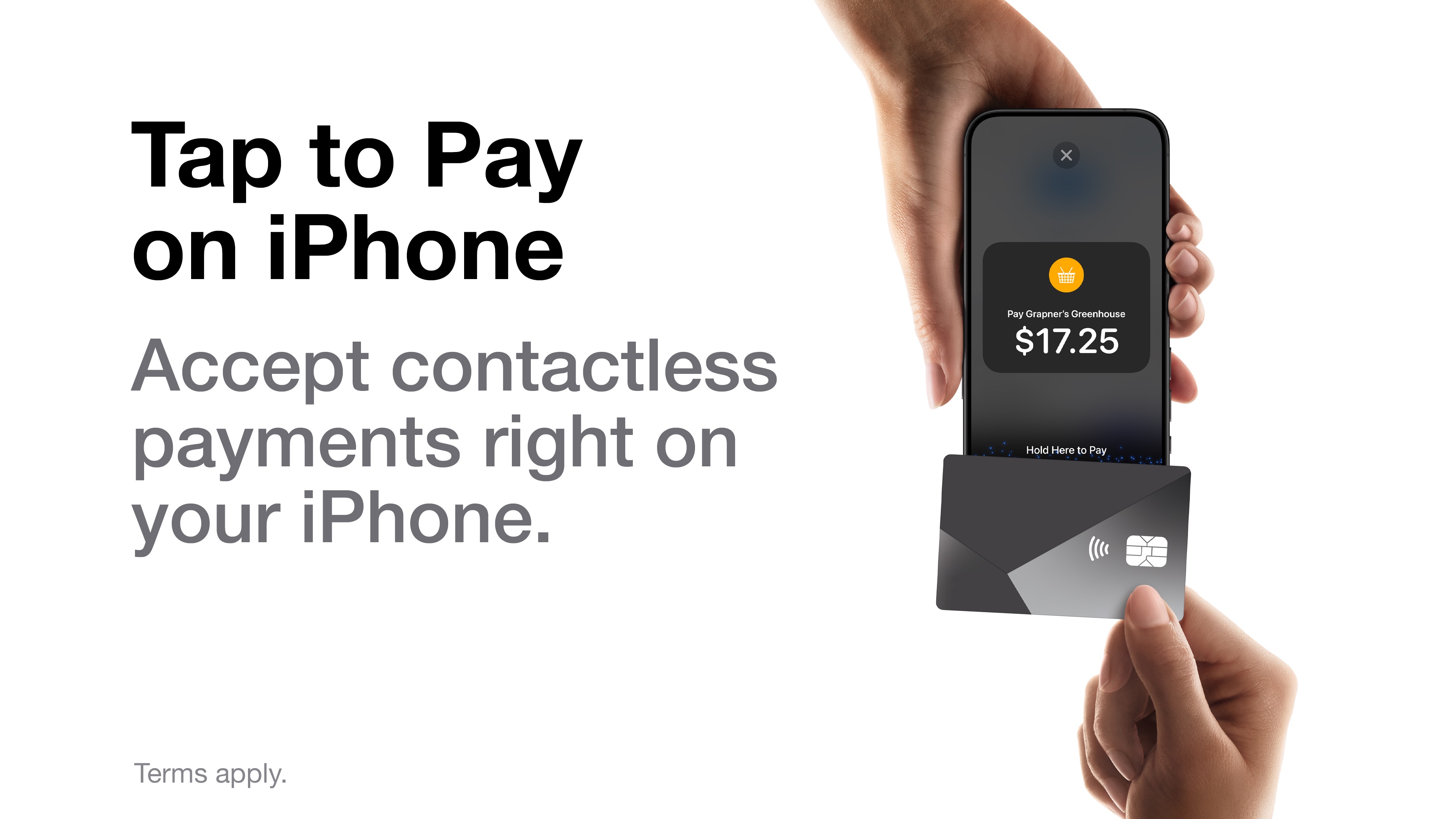
Tap to Pay on iPhone lets you accept in-person contactless payments using only your iPhone. No card reader or additional hardware is required. Buyers can pay with:
- Contactless credit and debit cards.
- Apple Pay, Google Pay, and other NFC-based digital wallets.
Tap to Pay on iPhone is only supported on:
- OS - iOS 18.1 or later.
- Phone - iPhone XS or newer.
- Passcode - Having passcode setup on iPhone is a requirement for Tap to Pay.
Tap to Pay on iPhone is not available on iPad or Android devices. In the Finix Checkout app, Tap to Pay on iPhone is only available in the Production environment. Developers integrating the Finix Tap to Pay on iPhone SDK into their own app can test in Sandbox.
Before taking a Tap to Pay on iPhone payment:
- Sign in to the Finix Checkout app - For instructions, see Getting Started.
- Use a compatible iPhone - See the device compatibility requirements above.
- Have a stable internet connection - Offline payments are not supported.
If your phone case holds physical cards, remove them before taking a Tap to Pay payment to avoid accidentally charging your own card.
There is no setup required for Tap to Pay. You select it as the payment method when taking a payment.
- From the Checkout screen, enter the transaction details and tap Confirm and Pay.
- A screen displays asking how you would like to collect payment.
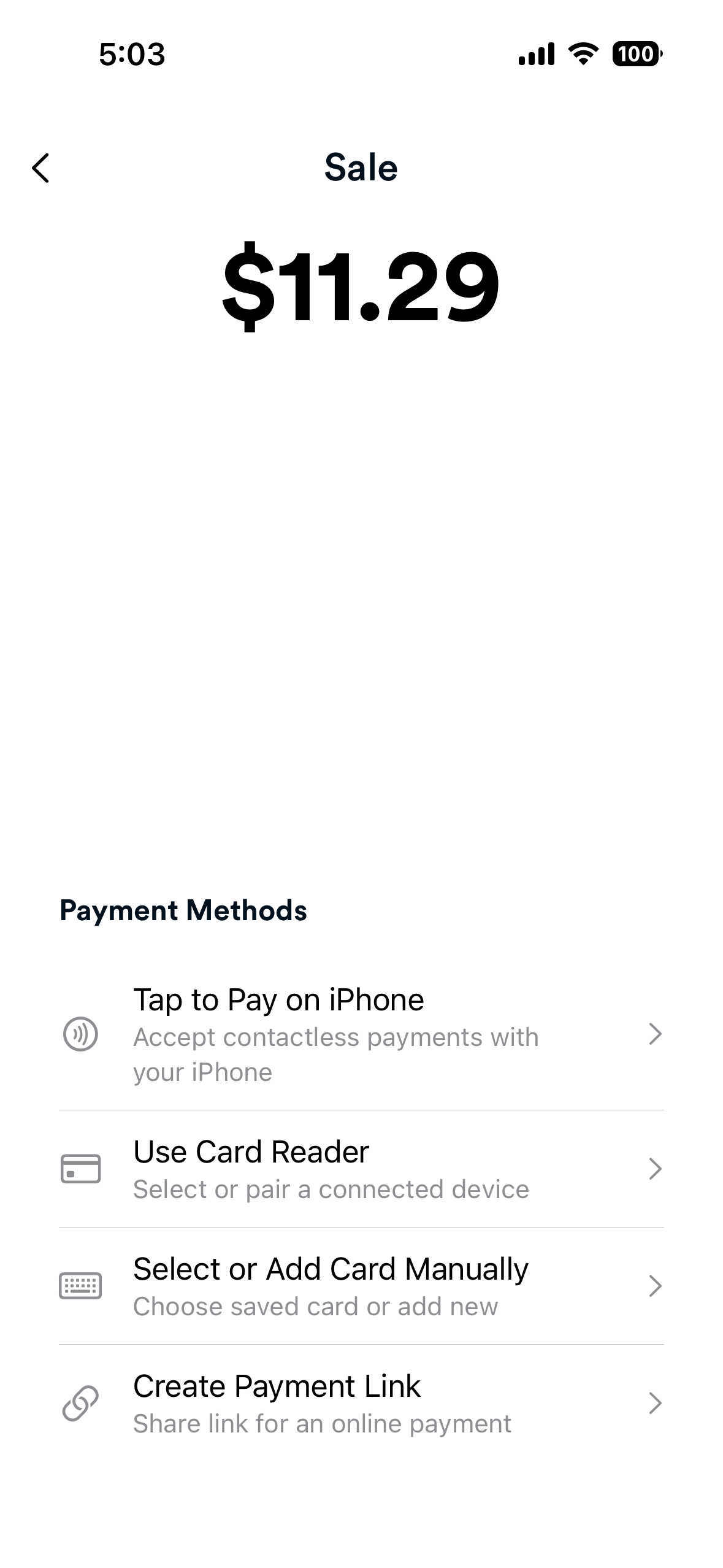
- Select Tap to Pay on iPhone.
- The Tap to Pay on iPhone screen displays, indicating your iPhone is ready to accept a payment.
- If it is your first time using Tap to Pay on iPhone, you are prompted to enable it.
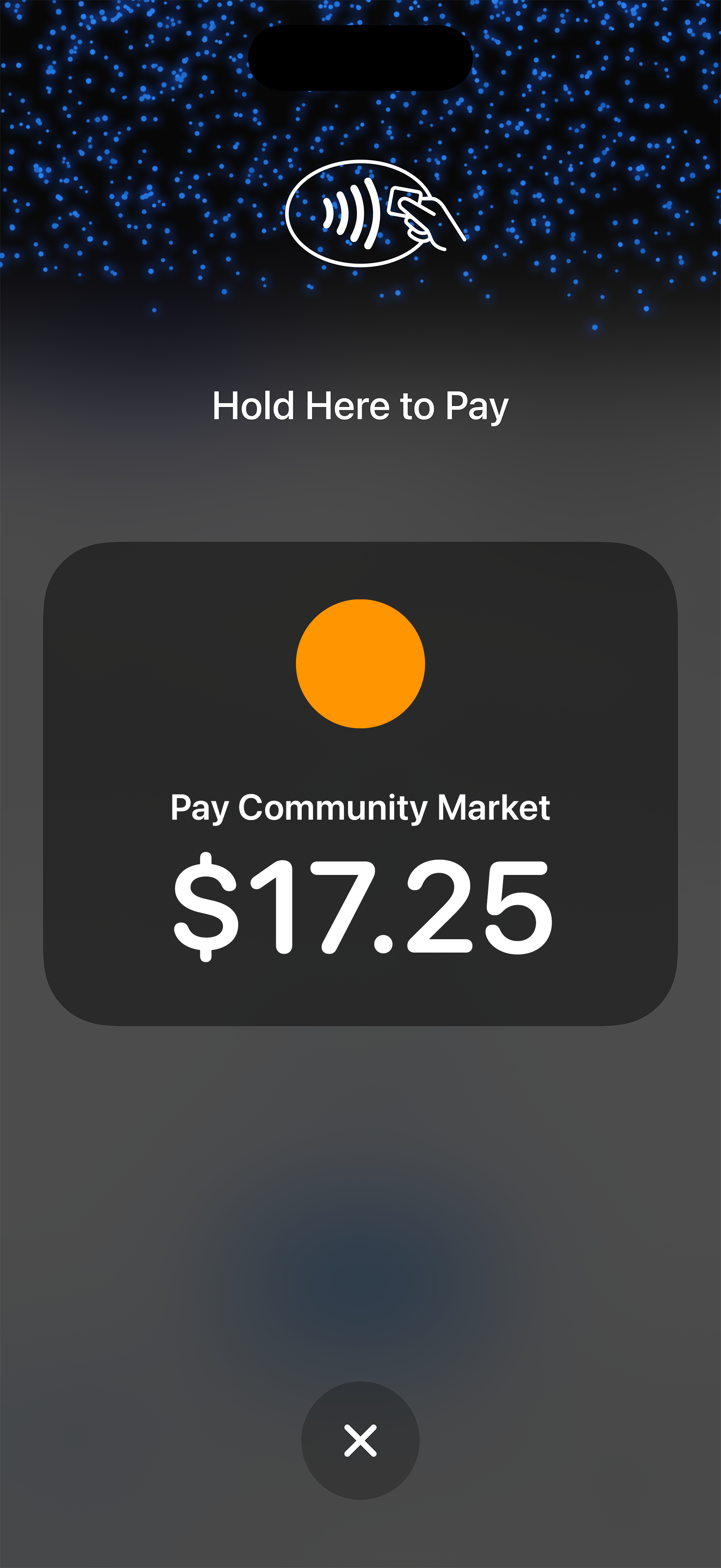
- Have the buyer hold their contactless card or device near the top of your iPhone, next to the contactless symbol on screen.
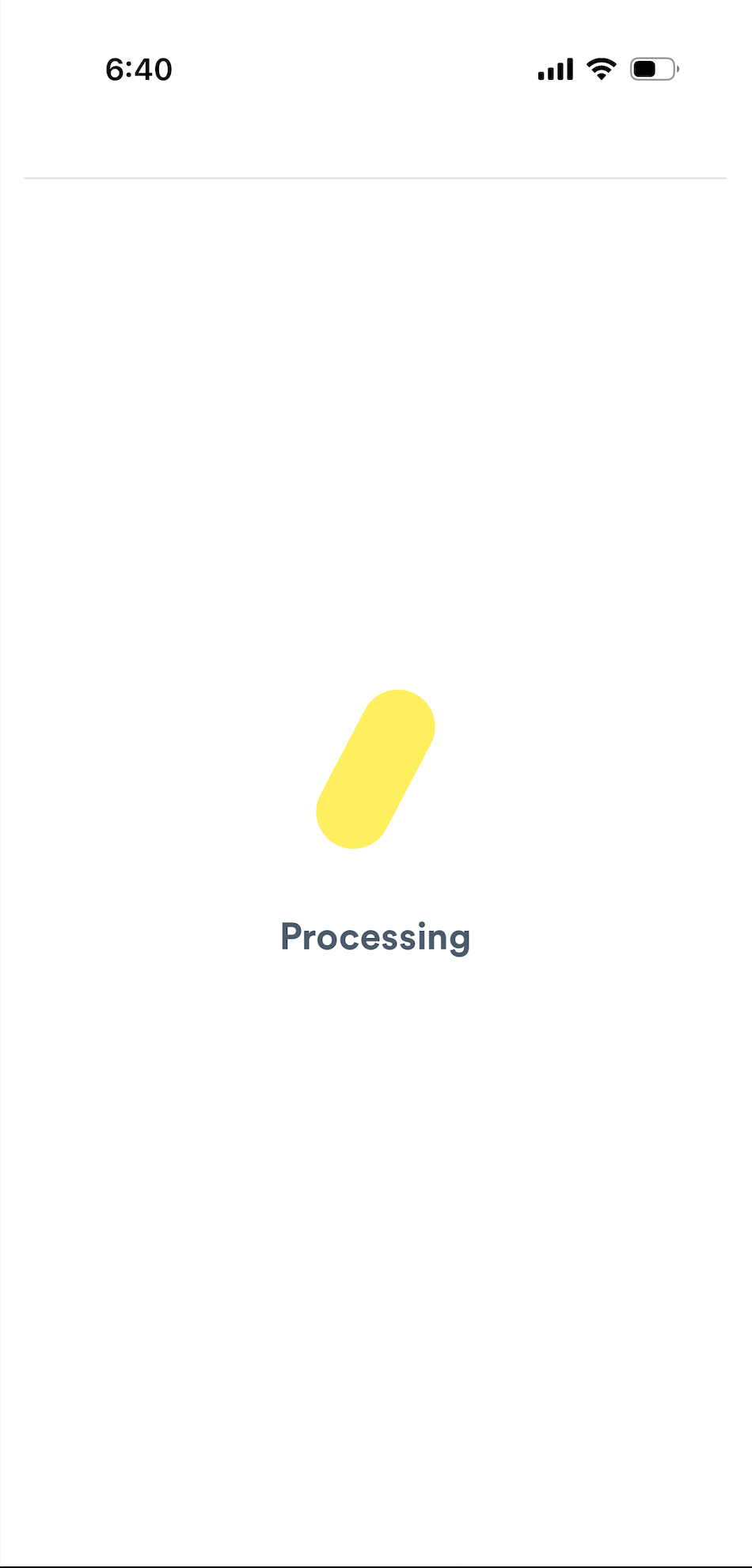
- A processing screen displays while the transaction is being submitted.
After the transaction is submitted:
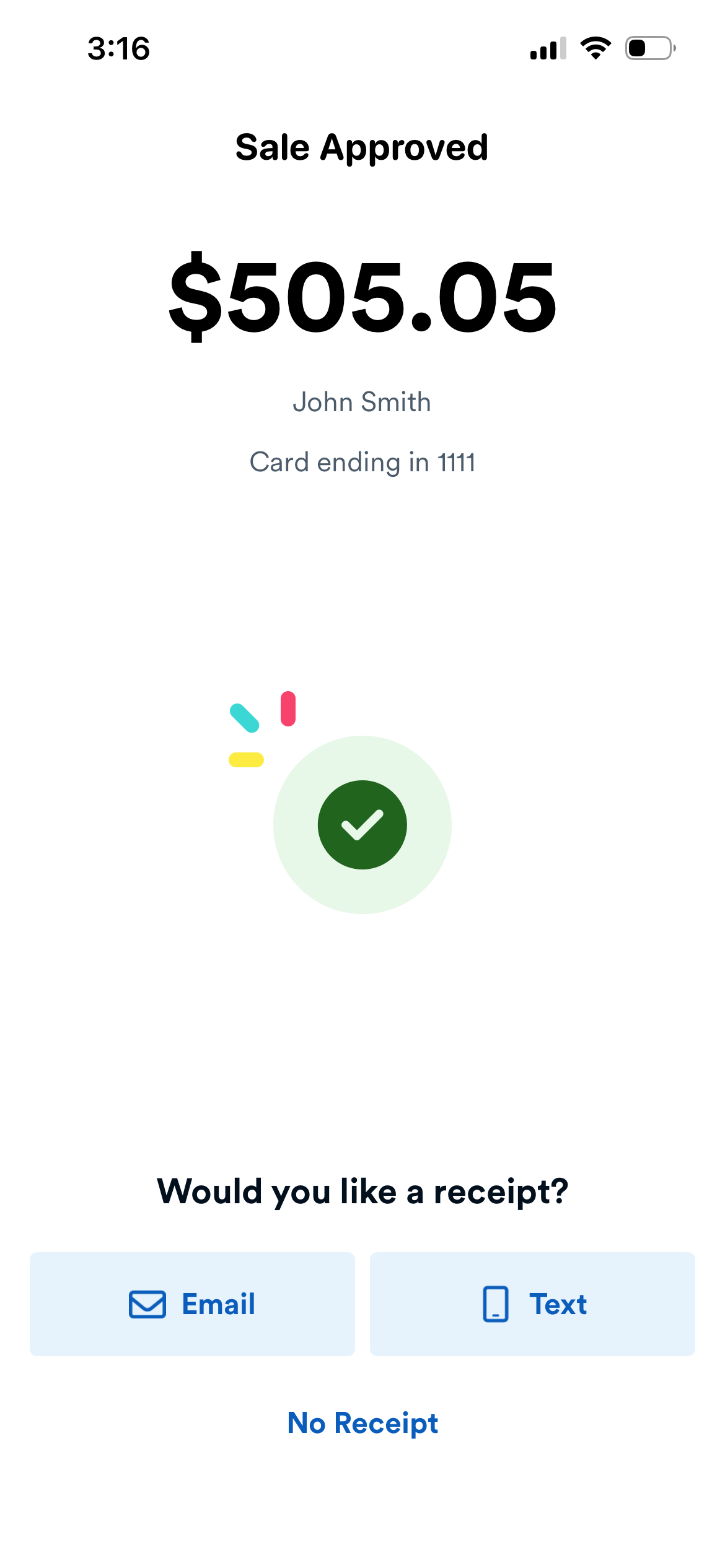
- Approved - A Sale Approved or Authorization Approved screen displays. Choose to send a receipt by email, by text, or select No Receipt.
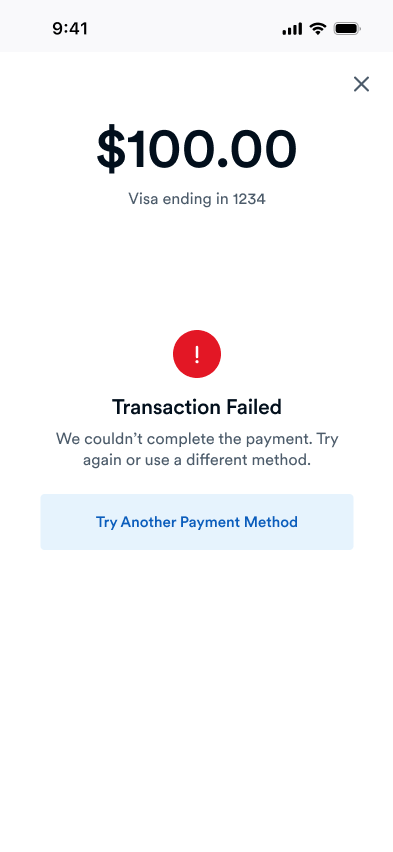
- Failed - A Failed Transaction screen displays with the reason for the failure (for example, the buyer did not complete payment in time, or there was an issue with the card).
To make sure Tap to Pay payments are processed securely:
- Keep control of your iPhone - Do not hand your iPhone to the buyer. Have them hold out their card or NFC device, or hand it to you, so you can tap it on your phone.
- Wait for confirmation - The payment is not complete until the approved screen displays. If the transaction fails, ask the buyer to tap their card or device again.