In this guide, you can learn how to use the PAX A35 payment terminal.
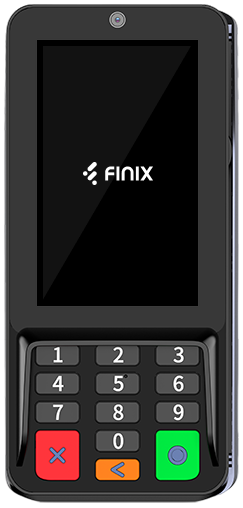
| Item | Quantity |
|---|---|
| PAX A35 POS Terminal | 1 |
| A35 Quick Setup Guide | 1 |
| Communication Cable | 1 |
| AC Power Adapter | 1 |
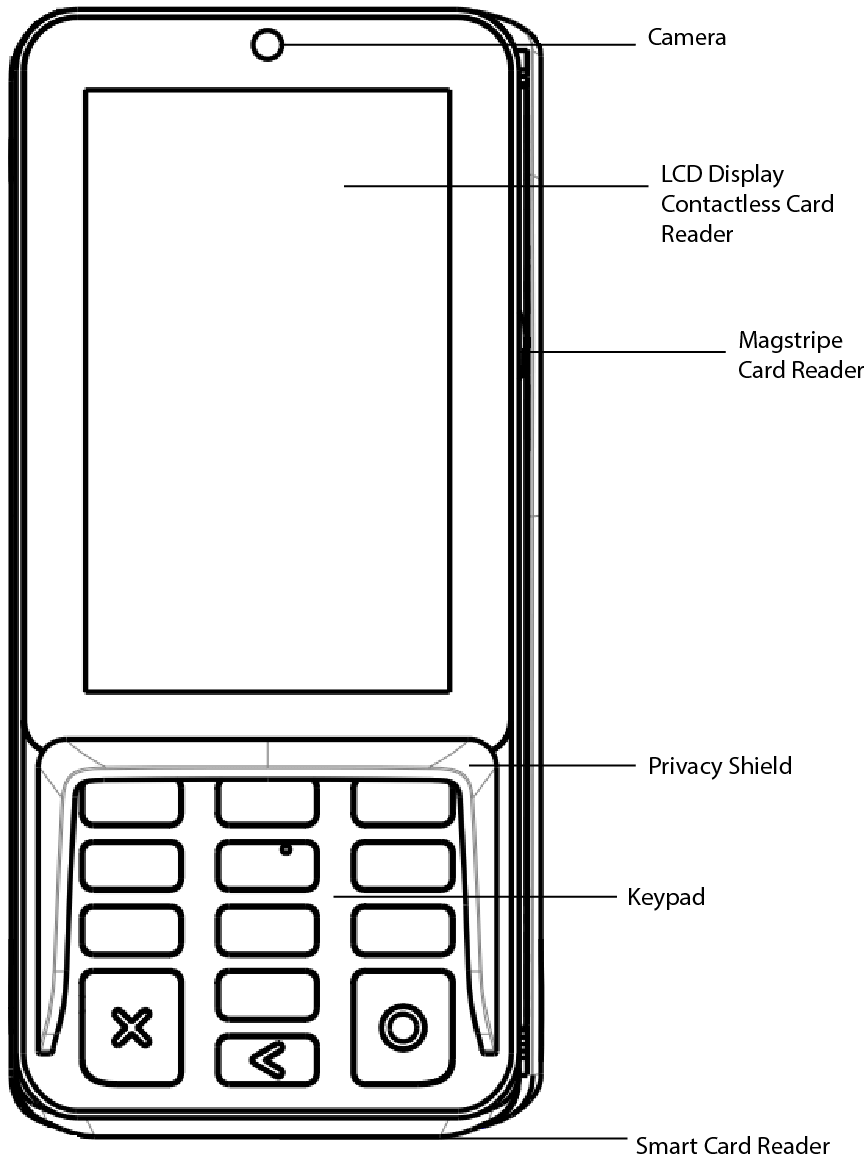
The following section points out the hardware features and functions of the PAX A35 PIN pad.
The A35 is powered through the communication cable. Power is supplied either by connecting the AC adapter to the DC port on the communication cable, or via a powered USB cable.
- Remove the back cover and insert the communication cable into the Type-C interface.
- Connect the AC power adapter to the DC port on the communication cable, or use a powered USB cable.
- Connect the other end of the communication cable to your POS system, ECR, or payment terminal.
The terminal has successfully been powered on.
The PAX A35 payment terminal can connect to the internet using:
- Wi-Fi
- Ethernet (via the communication cable)
We strongly recommend using a wired Ethernet or Wi-Fi network to connect the PAX A35 to the internet. To connect to Wi-Fi, follow the steps below:
Tap on Settings
Enter the password.
Try these password combinations. Contact Finix Support if none work.
pax9876@@Dev9876@@98769876@@
Tap on Network & Internet
Tap WiFi
Select your Network and Connect
Face the card’s magstripe inwards toward the A35, then swipe the card completely up or down in a constant, steady manner. The A35 supports bi-directional swiping.
Face the card’s microchip upward and insert firmly into the slot. Make sure that the card is fully inserted into the card reader while scanning the card.
Tap the contactless card or mobile wallet near the top of the A35’s LCD screen, indicated by the universal contactless icon. For best results, place as close to the reader as possible and center the card over the indicated area.
- Do not use industrial strength or abrasive cleaner as it may damage or scratch the screen.
- Do not immerse the device in water or liquid.
- Do not spray water or cleaner into ports.
- To clean the screen, apply distilled water or mild glass cleaner onto a soft, lint-free cloth and gently wipe terminal.
If you're deploying your own app to this terminal, these specifications apply to app development:
| Specification | Details |
|---|---|
| Operating System | PAXBiz, powered by Android 10 |
| Processor | ARM Cortex-A53 |
| Memory | 1GB DDR RAM, 8GB flash (microSD up to 128GB) |
| Display | 4" WVGA capacitive touchscreen, 480 x 800 pixels, Corning Gorilla Glass |
A few resources are available for the PAX A35 which you can share with sellers to help explain how to get the terminal setup:
| Resource | Description |
|---|---|
| PAX A35 Quick Setup Guide | Review the quick setup guide for the PAX A35 from the terminal's manufacturer. |
| PAX A35 Data Sheet | Data Sheet with specifications for the PAX A35. |