Finix Checkout requires iOS version 18.1 or later.
To use Finix Checkout, you must have an existing Finix account. If you don't have one yet:
- Sign up for a Finix account
- Once your account is set up, sign in to Finix Checkout using the same credentials.
- Tap the Finix Checkout app icon on your Home screen.
- When the following dialogs appear, respond as follows:
- Notifications - Tap Allow or Don't Allow. Notifications are not required to use the app.
- "Finix Checkout wants to use auth0.com to Sign In" - Tap Continue.
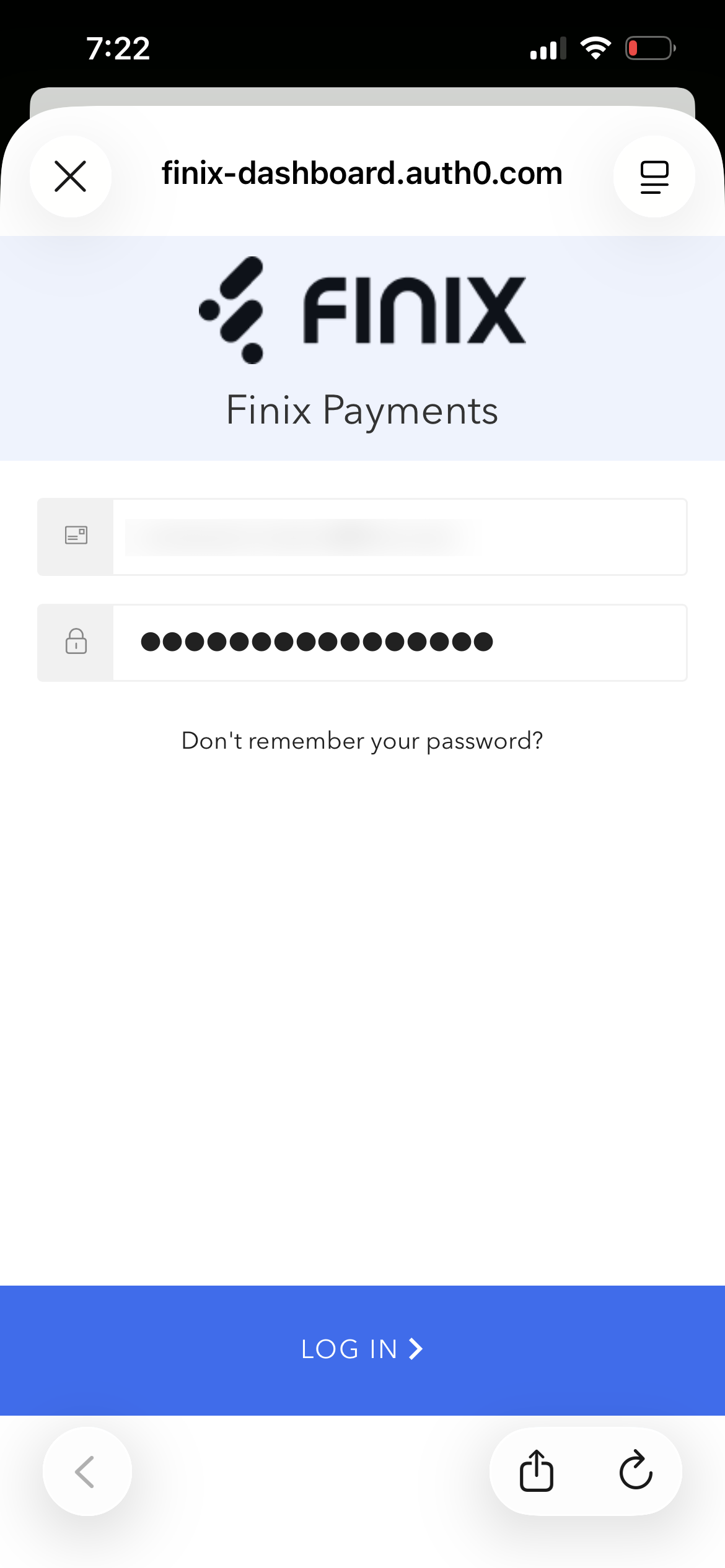
- On the login screen, enter your Finix Dashboard username and password and sign in.
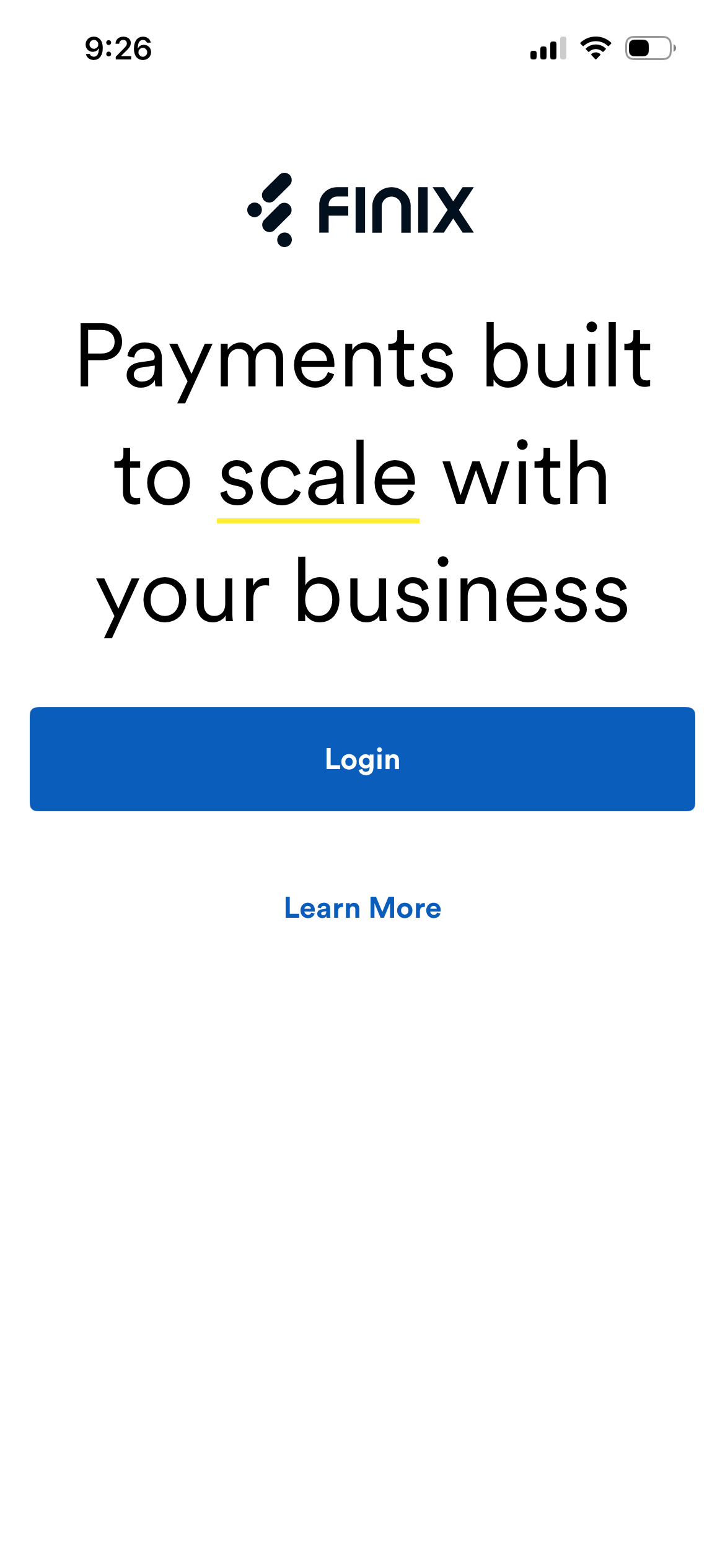
After signing in, the Checkout screen displays.
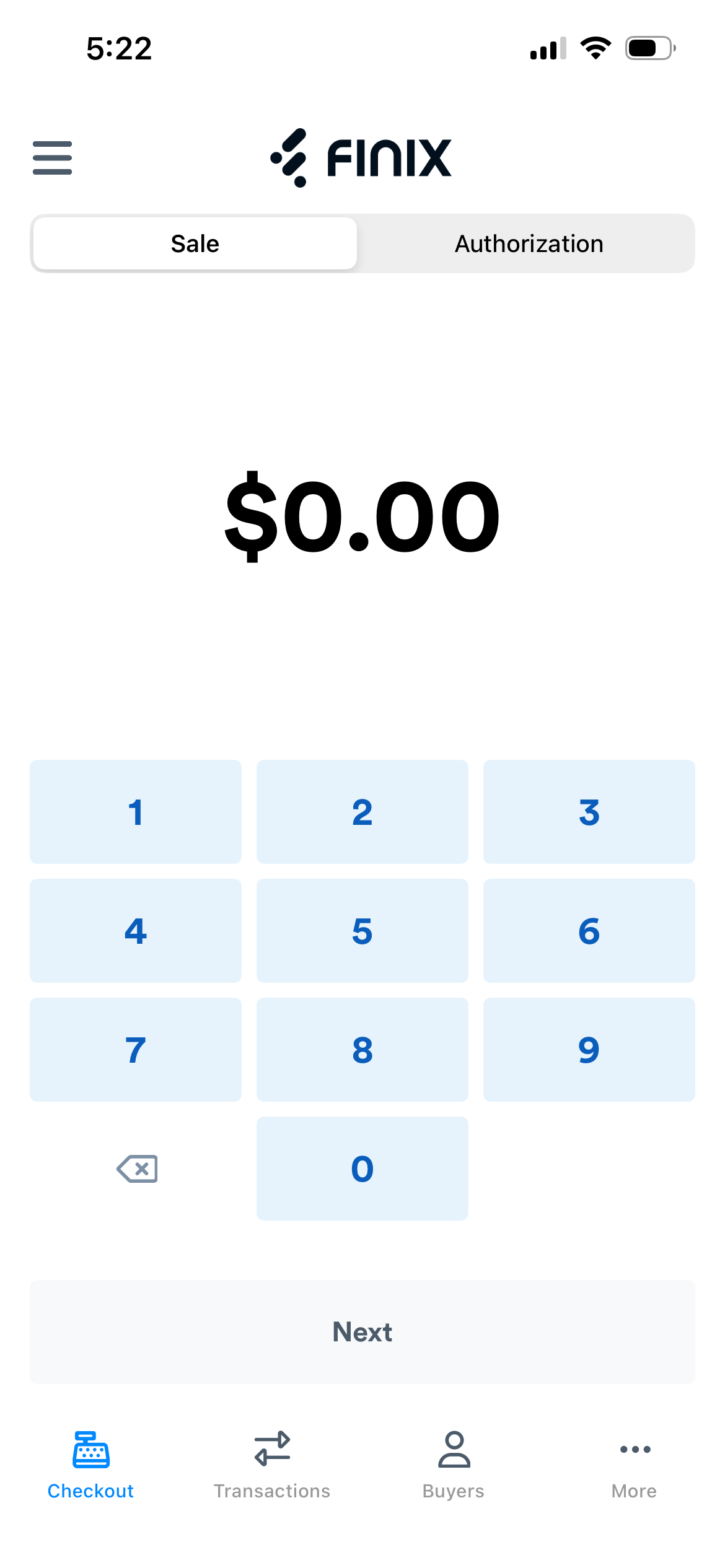
The app includes a navigation bar at the bottom of the screen with four sections:
| Section | Description |
|---|---|
| Checkout | The home screen. Process sales or authorizations using a card reader, manual entry, or a payment link. |
| Transactions | View and filter your payment history. See Transactions. |
| Buyers | Add, search, and manage buyers. See Buyers. |
| More | Access device management, payment links, app info, and logout. |
The Checkout screen is the app's home screen and displays after signing in. From here, you can select a Sale or Authorization transaction type and start taking a payment.
For step-by-step instructions, see Take a Payment.
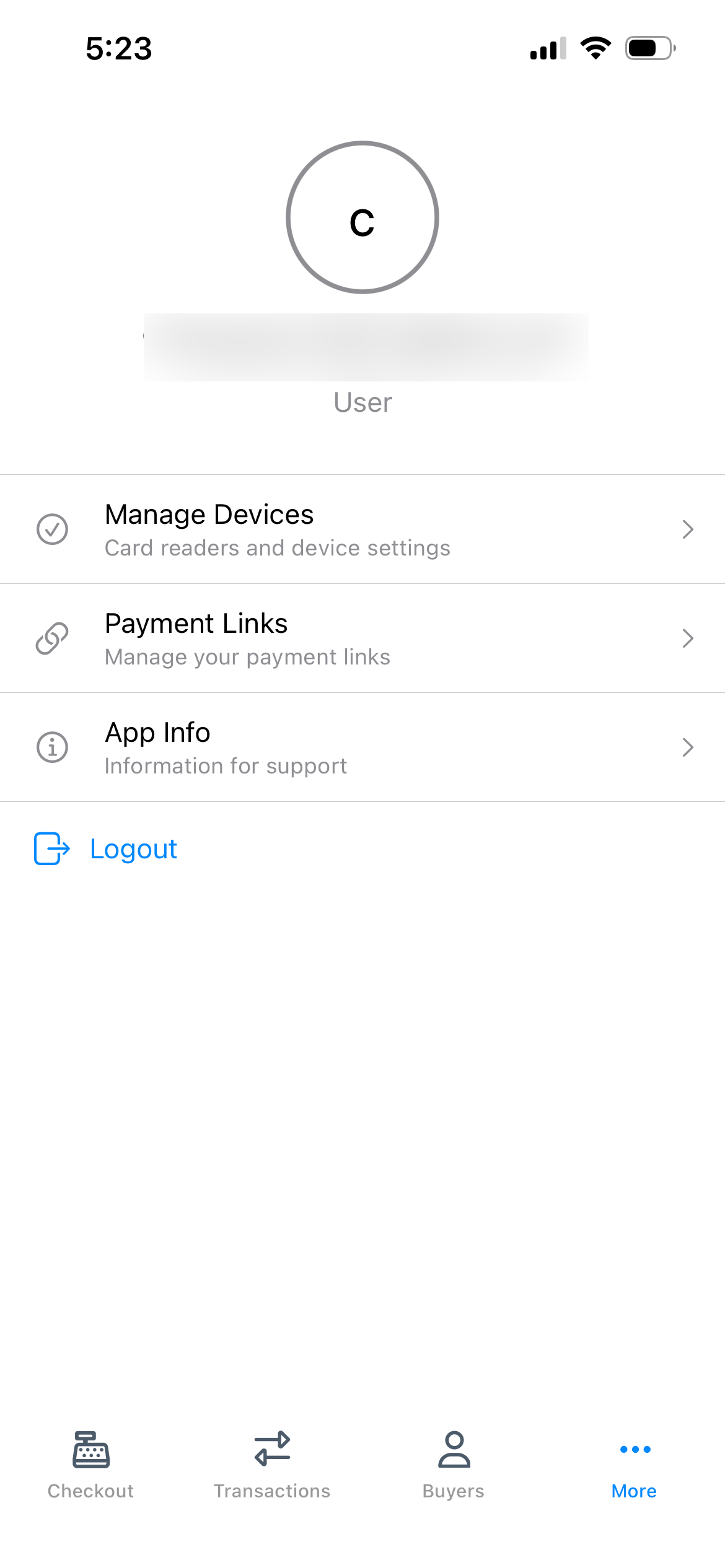
Tap ... (More) in the navigation bar to access the following options:
| Option | Description |
|---|---|
| Manage Devices | Set up and manage your Pax D135 card reader. For more information, see Set Up the D135. |
| Payment Links | Create and manage your payment links. For more information, see Payment Links. |
| App Info | View app version and your Finix account details, including your Application ID, Identity ID, and User ID. |
| Logout | Sign out of the app. |
Tap Transactions in the navigation bar to view a history of all transactions.
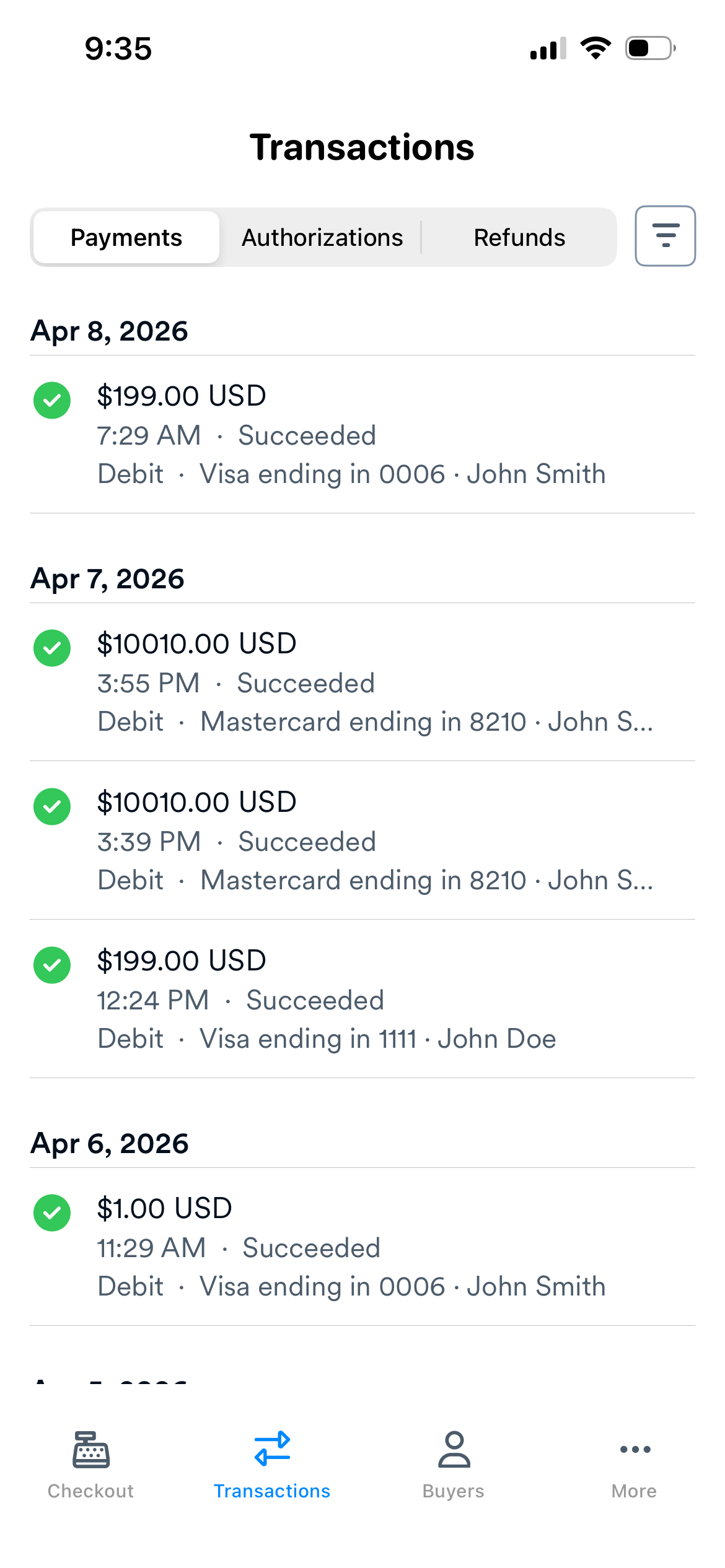
Tap one of the tabs at the top of the screen to filter by transaction type:
| Tab | Description |
|---|---|
| Payments | Displays completed sales. |
| Authorizations | Displays authorized holds on buyer funds. |
| Refunds | Displays refunds issued on previous transactions. |
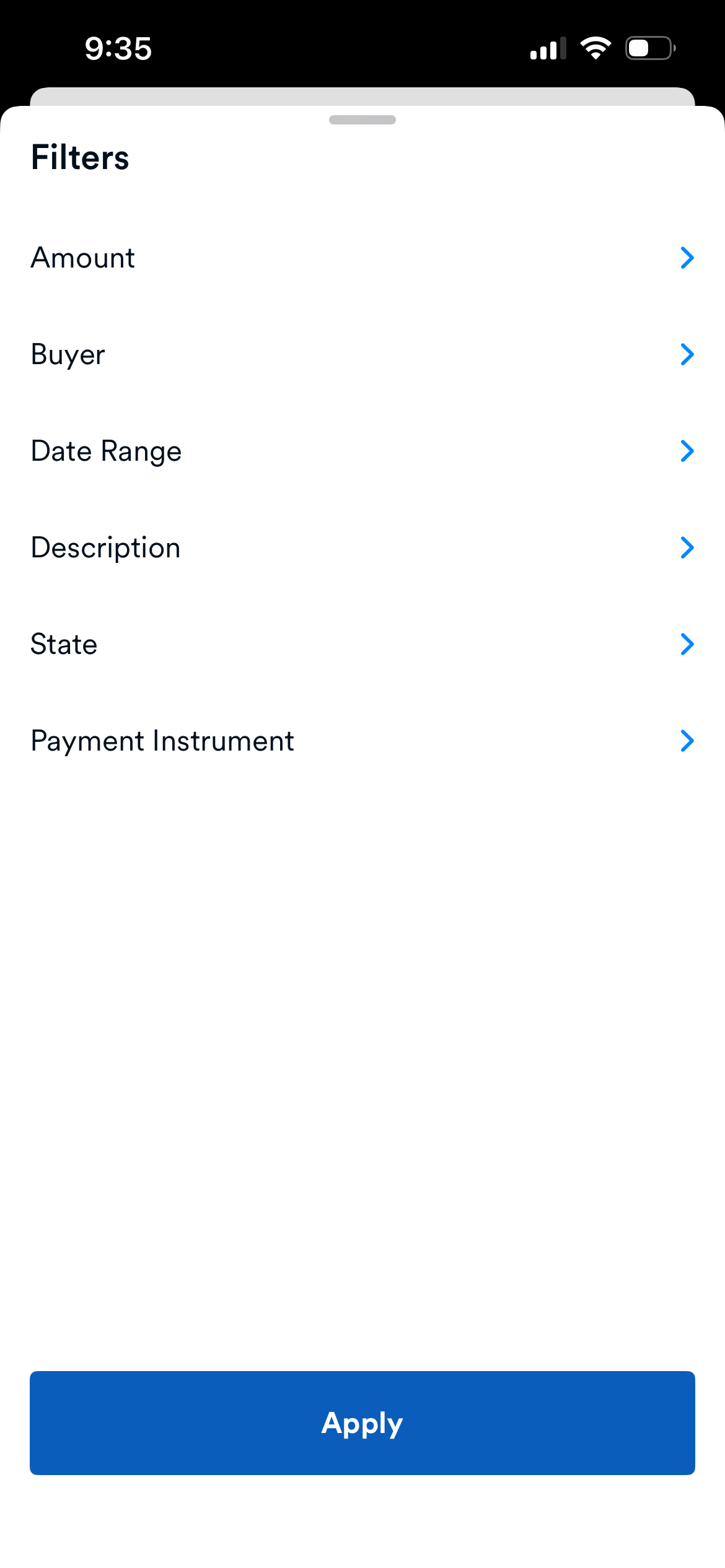
Tap the filter icon to access additional filters, including Amount, Buyer, Date Range, Description, State, and Payment Instrument. Tap Apply to apply your filters.
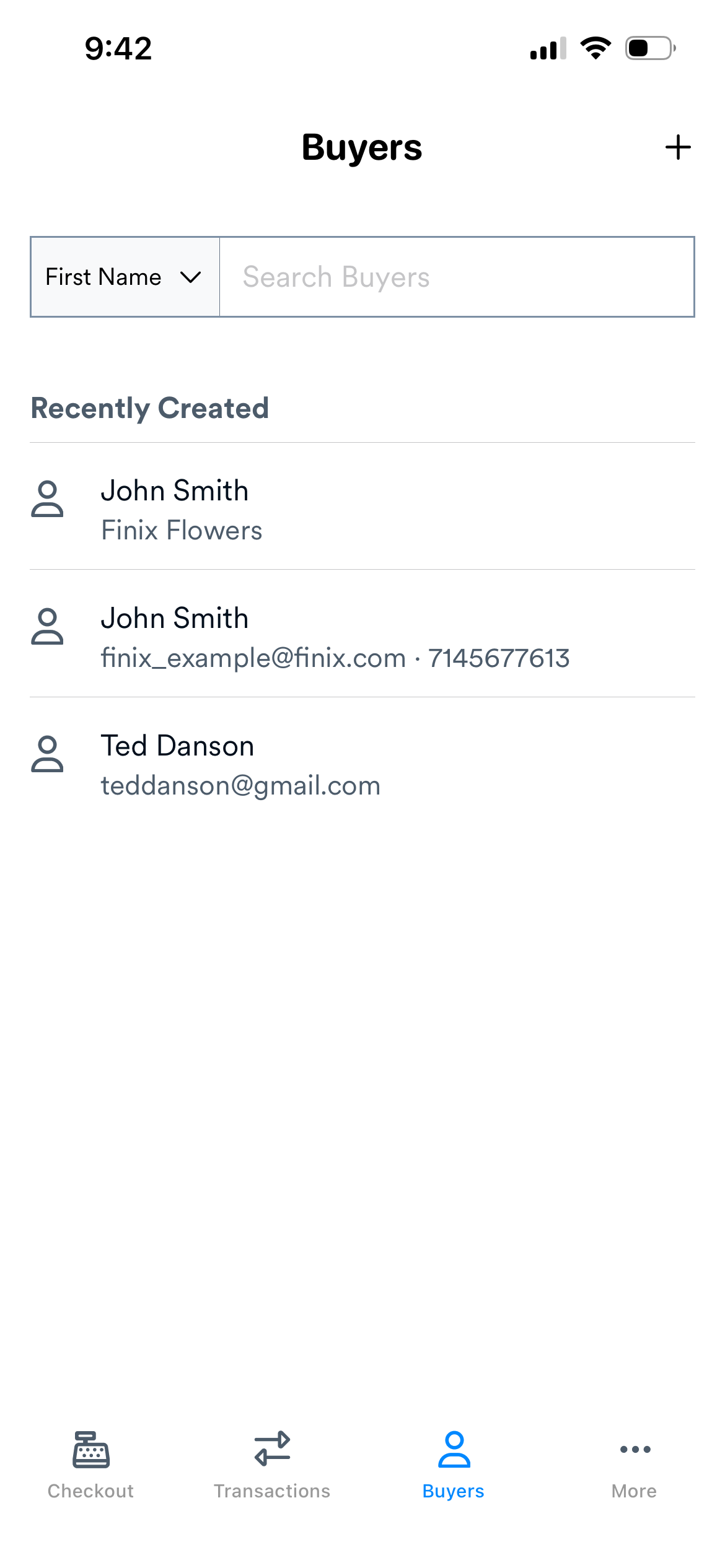
Tap Buyers in the navigation bar to add and manage the buyers associated with your Finix account.
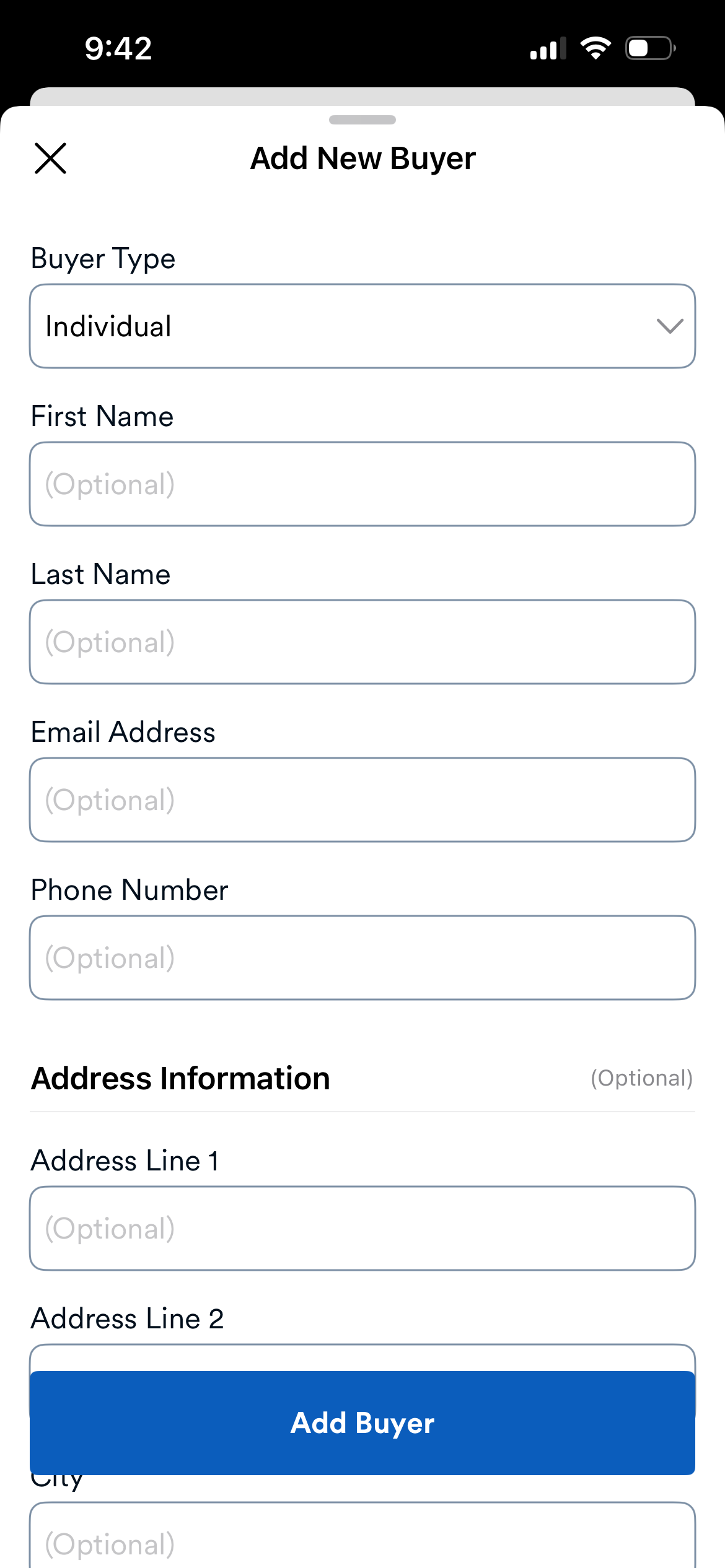
- Tap + in the top-right corner.
- Fill out the buyer's details.
- Tap Add Buyer.
The buyer appears in your buyer list. When taking a payment from the Checkout screen, you can select this buyer to associate them with the transaction.
Use the search bar at the top of the Buyers screen to search by first name, last name, or email address.
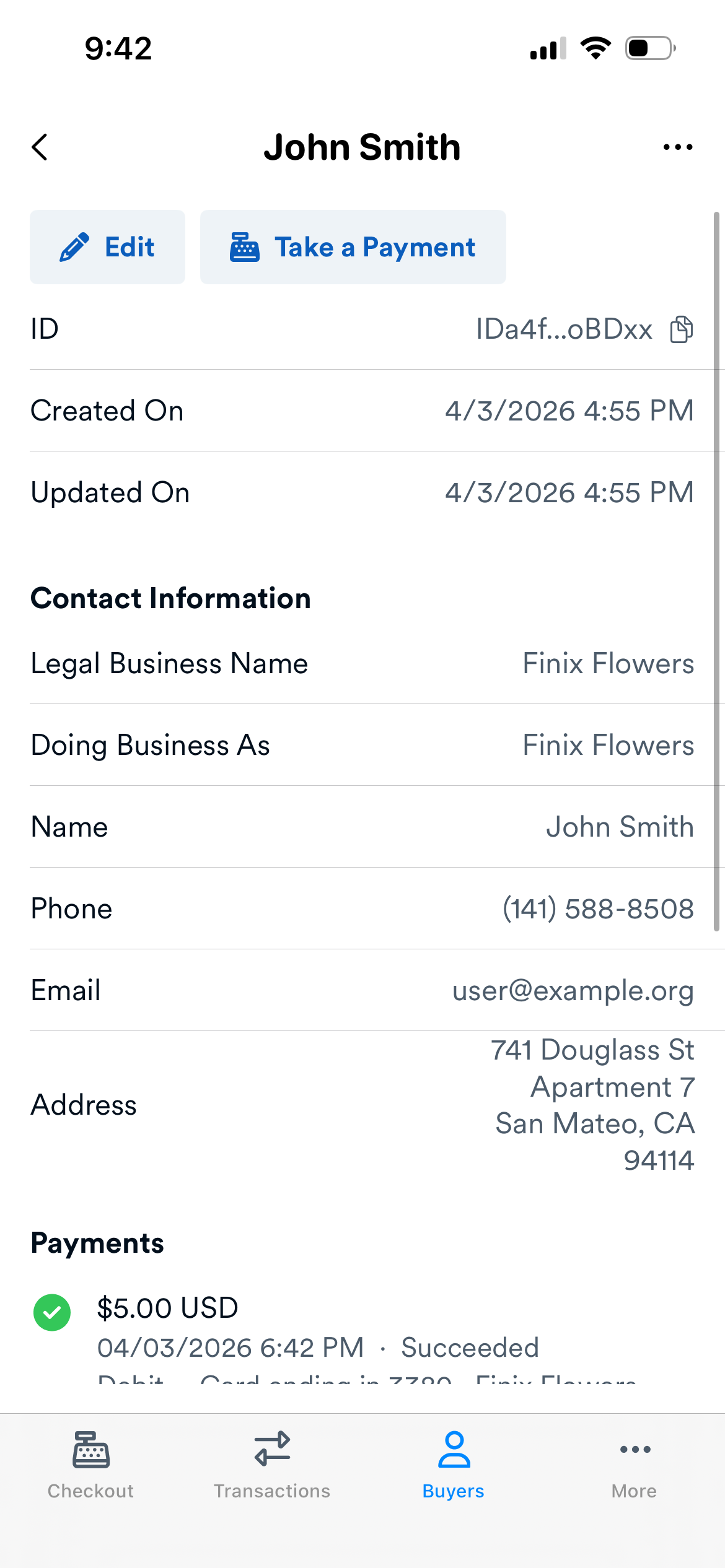
Tap a buyer from the list to open their Buyer Details page. From there, you can view the buyer's contact information, payment history, and saved payment instruments.
The following actions are available:
| Action | Description |
|---|---|
| Edit | Tap the pencil icon to update the buyer's details. |
| Take a Payment | Tap Take a Payment to go to the Checkout screen with the buyer already associated with the transaction. |
| View in Dashboard | Tap ... to open the buyer's record in the Finix Dashboard. |
- Tap ... (More) in the navigation bar.
- Tap Logout.
The next time you sign in, your credentials will be available to select so you don't have to re-enter them manually.
| Next Step | Description |
|---|---|
| Set Up the D135 | Pair and connect a Pax D135 card reader to accept in-person payments by tapping, swiping, or dipping a card. |
| Take a Payment | Process a sale or authorization using the card reader, manual card entry, or a payment link. |
| Payment Links | Create and share payment links so buyers can pay remotely from their own device. |