This walkthrough covers how to upload your Android app to PAX's PAXSTORE developer marketplace. PAX reviews and signs your app before it can be distributed to terminals through TMS.
You must be registered as a PAX developer and have access to the PAXSTORE marketplace before starting. See Deploying Your App for how Finix grants TMS access. Confirm your build meets the App Requirements before uploading.
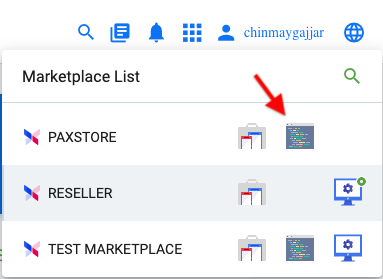
From the marketplace list, select the PAXSTORE marketplace to open the Developer Center.
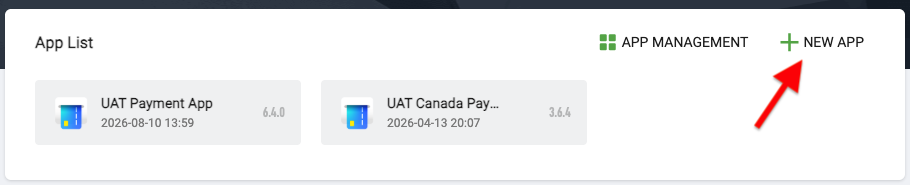
From the App List page, click + NEW APP.
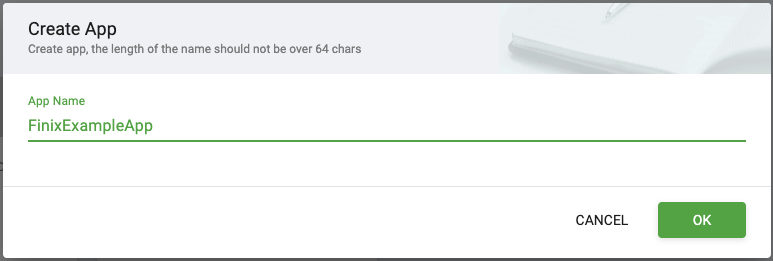
In the Create App dialog, enter an App Name (64 characters or fewer) and click OK.
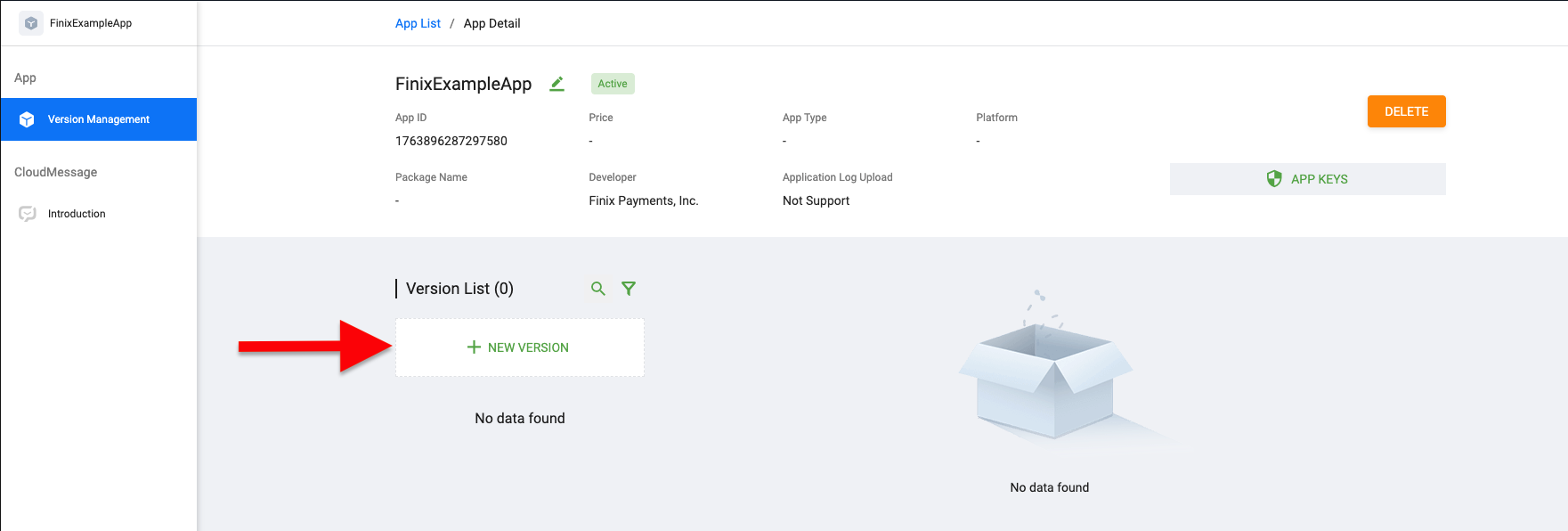
PAXSTORE creates the app shell and takes you to the App Detail page. Select Version Management, then click + NEW VERSION to start uploading a build.
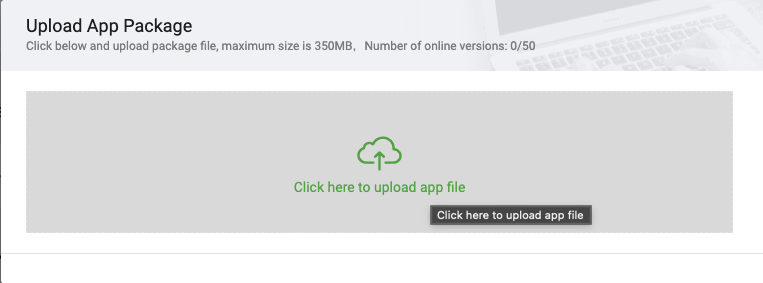
Upload your build. The package must be under 350MB.
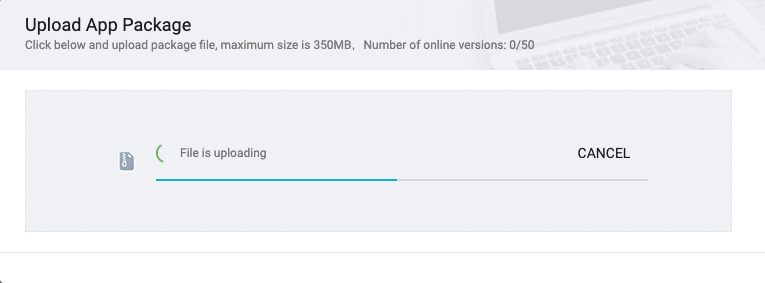
Wait for the upload to finish. A progress bar tracks the upload while the file transfers.
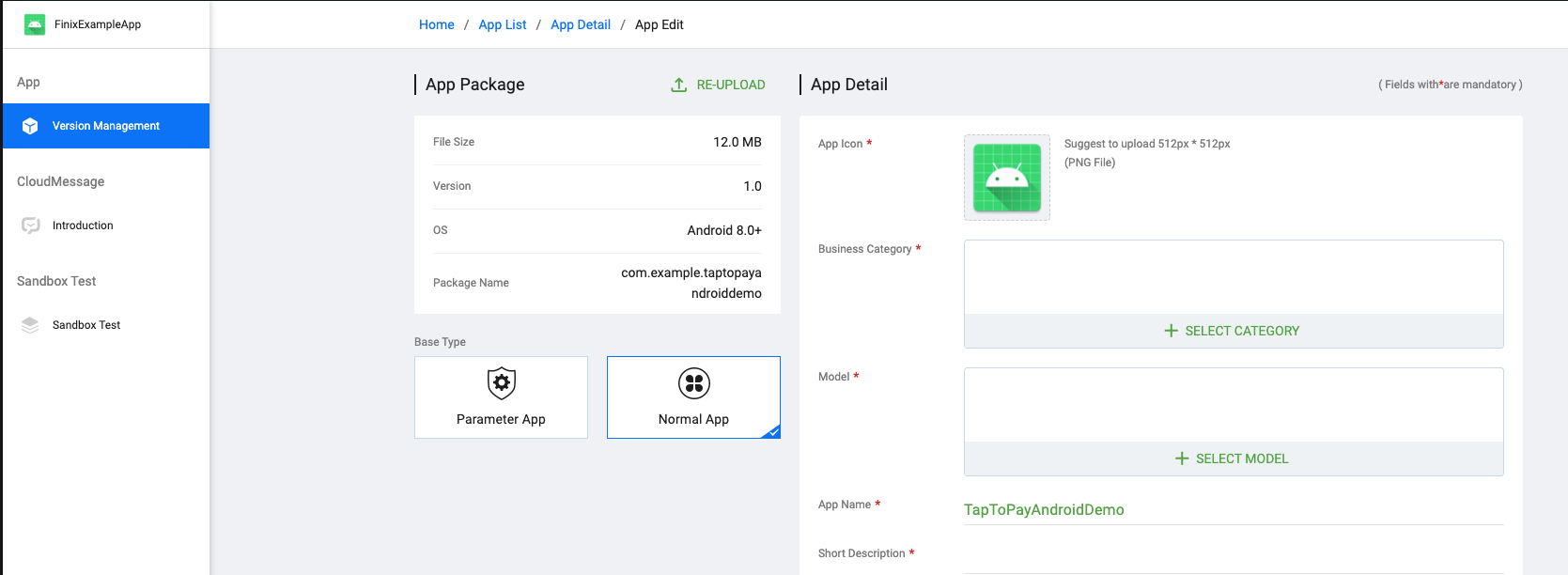
Once the package finishes processing, PAXSTORE reads details like file size, version, OS, and package name directly from the build. Complete the remaining required fields.
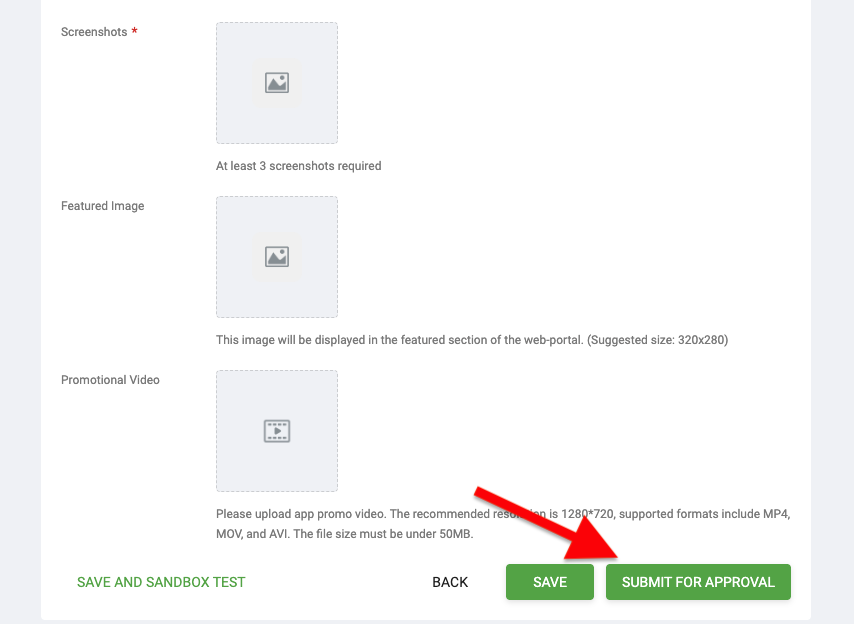
Scroll down and provide at least 3 Screenshots (required). A Featured Image and Promotional Video are optional.
When you're ready, click SUBMIT FOR APPROVAL.
PAX reviews and signs your app before it becomes available to distribute. Once it's approved, you can push it to the terminals in your fleet through TMS. See Deploying Your App for the distribution steps.