A push task is a job that PAX's terminal management system (TMS) sends to a terminal to execute. The TMS pushes the instruction directly to the device. Push tasks can:
- Deploy a new payment application to the device.
- Send a software or firmware update to the terminal.
To push your app, first create a dynamic group of terminals, then push the app to that group.
Navigate to Group Management in the nav bar, under the intended reseller.
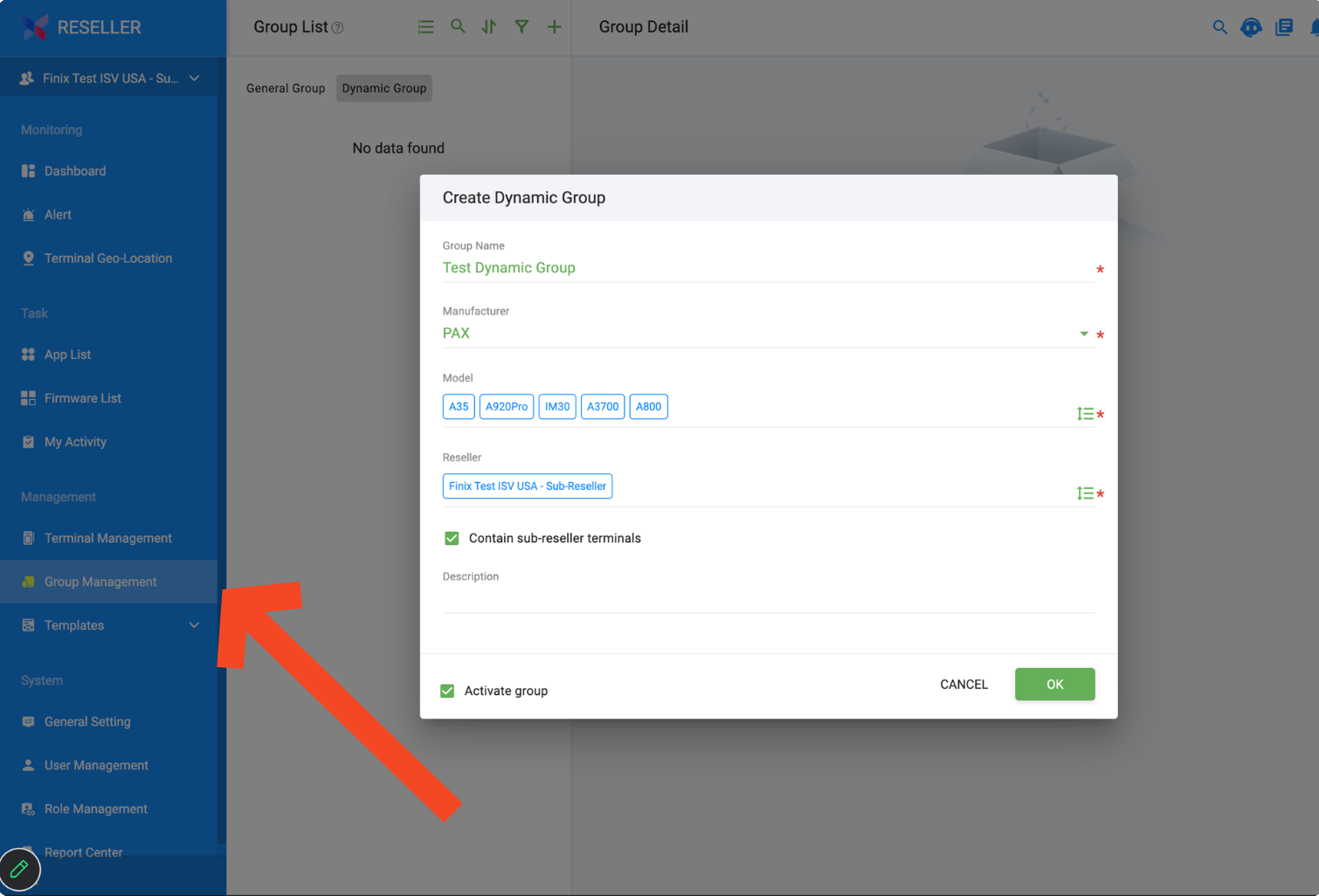
From the Group List page, click + and select Add Dynamic Group.
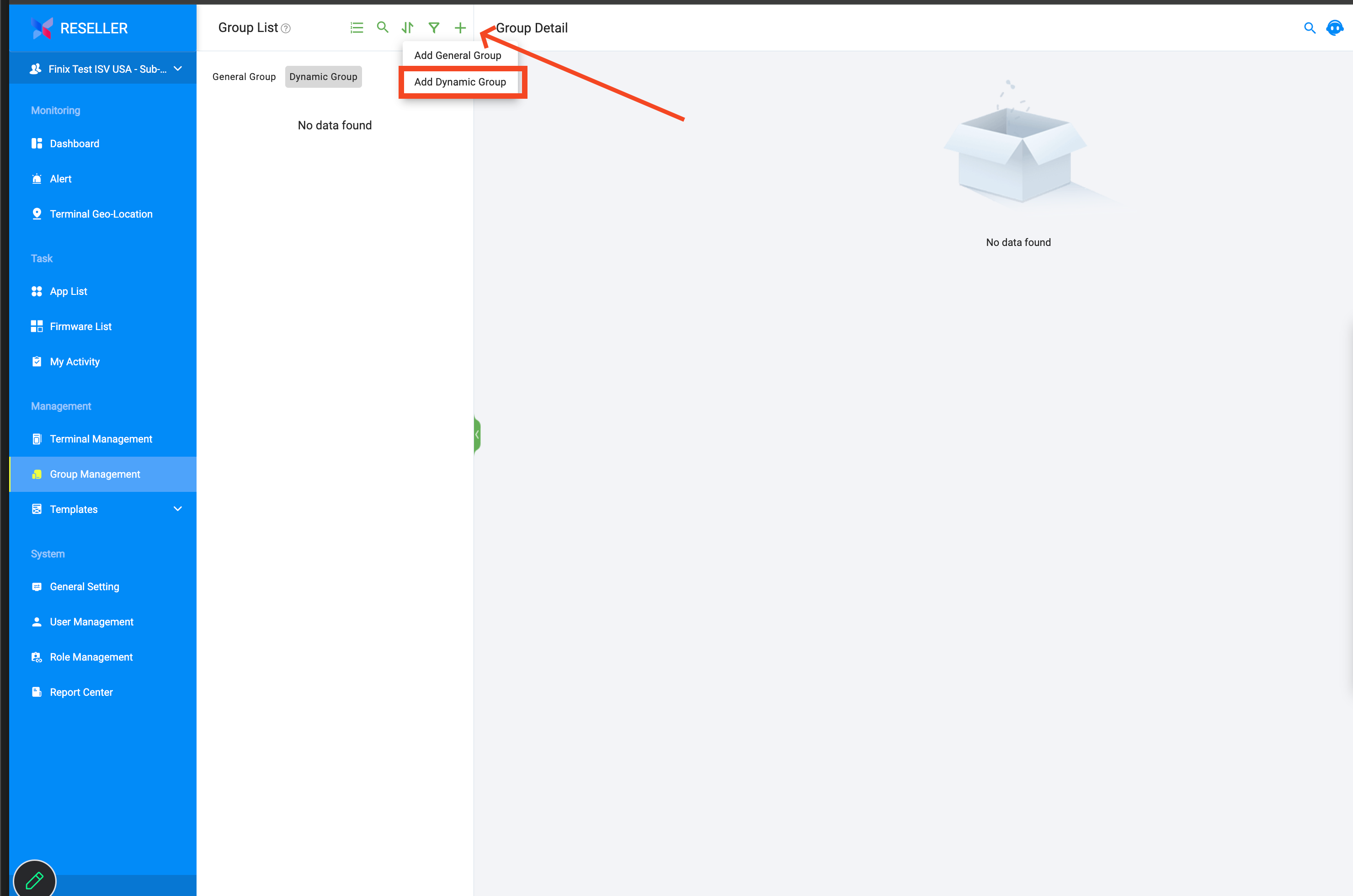
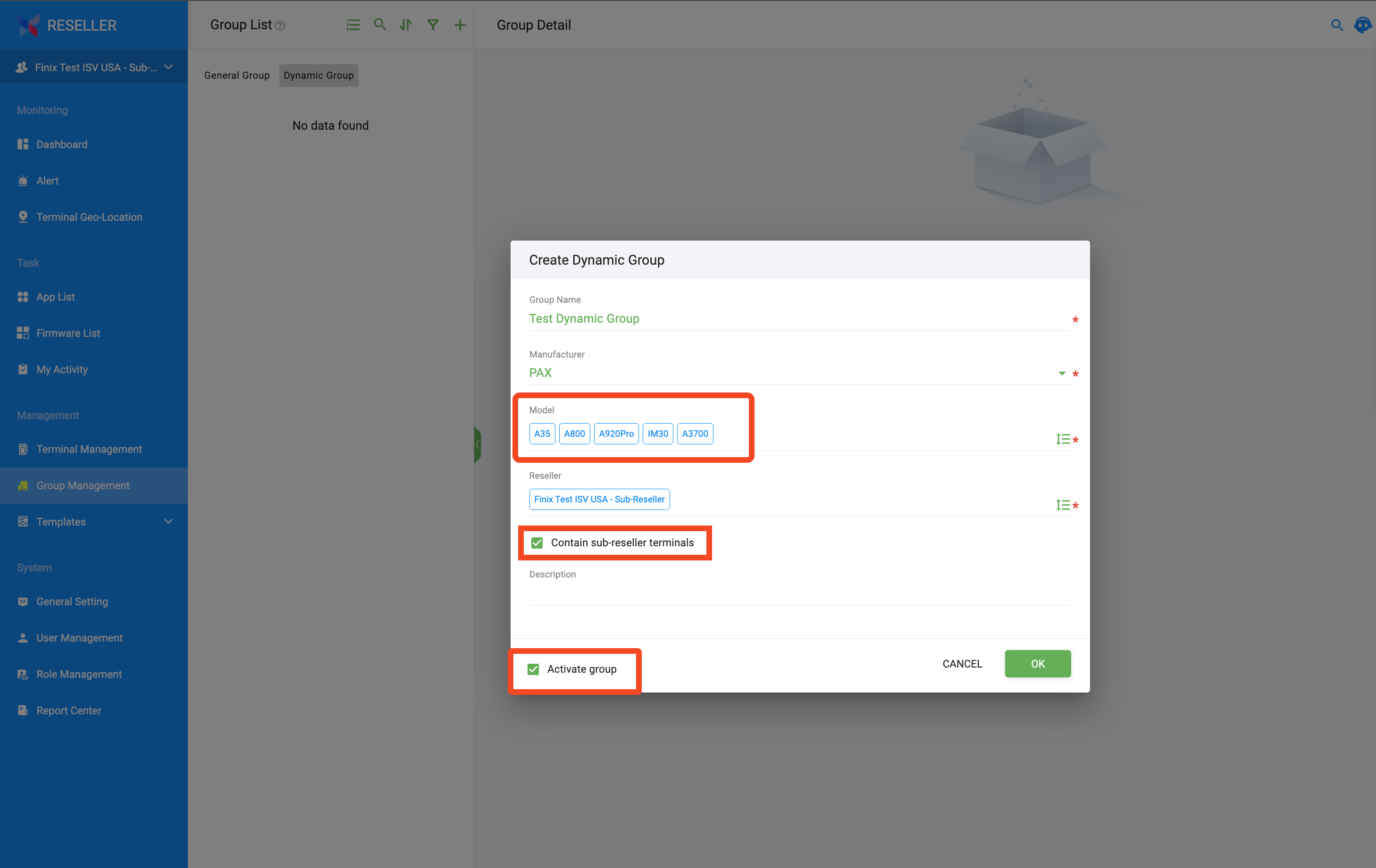
In the Create Dynamic Group dialog, enter a Group Name, then configure the following and click OK:
- Model: The models of devices that will be supported.
- Contain sub-reseller terminals: Checked.
- Activate group: Checked.
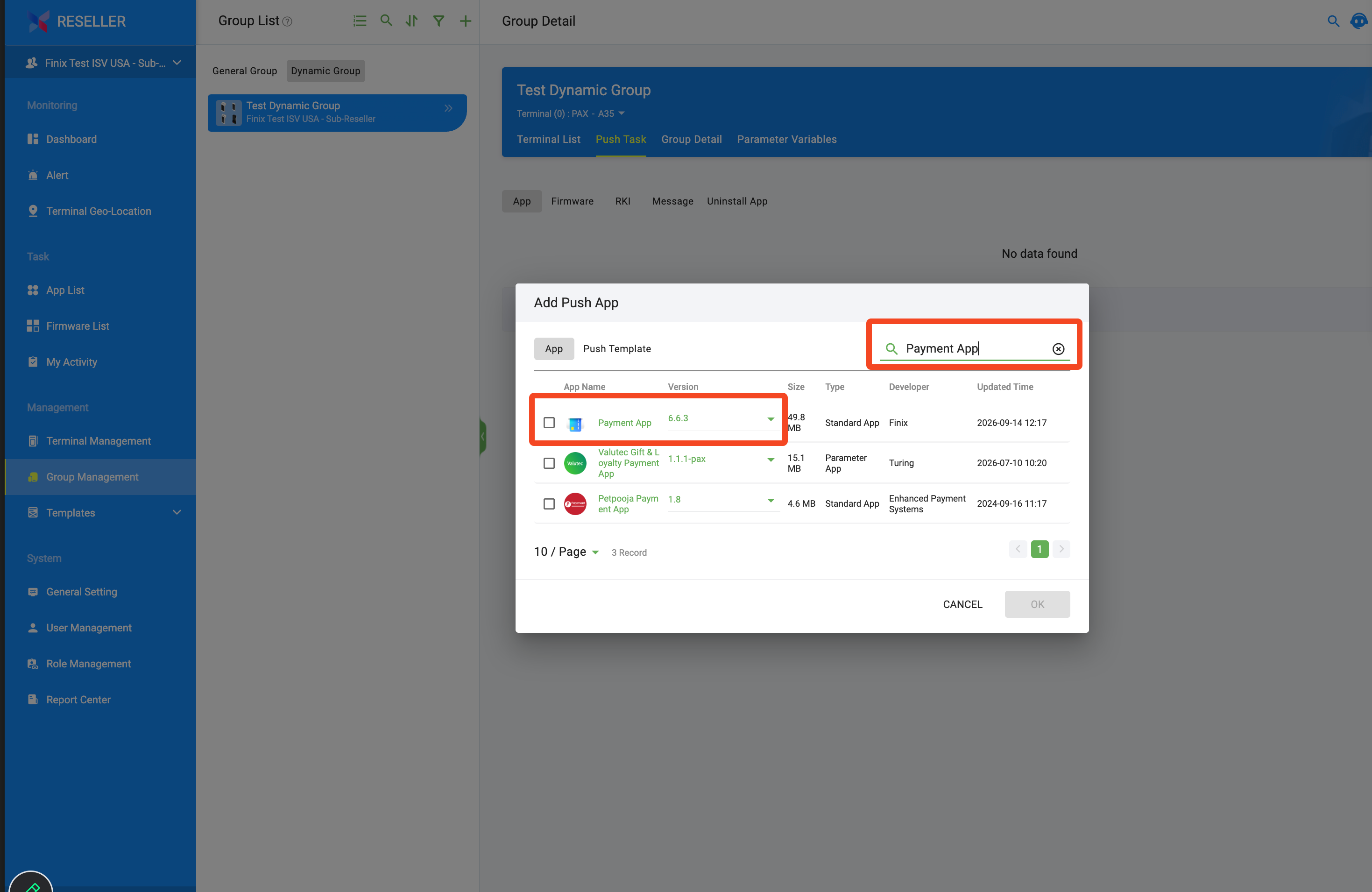
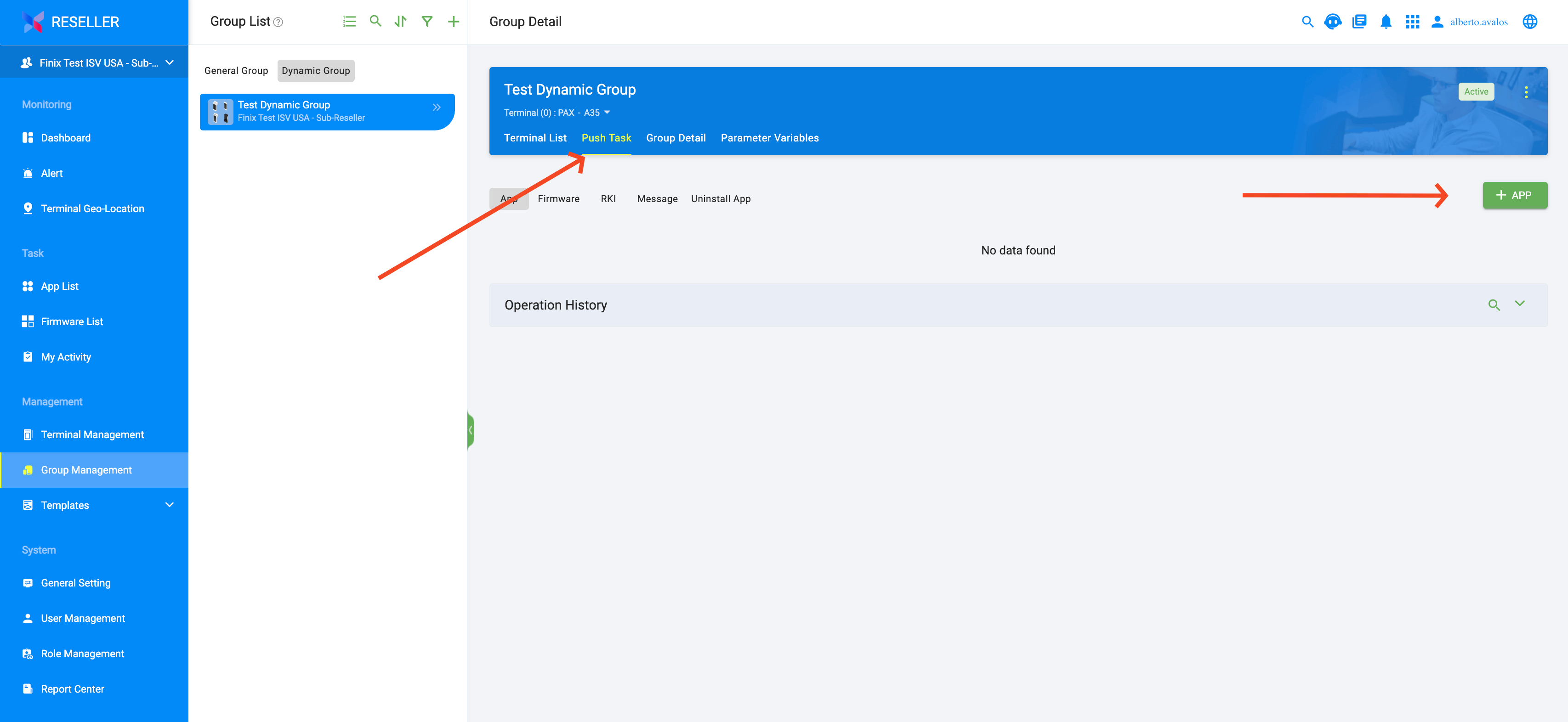
Select the dynamic group you created, go to the Push Task tab, then click + APP.
In the Add Push App dialog, search for your app, select it, and click OK to push it to every terminal in the group.