Use the Virtual Terminal to accept credit and debit card payments directly from the Finix Dashboard, without sending buyers to an external payment page.
Unlike Finix's other low-code/no-code solutions, the Virtual Terminal is designed for real-time payment collection with no prior setup required. There is no buyer-facing page where customers enter their own payment details. Instead, the merchant enters the buyer's card information directly or collects payment through a connected physical device.
The Virtual Terminal form allows you to configure the payment as a sale or authorization, enter transaction and payment details, and add buyer fees. You can process the payment manually by entering card details or send it to a connected device.
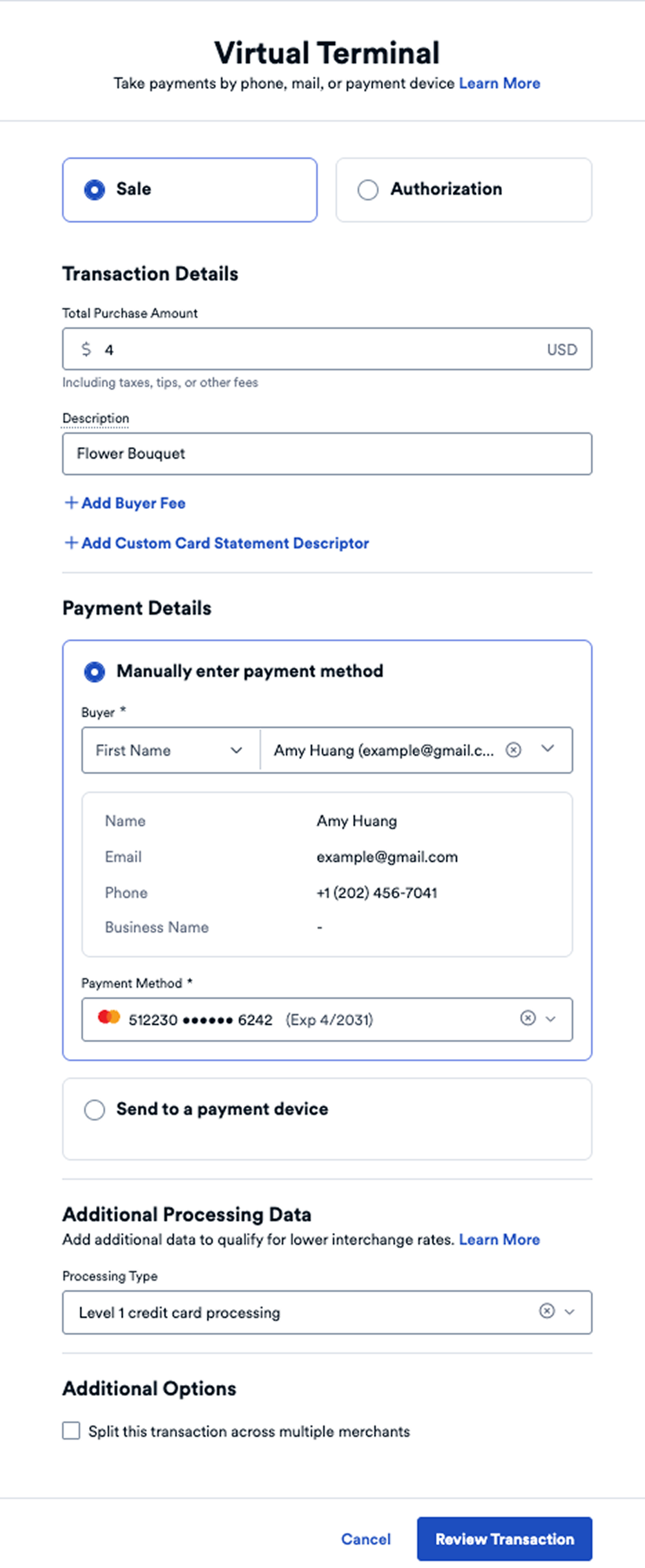
Imagine you are a merchant that does custom embroidery. When a customer comes to the store to pick up their order, you type in the total amount due on the Virtual Terminal in the Finix Dashboard.
You can manually enter the customer's payment method, or — if you have a payment device provisioned for in-person payments — push the transaction to the device so the customer can pay by tapping, swiping, or dipping their credit or debit card.
In this case, the Virtual Terminal means you do not need an external payment page. Everything is handled directly from the Finix Dashboard.
When creating a payment in the Virtual Terminal, you choose between two transaction types:
- Sale - A one-step transaction that immediately charges the buyer's card.
- Authorization - A two-step transaction that first places a hold on the buyer's funds. You can later capture the authorization to complete the charge, or void it to release the hold.
The Virtual Terminal supports the following:
- Process a sale or authorization - Immediately charge a buyer or place a hold on funds to capture or void later.
- Add buyer fees - Pass processing costs to the buyer using a surcharge fee (up to 3% on credit cards) or a flat-rate convenience fee.
- Custom statement descriptor - Add a descriptor (1–20 characters) that appears on the buyer's card statement. Available on sales only.
- Split transactions - Split a transaction across two or more merchants. For more information, see Split Transactions.
- Level 2 / Level 3 processing - Submit additional order data to qualify for lower interchange rates. For more information, see Level 2 and Level 3 Processing.
The Virtual Terminal supports card payments ($USD and $CAD).
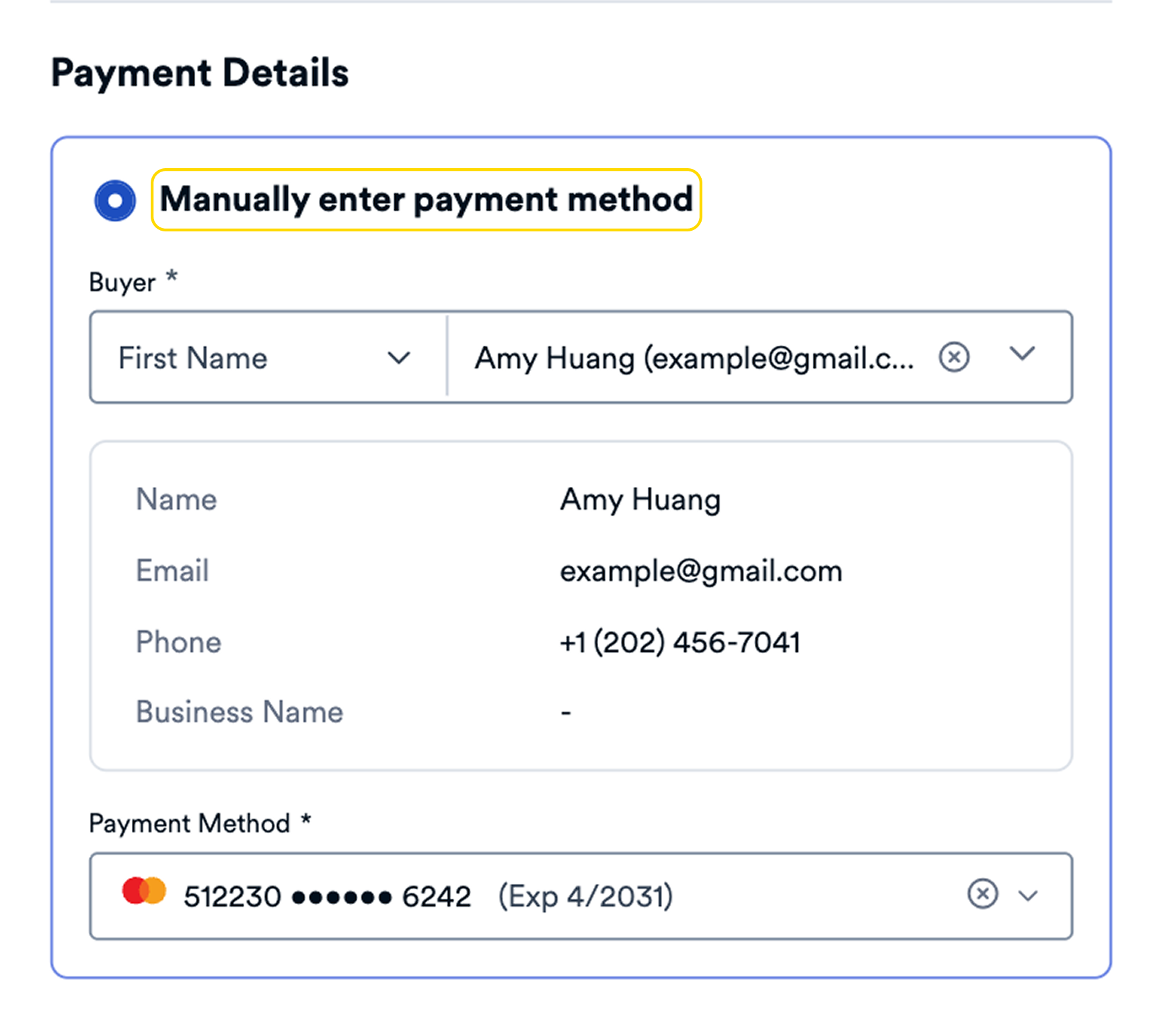
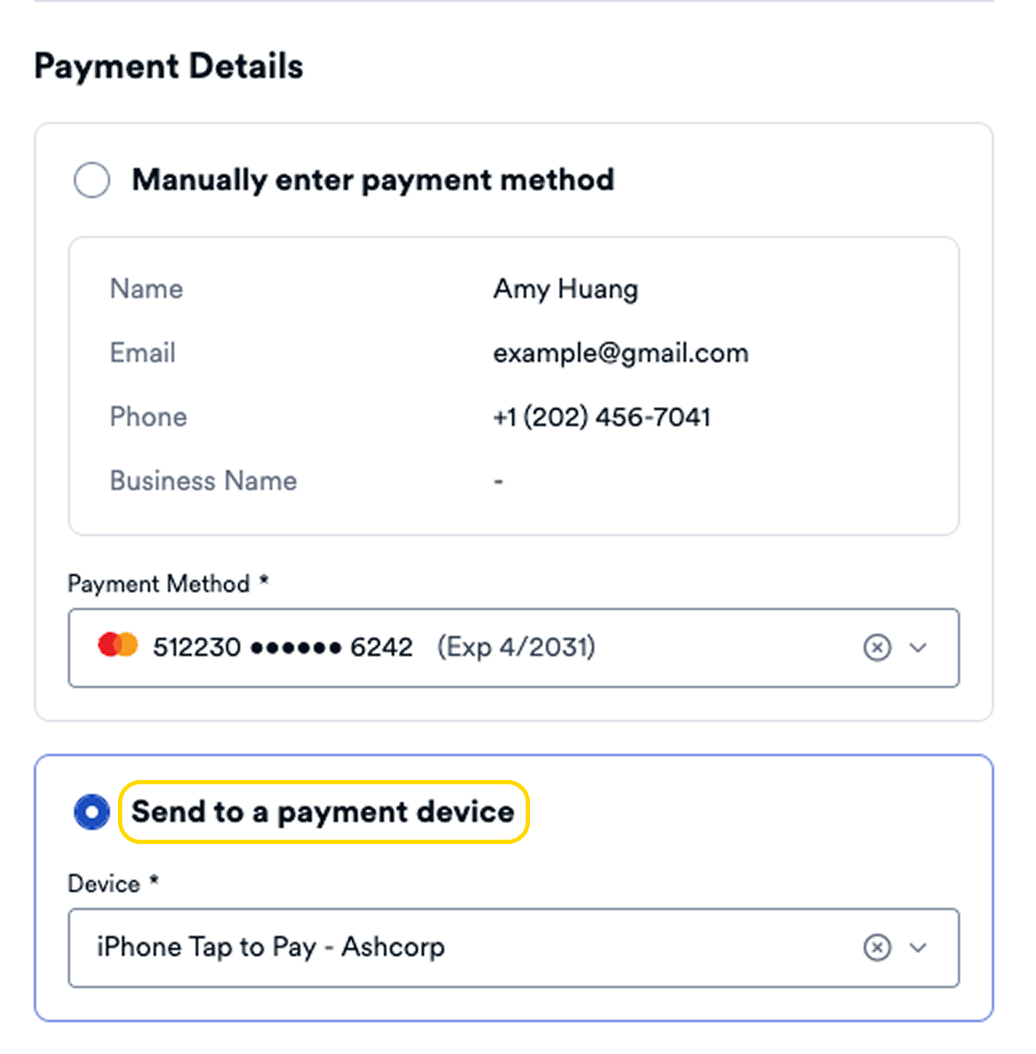
When filling out the Virtual Terminal form, you can collect the buyer's payment in two ways:
Manually enter the buyer's credit/debit card information into the Virtual Terminal.
You can process the payment using a payment device. The device must be provisioned and have an open connection. See our in-person payments guides to learn how to set up a device.
Refunds on payments made through the Virtual Terminal are handled the same way as other payments.
View our guide on managing transactions, or to learn about refunds more broadly, refer to our Refunds guide.