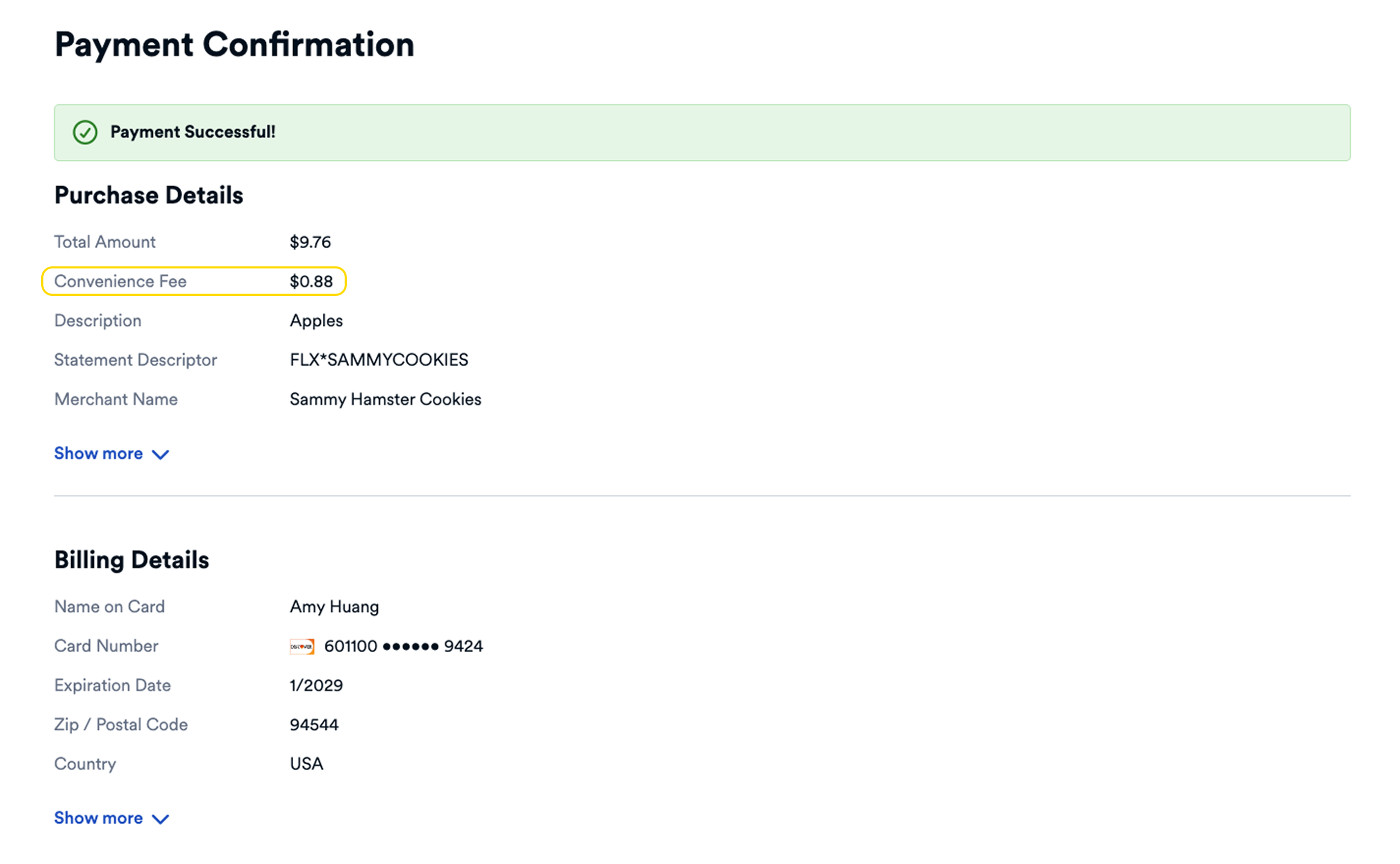
Convenience fees are buyer charges for providing a more convenient payment channel. They can only be charged when the seller provides a payment method (usually online or phone) different from their standard channel (historically mail or in-person).
Convenience fees must be a flat amount (not a percentage). For more details on requirements, see Convenience Fees.
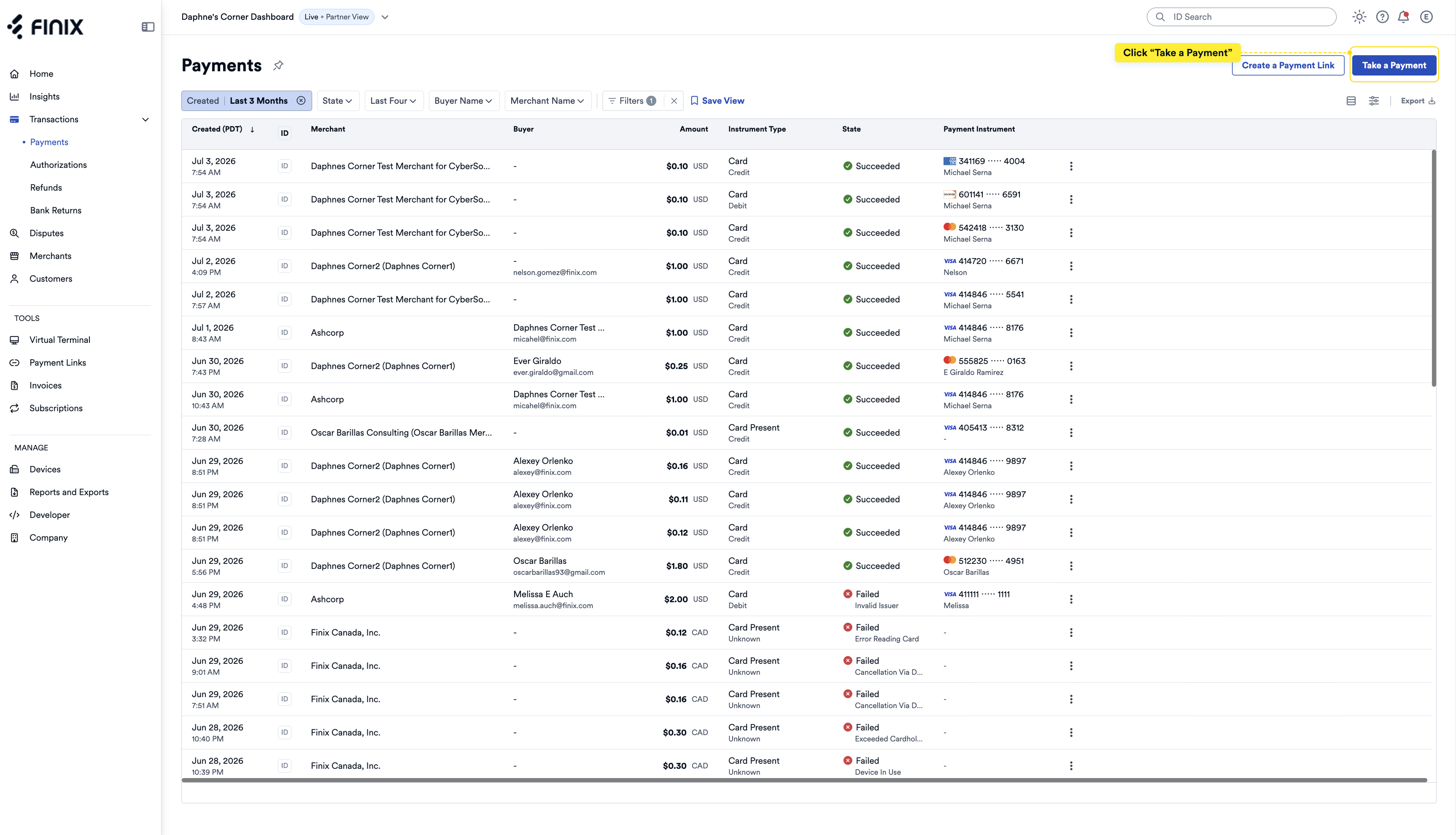
- From the left navigation, click Transactions > Payments.
- Click Take a Payment.
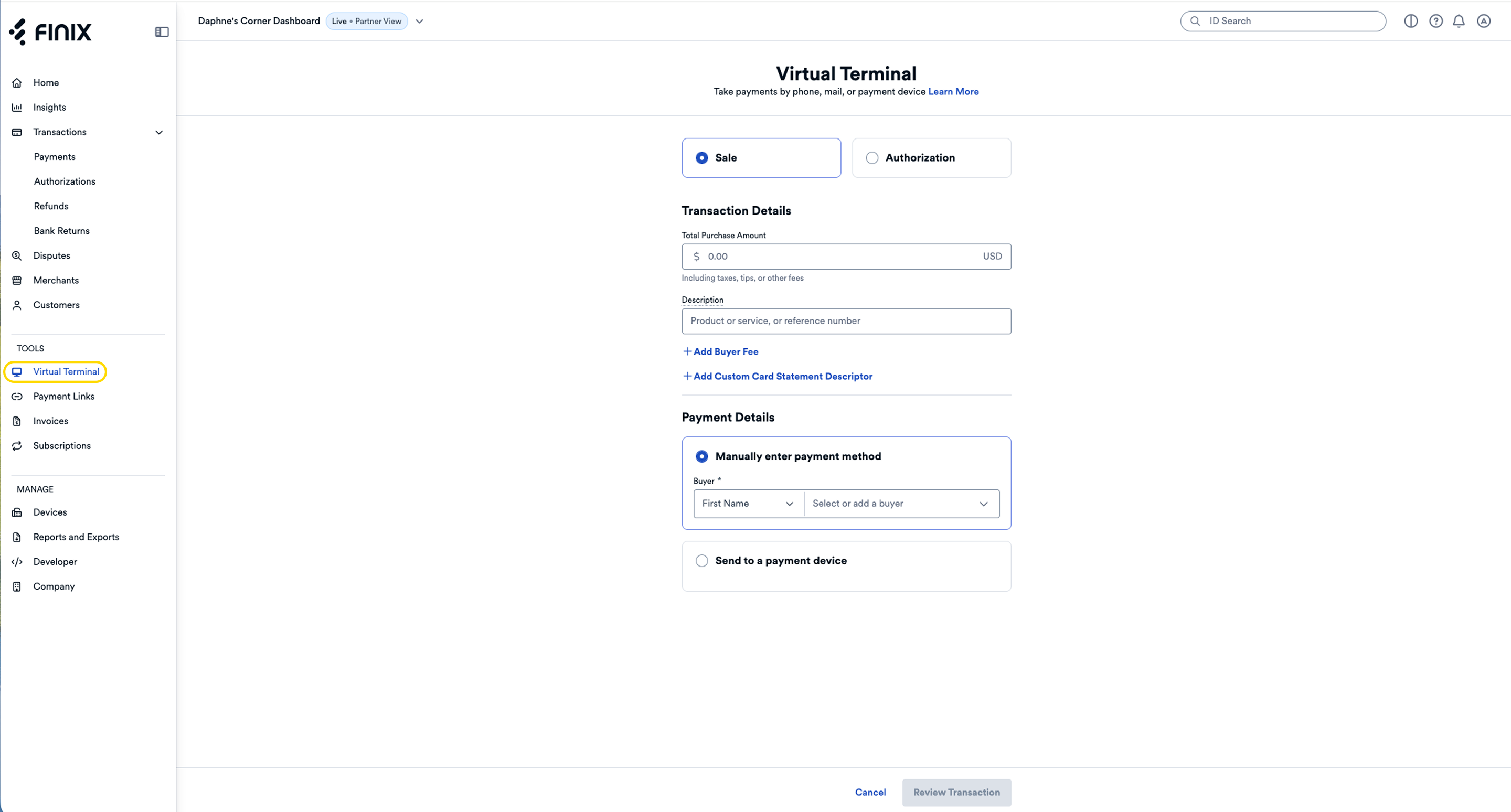
From the left navigation, click Tools > Virtual Terminal.
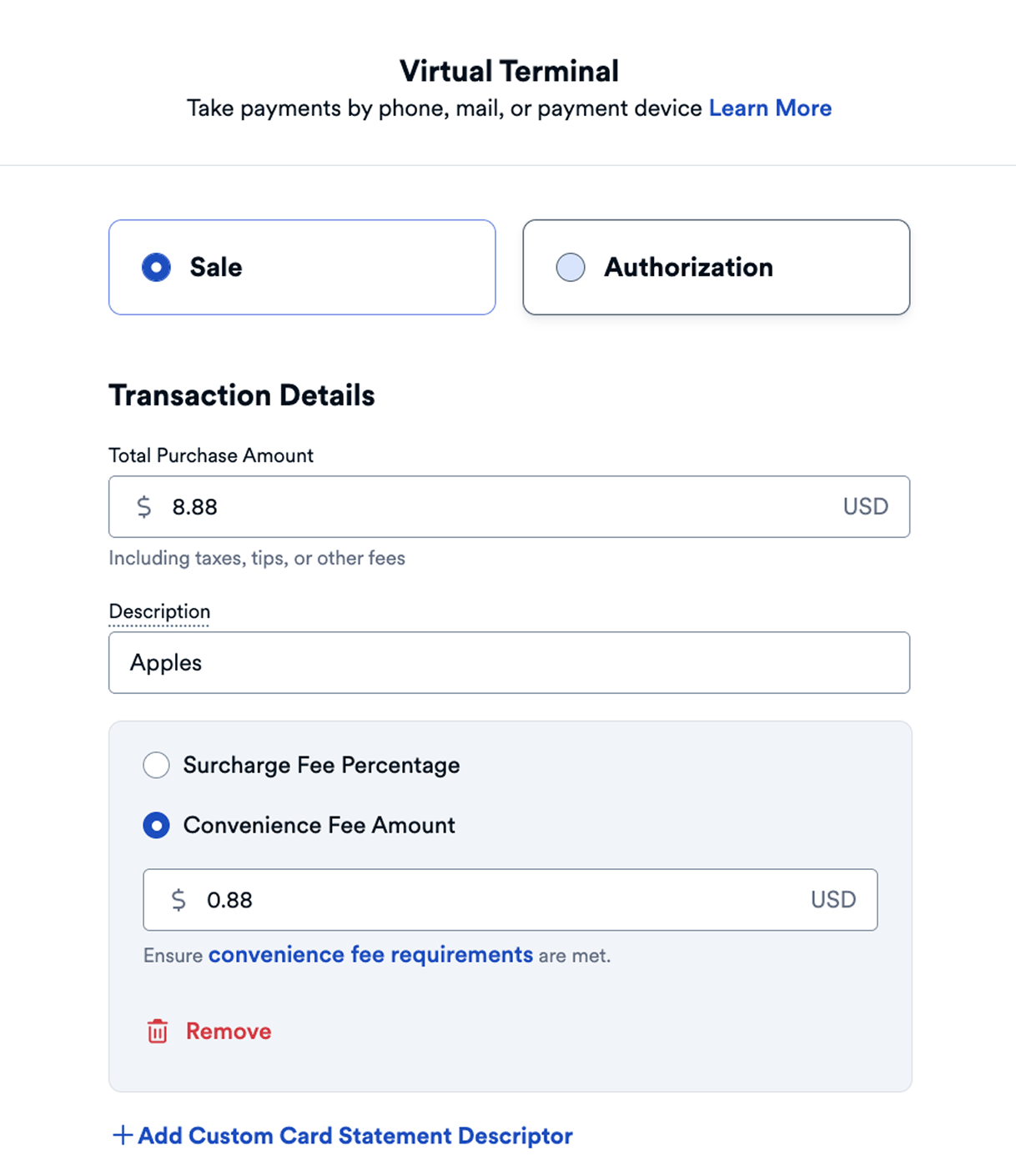
- Select whether to process a Sale or Authorization using the Virtual Terminal.
- Under Transaction Details, enter a Total Purchase Amount and a Description.
Under Transaction Details, click +Add Buyer Fee to add a buyer fee to the transaction.
Select Convenience Fee Amount.
Enter a flat dollar amount.
View other Transaction Options available.
- Complete the remaining sections of the form.
- Click Review Transaction if the payment details look correct.
- Click Process Payment to complete the transaction.
- After submitting, a confirmation message appears with a Payment ID.
In the confirmation message after processing the payment, click the Payment ID to view its details.
- The payment or authorization details page displays.
The Convenience Fee is displayed under the Payment Details section.