Learn about the requirements and what you can do with Convenience Fee.
A convenience fee is a Buyer Charge that can only get passed to buyers when the seller is providing a method of payment (usually internet or over the phone) different from its standard payment channel (historically mail or in-person).
Sellers and your integration must meet these requirements to charge Convenience Fees:
- The fee is charged only when the seller provides buyers with a method of payment different from its standard payment channel.
- The fee can only be charged when processing Online Payments.
- The seller must support In-Person Payments.
- The buyer must be aware of the fee and its purpose before making a payment.
- After the fee gets disclosed, the buyer must have the option to cancel the transaction without any consequences.
- The Convenience Fee amount must be the same fixed amount across all card transactions.
- The fee must be in the total transaction
amount. A separate transaction can't be created. - Convenience Fees can't be alongside any other buyer charges.
- Convenience Fees can't be charged on a recurring or installment basis.
We recommend setting the convenience fee to about 3% of the seller's average transaction.
You can charge convenience fees using the Virtual Terminal. To do so, navigate to the Virtual Terminal on the Dashboard.
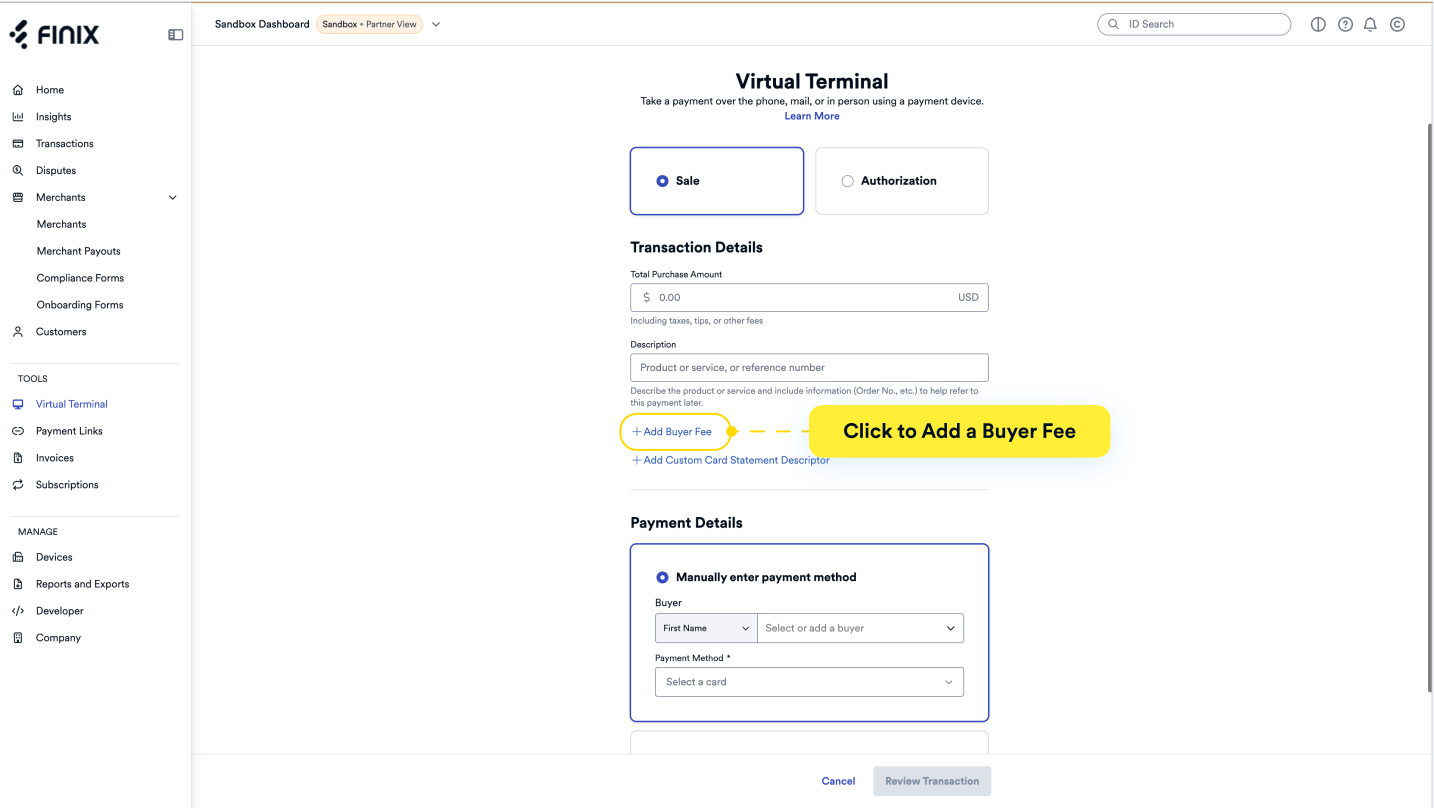
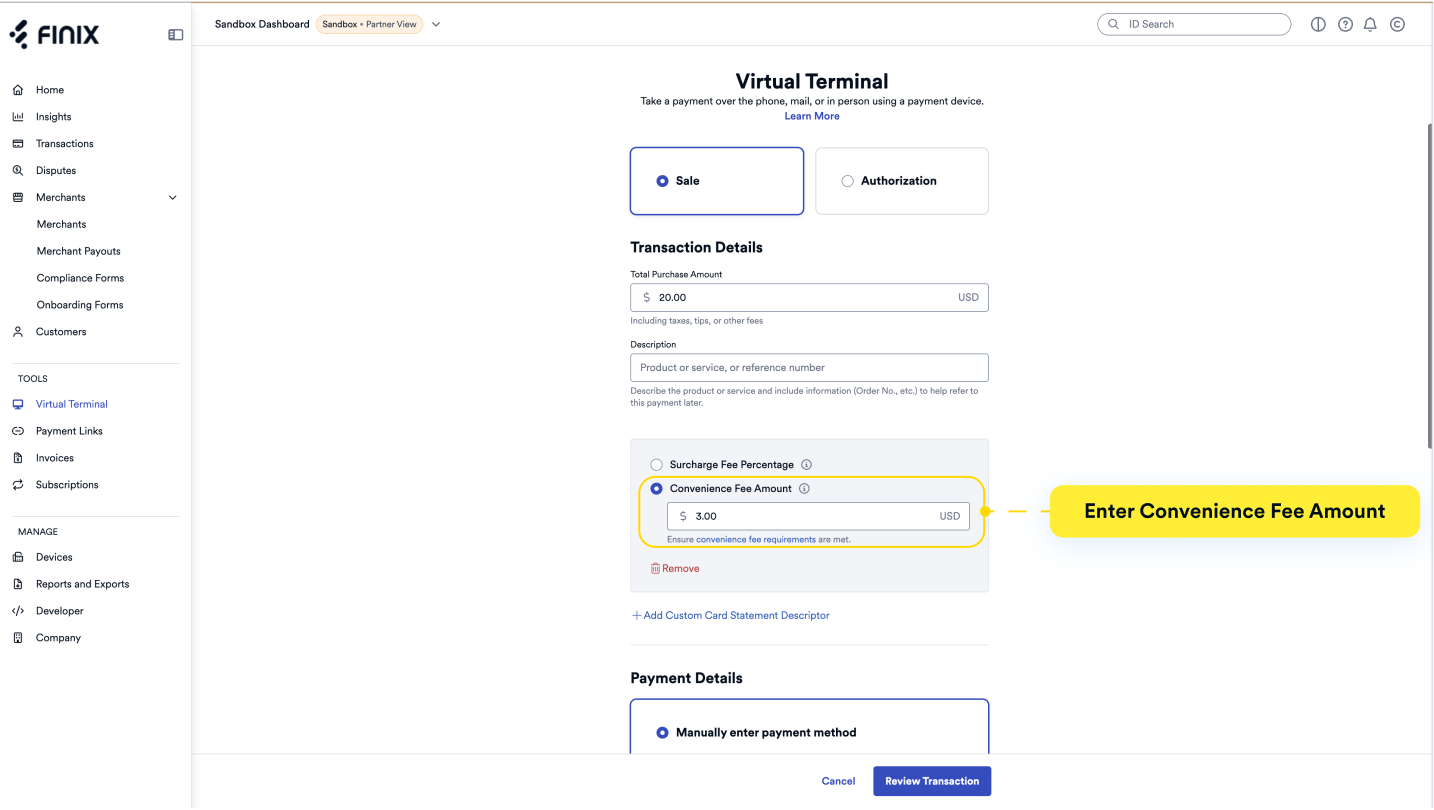
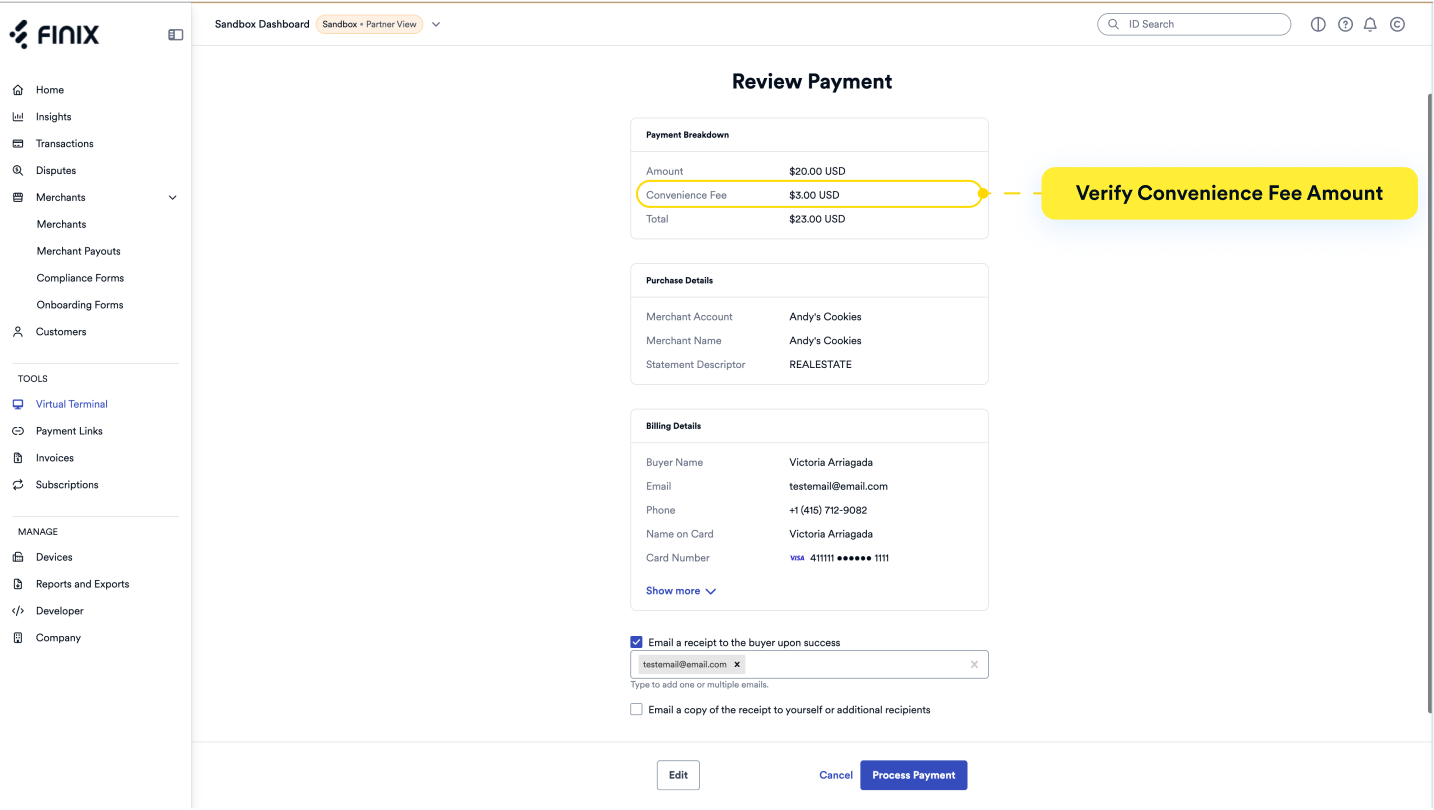
After you confirm the subtotal and convenience fee amount, you can then process the payment.
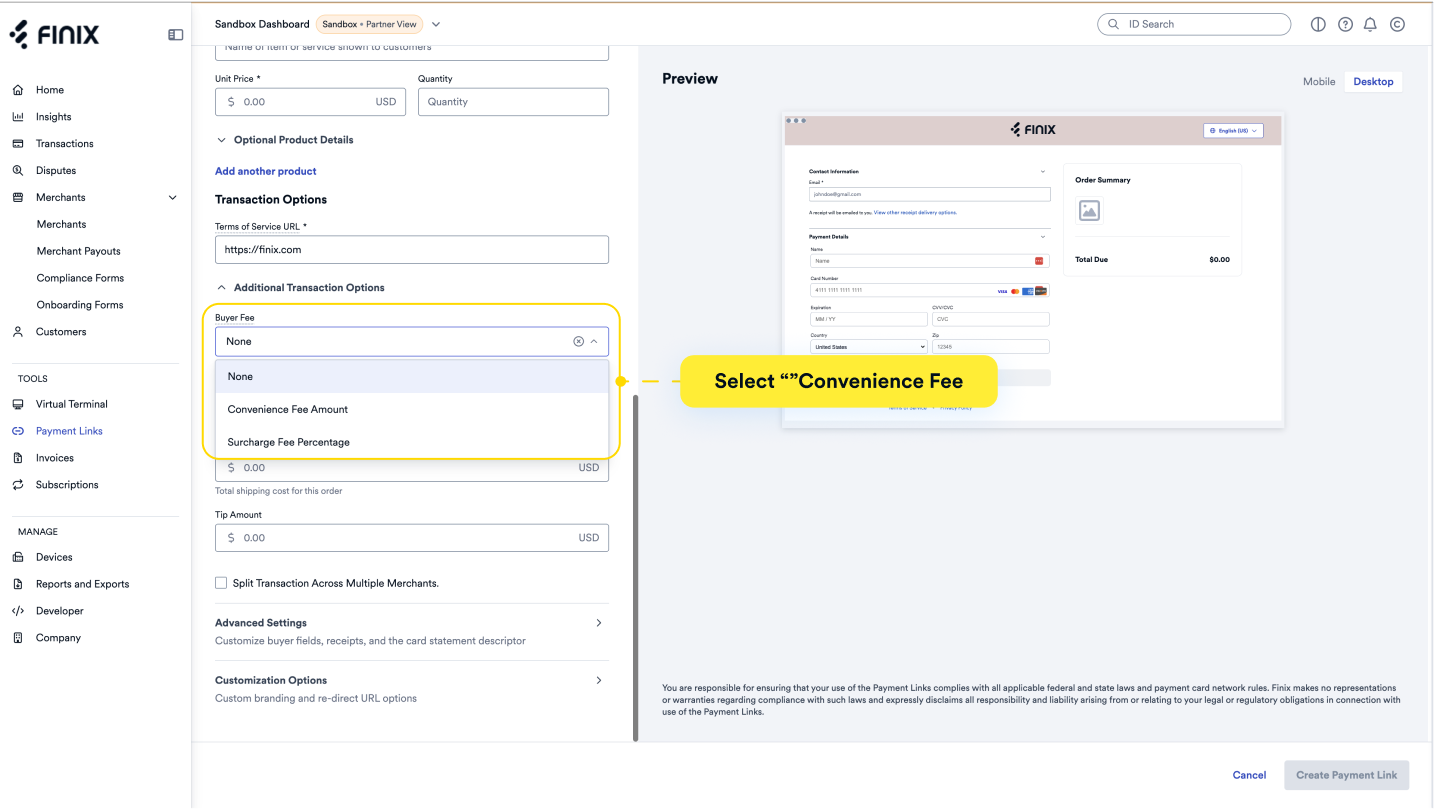
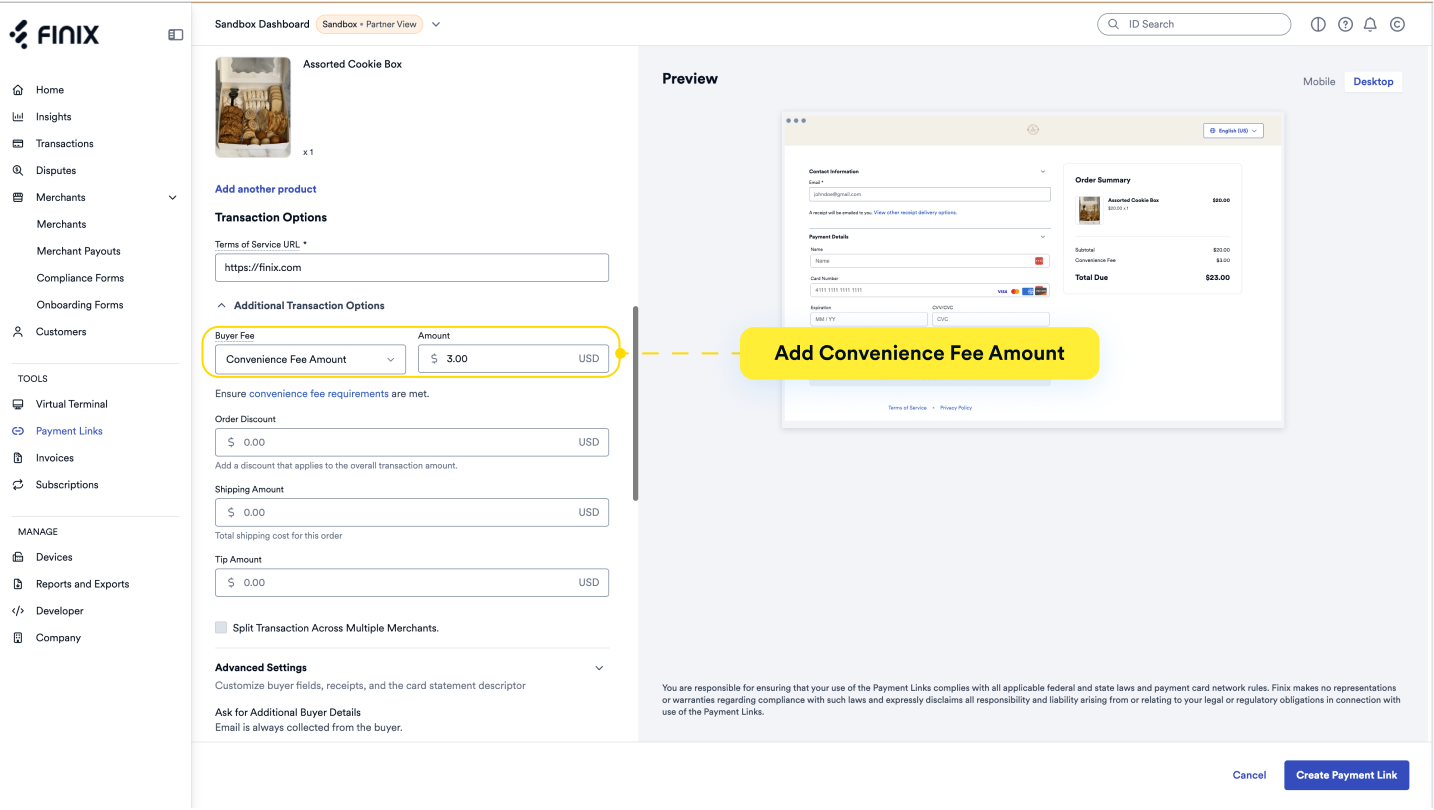
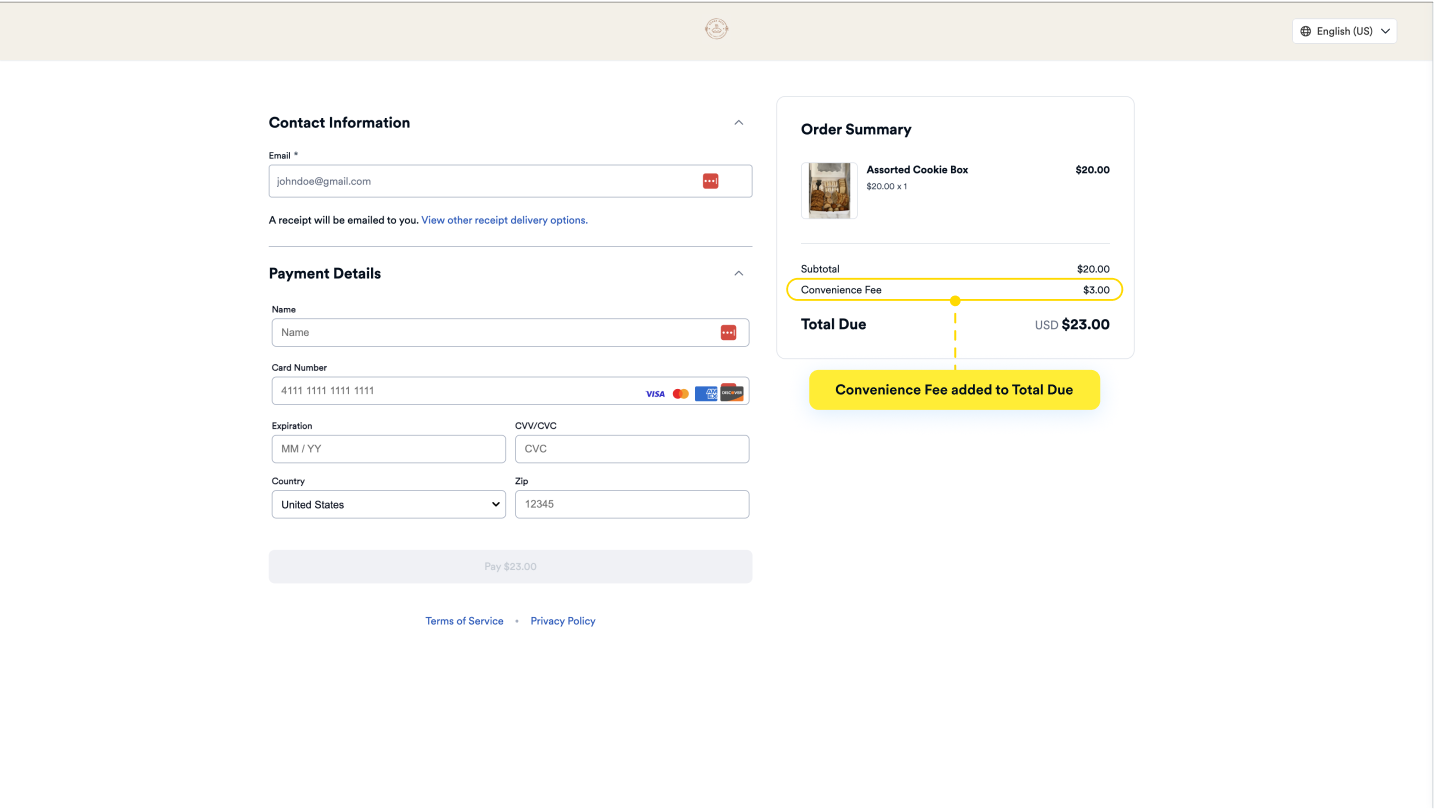
When you create a Payment Link, you have the option to add a convenience fee.
Include the convenience fee in convenience_amount when creating a Transfer or an Authorization.
See the following for an example where a vehicle is getting paid for online instead of in-person or via check.
- The transaction is for a $5200 car payment with a fixed Convenience Fee of $150.
- The fee is included in
tagsfor tracking purposes.
- Sandbox serverhttps://finix.sandbox-payments-api.com/transfers
curl -i -X POST \
  -u USfdccsr1Z5iVbXDyYt7hjZZ:313636f3-fac2-45a7-bff7-a334b93e7bda \
  https://finix.sandbox-payments-api.com/transfers \
  -H 'Content-Type: application/json' \
  -H 'Finix-Version: 2022-02-01' \
  -d '{
    "additional_buyer_charges": {
      "convenience_amount": 150
    },
    "amount": 5200,
    "currency": "USD",
    "merchant": "MUmfEGv5bMpSJ9k5TFRUjkmm",
    "source": "PIkxmtueemLD6dN9ZoWGHT44"
  }'