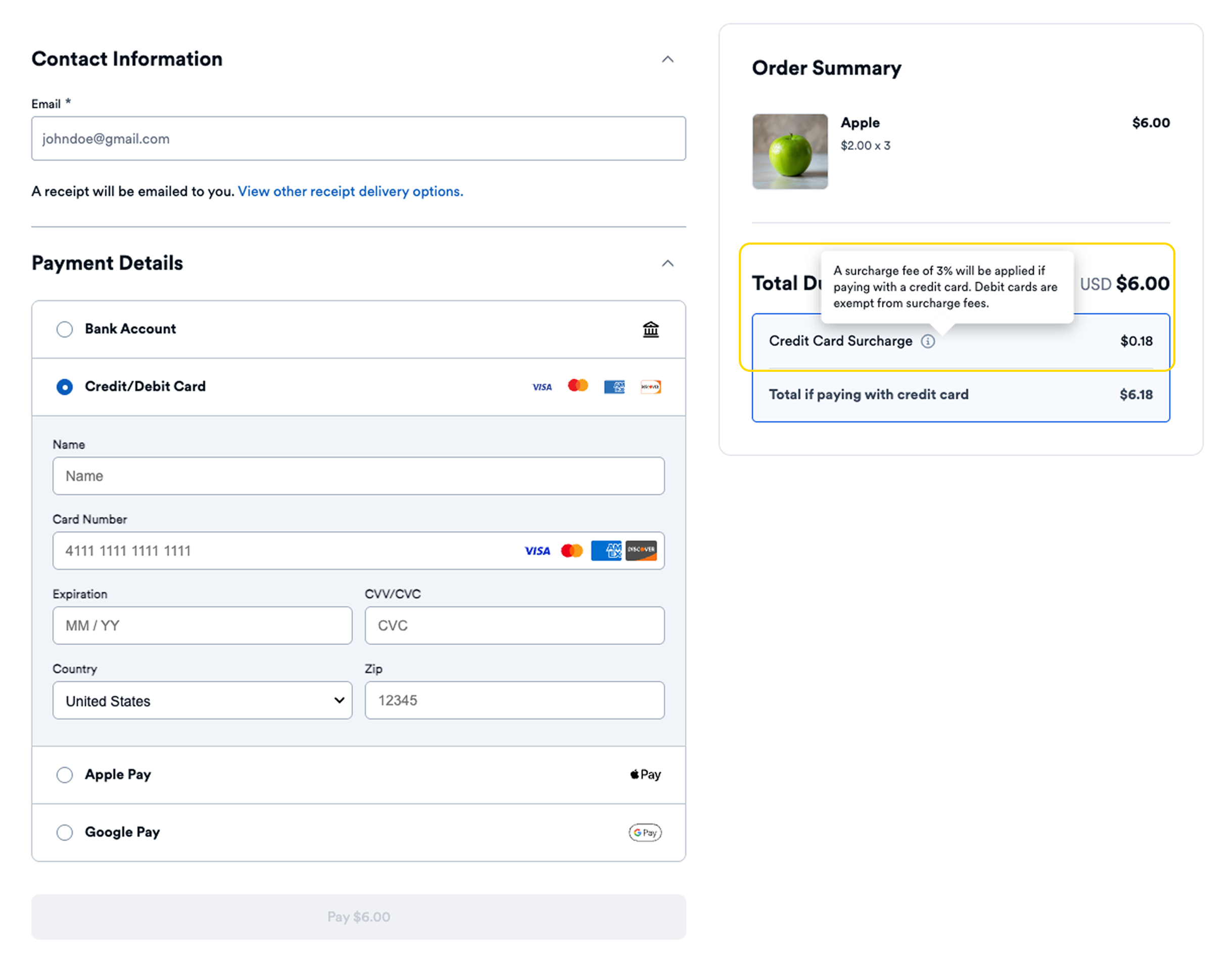
Surcharge fees are available to sellers to help cover the cost of processing payments in any environment.
Surcharge fees must be a percentage (not a flat amount) less than 3% for USA merchants and 2.5% for Canadian merchants. Surcharges cannot be applied when bank account (ACH) is the only permitted payment method. For more details on requirements, see Surcharge Fees.
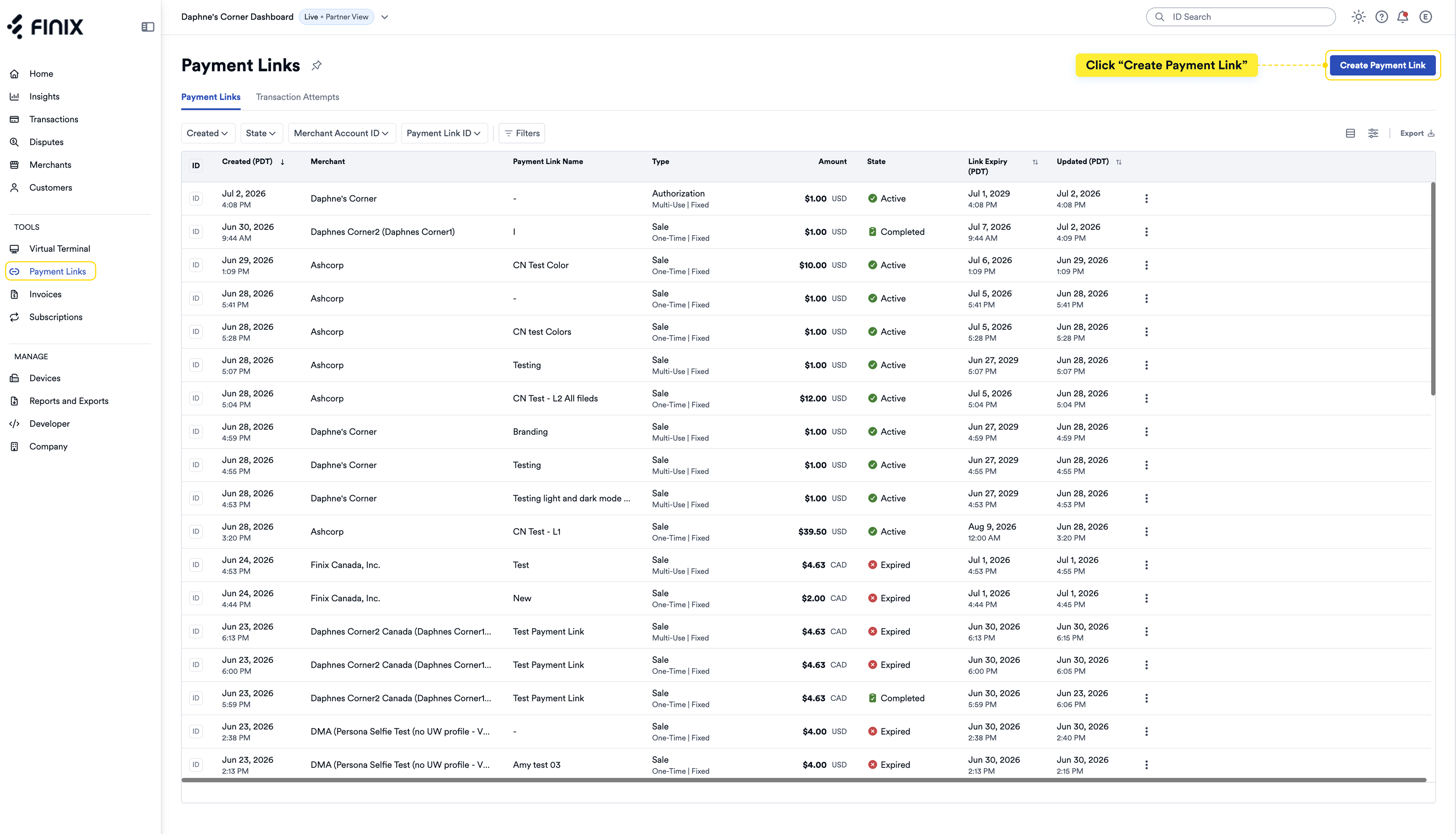
- In the Dashboard, navigate to Tools in the left navigation.
- Click Payment Links.
- Click Create Payment Link.
The creation form displays with a live preview that updates as you fill out each section.
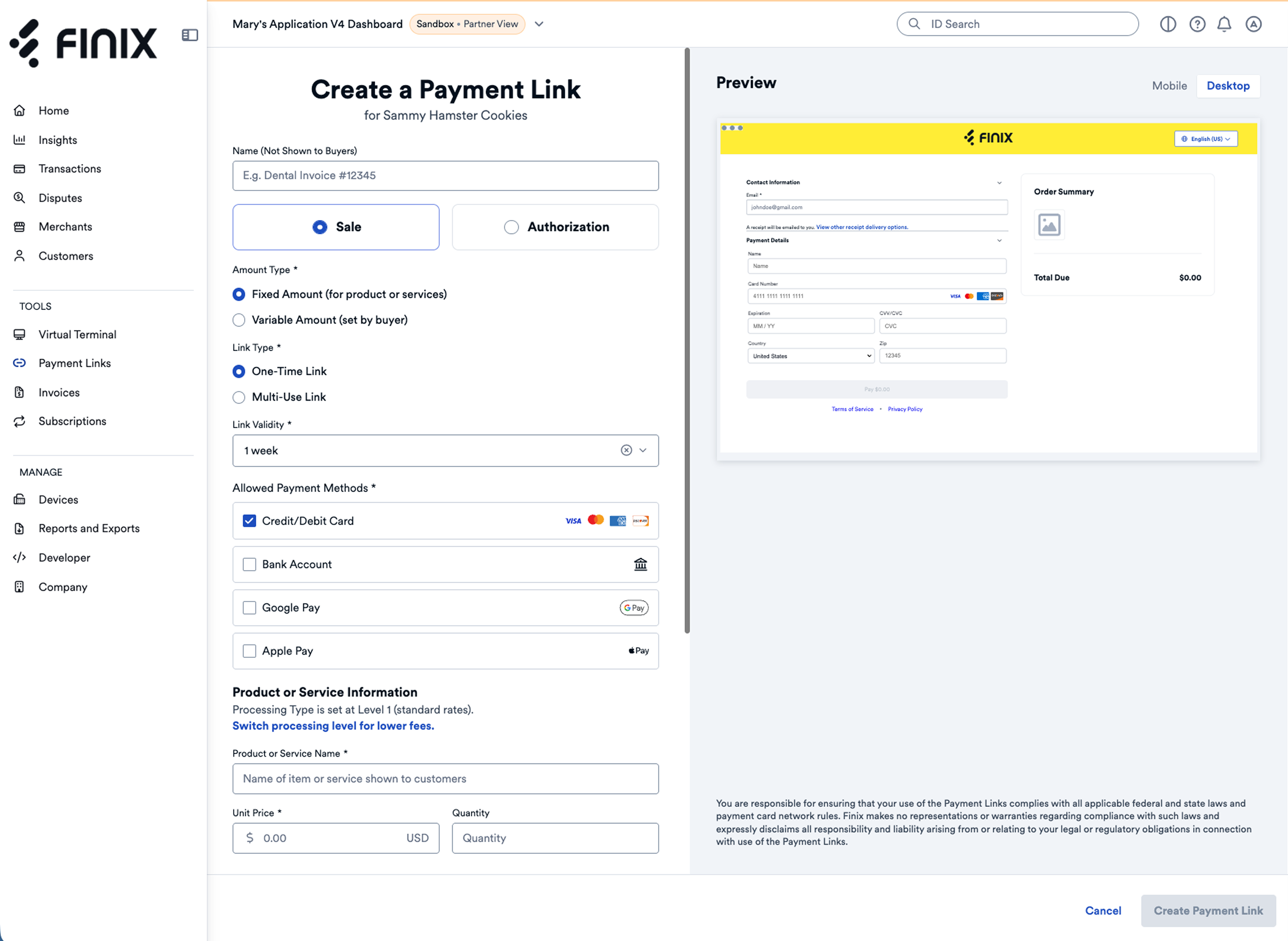
- Fill out the Basic Information section of the form.
- Fill out the Product or Service Information section of the form.
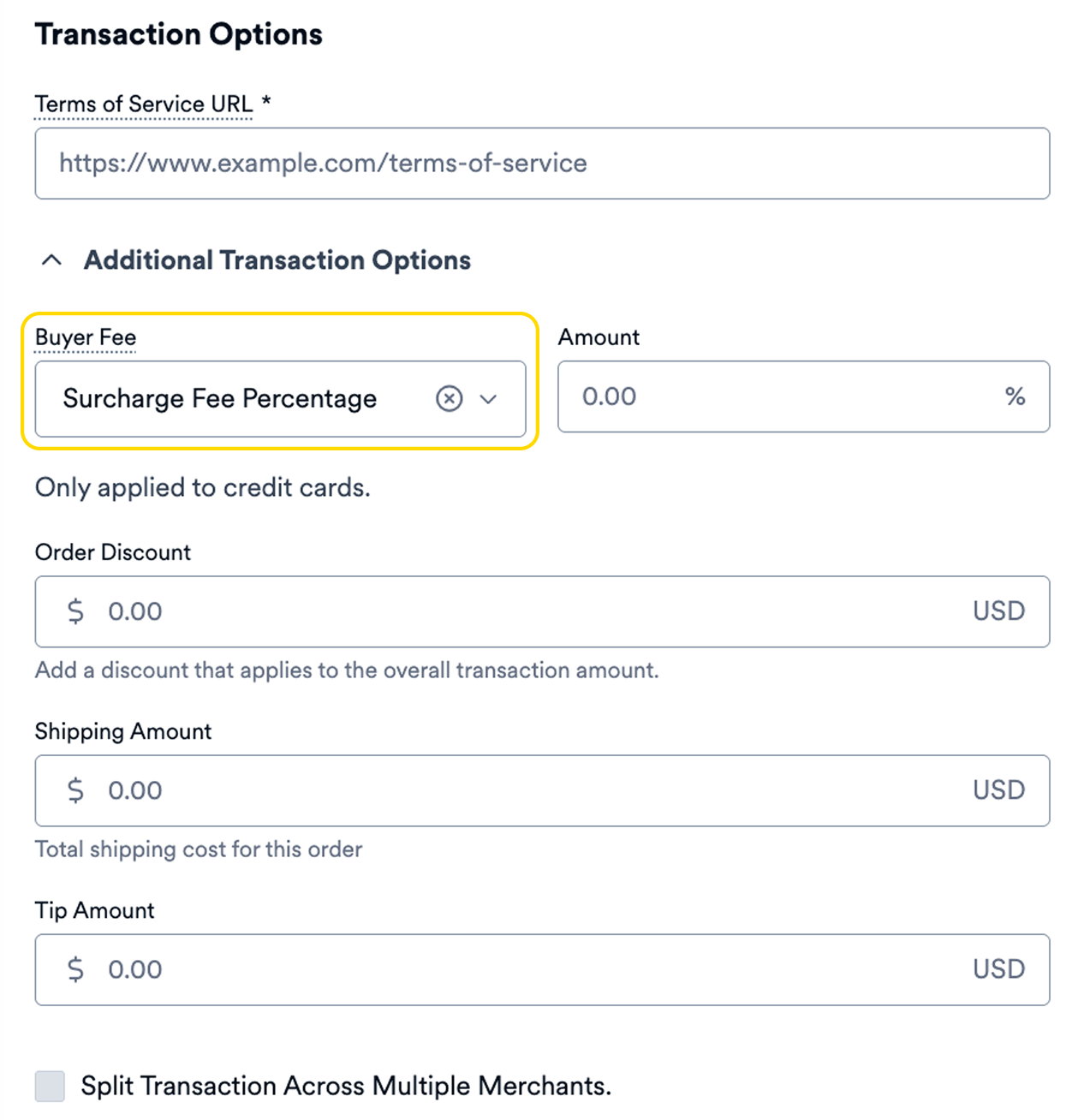
Under Transaction Options, enter a Terms of Service URL (required for all payment links).
Expand Additional Transaction Options.
Under Buyer Fee, select Surcharge Fee Percentage.
Enter a value up to 3% for USA merchants or 2.5% for Canadian merchants.
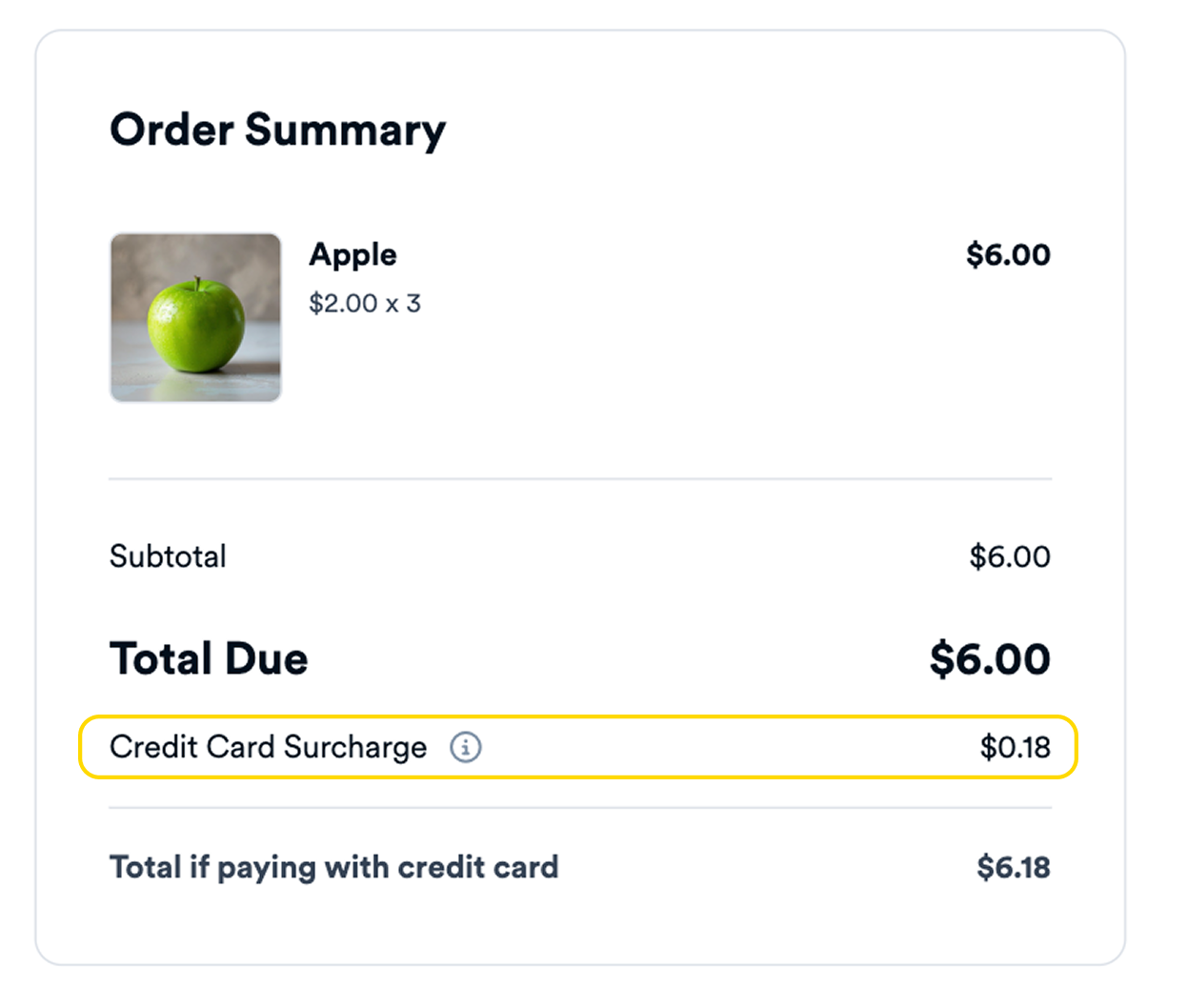
- In the buyer preview, a notice will state that a surcharge applies and show the exact amount. This amount will also appear on the buyer payment page.
View other Transaction Options available.
Complete the remaining sections of the form:
When done, click Create Payment Link to finalize. You'll see a confirmation and can view the payment link details page.
From the payment link details page, you can share the payment link with buyers.
Buyers will see a notice that the payment will be surcharged and the exact amount.