Share payment links with buyers via email, text message, QR code, or by copying the link directly.
In the Dashboard, navigate to Tools in the left navigation and click Payment Links.
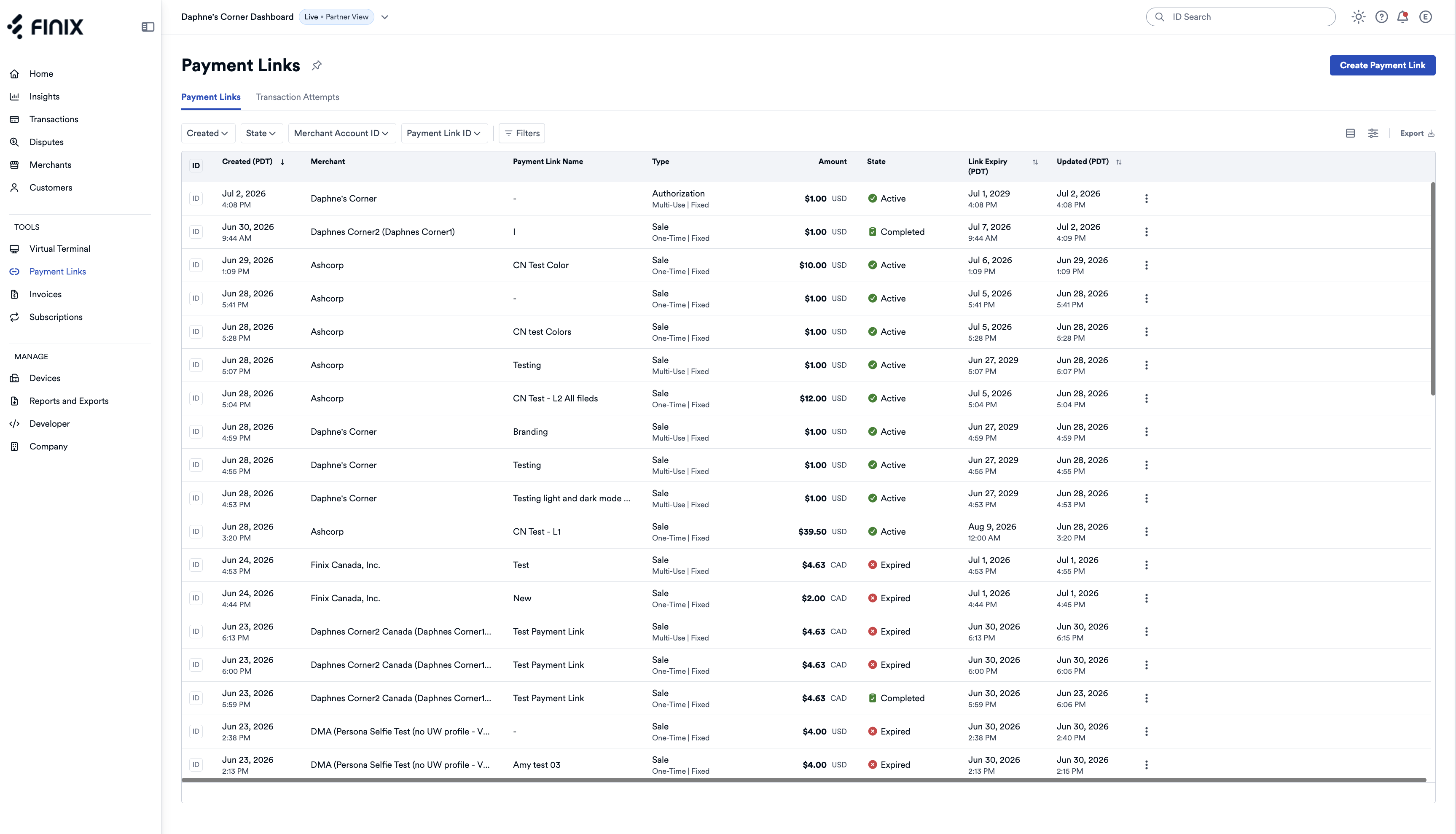
Select the payment link you want to share.
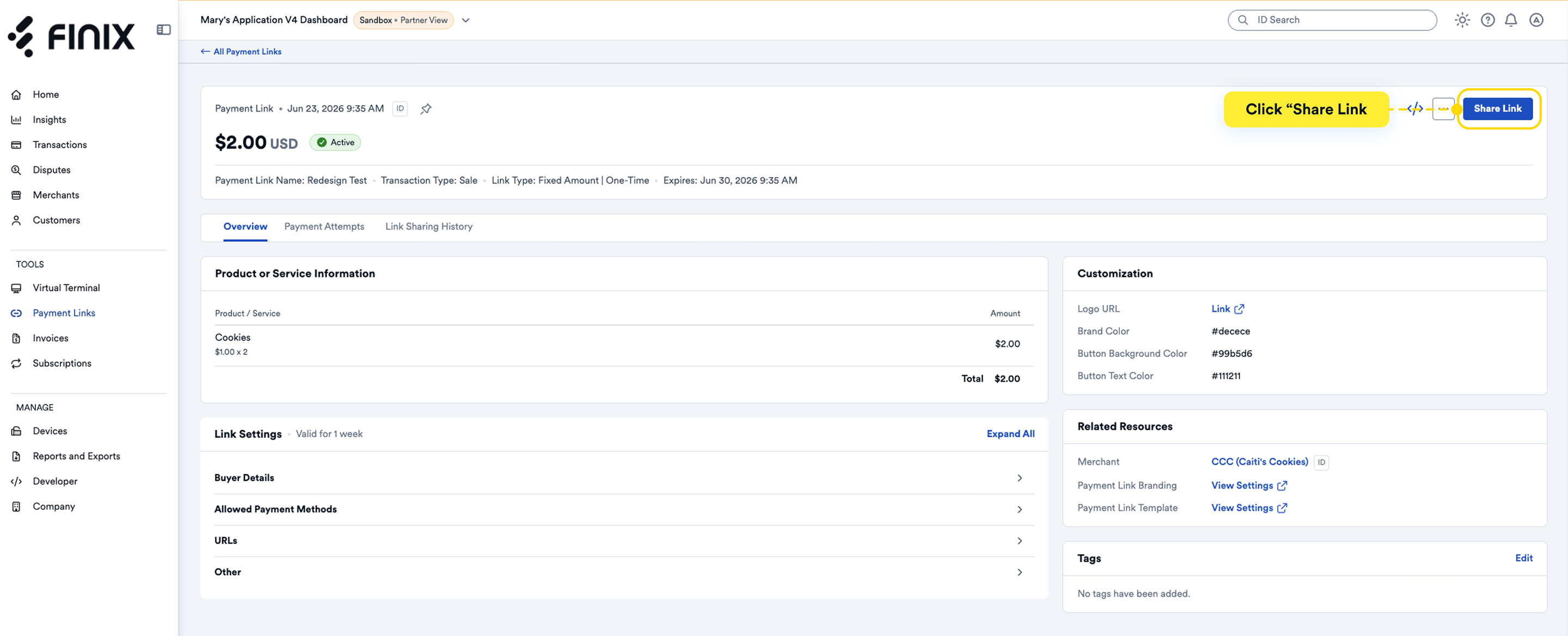
From the payment link details page, click Share Link.
Choose a sharing method:
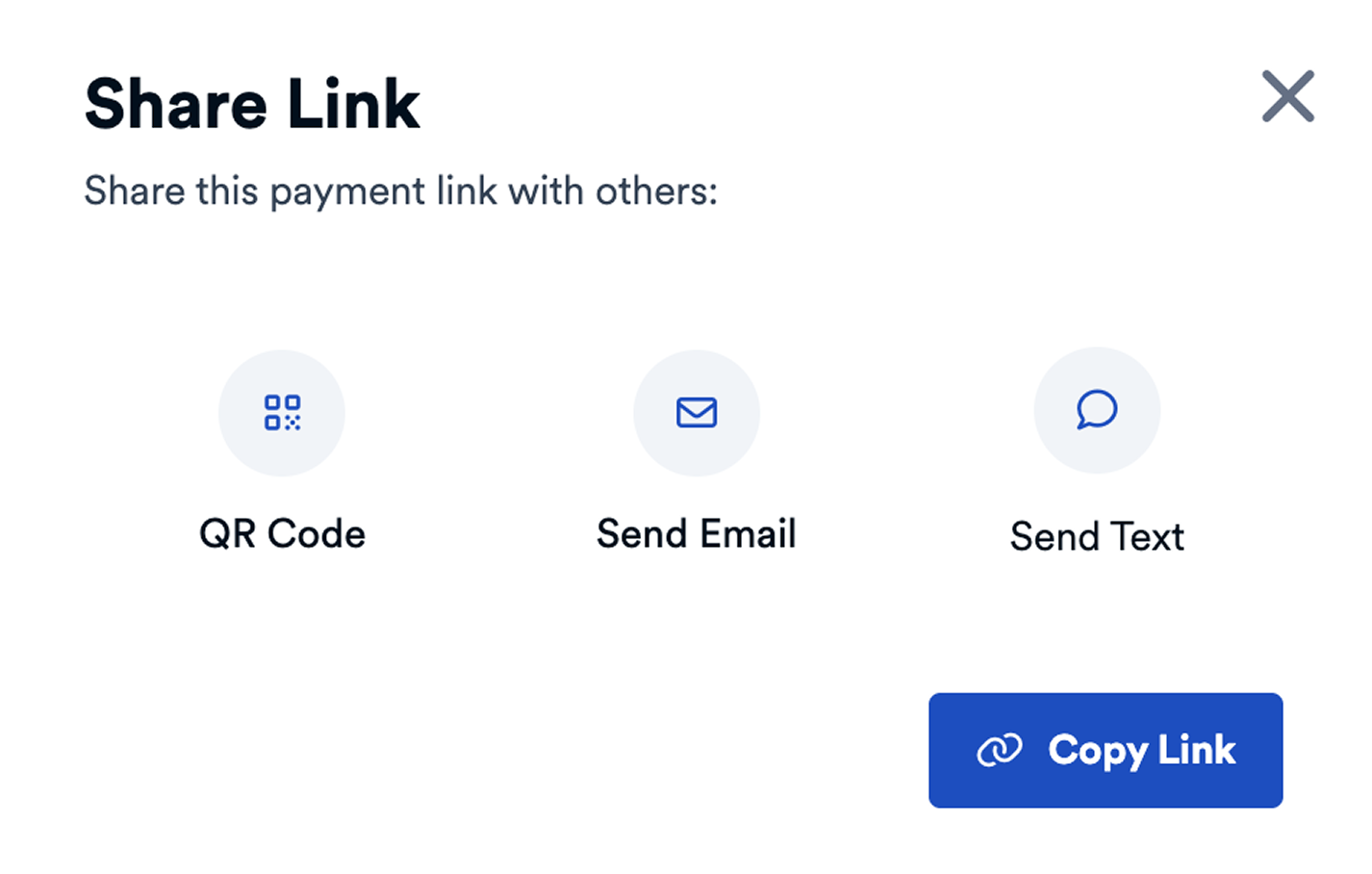
| Method | Description |
|---|---|
| Send the payment link directly via email. Enter the recipient's email address and an optional message. | |
| Text Message | Share via SMS or messaging apps. Enter the recipient's phone number. |
| QR Code | Generate a scannable QR code. Useful for in-person transactions or printed materials. |
| Copy Link | Copy the payment link URL to share through apps, social media, or any other channel. The buyer can use the link to complete payment. |
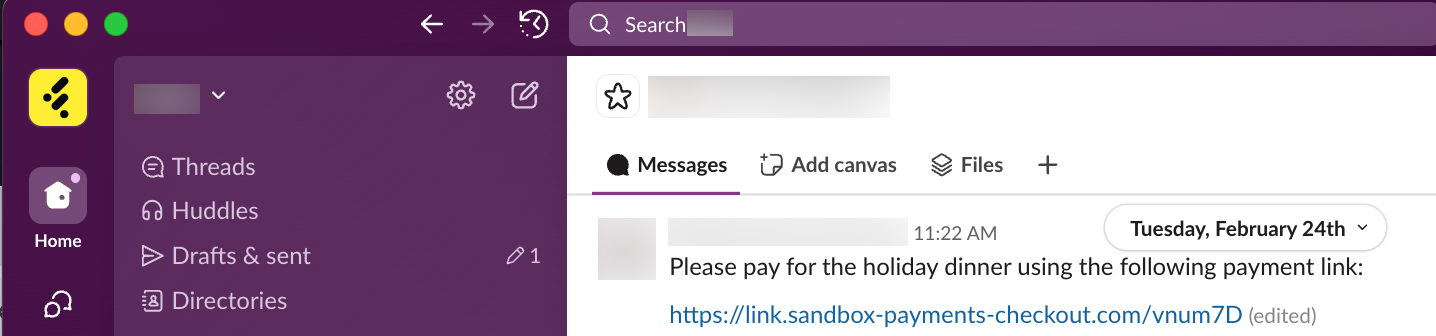
For example, you can share the payment link through Slack:
When a buyer clicks the payment link, they're taken to the payment page where they can enter their payment details and view an itemized breakdown of the products/services.
The fields present depend on the payment link settings and configuration.
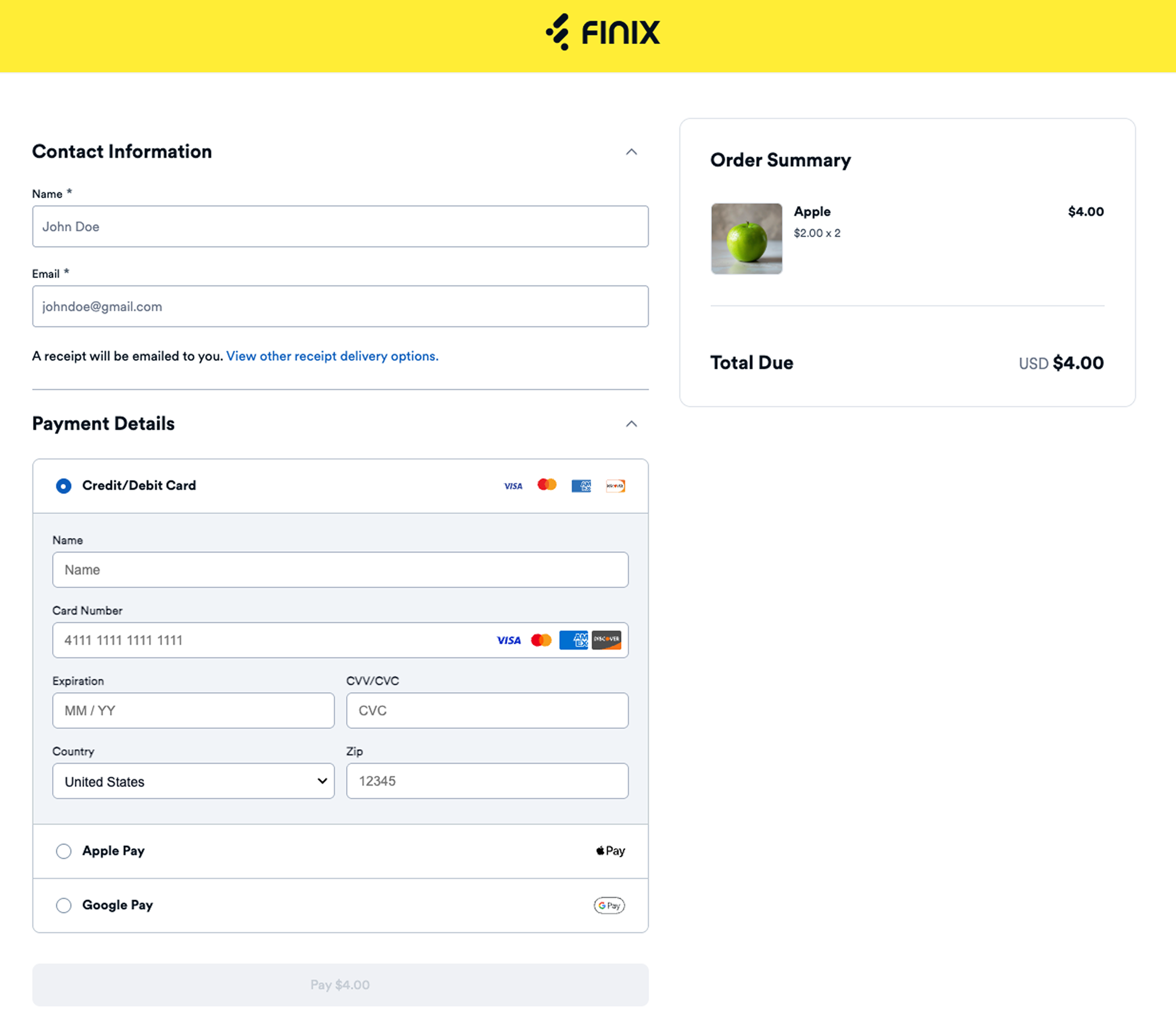
Buyers see a confirmation message upon successful payment.
For single-use payment links, clicking the link again shows that the payment was successful and does not allow another payment.
View a record of all shares for a payment link from the details page:
- In the Dashboard, navigate to Tools in the left navigation and click Payment Links.
- Select the desired payment link.
- Click the Link Sharing History tab.
The Link Sharing History displays:
| Field | Description |
|---|---|
| Recipient | Who the payment link was sent to. |
| Delivery Method | How it was sent (email, text, link copy, etc.). |
| Shared On | Date and time of the share. |
| State | Whether the delivery succeeded or failed. |