Monitor your payment links to see their state, view payment attempts, and track completed transactions.
Refunds on payments made through payment links are handled the same way as other payments. For more information, see Refunds.
Payment links move through different states as buyers interact with them. Filter the payment links list by state to quickly find what you're looking for.
| Status | Description |
|---|---|
| Active | The payment link is available for buyers to use. |
| Completed | A payment has been successfully made (single-use links only). |
| Expired | The link validity period has passed and the link can no longer be used. |
| Deactivated | The payment link was manually deactivated and can no longer be used. |
To check the state of your payment links:
- In the Dashboard, navigate to Tools in the left navigation.
- Click Payment Links.
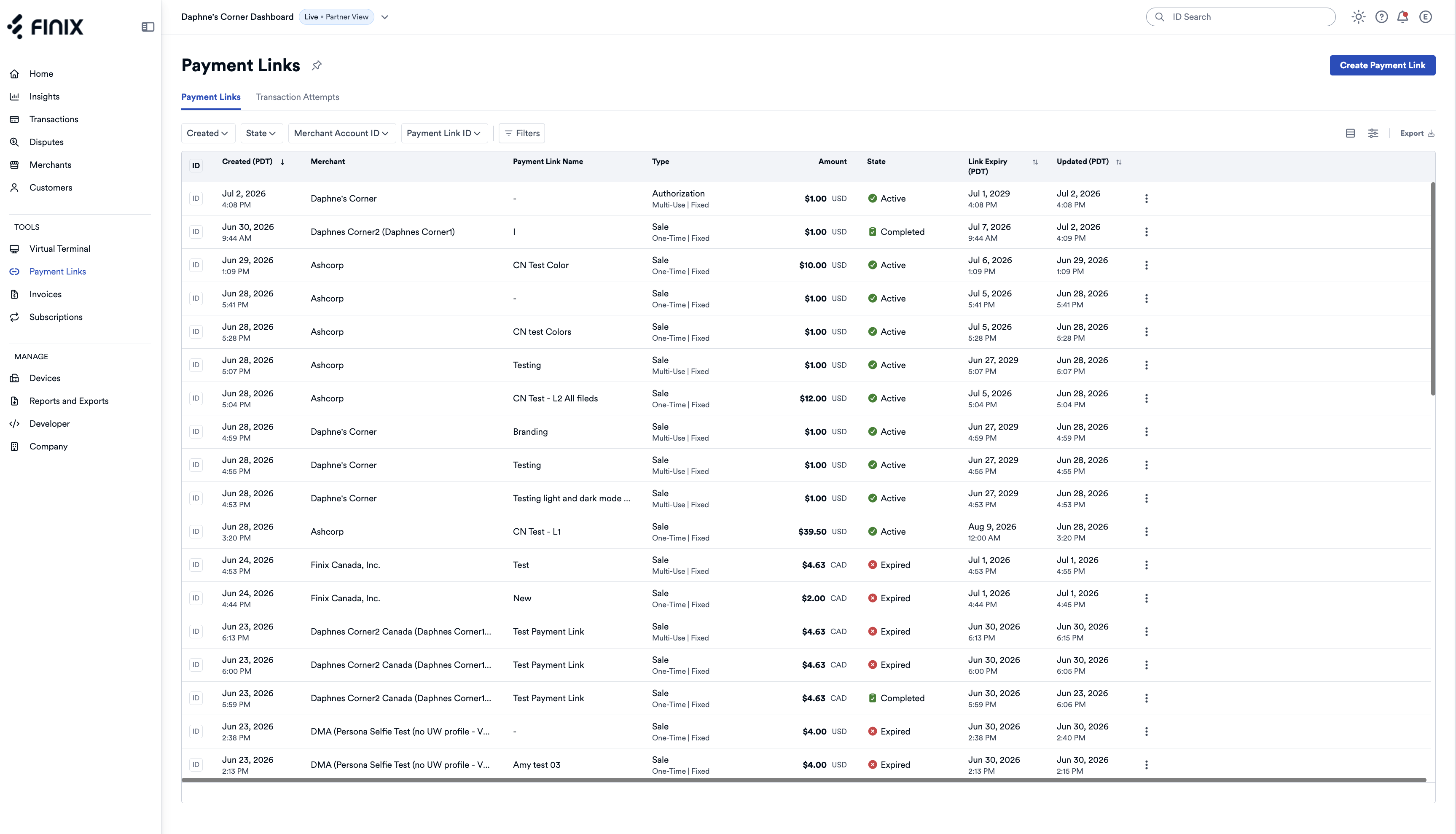
The list shows each payment link's state, amount, and creation date. Use the state filter to narrow down the list.
To see all payment attempts for a specific payment link:
- Select a payment link from the list to open its details page.
- Click the Payment Attempts tab.
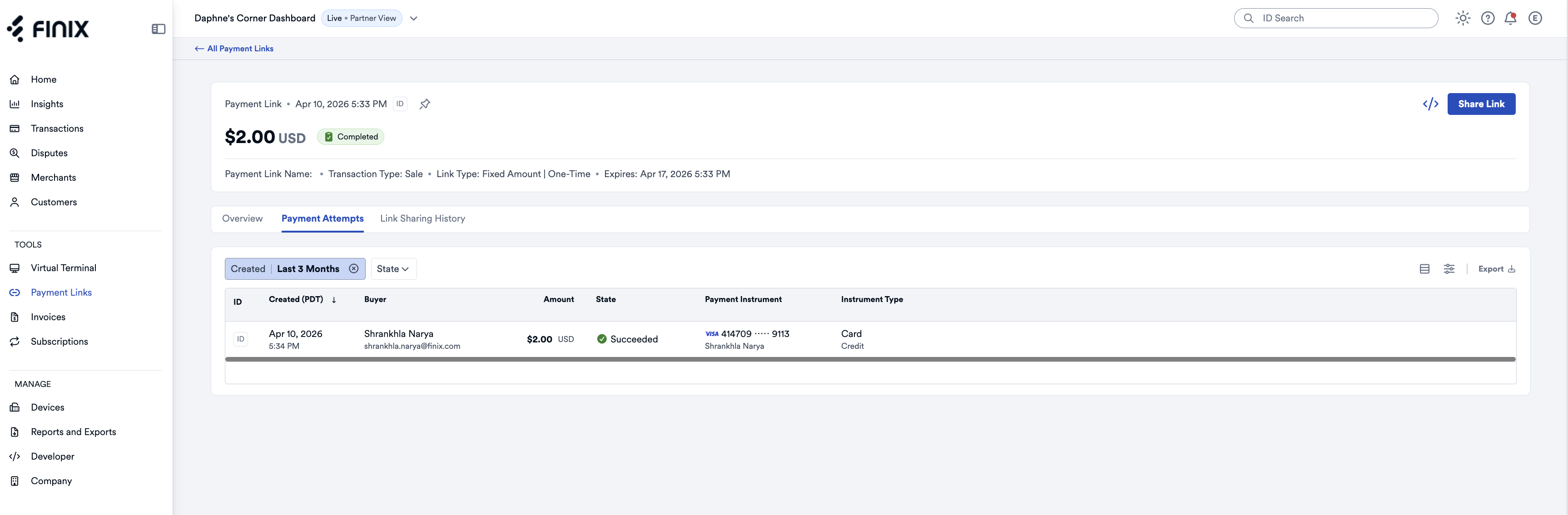
Each payment attempt shows:
- Buyer information
- Amount
- State (Succeeded, Failed, Pending)
- Payment instrument and type
- Created timestamp
Click any attempt to view the full payment attempt details page.
From a payment attempt, you can navigate to the associated payment:
- Open a payment attempt from the Payment Attempts tab.
- Click the Payment link to open the payment details page.
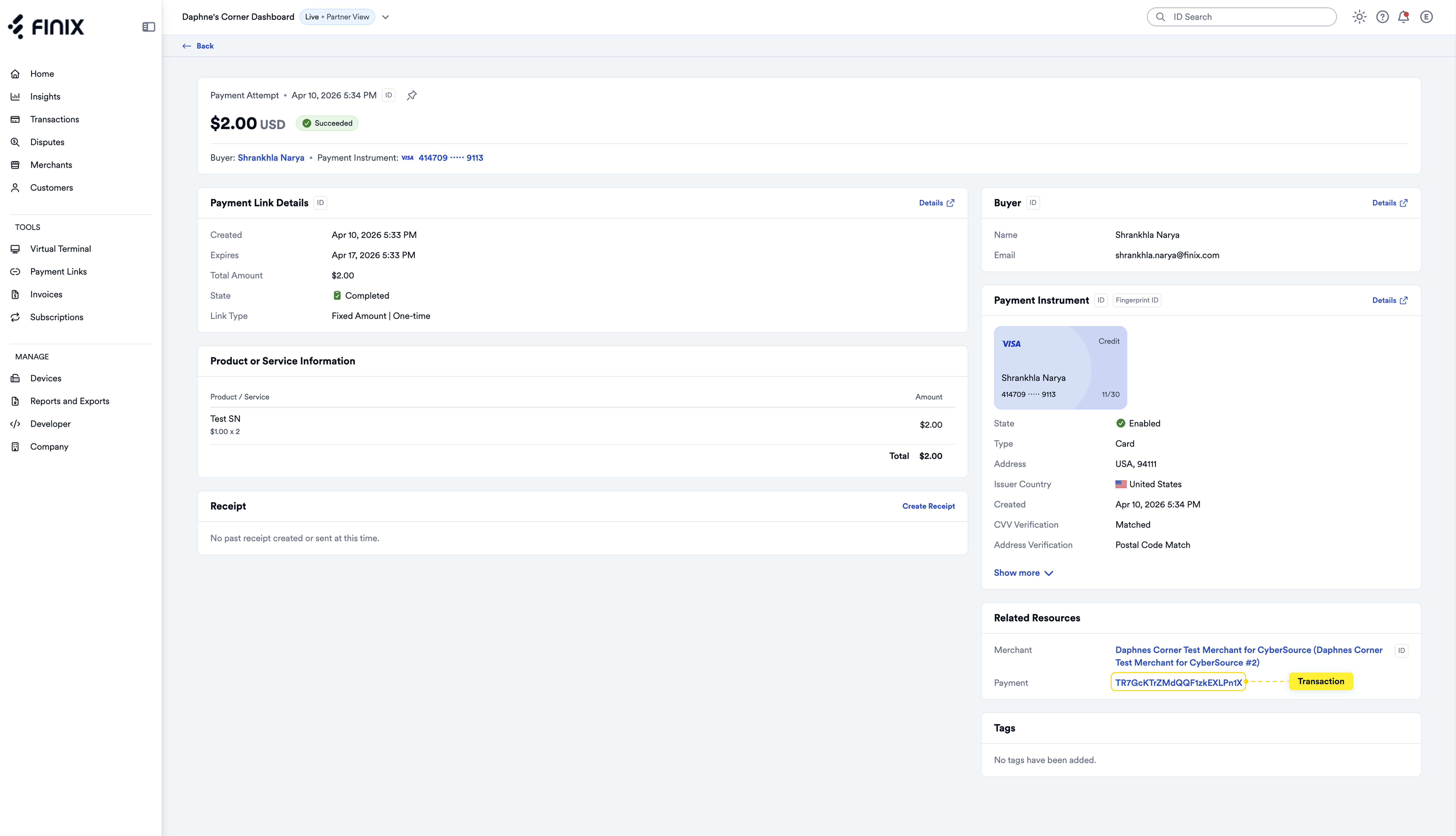
The payment details page shows complete transaction information, including the payment link that generated it.
For automated tracking, integrate webhooks to receive real-time notifications when:
- A payment is completed
- A payment fails
- An authorization is created