Accept payments with Finix on Fyntek.

Fyntek is a payment orchestration platform that gives businesses a single access point to manage payment providers, configure payment flows, and process payouts across multiple channels. It enables merchants to offer a wide range of payment options including cards, digital wallets, and regional methods like ACH without complex integrations.
Connecting Finix to Fyntek allows merchants to process payments using Finix's payments infrastructure directly within the Fyntek platform, pairing Fyntek's orchestration capabilities with Finix's payment processing.
- Finix Sandbox Account to process Sandbox transactions. You will not be able to move real money in this environment.
- Finix Live Account to run card or ACH transactions.
To create a Finix account, you can follow our step-by-step guide or sign up directly for a live or sandbox account.
We recommend choosing Direct Merchant as your Customer Type.
API Keys are specific to either the Sandbox or Live environments, depending on whether you get them from the Sandbox or Live Dashboard. Sandbox Keys cannot be used in the Live Environment and vice-versa. Learn more here.
To create an API Key:
- Navigate to Developers → API Keys in the Finix dashboard.
- Click Create API Key and enter a Display Name.
- Save the credentials somewhere secure.
Save your password somewhere secure. You cannot re-copy the password, but you can always create another API Key. API Keys are sensitive data and must be treated like passwords. Store them securely and only share them on an as-needed basis.
To learn more see our API Keys documentation.
To create a Fyntek account, sign up directly on the Fyntek website.
Once logged in, navigate to Terminals and click Create. Search for and select Finix as the gateway, enter a name for your terminal, and set the State to Active.
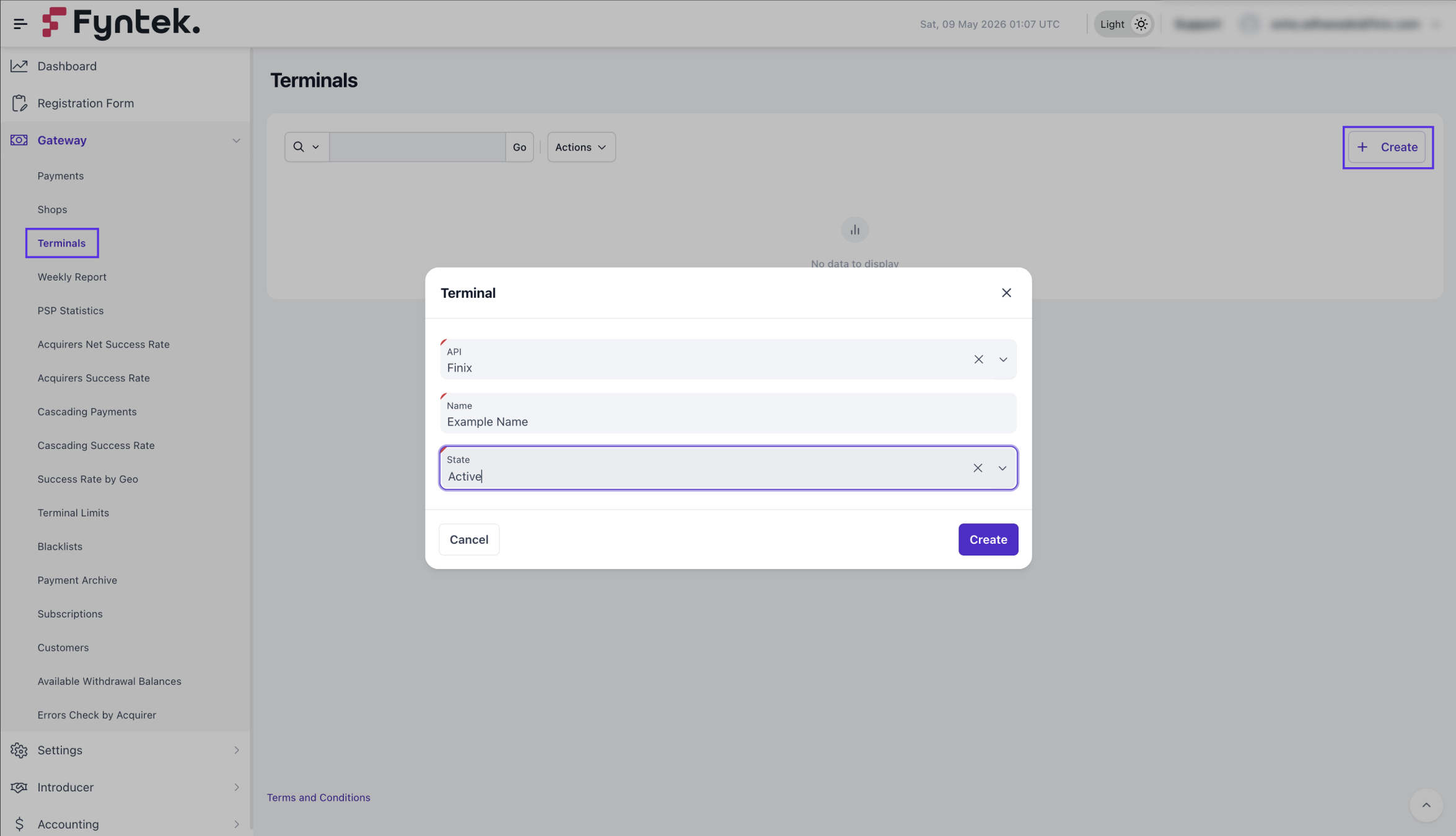
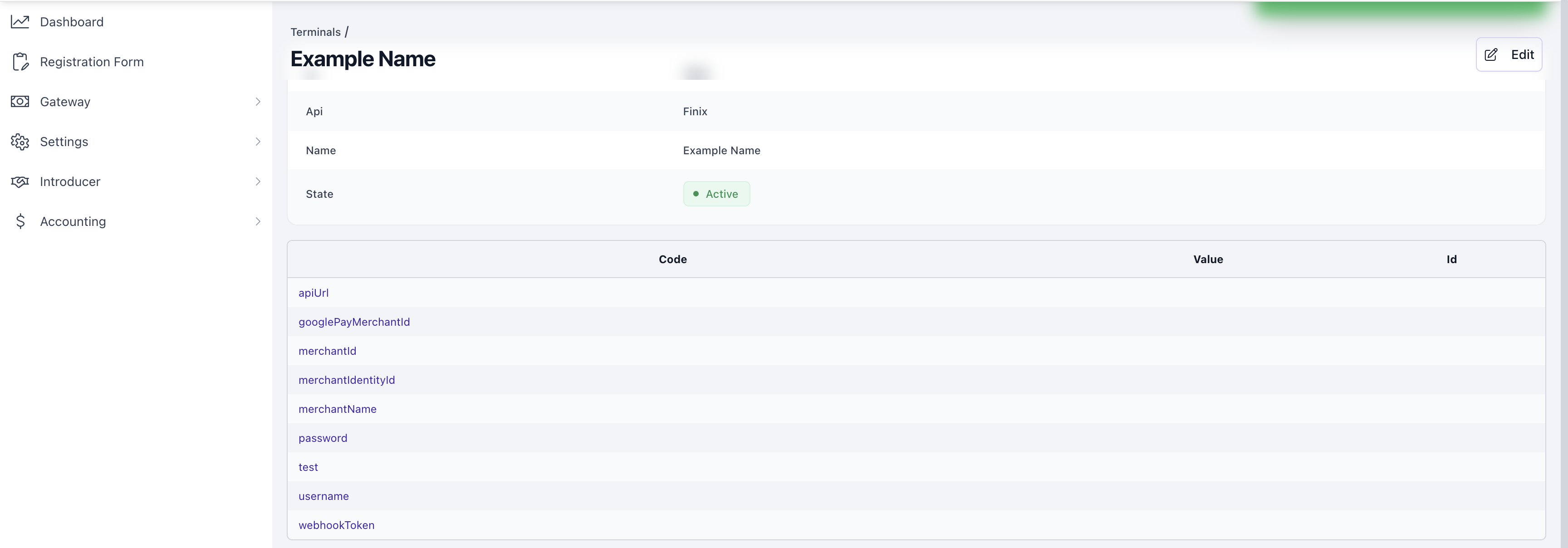
Contact your Fyntek point of contact to help you fill out the following details in the Fyntek gateway profile.
You can locate your Finix credentials in your Finix Dashboard:
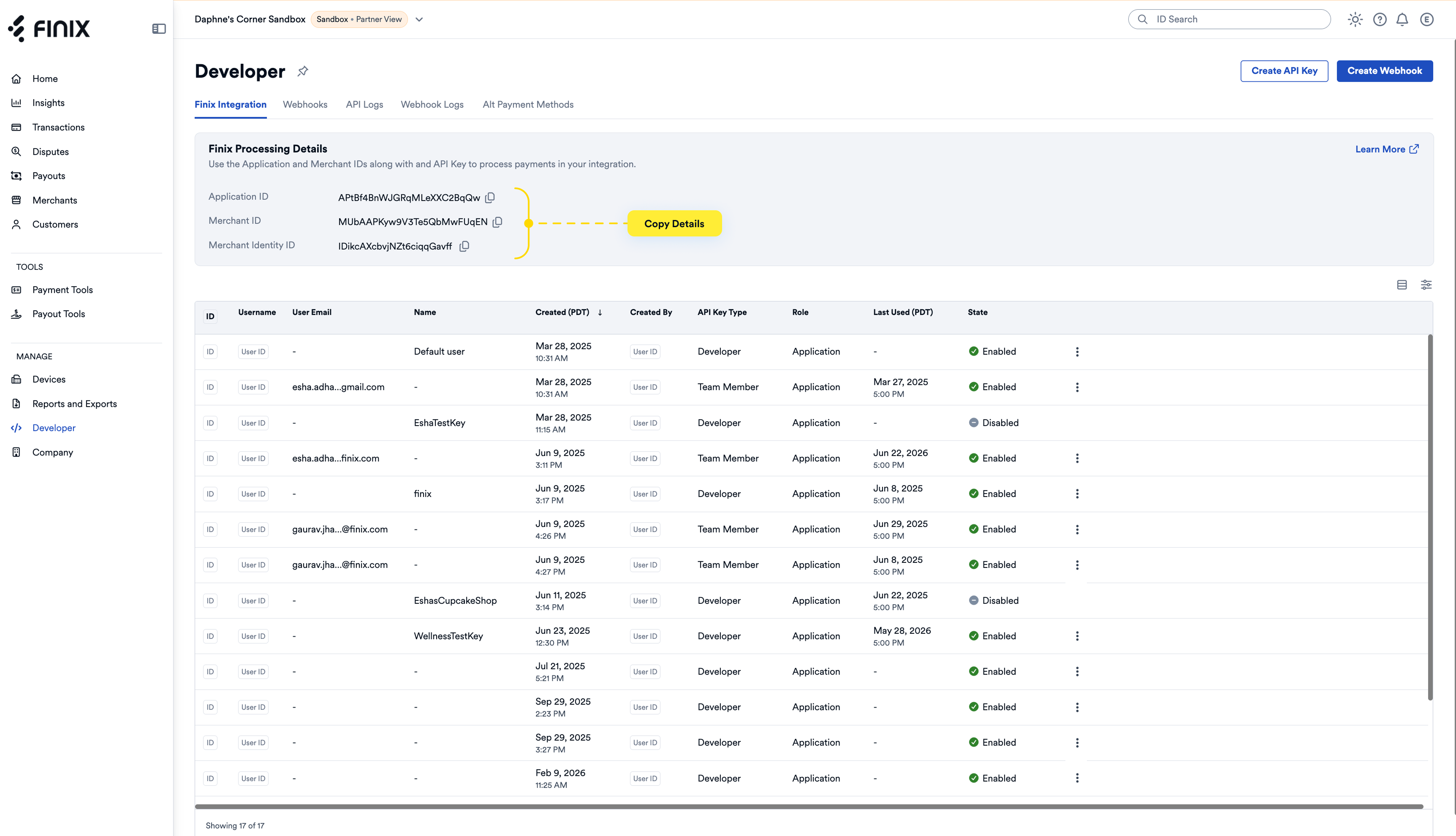
- Merchant ID - Found in your Finix Dashboard under Developer → Finix Integration → Merchant ID
- Merchant Identity ID - Found in your Finix Dashboard under Developer → Finix Integration → Merchant Identity ID
- Merchant Name - The name associated with your Finix merchant account
- Username - The username associated with your Finix API Key created in Step 2
- Password - The password associated with your Finix API Key created in Step 2
Fyntek supports digital wallet payments through Finix. To enable Apple Pay or Google Pay for your integration, follow the Finix setup guides below:
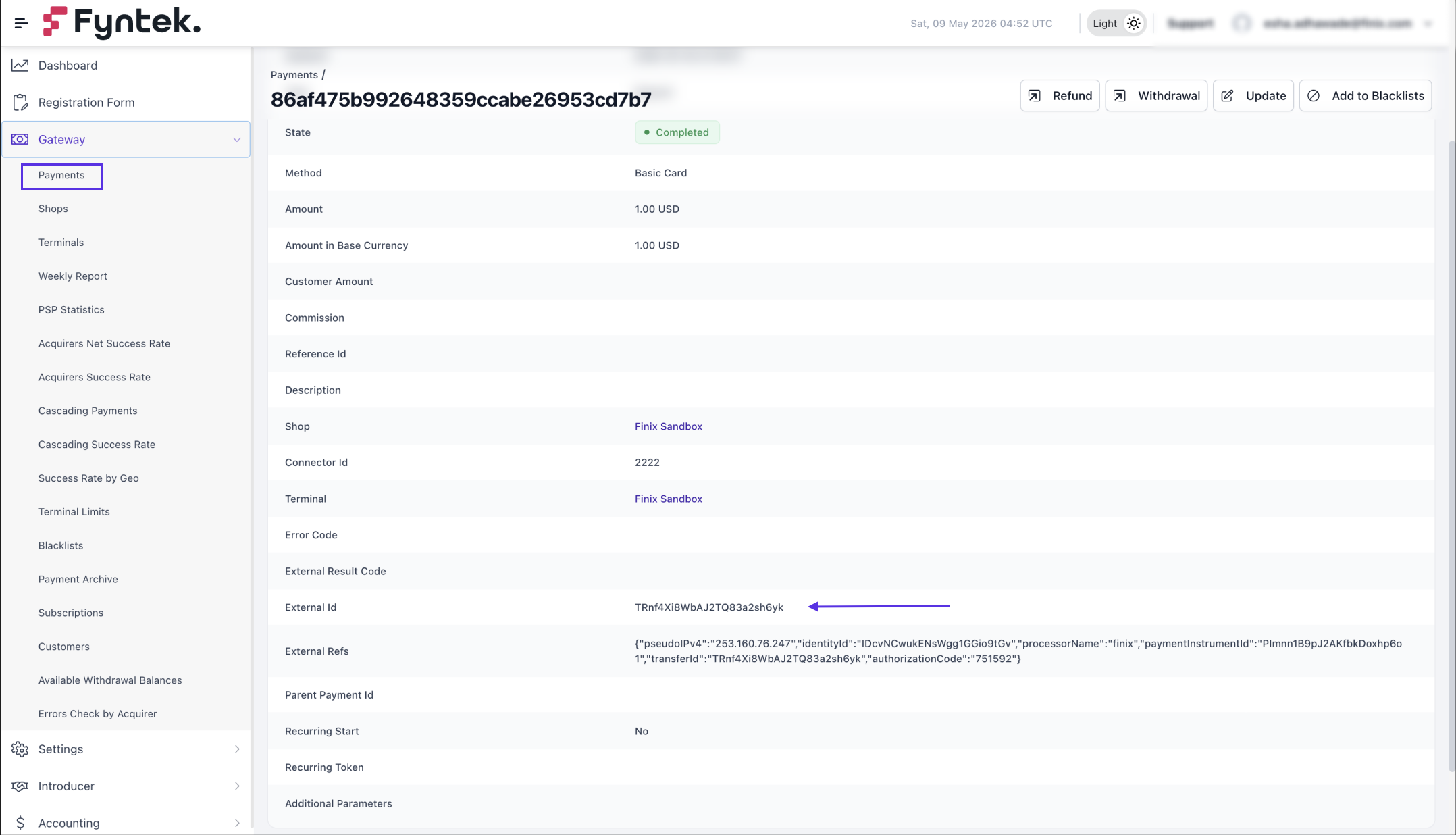
You can locate payments using the External ID visible in the Fyntek dashboard.
In your Fyntek dashboard, navigate to Gateway → Payments and click on a payment to open the payment details. Locate the External ID.
Then, in the Finix Dashboard, either search or filter by the External ID:
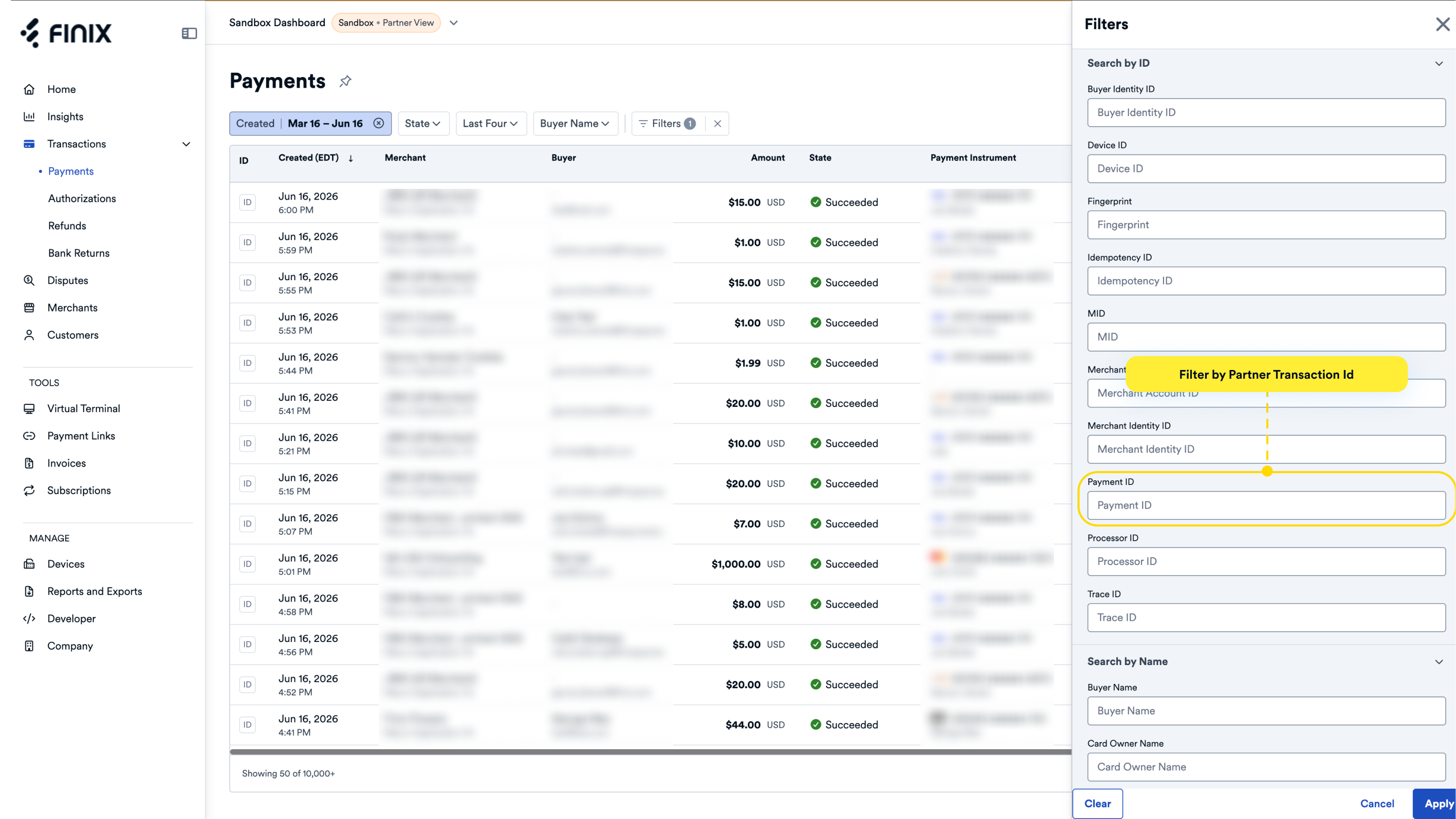
- Navigate to the Payments list page.
- Click on the Filters → Search by ID.
- In the Payment ID field, filter by the External ID copied from the Fyntek dashboard.