Accept payments with Finix on sticky.io.

Sticky.io is a comprehensive subscription commerce and payments management platform that helps merchants manage recurring billing, customer lifecycle, and payment operations from a single interface. It enables businesses to configure payment gateways, manage orders and subscriptions, route transactions, and access detailed reporting tools.
Connecting Finix to Sticky.io allows merchants to process payments using Finix's payments infrastructure directly within the Sticky.io platform, pairing Sticky.io's commerce tools with Finix's payment processing capabilities.
- Finix Sandbox Account to process Sandbox transactions. You will not be able to move real money in this environment.
- Finix Live Account to run card or ACH transactions.
To create a Finix account, you can follow our step-by-step guide or sign up directly for a live or sandbox account.
We recommend choosing Direct Merchant as your Customer Type.
API Keys are specific to either the Sandbox or Live environments, depending on whether you get them from the Sandbox or Live Dashboard. Sandbox Keys cannot be used in the Live Environment and vice-versa. Learn more here.
To create an API Key:
- Navigate to Developers → API Keys in the Finix dashboard.
- Click Create API Key and enter a Display Name.
- Save the credentials somewhere secure.
Save your password somewhere secure. You cannot re-copy the password, but you can always create another API Key. API Keys are sensitive data and must be treated like passwords. Store them securely and only share them on an as-needed basis.
To learn more see our API Keys documentation.
In your Sticky.io dashboard, navigate to Payments → Gateways in the top navigation menu.
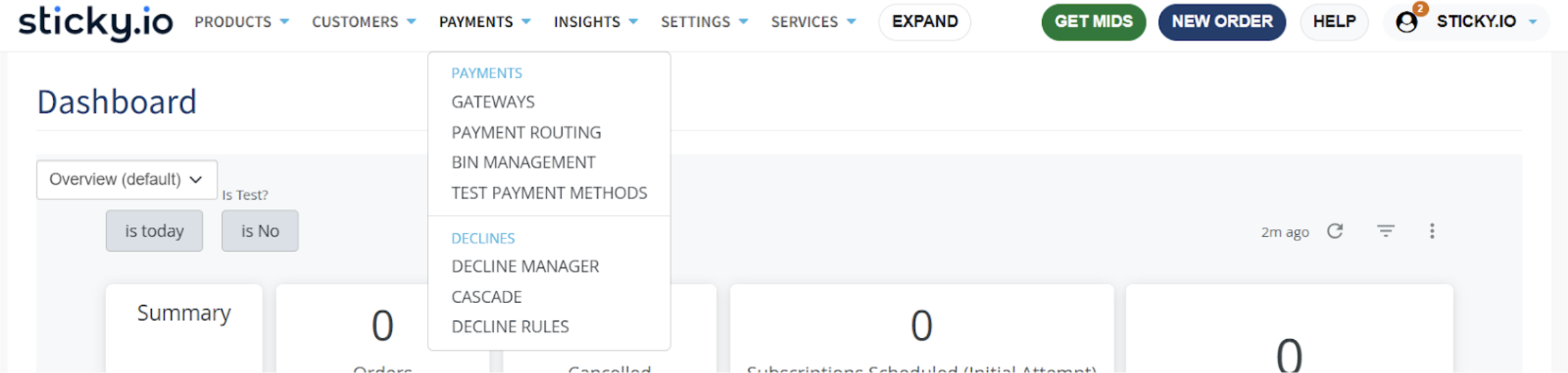
Navigate to Actions and click Add New Provider Profile.

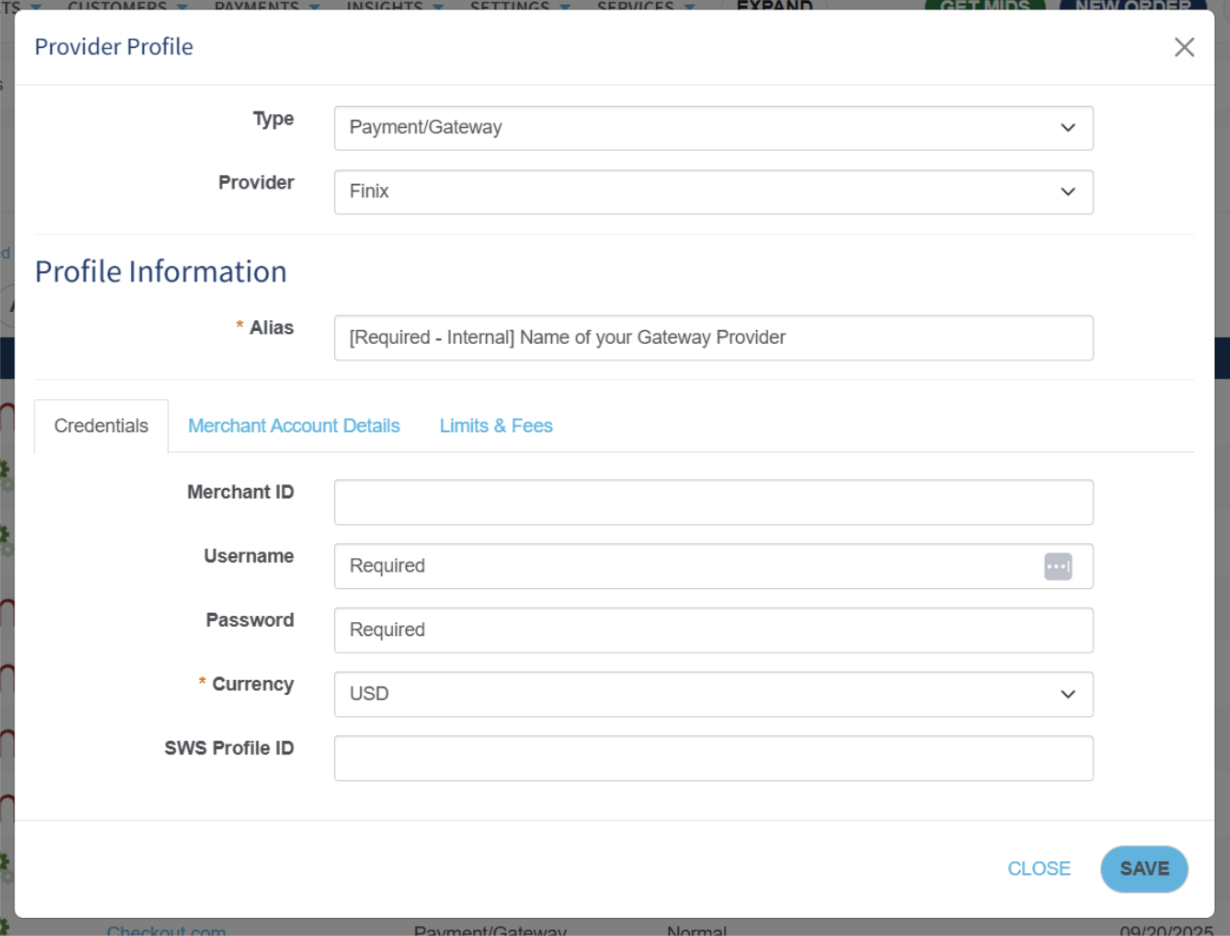
Enter your Finix credentials in the corresponding fields within the gateway provider profile. You can locate these details in your Finix Dashboard:
- Provider - Select Finix as your gateway provider.
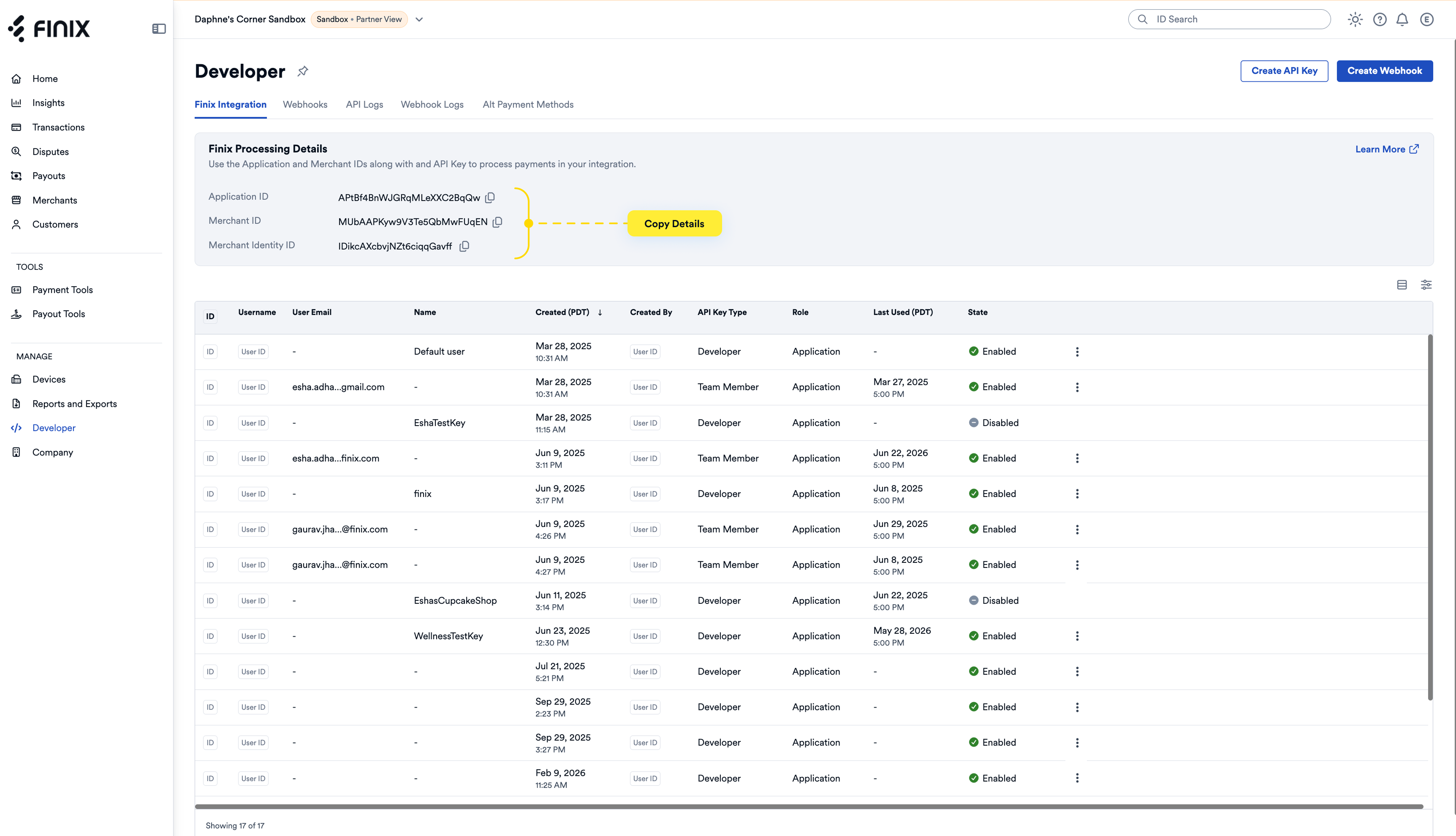
- Merchant ID - Found in your Finix Dashboard under Developer → Finix Integration → Merchant ID
- Username - The username associated with your Finix API Key created in Step 2
- Password - The password associated with your Finix API Key created in Step 2
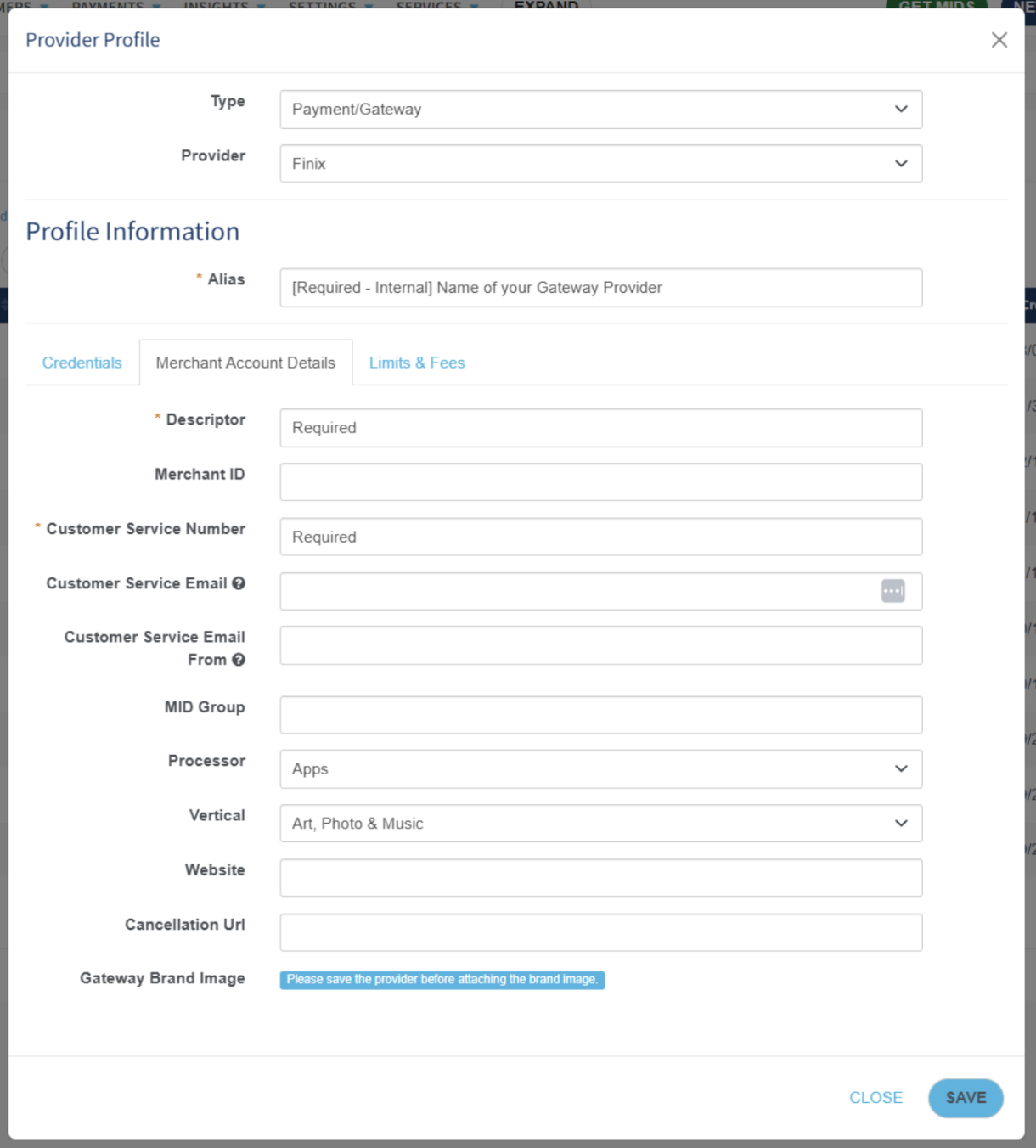
In the Merchant Account Details section, you can set additional merchant details such as a payment descriptor, website URL, and cancellation URL.
In the Limits & Fees section, you can configure transaction limits and fees for this gateway profile.
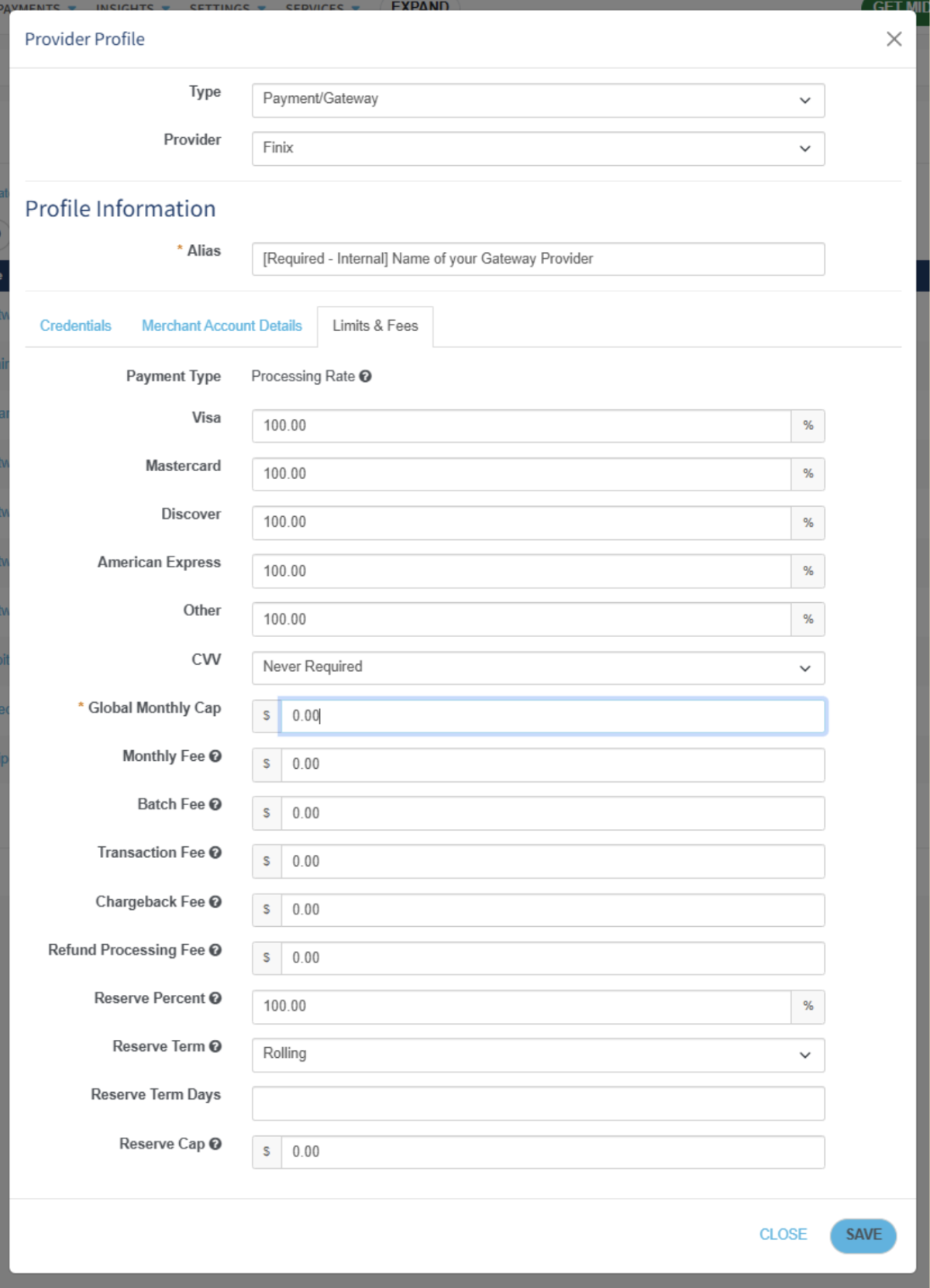
To learn more about sticky.io, visit the sticky.io Support Center.
You can locate payments using the Finix Transaction ID visible in sticky.io order details.
In your sticky.io dashboard, navigate to Customers → Orders in the top navigation menu to view all orders.
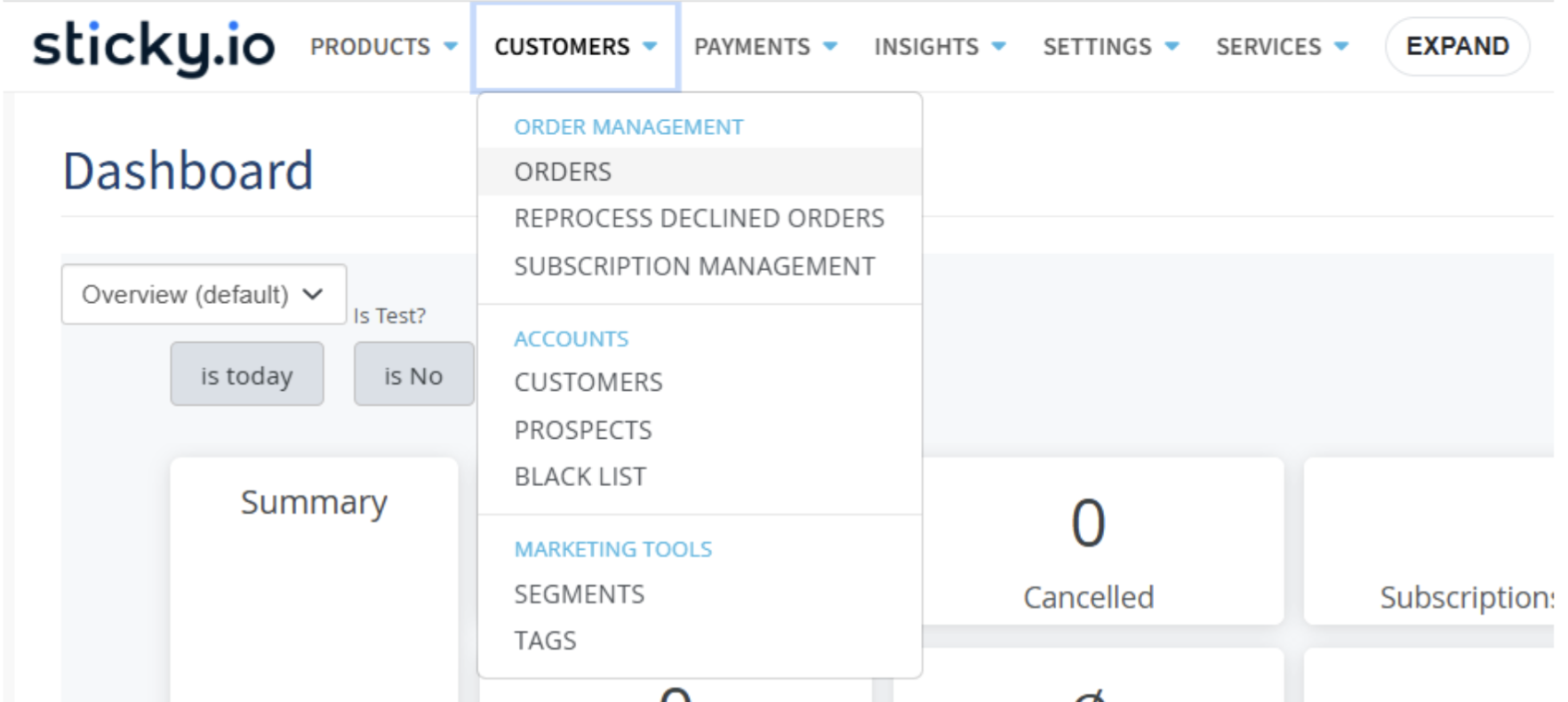
Click on an order to open the order detail view and locate the Finix Transaction ID.
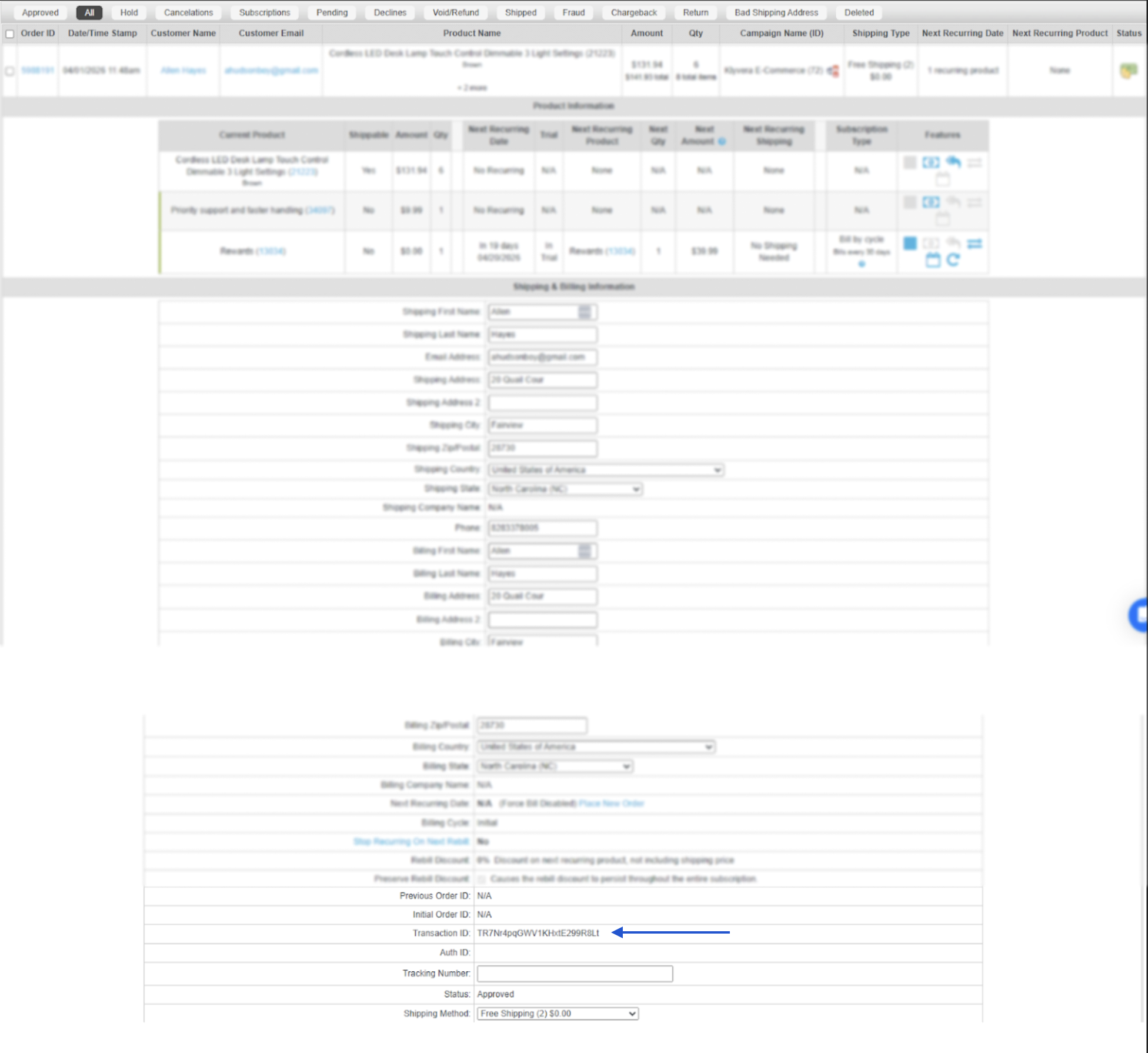
Then, in the Finix Dashboard, either search or filter by transaction ID:
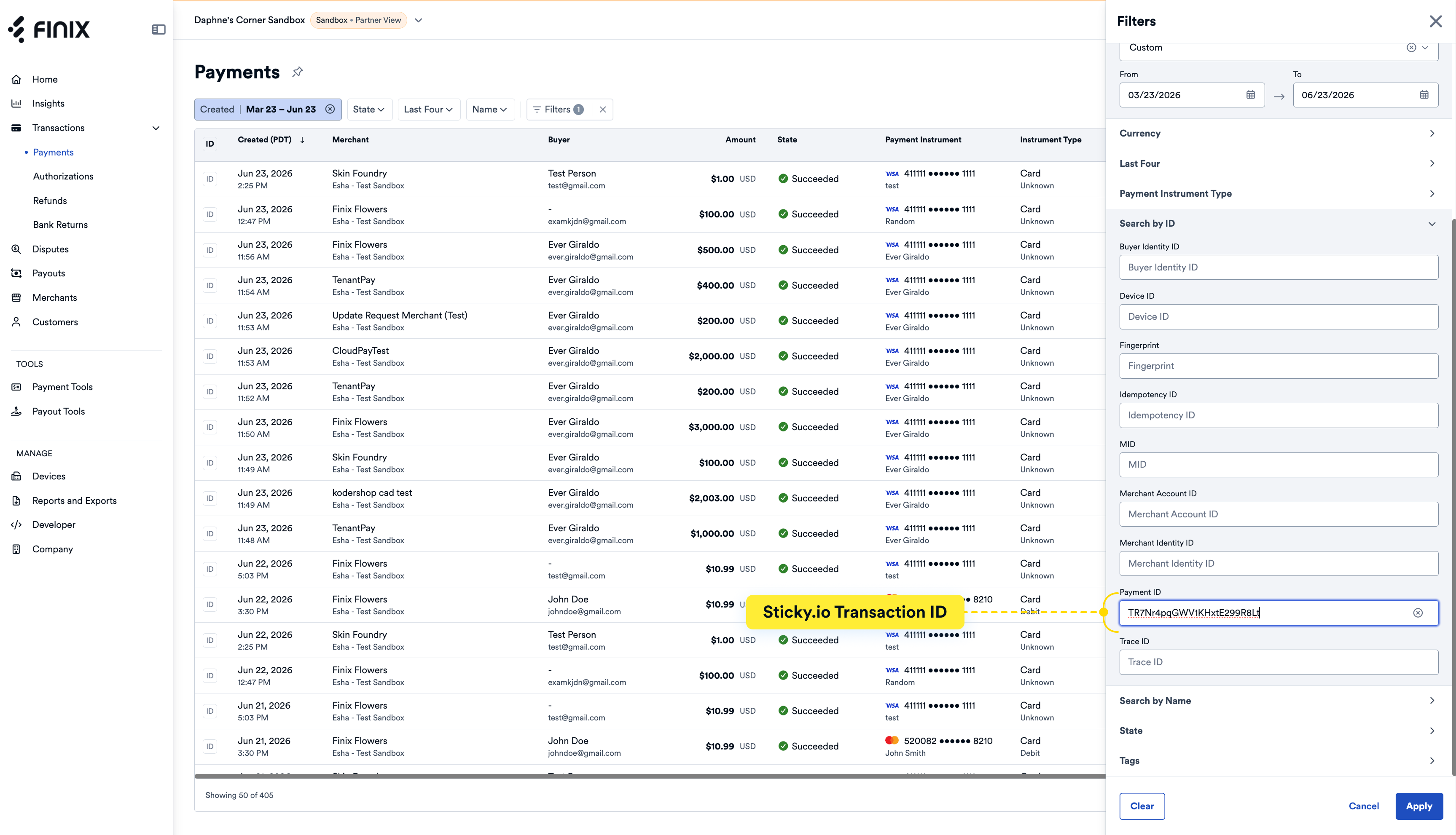
- Navigate to the Payments list page.
- Click on the Filters → Search by ID.
- In the Payment ID field, filter by the Finix Transaction ID copied from the sticky.io order detail view.