You can follow a settlement from accrual through payout without leaving your phone. The Merchant Payouts section of the Finix iOS app shows your open and approved settlements, explains how each net amount was calculated, and handles the actions you'd otherwise go to the web dashboard for.
Open the iOS app and tap More in the bottom navigation bar. Select Merchant Payouts from the menu.
The Merchant Payouts screen has two segments at the top: Settlements and Merchant Deposits. Tap either segment to switch between them.
The Settlements segment lists your settlements grouped by date. Each row shows a status icon, the net amount, and the time and current status. If your dashboard covers more than one merchant, the merchant name appears as well.
Pull down to refresh the list. More settlements load automatically as you scroll toward the end.
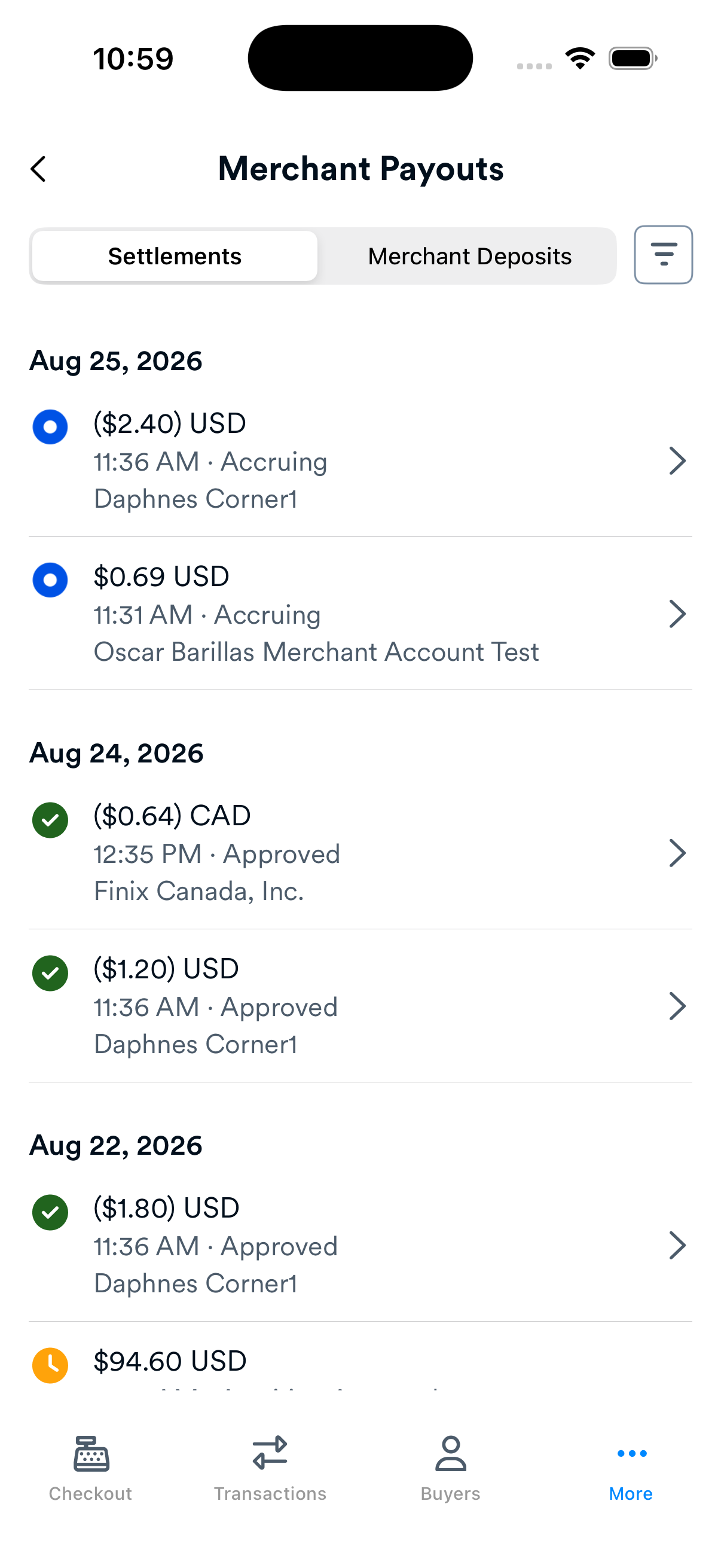
Tap the filter button in the navigation bar to open the filter sheet. Once filters are active, the button shows a badge with how many you've applied.
You can combine any of the following filters:
| Filter | Description |
|---|---|
| Amount | Total amount condition (equals, greater than, or less than) |
| Date Range | Start and end date |
| Funding Transfer Speed | NEXT_DAY_ACH or SAME_DAY_ACH |
| Merchant Account ID | Exact match on merchant ID |
| Net Amount | Net amount condition |
| Settlement Entry ID | Exact match on entry ID |
| Split Transfer ID | Exact match on split transfer ID |
| Transfer ID | Exact match on transfer ID |
| State | Accruing, Approved, or Awaiting Approval |
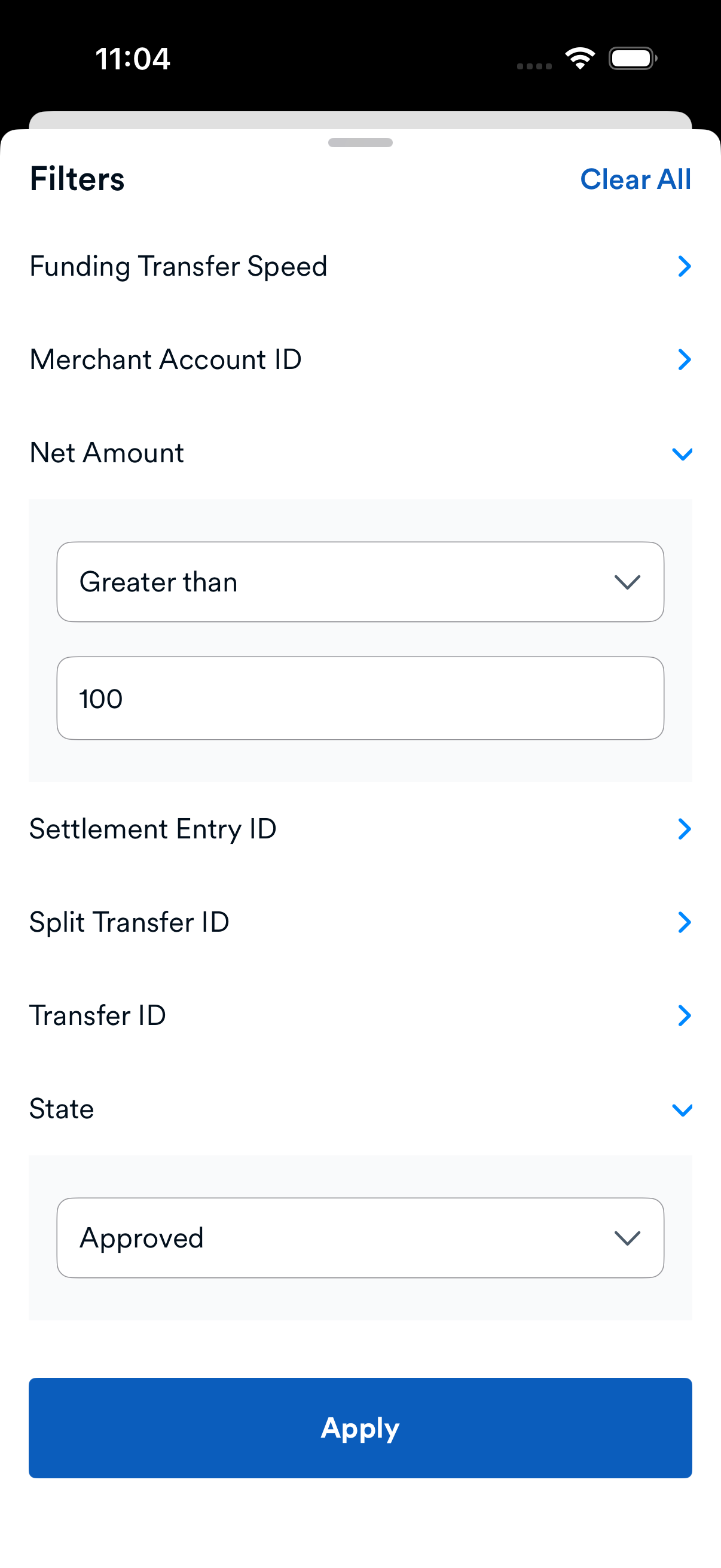
Tap any settlement row to open its detail screen. The detail screen has two tabs: Overview and Settlement Entries.
The Overview tab opens with three summary rows: Transactions, Fees, and Net Amount. Tap Show Breakdown for the full Financial Breakdown.
Below the summary, the Details section lists the settlement ID, schedule type, accrual window, and key dates.
Once a settlement is Approved, a Merchant Deposits section appears with the payout transfers that moved funds to the merchant's bank account. Partner and platform dashboards also get a Platform Deposits section. Direct (single-merchant) dashboards show only Merchant Deposits.
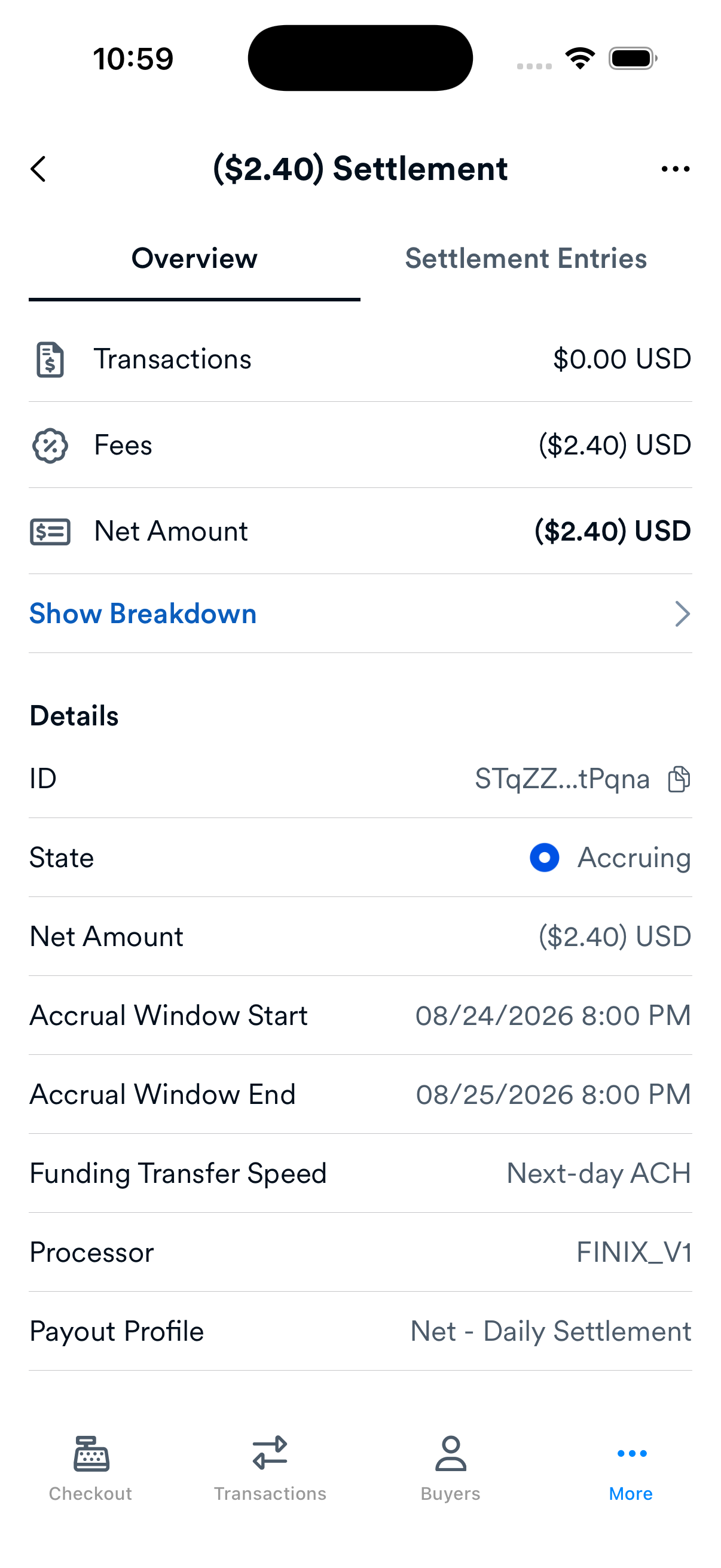
The Settlement Entries tab lists the line items included in the settlement. Entries load the first time you tap the tab, and more load as you scroll. Each row shows an icon for the entry type, the amount, a type label, the linked instrument, and the entry's status.
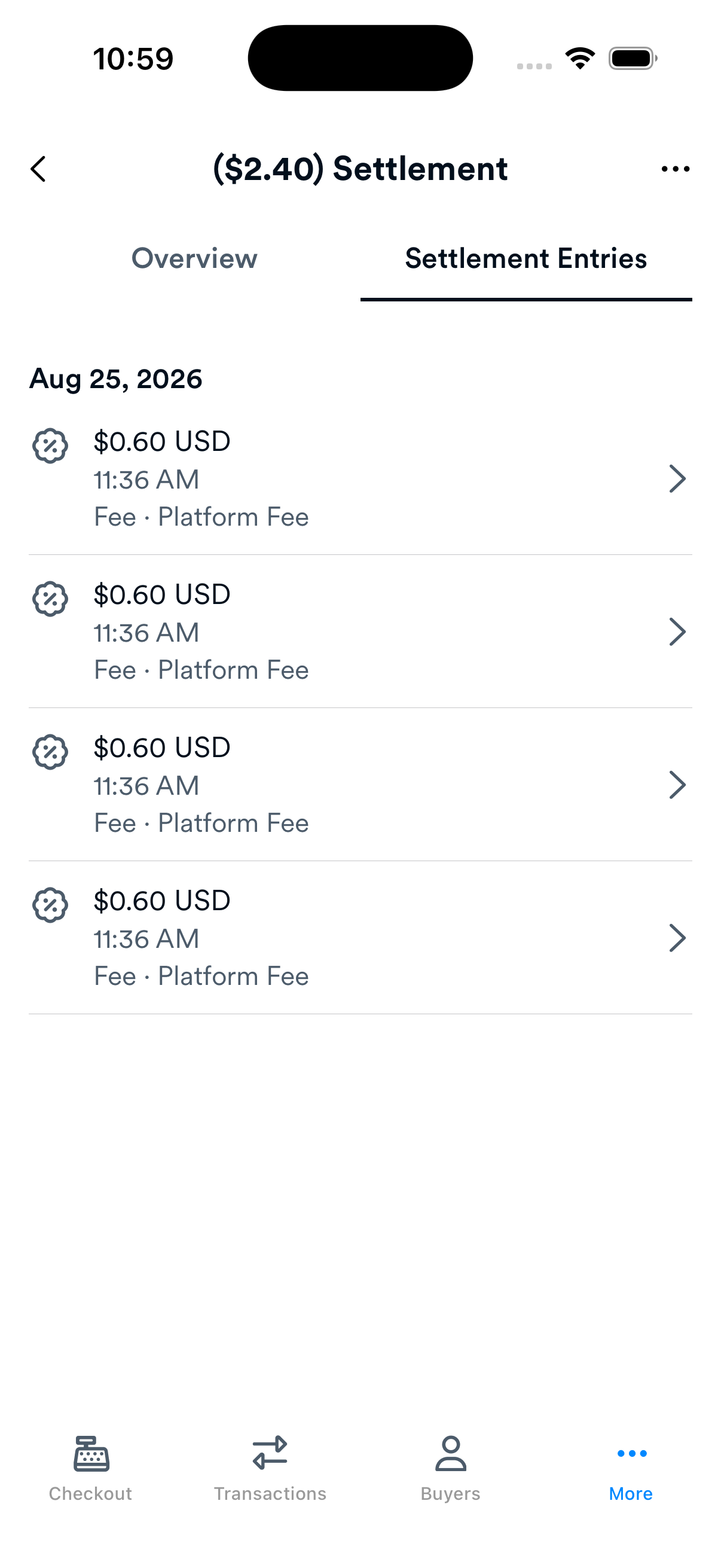
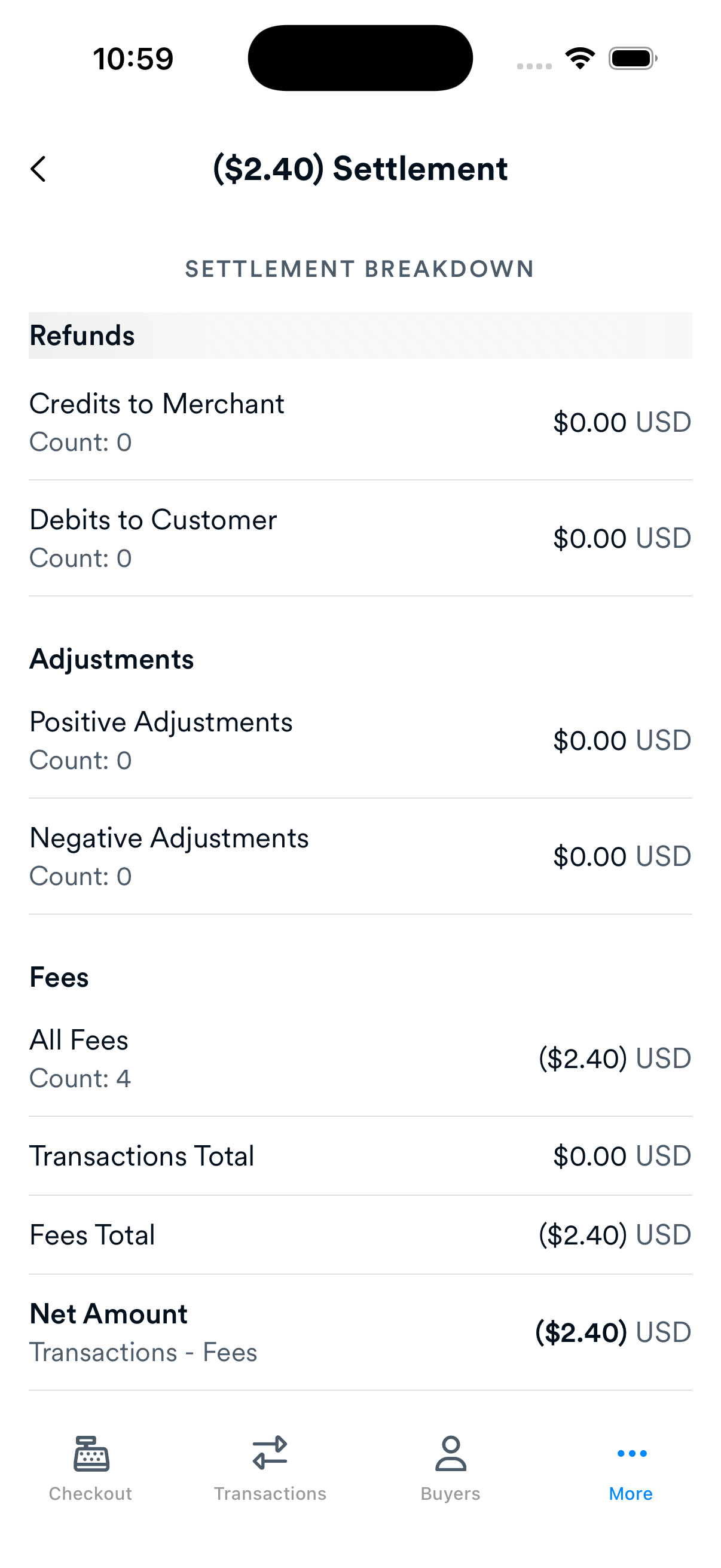
Tap Show Breakdown on the Overview tab to see how the net amount was calculated. The breakdown is read-only, and it walks through each part of the total:
| Section | Description |
|---|---|
| Payments | Total captured payment volume |
| Refunds | Refund amounts deducted from the total |
| Disputes | Dispute deductions |
| Adjustments | Any manual adjustments |
| Fees | Platform and processing fees |
As in the web dashboard, deductions appear in parentheses, like ($5.00). The Net Amount row sits at the bottom in bold.
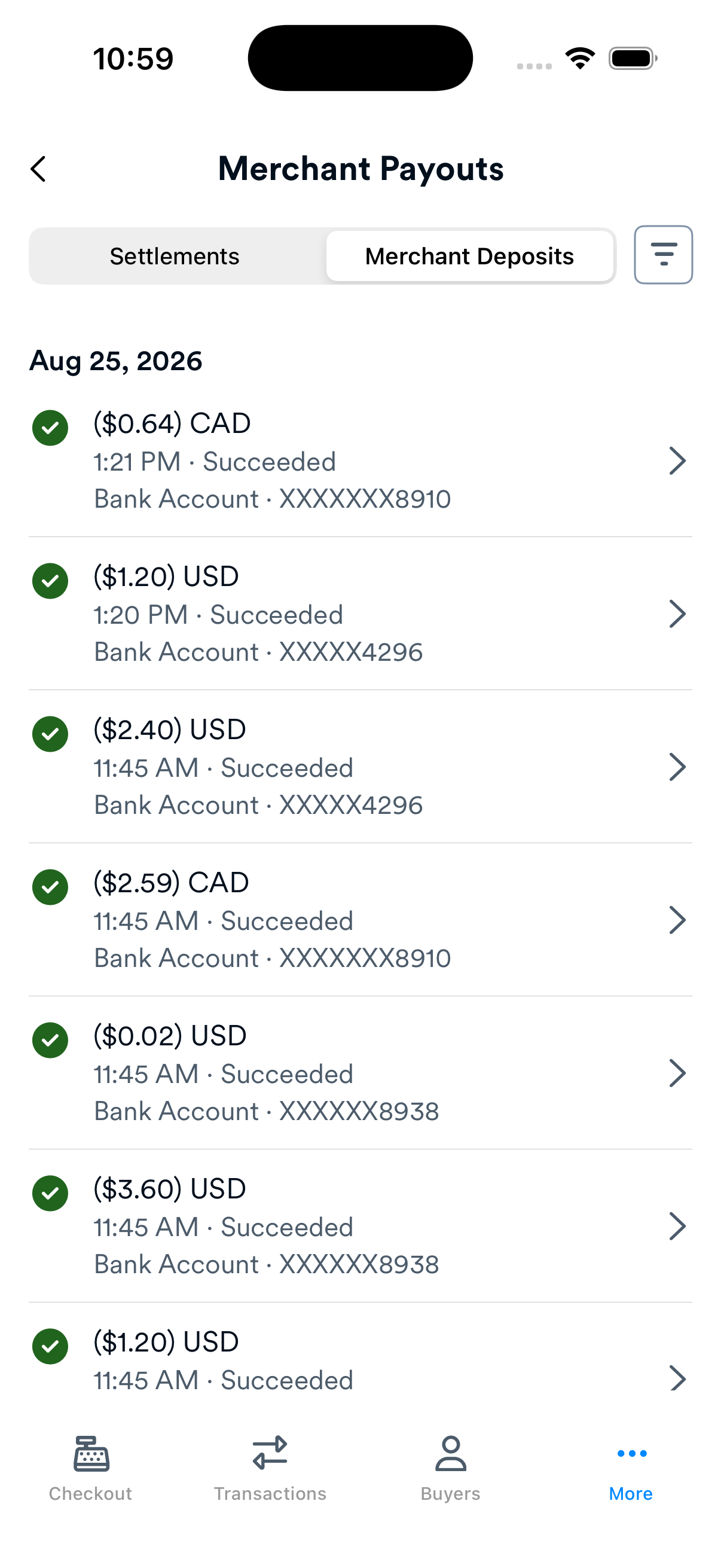
The Merchant Deposits segment lists payout transfers, with the amount, subtype, and linked payment instrument on each row. Tap a row for the full deposit detail, including the source and destination payment instruments.
You can stop any settlement that's still Accruing (PENDING). Open the settlement detail, tap the ellipsis ... menu in the top-right corner, and select Stop Accruing. The settlement closes right away and goes through the normal approval and payout process.
For the web dashboard equivalent, see Accruing Settlements.
You can remove an entry from any settlement that isn't Approved yet. Open the entry, either from the Settlement Entries tab or from a Transaction detail screen, tap the ellipsis ... menu, and select Remove from Settlement. The app takes you back to the settlement detail and refreshes the list.
Removed entries move to an Exception Settlement. Contact Finix support to make sure the Exception Settlement is rejected before the daily settlement review.
For the web dashboard equivalent, see Removing Entries from Settlements.
The settlement detail ellipsis menu always includes this option, which opens the matching page of the Finix web dashboard in your browser. On entry details, it's limited to fee entries, the ones with an FE... ID.