If you want to refund transactions processed with the D135 Finix Checkout App, you can do so directly from your iOS device without using the Finix Dashboard or API.
To refund a payment using the D135 Finix Checkout App:
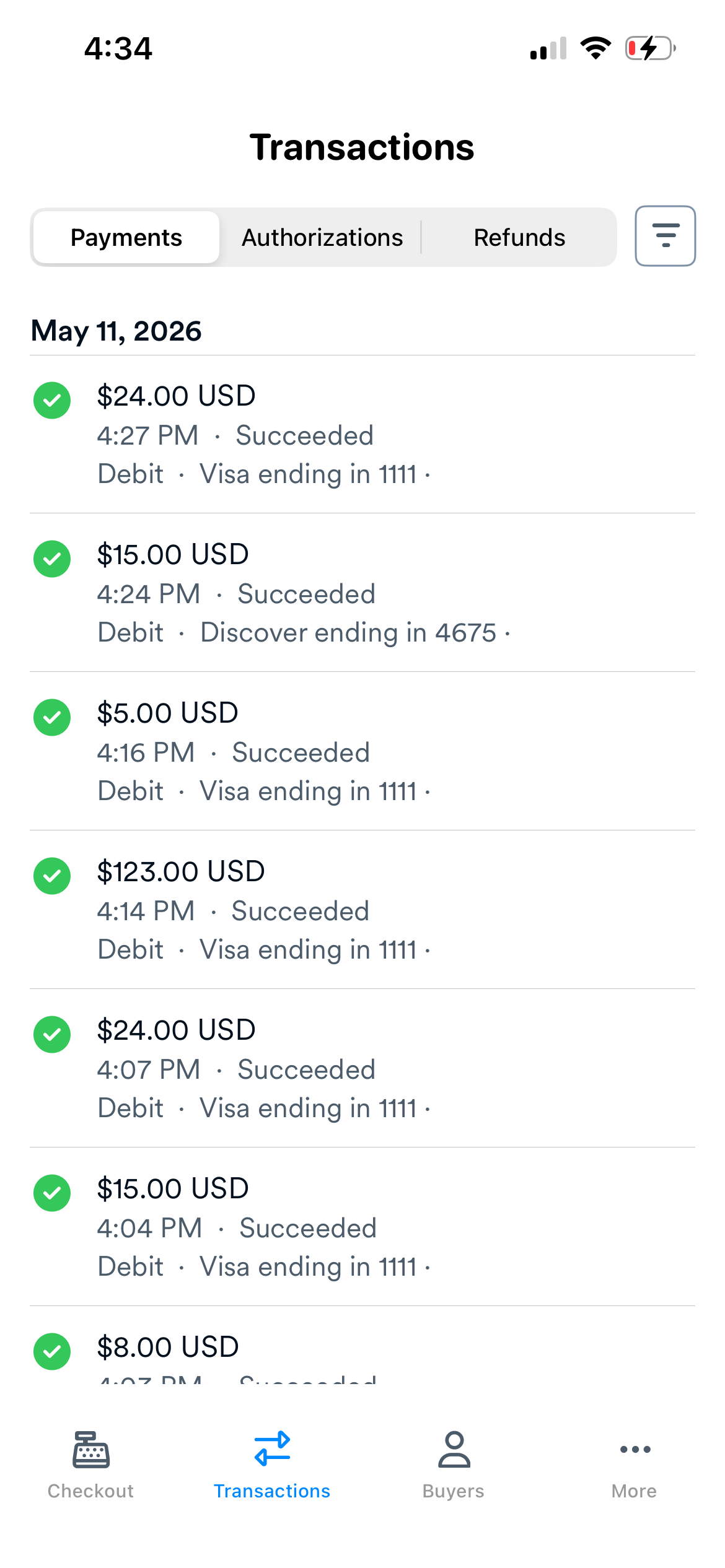
- From the navigation bar at the bottom of the screen, tap Transactions.
- Tap on the payment you wish to refund.
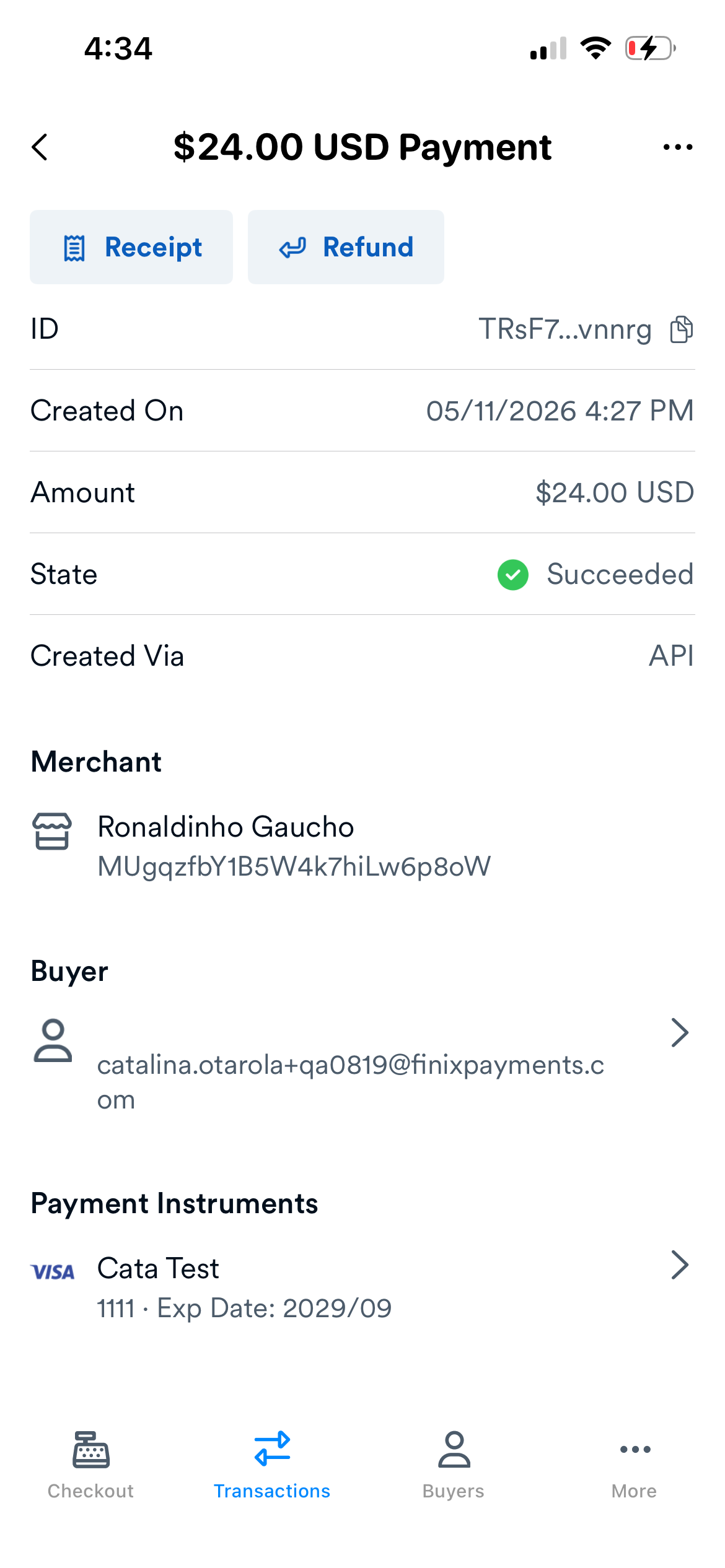
- From the payment details page, tap Refund.
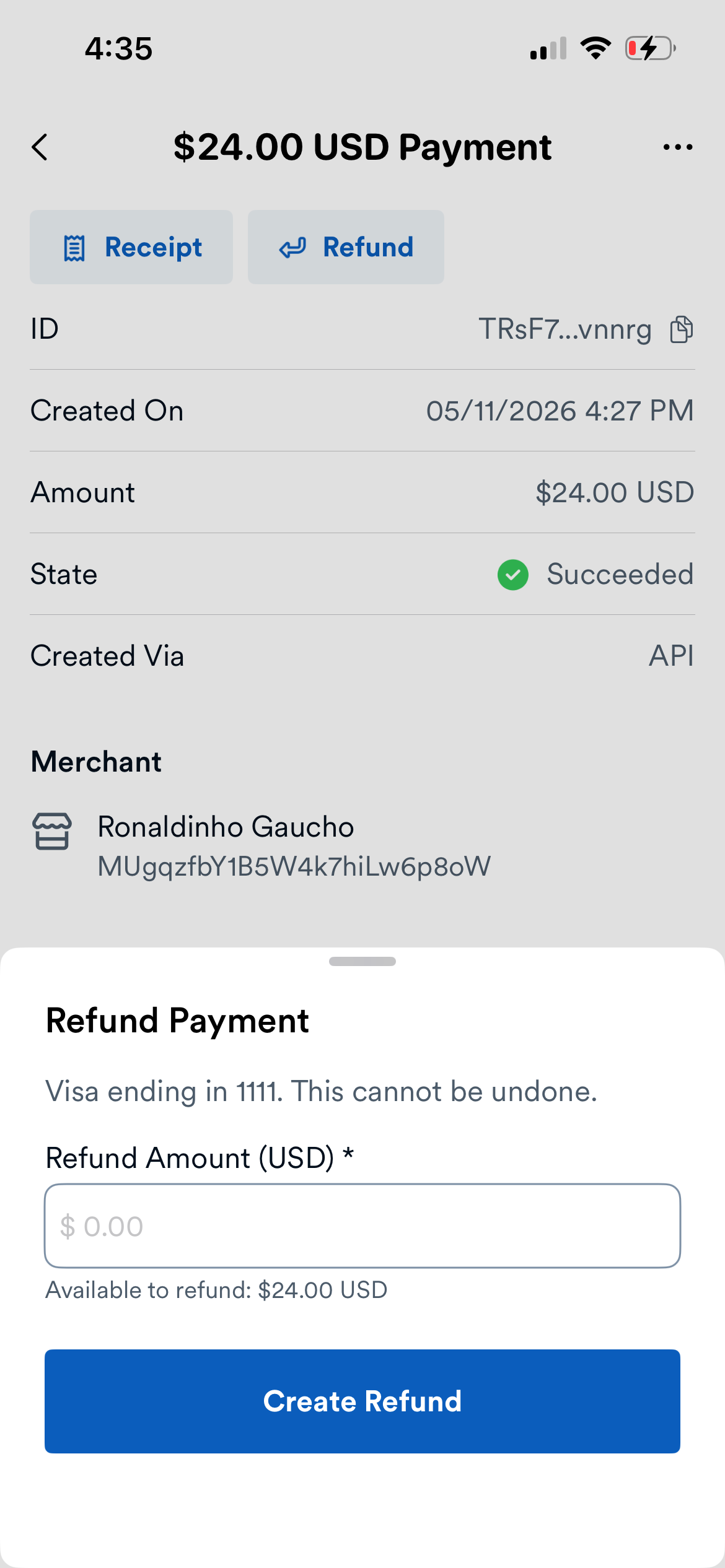
- Enter an amount equal to or less than the payment to refund. Enter a value less than the payment amount for a partial refund.
- Tap Create Refund.
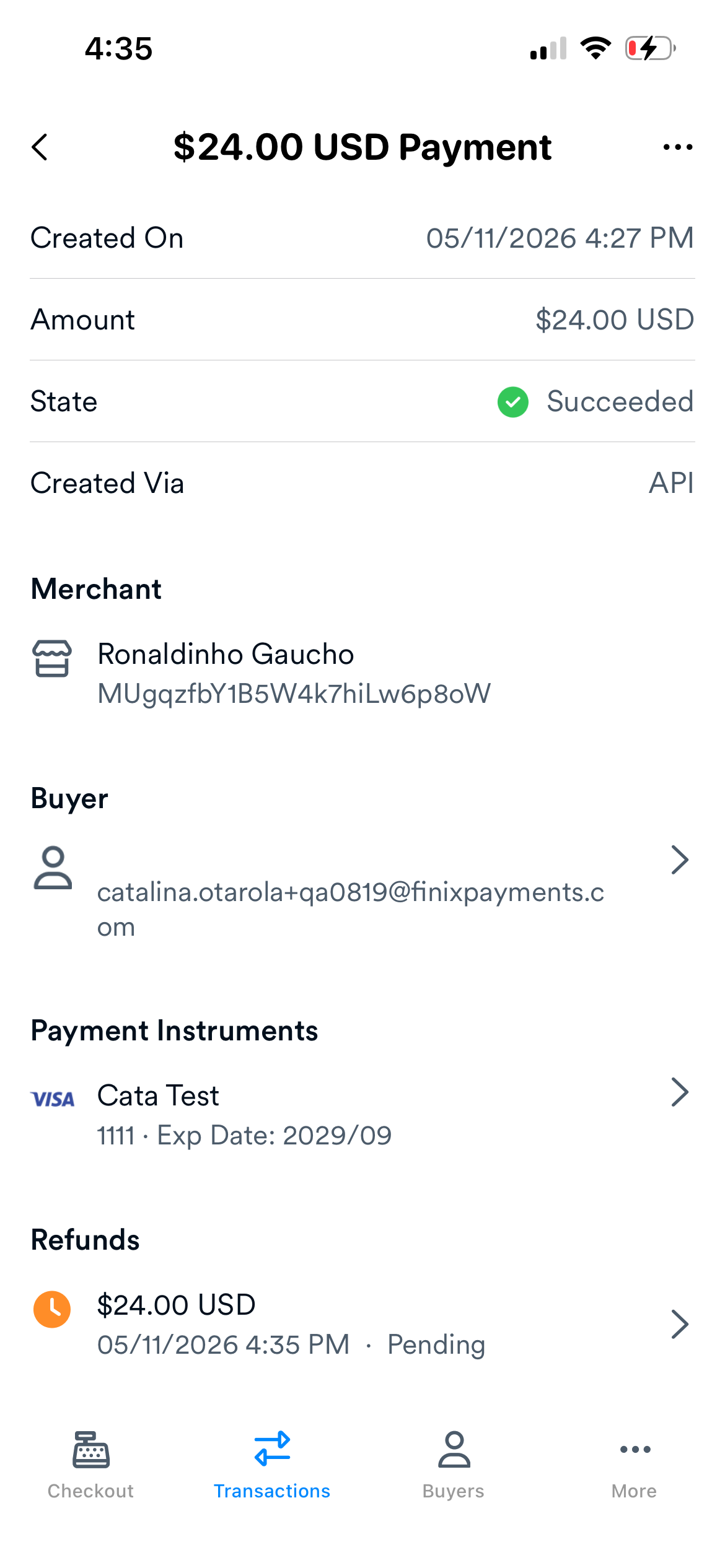
- On the payment details page, the refund status first shows "Pending" then changes to "Succeeded".
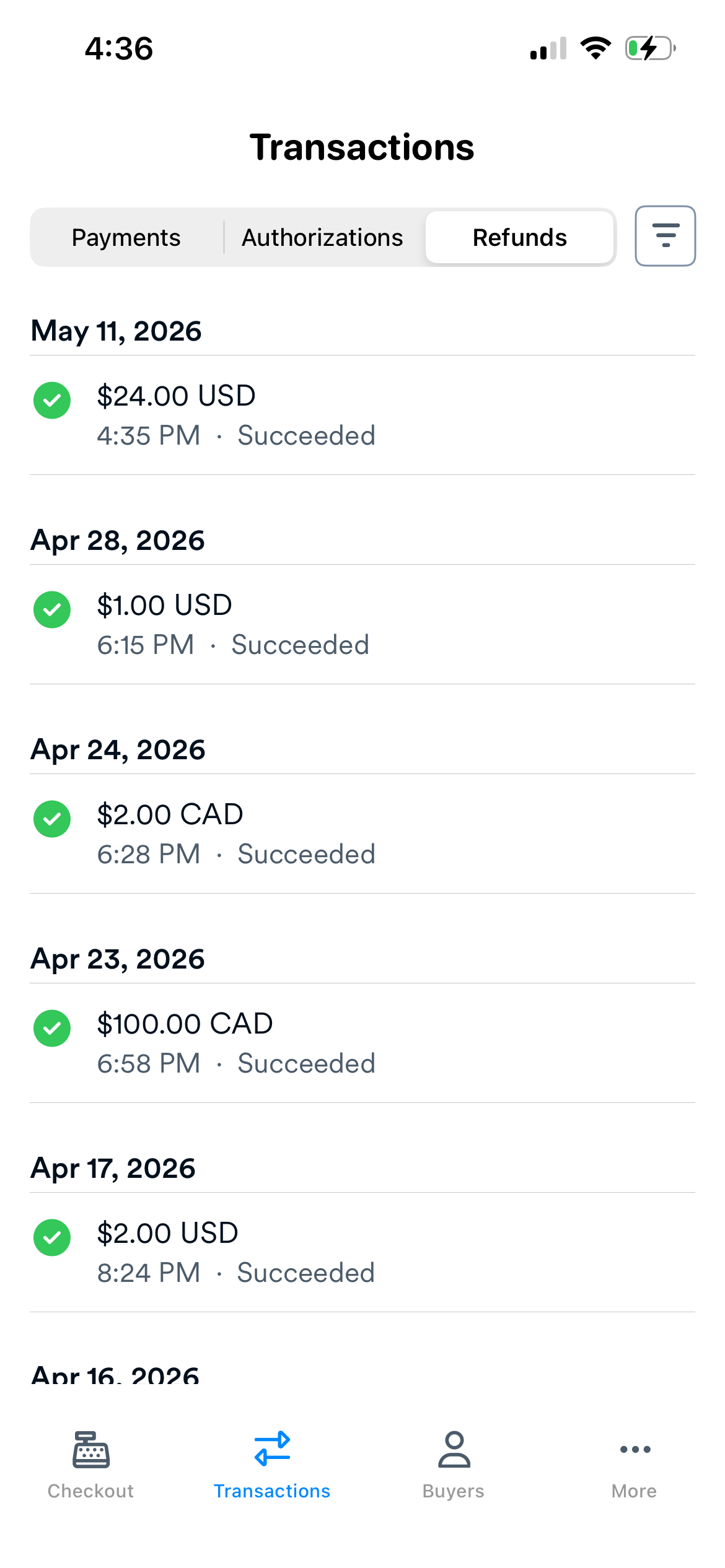
- You can view refunds from the Transactions page > Refunds tab.