You can refund transactions in Finix conveniently using the Finix Dashboard rather than the Finix API. The Finix Dashboard supports refunds for both online and in-person payments.
To refund a payment using the Finix Dashboard:
- In the Dashboard, expand Transactions in the left navigation.
- Click Payments.
- Click the payment in the list or search by payment ID.
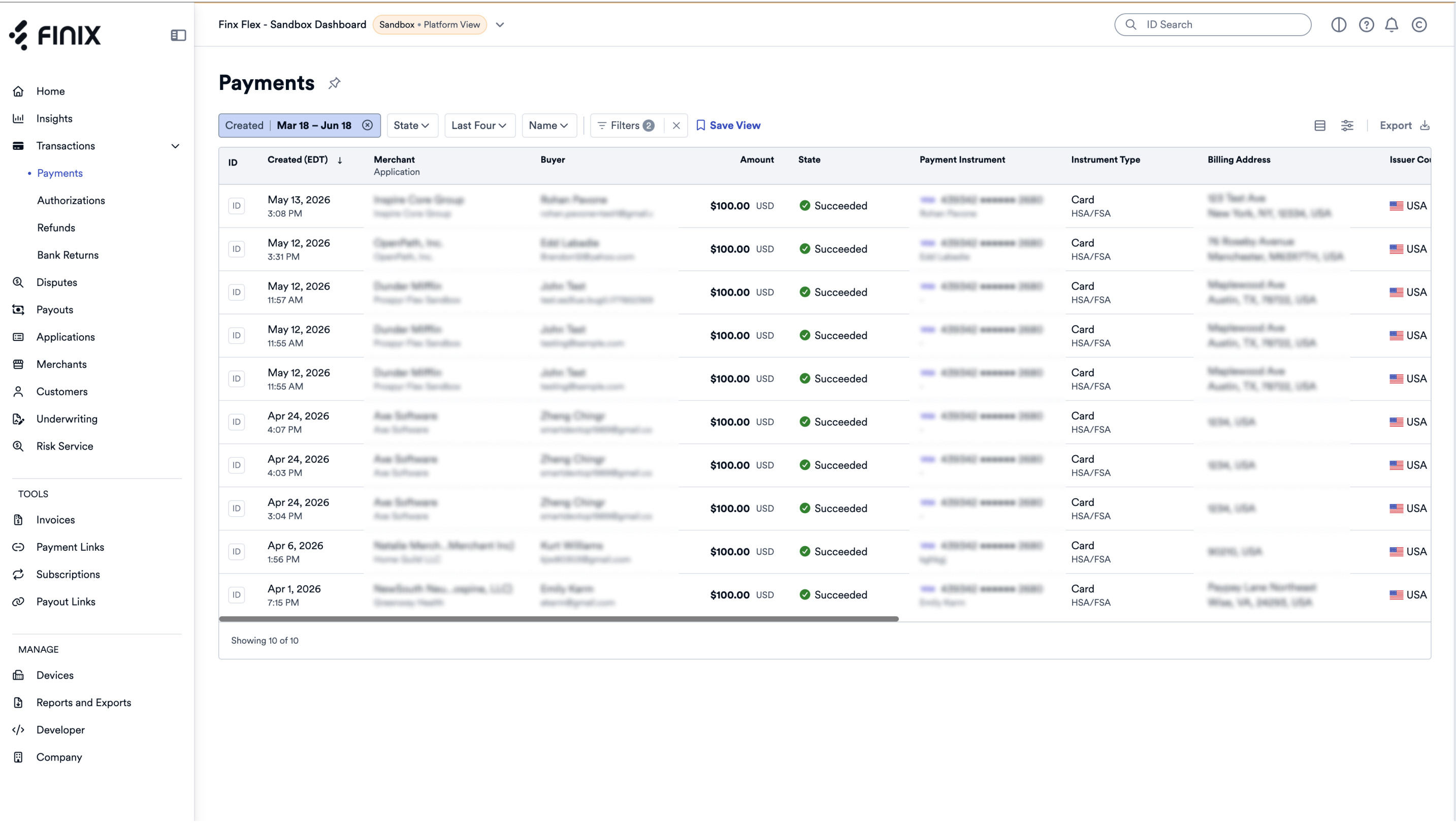
- A payment summary drawer opens on the right side.
- Click View All Details.
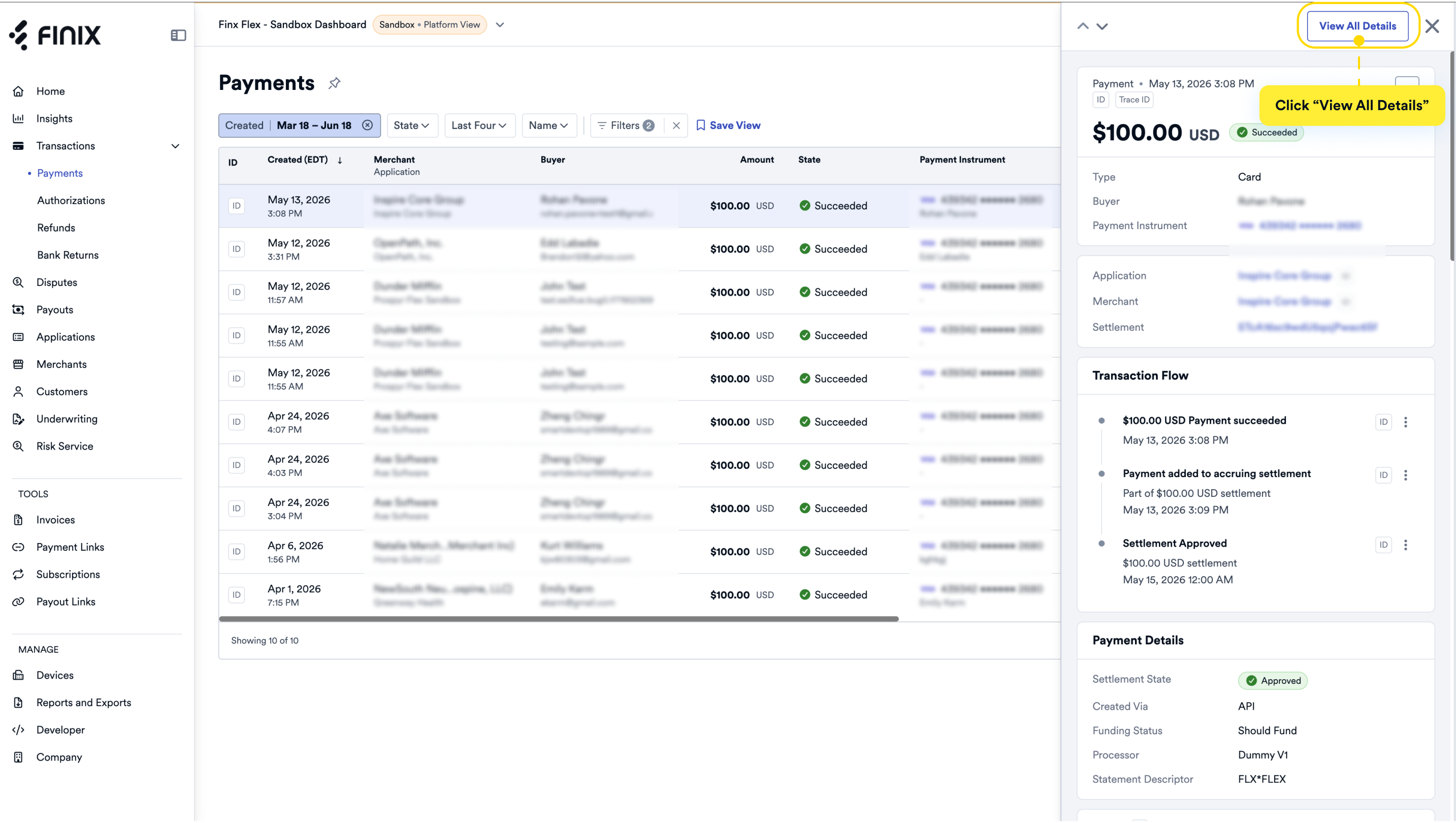
- On the payment details page, scroll down to the Refunds section.
- Click Issue Refund.
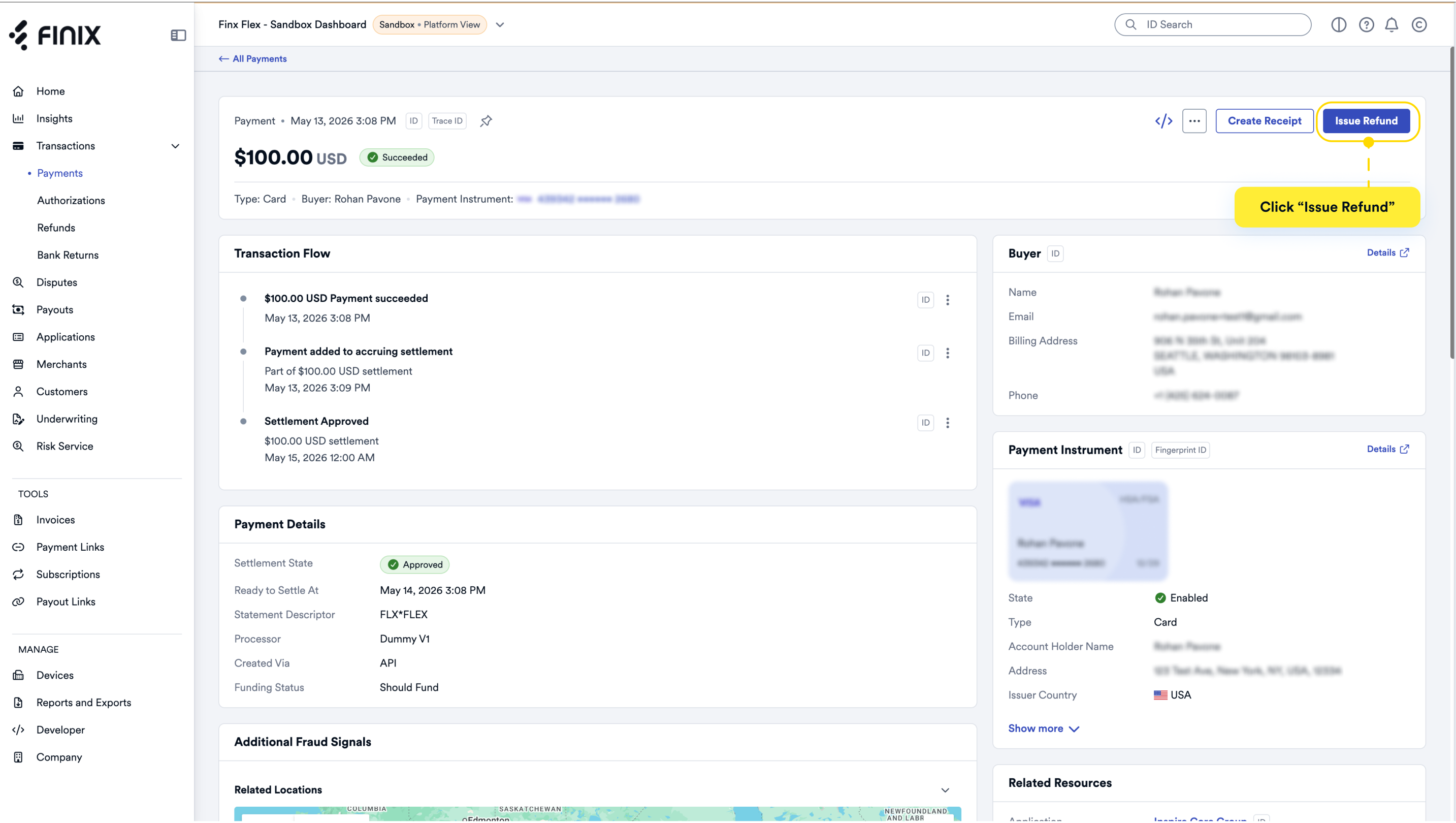
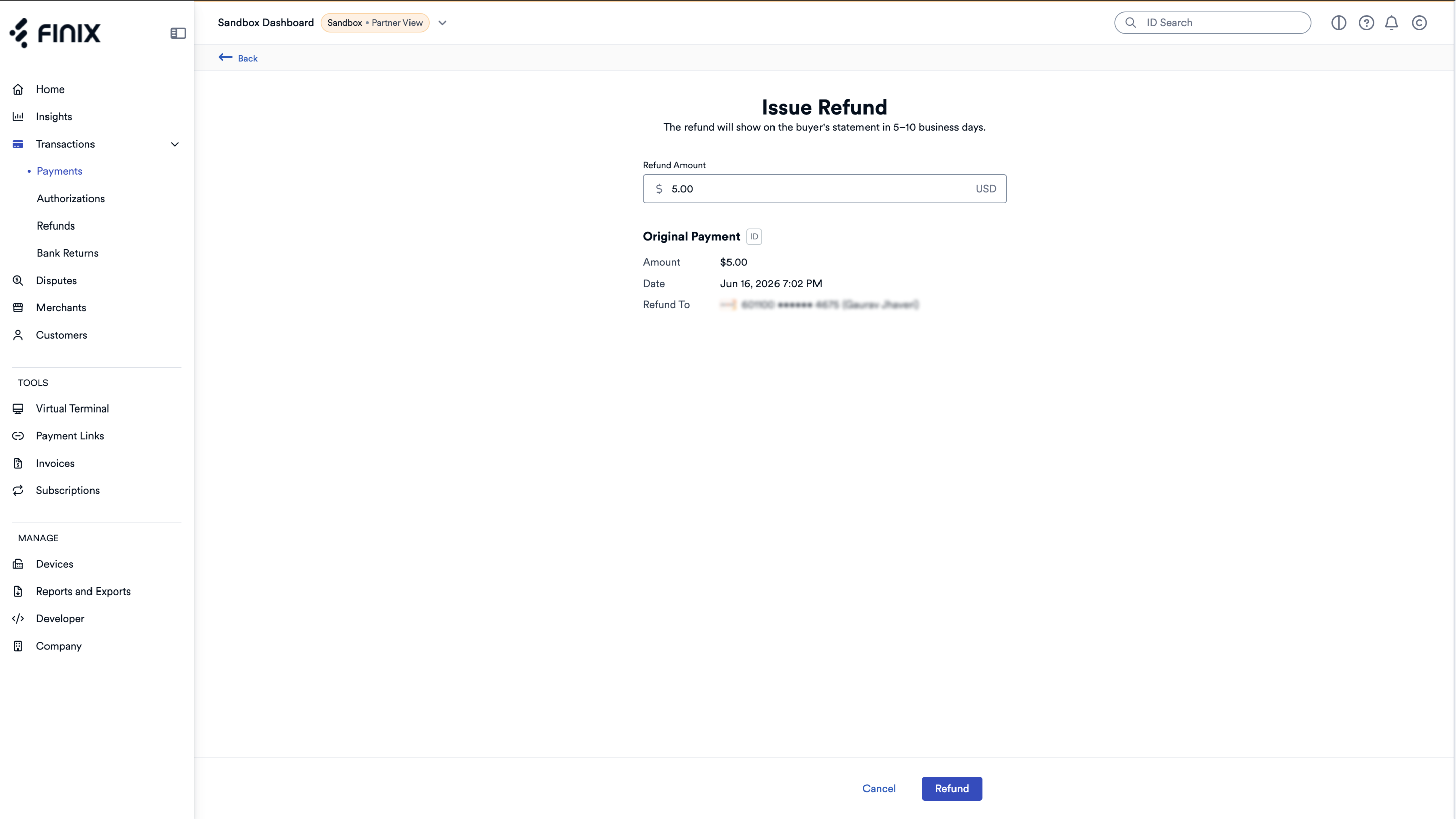
- On the Issue Refund screen, you can keep the default amount, which is the same as the payment amount, or enter a refund amount less than the payment amount for a partial refund.
- Click Refund.
- Confirm the total refund amount.
- If successful, a "Refund has been successfully created" message briefly appears.
- On the payment details page, "Refund Pending" is initially displayed, then it changes to "Refund Succeeded".
- You can optionally view the refund from the Transaction Activity → Refunds page.