Accept payments with Finix on Vindicia.

Vindicia, part of Amdocs, is an AI-driven subscription billing and payment recovery platform that has processed over 1.8 billion transactions for subscription businesses worldwide. It provides end-to-end tools for recurring billing, involuntary churn reduction, revenue recovery, and subscriber analytics — making it a trusted choice for media, streaming, SaaS, and digital services companies managing large subscriber bases. Finix integrates with Vindicia through the Cybersource payment gateway, enabling merchants to process payments and reconcile transaction data within their Vindicia environment.
- Finix Live Account
- Active Vindicia account
To create a Finix account, you can follow our step-by-step guide or sign up directly for a live or sandbox account.
We recommend choosing Direct Merchant as your Customer Type.
Finix supports Vindicia via our Cybersource Gateway integration. Please note that there is an additional fee for using our Cybersource integration.
For more information, please reach out to your Finix point of contact.
- To create a Cybersource integration, navigate to the Integrations page on your Finix Dashboard.
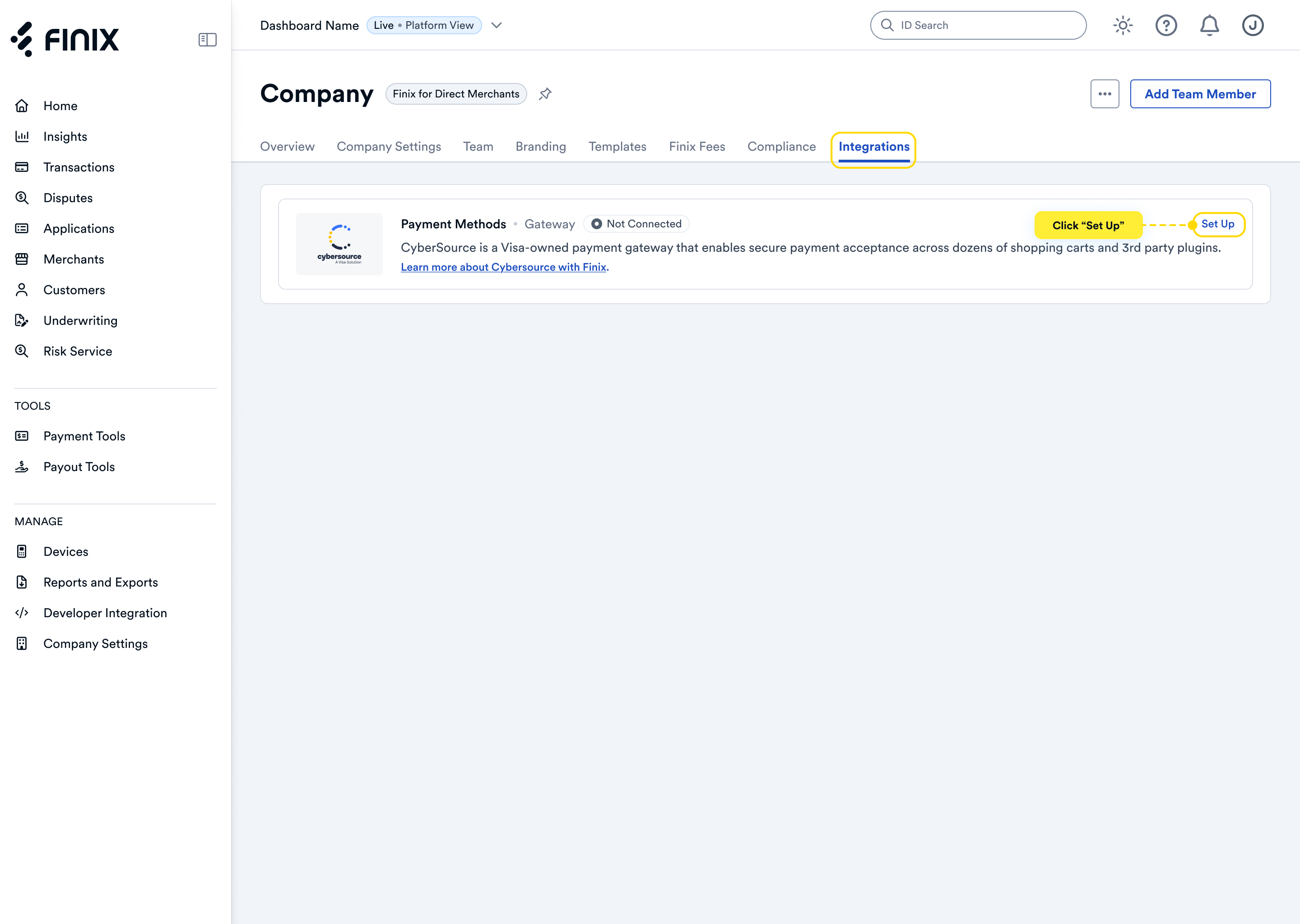
- Sign up for Cybersource. For detailed instructions, see the Cybersource integration guide.
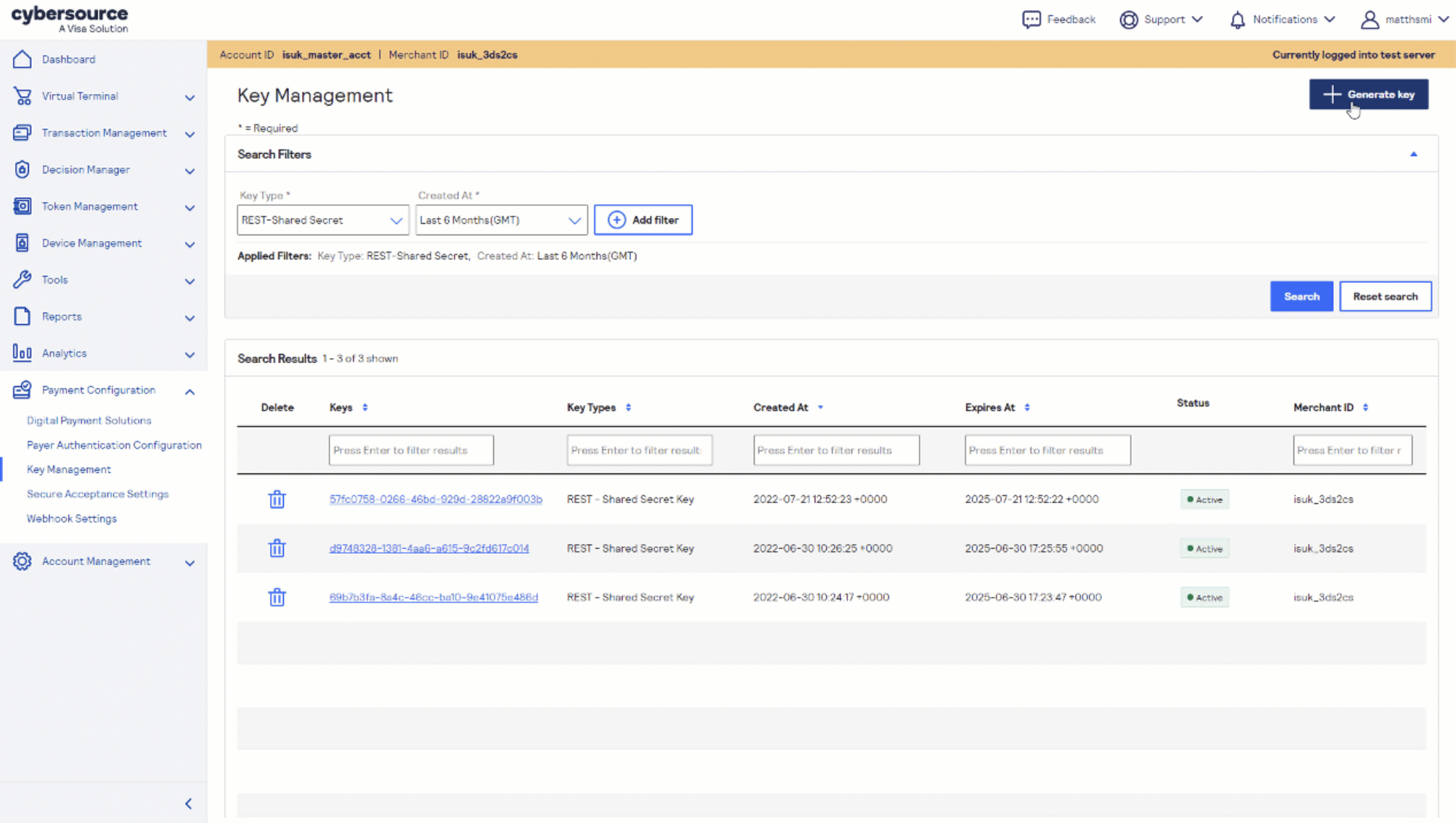
- After accepting the Cybersource invitation email, retrieve the following credentials from the Cybersource Business Center under Payment Configuration → Key Management — you'll need these to configure Vindicia:
- Merchant ID (also called Organization ID)
- REST API Key
Before you proceed, ensure you have:
- Approved Finix Merchant Account
- Cybersource Gateway Integration linked to your Finix Merchant Account
- Cybersource credentials from Step 2
- Active Vindicia Subscribe or Vindicia Retain account
Vindicia and Cybersource offer a pre-integrated joint solution for subscription billing and payment recovery. Vindicia Subscribe handles recurring billing and subscriber lifecycle management, while Vindicia Retain uses AI-driven recovery to reduce failed payment churn. For full configuration details, refer to the Vindicia + Cybersource partner datasheet or contact your Vindicia account team.
Enabling the Cybersource connection in Vindicia is managed through your Vindicia account team and is not self-serve. Reach out to Vindicia Client Services to initiate the setup.
In your Vindicia admin, configure the Cybersource payment processor with the following credentials from Step 2:
- Merchant ID - your Cybersource Organization ID
- REST API Key ID - your REST Key ID
- REST API Shared Secret - your REST Shared Secret
Select Test for sandbox or Production for live payments, then save the configuration.
After completing configuration, you can now take payments through Finix via our Cybersource Gateway Integration.
To learn more about our Cybersource Gateway Integration, you can read our guide.
If you need additional assistance contact support@finix.com.
When you run a transaction on Vindicia, you'll see it:
- In your Vindicia admin under Transactions.
- In the Cybersource Business Center.
- In your Finix Dashboard under Transactions → Payments.
These transactions will be ingested by Finix and added to Settlements. To track transfers between Finix and Cybersource, see how to locate Cybersource transactions.