Accept payments with Finix on Sitecore.

Sitecore is a leading enterprise digital experience platform trusted by global brands. It combines content management, commerce, personalization, and analytics into a unified platform — enabling organizations to deliver tailored digital experiences across web, mobile, and in-store channels. Sitecore OrderCloud, its headless commerce API, powers flexible B2B, B2C, and marketplace scenarios at scale. Finix integrates with Sitecore through the Cybersource payment gateway, enabling merchants to process payments and reconcile transaction data within their Sitecore environment.
- Finix Live Account
- Active Sitecore Experience Commerce or Sitecore OrderCloud instance
To create a Finix account, you can follow our step-by-step guide or sign up directly for a live or sandbox account.
We recommend choosing Direct Merchant as your Customer Type.
Finix supports Sitecore via our Cybersource Gateway integration. Please note that there is an additional fee for using our Cybersource integration.
For more information, please reach out to your Finix point of contact.
- To create a Cybersource integration, navigate to the Integrations page on your Finix Dashboard.
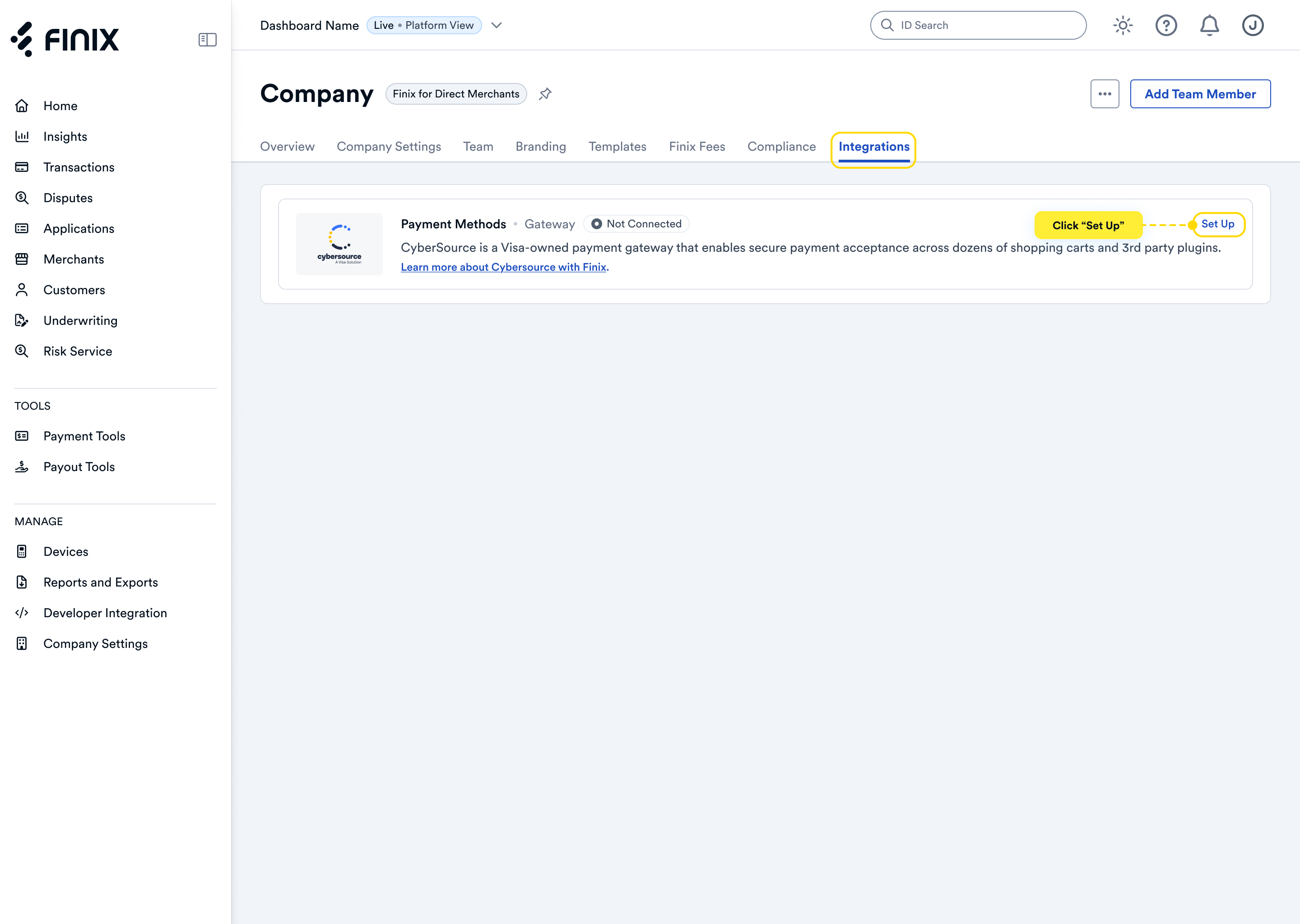
- Sign up for Cybersource. For detailed instructions, see the Cybersource integration guide.
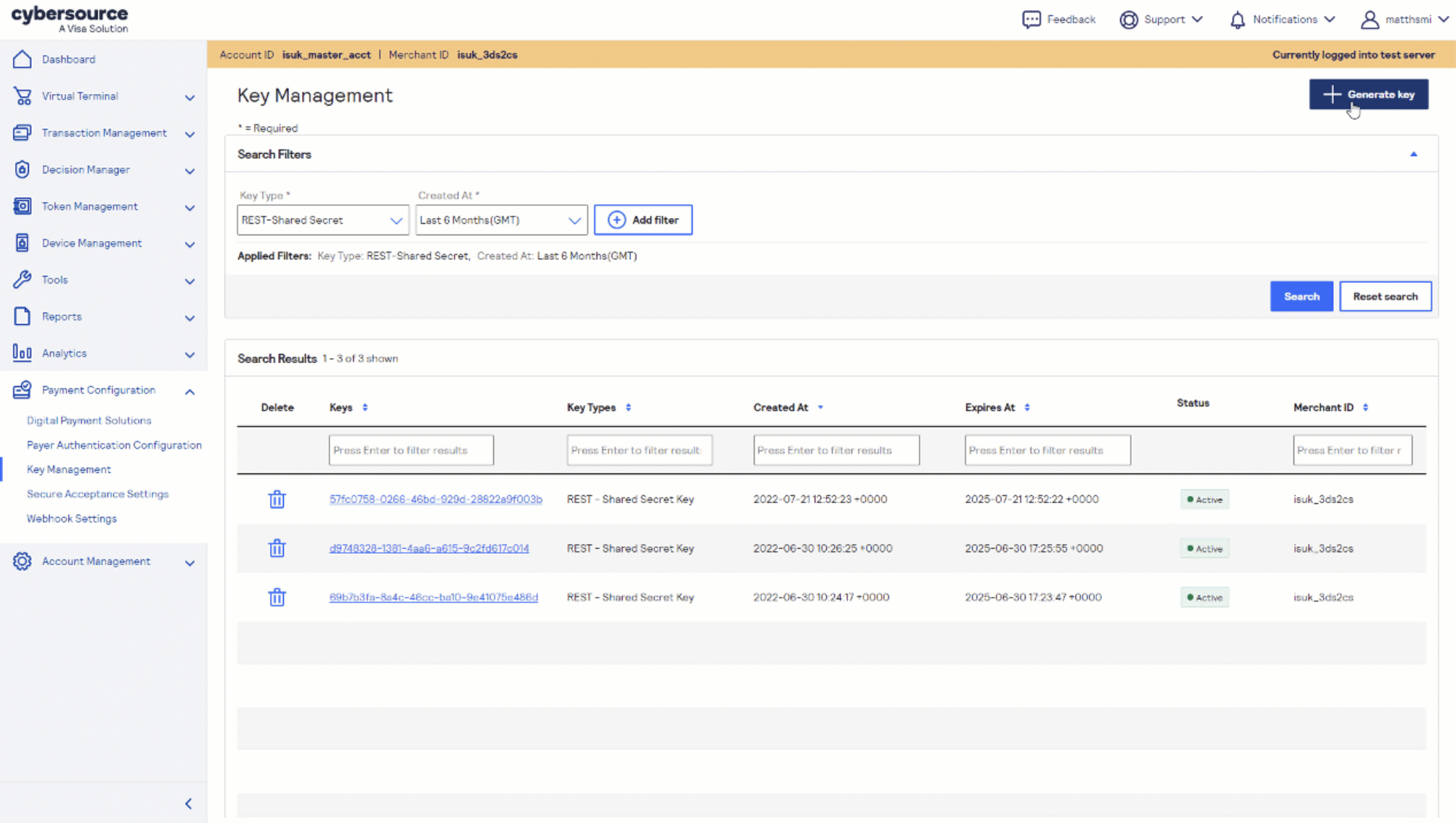
- After accepting the Cybersource invitation email, retrieve the following credentials from your CyberSource account dashboard — you'll need these to configure your Sitecore OrderCloud middleware:
- Merchant ID
- Rest API Key
Before you proceed, ensure you have:
- Approved Finix Merchant Account
- Cybersource Gateway Integration linked to your Finix Merchant Account
- Cybersource credentials from Step 2
- Active Sitecore OrderCloud instance
- .NET Core SDK installed
Sitecore OrderCloud connects to CyberSource through a custom middleware layer using the CyberSource REST .NET client library. Install the package in your middleware project:
Install-Package CyberSource.Rest.Client.NetStandardIn your middleware project, implement the following payment methods by calling the corresponding CyberSource REST APIs:
- ProcessPayment - process a payment transaction
- AuthorizePayment - authorize a payment without capturing
- CheckPaymentStatus - retrieve the status of a transaction
- CapturePayment - capture a previously authorized payment
- RefundPayment - issue a refund for a completed transaction
- VoidPayment - void an authorized or captured transaction
- CreateCustomer - create a tokenized customer profile
Configure the following credentials in your middleware settings using the values from Step 2:
- Merchant ID - your CyberSource Merchant ID
- API Login ID - your CyberSource API Login ID
- Transaction Key - your CyberSource Transaction Key
In your CyberSource account dashboard, add your Sitecore OrderCloud middleware URL as an approved URL to permit communication between the two systems.
After completing configuration, you can now take payments through Finix via our Cybersource Gateway Integration.
To learn more about our Cybersource Gateway Integration, you can read our guide.
If you need additional assistance contact support@finix.com.
When you run a transaction on Sitecore, you'll see it:
- In your Sitecore admin under Commerce → Orders.
- In the Cybersource Business Center.
- In your Finix Dashboard under Transactions → Payments.
These transactions will be ingested by Finix and added to Settlements. To track transfers between Finix and Cybersource, see how to locate Cybersource transactions.