Accept payments with Finix on commercetools.

commercetools is a headless, cloud-native commerce platform built on MACH principles (Microservices, API-first, Cloud-native, Headless). It enables global enterprises to build composable commerce experiences by providing modular services for product catalogs, cart and checkout, order management, and customer data — all exposed via APIs. Finix integrates with commercetools through the Cybersource payment gateway, enabling merchants to process payments and reconcile transaction data within their commercetools storefront.
- Finix Live Account
- Active commercetools account
To create a Finix account, you can follow our step-by-step guide or sign up directly for a live or sandbox account.
We recommend choosing Direct Merchant as your Customer Type.
Finix supports commercetools via our Cybersource Gateway integration. Please note that there is an additional fee for using our Cybersource integration.
For more information, please reach out to your Finix point of contact.
- To create a Cybersource integration, navigate to the Integrations page on your Finix Dashboard.
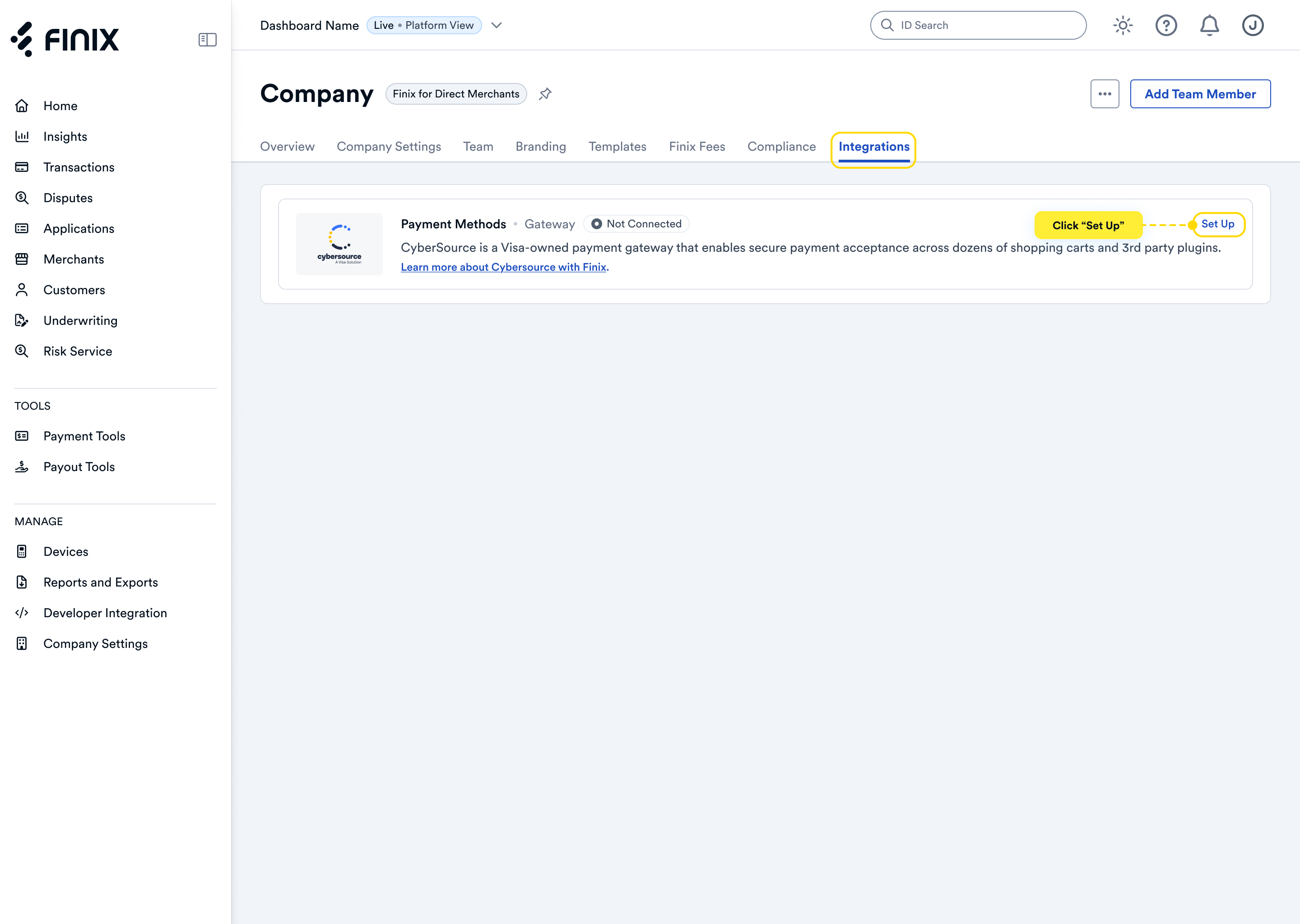
- Sign up for Cybersource. For detailed instructions, see the Cybersource integration guide.
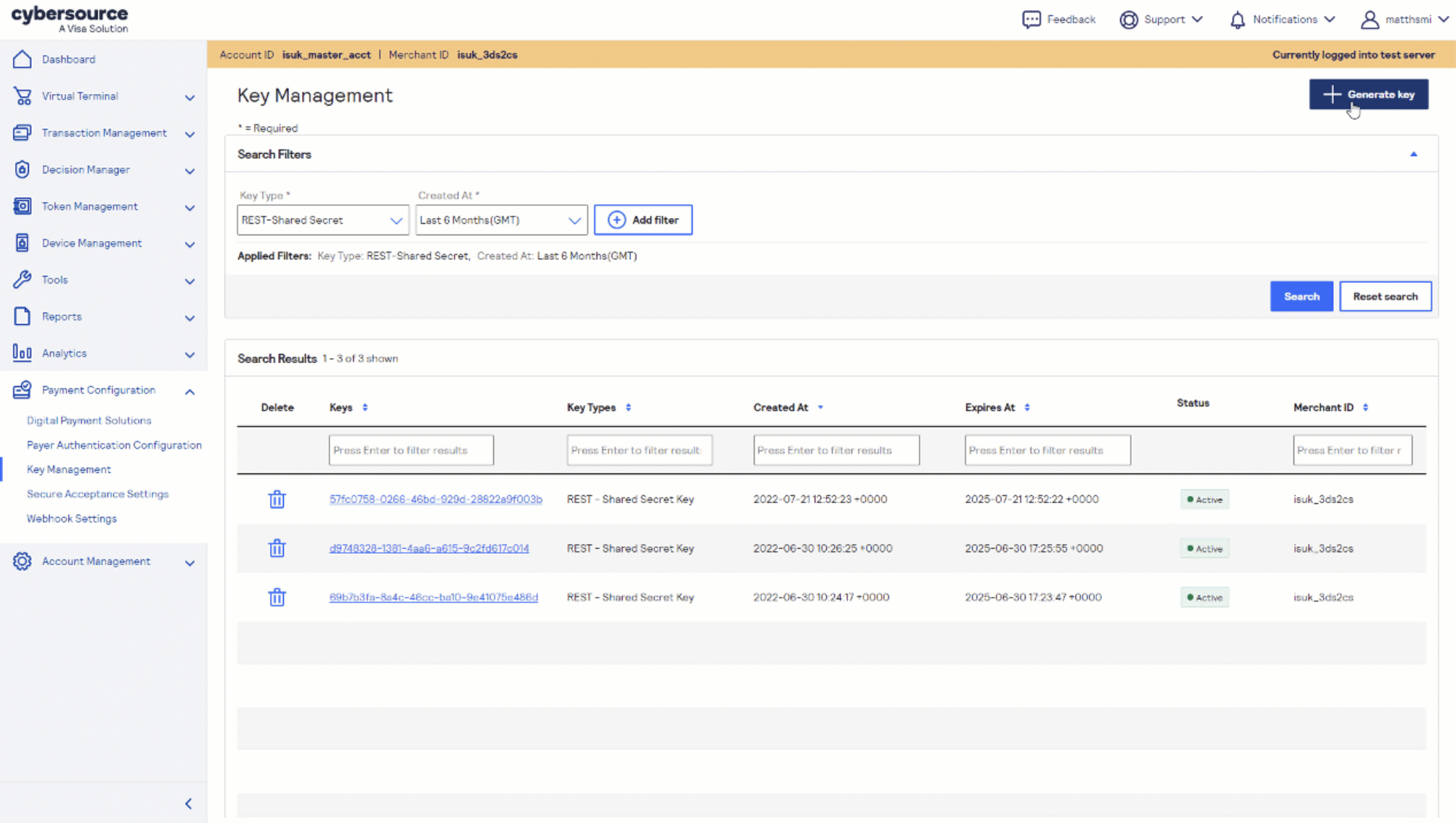
- After accepting the Cybersource invitation email, retrieve the following credentials from the Cybersource Business Center under Payment Configuration → Key Management — you'll need these to configure commercetools:
- Merchant ID (also called Organization ID)
- REST API Key
Before proceeding, ensure your commercetools environment is ready:
- Active commercetools Merchant Center account with a configured project
- API Client with Manage and View scopes for: Customers, Extensions, Orders, Payments, and Types
- Node.js v16.3.0 or later
- 256MB minimum memory allocation for the plugin service
Before you proceed, ensure you have:
- Approved Finix Merchant Account
- Cybersource Gateway Integration linked to your Finix Merchant Account
- commercetools project with API Client configured
Install the cybersource-plugins-commercetools package from the Cybersource GitHub repository. For full installation details, refer to the Cybersource commercetools developer documentation.
Once installed, populate the following environment variables in your .env file:
Cybersource credentials:
PAYMENT_GATEWAY_MERCHANT_ID- your Cybersource Merchant ID from Step 2PAYMENT_GATEWAY_MERCHANT_KEY_ID- your REST API Key ID from Step 2PAYMENT_GATEWAY_MERCHANT_SECRET_KEY- your REST API Shared Secret from Step 2PAYMENT_GATEWAY_RUN_ENVIRONMENT- set toTESTfor sandbox orPRODUCTIONfor livePAYMENT_GATEWAY_TARGET_ORIGIN- your frontend base URL
commercetools credentials:
CT_PROJECT_KEY,CT_CLIENT_ID,CT_CLIENT_SECRET— from your commercetools API ClientCT_AUTH_HOST,CT_API_HOST— your commercetools server URLs
Optional feature flags:
PAYMENT_GATEWAY_DECISION_MANAGER- enable Cybersource Decision Manager for fraud preventionPAYMENT_GATEWAY_SCA_CHALLENGE- enforce 3D Secure for SCA-compliant transactionsPAYMENT_GATEWAY_3DS_RETURN_URL- redirect URL for 3D Secure authentication flowPAYMENT_GATEWAY_ENABLE_RATE_LIMITER- restrict saved card usage
Once your environment variables are configured, start the plugin service:
npm run startThen call the /configurePlugin endpoint to register the API extensions within your commercetools project. This establishes the payment extension hooks that route transactions through Cybersource.
After completing configuration, you can now take payments through Finix via our Cybersource Gateway Integration.
To learn more about our Cybersource Gateway Integration, you can read our guide.
If you need additional assistance contact support@finix.com.
When you run a transaction on commercetools, you'll see it:
- In your commercetools Merchant Center under Orders.
- In the Cybersource Business Center.
- In your Finix Dashboard under Transactions → Payments.
These transactions will be ingested by Finix and added to Settlements. To track transfers between Finix and Cybersource, see how to locate Cybersource transactions.