Accept payments with Finix on Kibo Commerce.

Kibo Commerce is a headless commerce platform built for enterprise retailers. It provides a modular suite of tools spanning eCommerce, order management, and AI-driven personalization - enabling brands to deliver consistent buying experiences across web, mobile, and in-store channels. Kibo supports complex B2C and B2B commerce operations at scale. Finix integrates with Kibo Commerce through the Cybersource payment gateway, enabling merchants to process payments and reconcile transaction data within their Kibo environment.
- Finix Live Account
- Active Kibo Commerce tenant
To create a Finix account, you can follow our step-by-step guide or sign up directly for a live or sandbox account.
We recommend choosing Direct Merchant as your Customer Type.
Finix supports Kibo Commerce via our Cybersource Gateway integration. Please note that there is an additional fee for using our Cybersource integration.
For more information, please reach out to your Finix point of contact.
- To create a Cybersource integration, navigate to the Integrations page on your Finix Dashboard.
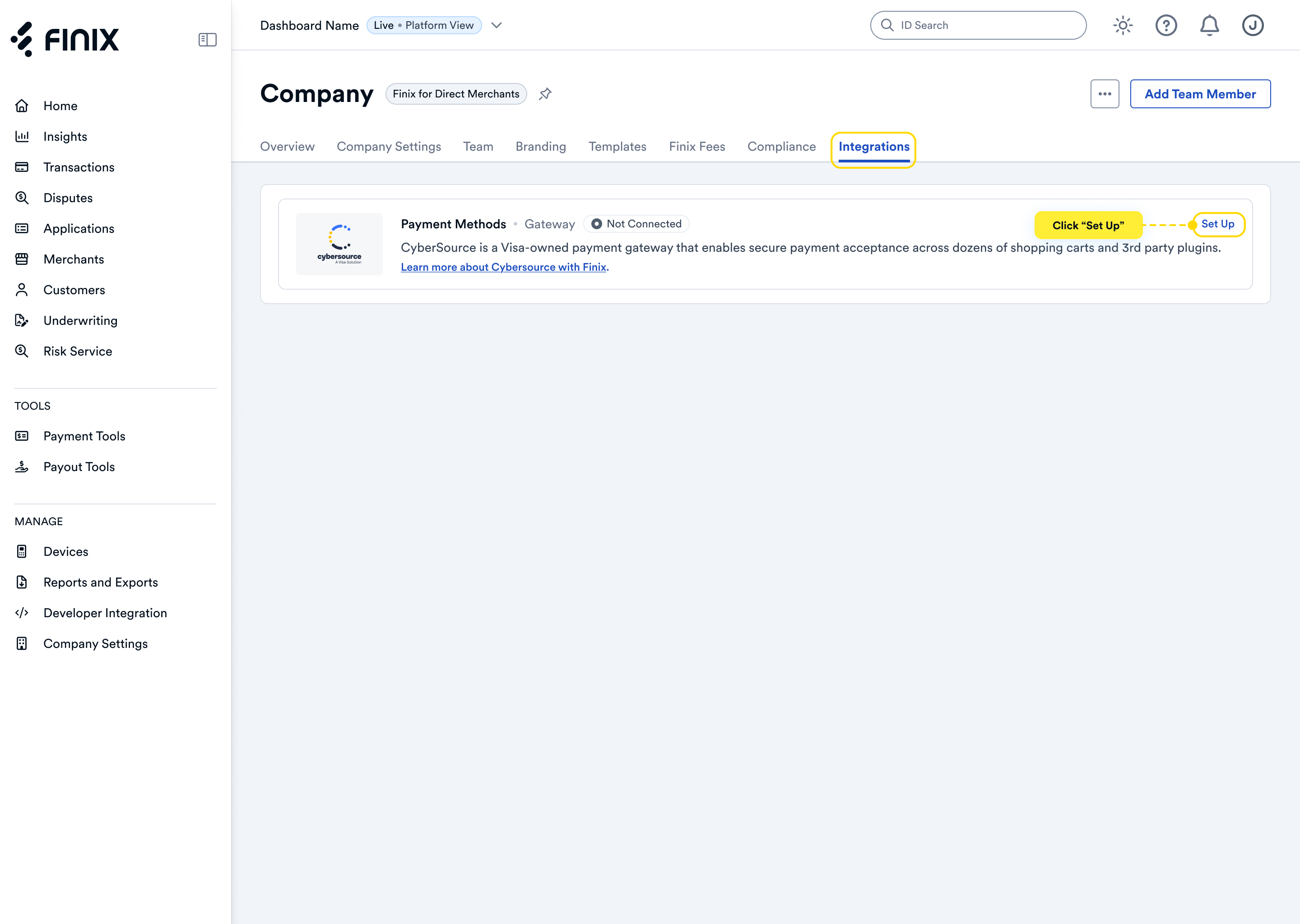
- Sign up for Cybersource. For detailed instructions, see the Cybersource integration guide.
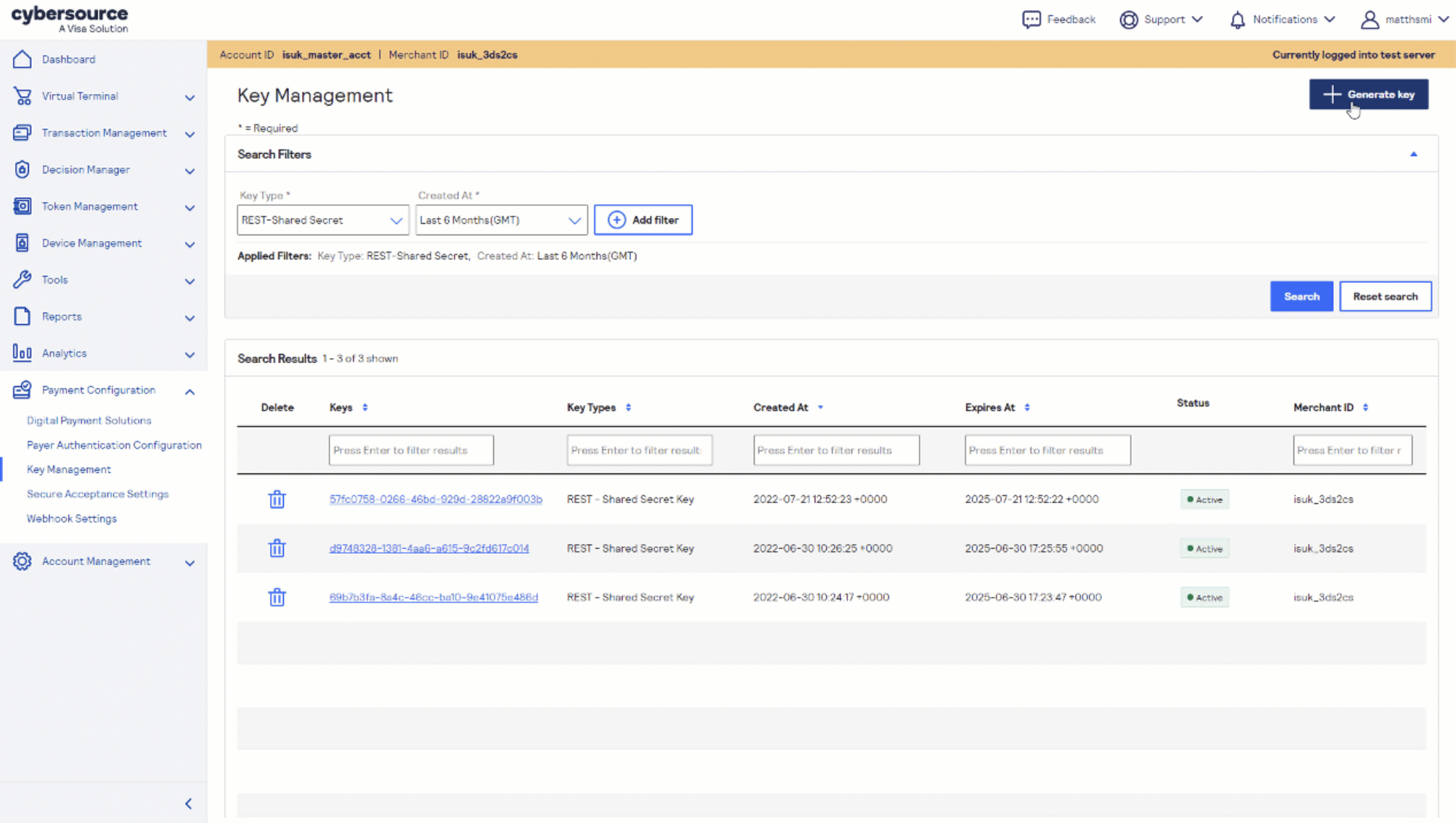
- After accepting the Cybersource invitation email, retrieve the following credentials from the Cybersource Business Center under Payment Configuration → Key Management — you'll need these to configure Kibo Commerce:
- Merchant ID (also called Organization ID)
- REST API Key
Before you proceed, ensure you have:
- Approved Finix Merchant Account
- Cybersource Gateway Integration linked to your Finix Merchant Account
- Cybersource credentials from Step 2
- Administrator access to your Kibo Commerce admin
Kibo Commerce supports Cybersource natively — no extension installation required. For full details, refer to the Kibo Commerce Payment Gateways documentation.
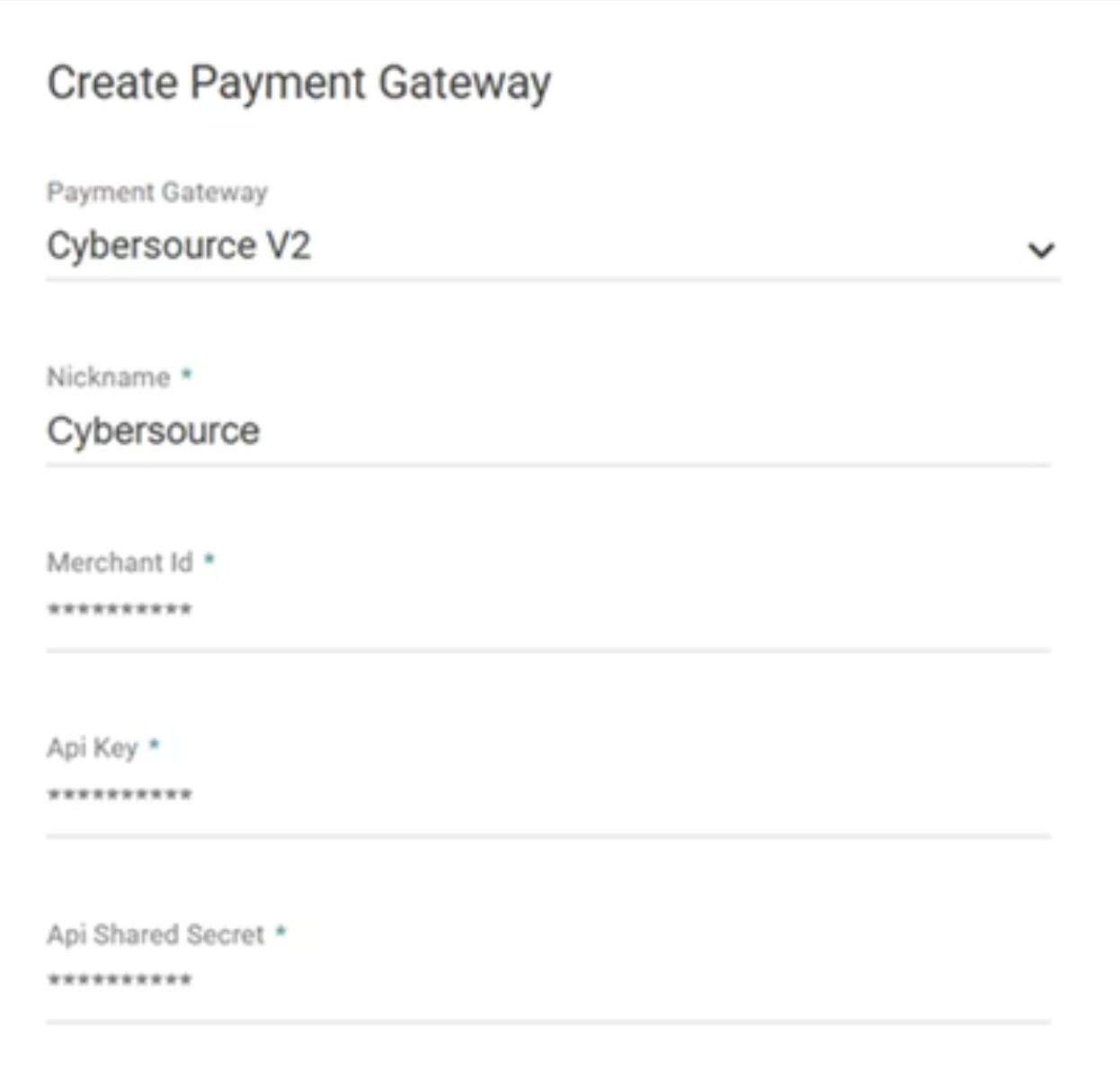
- In your Kibo Commerce admin, navigate to System → Settings → Payment Gateways.
- Click Create New Payment Gateway and select Cybersource V2 from the dropdown.
- Enter the following credentials:
- Nickname - a custom name for this gateway instance
- Merchant ID - your Cybersource Merchant ID from Step 2
- API Key - your REST API Key ID from Step 2
- API Shared Secret - your REST API Shared Secret from Step 2
- Save the configuration.
After completing configuration, you can now take payments through Finix via our Cybersource Gateway Integration.
To learn more about our Cybersource Gateway Integration, you can read our guide.
If you need additional assistance contact support@finix.com.
When you run a transaction on Kibo Commerce, you'll see it:
- In your Kibo Admin under Orders → Orders.
- In the Cybersource Business Center.
- In your Finix Dashboard under Transactions → Payments.
These transactions will be ingested by Finix and added to Settlements. To track transfers between Finix and Cybersource, see how to locate Cybersource transactions.