Accept payments with Finix on Adobe Commerce (formerly Magento).

Adobe Commerce (formerly Magento) is an enterprise-grade eCommerce platform used by mid-market and Fortune 1000 retailers. It supports both cloud-hosted (Adobe Commerce Cloud) and self-hosted (Magento Open Source) deployments, with a flexible extension marketplace and headless storefront capabilities. Finix integrates with Adobe Commerce through the Cybersource payment gateway, enabling merchants to accept card payments directly within their storefront checkout.
- Finix Live Account
- Active Adobe Commerce store (Adobe Commerce Cloud or Magento Open Source)
To create a Finix account, you can follow our step-by-step guide or sign up directly for a live or sandbox account.
We recommend choosing Direct Merchant as your Customer Type.
Finix supports Adobe Commerce via our Cybersource Gateway integration. Please note that there is an additional fee for using our Cybersource integration.
For more information, please reach out to your Finix point of contact.
- To create a Cybersource integration, navigate to the Integrations page on your Finix Dashboard.
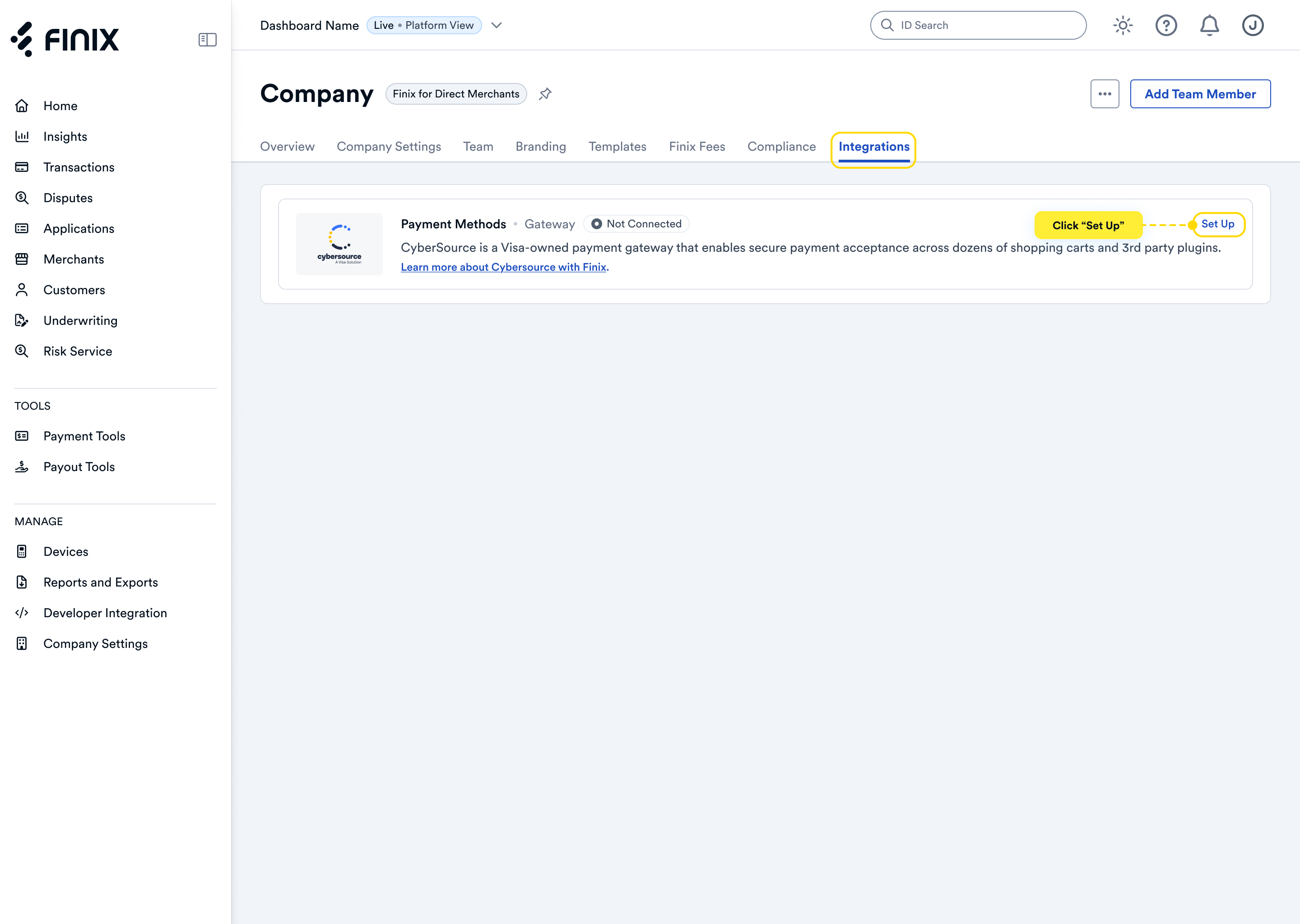
- Sign up for Cybersource. For detailed instructions, see the Cybersource integration guide.
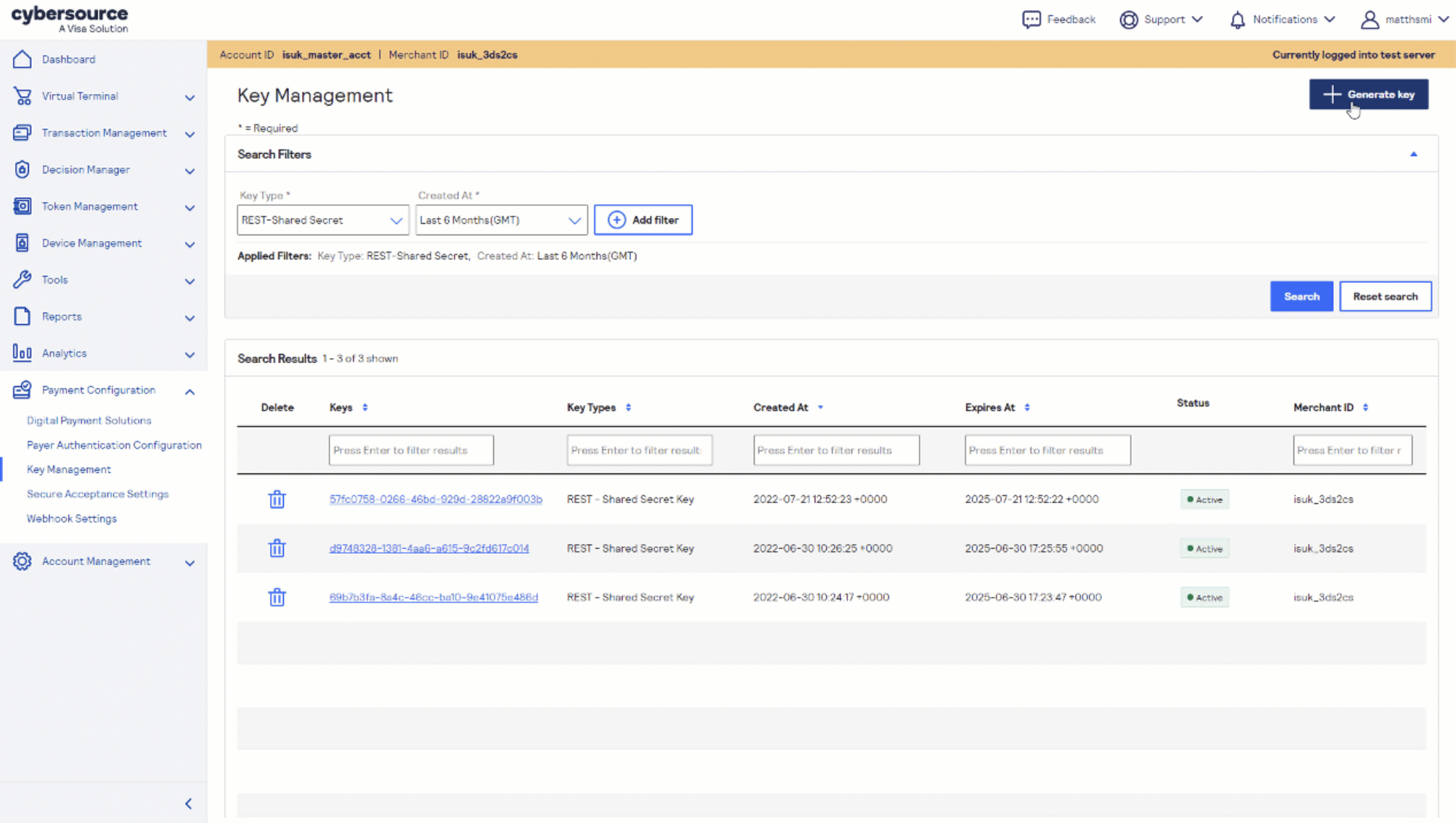
- After accepting the Cybersource invitation email, retrieve the following credentials from the Cybersource Business Center under Payment Configuration → Key Management — you'll need these to configure Adobe Commerce:
- Merchant ID (also called Organization ID)
- REST API Keys (required for Microform checkout)
- SOAP Keys (required for all other integrations)
Before proceeding, ensure your Adobe Commerce environment is ready:
- A working instance of Adobe Commerce or Magento. Learn more with Adobe's Getting Started Guide.
- Set up your Adobe Commerce Marketplace account and generate Access Keys.
Before you proceed, ensure you have:
- Approved Finix Merchant Account
- Cybersource Gateway Integration linked to your Finix Merchant Account
- Adobe Commerce Account & Adobe Commerce Marketplace Access Keys
To install the extension:
- Navigate to the Cybersource Payment Management Platform on the Adobe Commerce Marketplace.
- Select your Adobe Commerce edition and version (2.4), then complete checkout to add it to your account.
- In your Magento root directory, rename
auth.json.sampletoauth.jsonand populate it with your Marketplace Public and Private Keys:
{
  "http-basic": {
    "repo.magento.com": {
      "username": "Your_Public_Key",
      "password": "Your_Private_Key"
    }
  }
}- Run the following Composer commands to install the extension and its dependencies:
composer require cybersource/global-payment-management
composer require cybersource/module-recaptcha- Enable all Cybersource modules:
php bin/magento module:enable CyberSource_AccountUpdater CyberSource_Core CyberSource_ApplePay CyberSource_Atp CyberSource_BankTransfer CyberSource_SecureAcceptance CyberSource_ECheck CyberSource_GooglePay CyberSource_KlarnaFinancial CyberSource_VisaCheckout CyberSource_Address CyberSource_Tax CyberSource_ThreeDSecure CyberSource_PayPal CyberSource_WeChatPay CyberSource_Recaptcha- Run the post-installation commands to compile, reindex, and clear caches:
php bin/magento setup:upgrade
php bin/magento setup:di:compile
php bin/magento setup:static-content:deploy -f
php bin/magento indexer:reindex
php bin/magento cache:clean
php bin/magento cache:flush
For full installation details, refer to the Cybersource Adobe Commerce developer documentation.
In your Adobe Commerce admin, navigate to Stores → Configuration → Sales → Payment Methods and locate the Cybersource section.
- Under Webservice Configurations, enter:
- Merchant ID — your Cybersource Organization ID
- Set Test Mode to Yes for sandbox or No for production
- Enter your REST API or SOAP credentials.
- Under Credit Card Settings:
- Set Enable to Yes
- Set Payment API to SOAP Toolkit
- Set Checkout Flow to Flex Microform
- Enable the card brands and payment methods you want to offer.
After configuring your payment methods, you can now take payments through Finix via our Cybersource Gateway Integration.
To learn more about our Cybersource Gateway Integration, you can read our guide.
If you need additional assistance contact support@finix.com.
When you run a transaction on Adobe Commerce, you can locate it:
- In your Adobe Commerce admin under Sales → Orders.
- In the Cybersource Business Center.
- In your Finix Dashboard under Transactions → Payments.
These transactions will be ingested by Finix and added to Settlements. To track transfers between Finix and Cybersource, see how to locate Cybersource transactions.