The Pax D135 is a card reader that works with the Finix Checkout iOS app to accept in-person payments. Buyers can pay by tapping, swiping, or dipping their card using the device's:
- Contactless card reader
- Magnetic stripe reader
- IC/smart card (chip) reader
To order a D135, contact your Finix point of contact.
For an in-depth overview of the D135's features and hardware, refer to the Pax D135 Quick Setup Guide.
Before pairing the D135 with your iPhone:
- Charge the device: Connect the charging cable to the D135. The charging indicator flashes slowly while charging. When you unplug the cable and the indicator is solid green, the device is fully charged.
- Turn on the device: Press and hold the button on the side of the D135 until it beeps and powers on.
- Enable Bluetooth on your iOS device: The Finix Checkout iOS app connects to the D135 over Bluetooth. USB is not supported.
- Open the Finix Checkout app and tap ... (More) in the navigation bar.
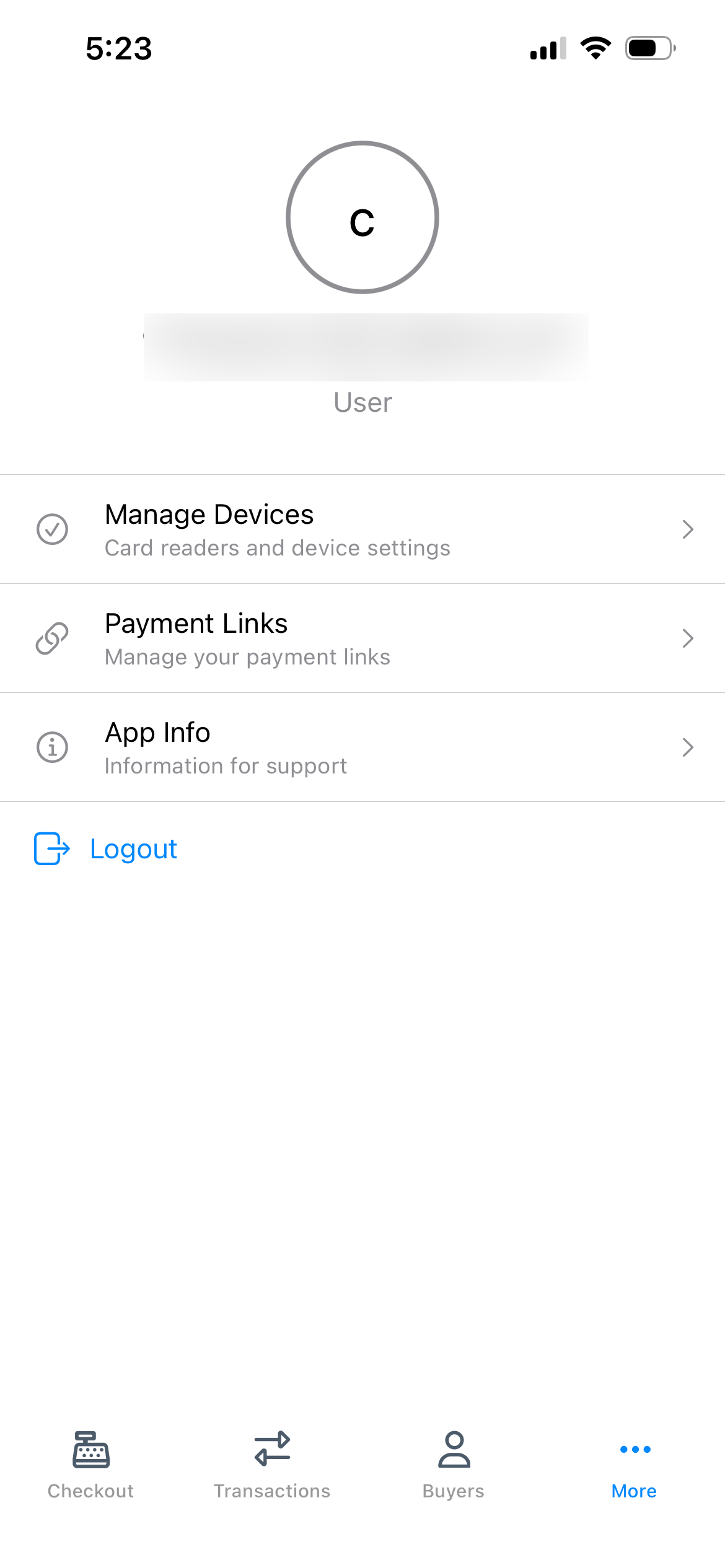
- Tap Manage Devices.
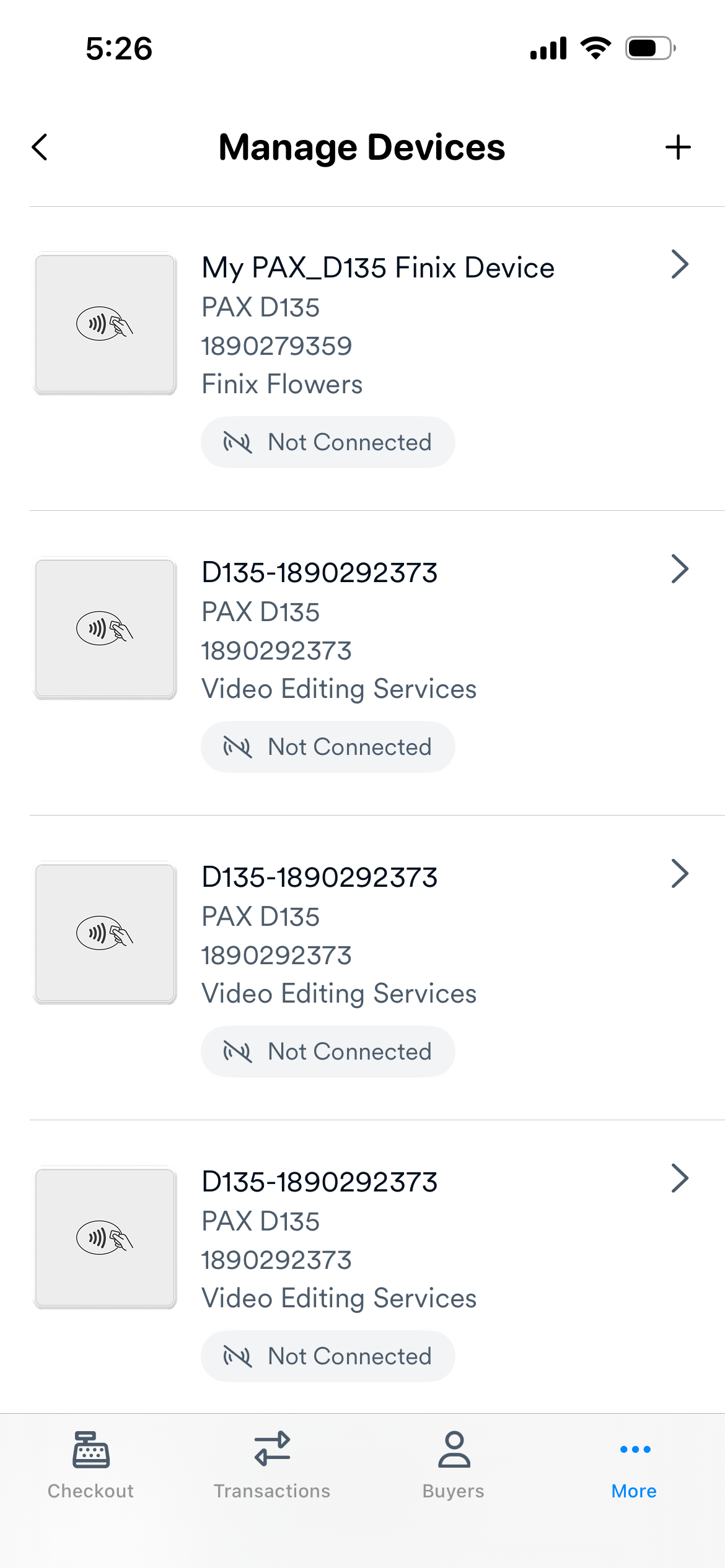
- Tap the + icon in the top-right corner.
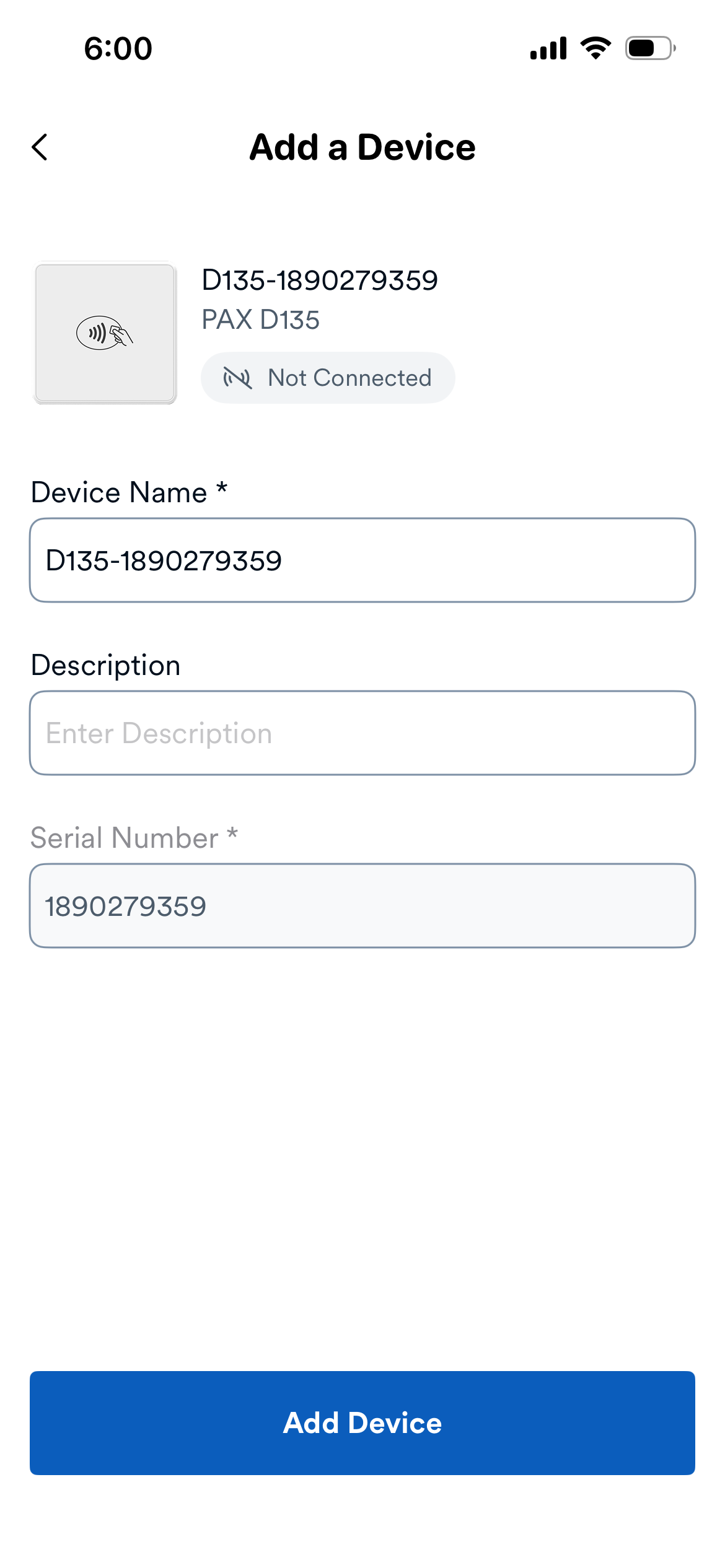
- The Add a Device screen displays.
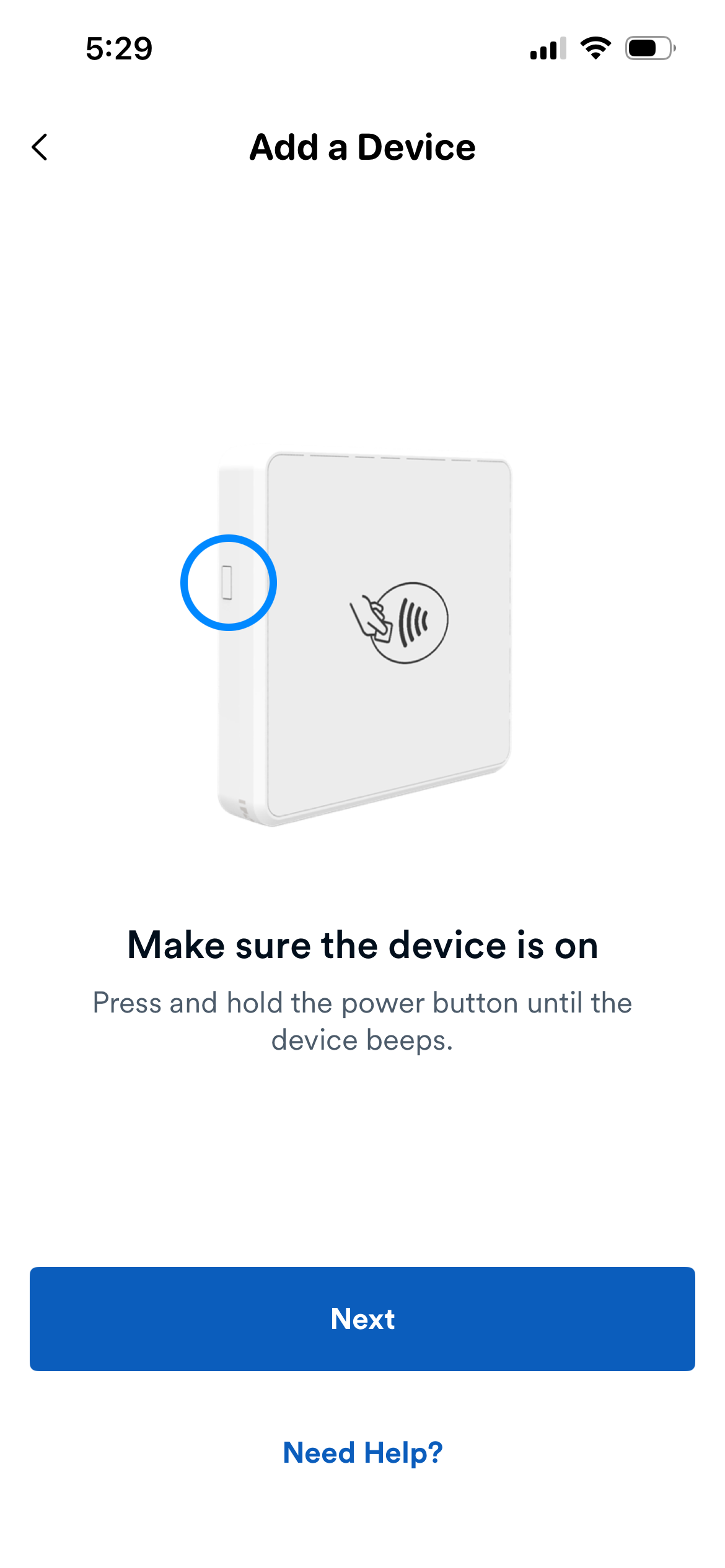
- Follow the on-screen instructions to make sure the device is on, then tap Next.
- A Searching for Nearby Devices screen displays listing nearby Bluetooth devices.
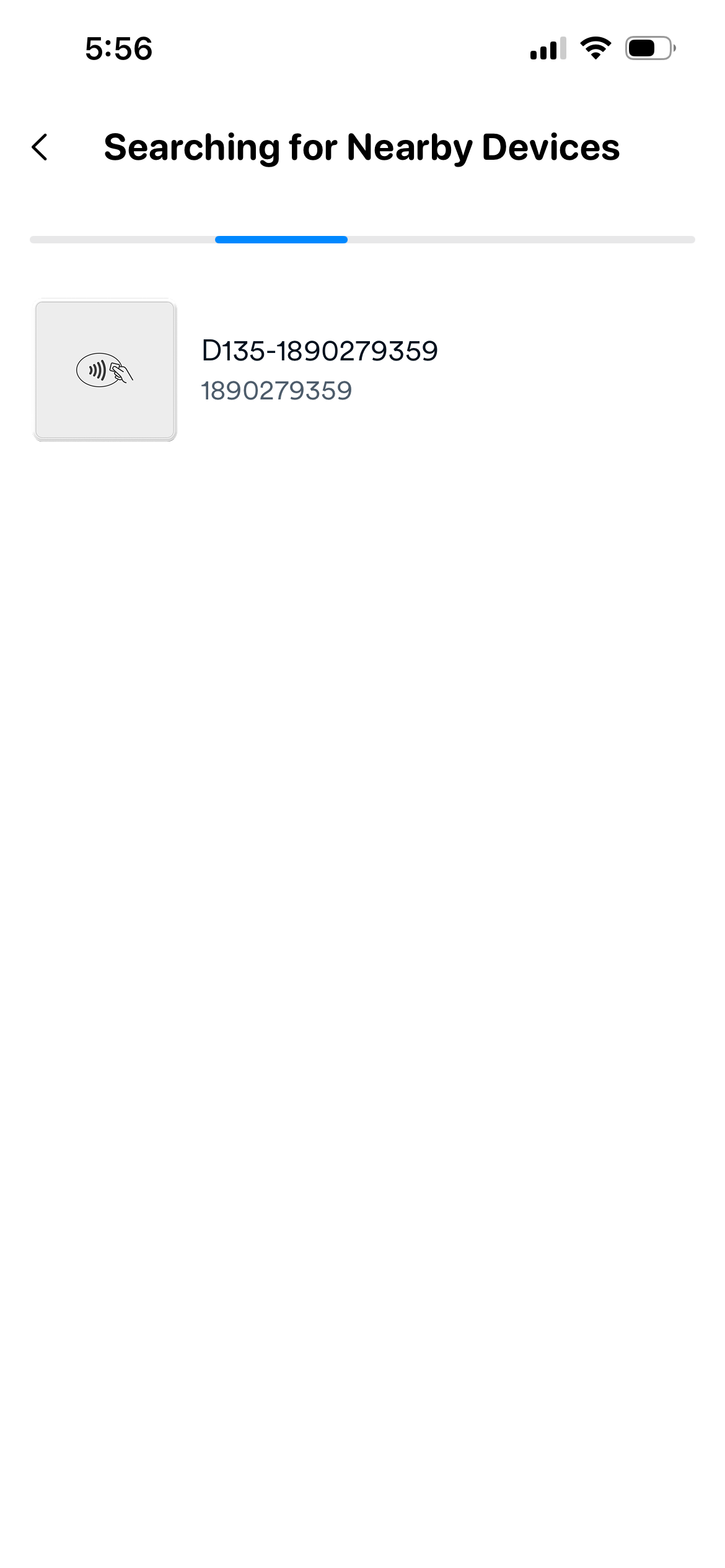
Tap the device that matches the serial number (S/N) shown on your D135 or its packaging.
On the Add a Device screen, optionally update the device name and add a description, then tap Add Device.
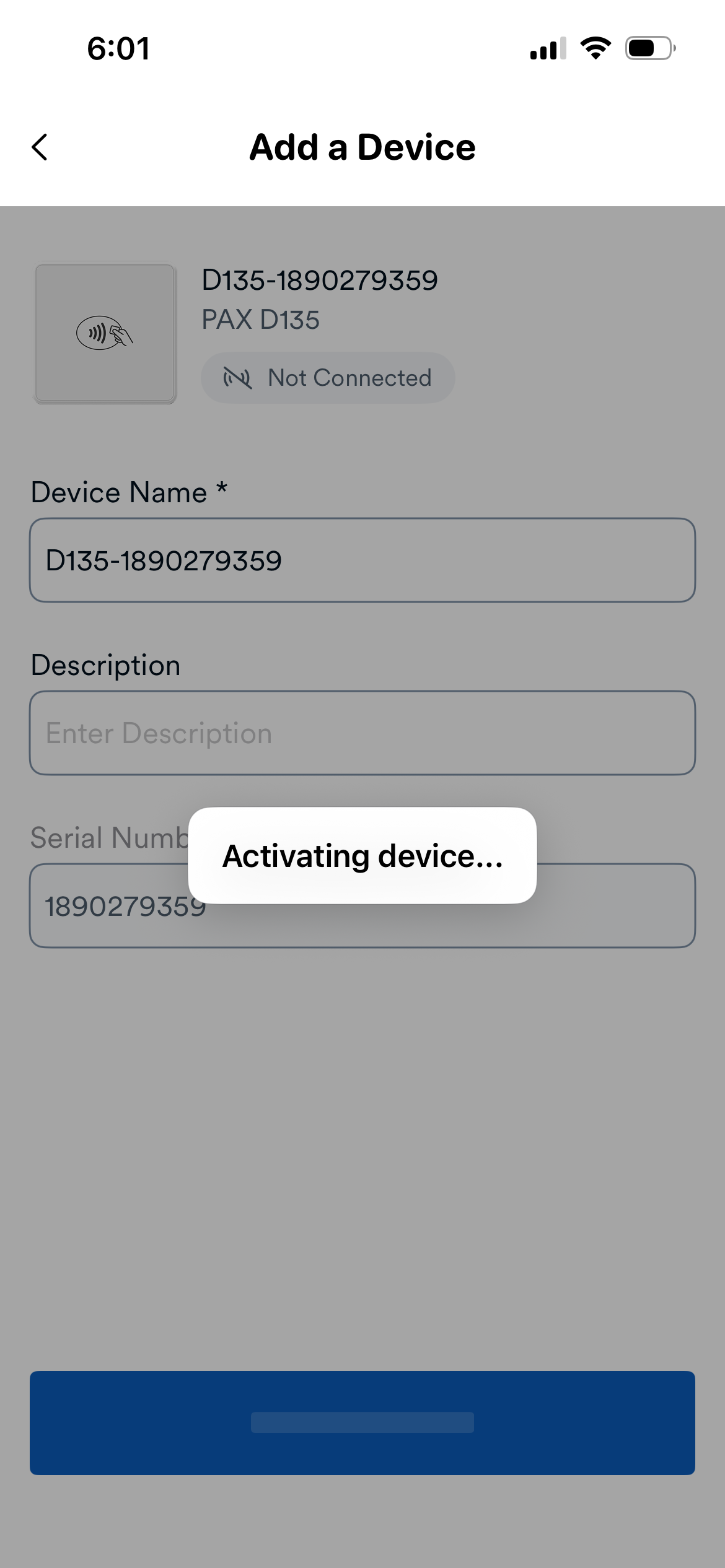
- A Registering Device message appears, followed by an Activating Device message.
- When prompted with a Bluetooth pairing request on your iPhone, tap Pair.
- A Connecting to Device message displays, followed by a Setting up your device screen.
- You only need to complete this setup once.
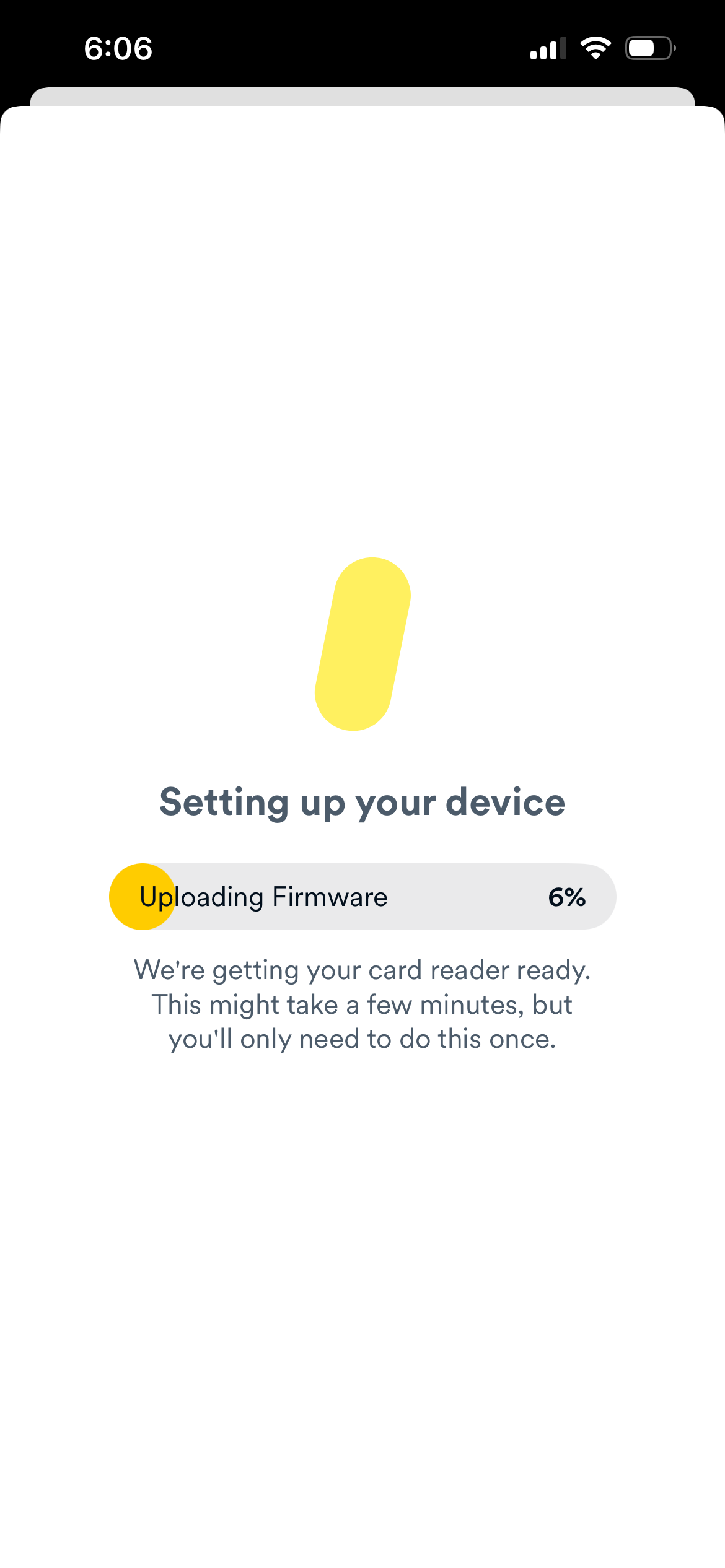
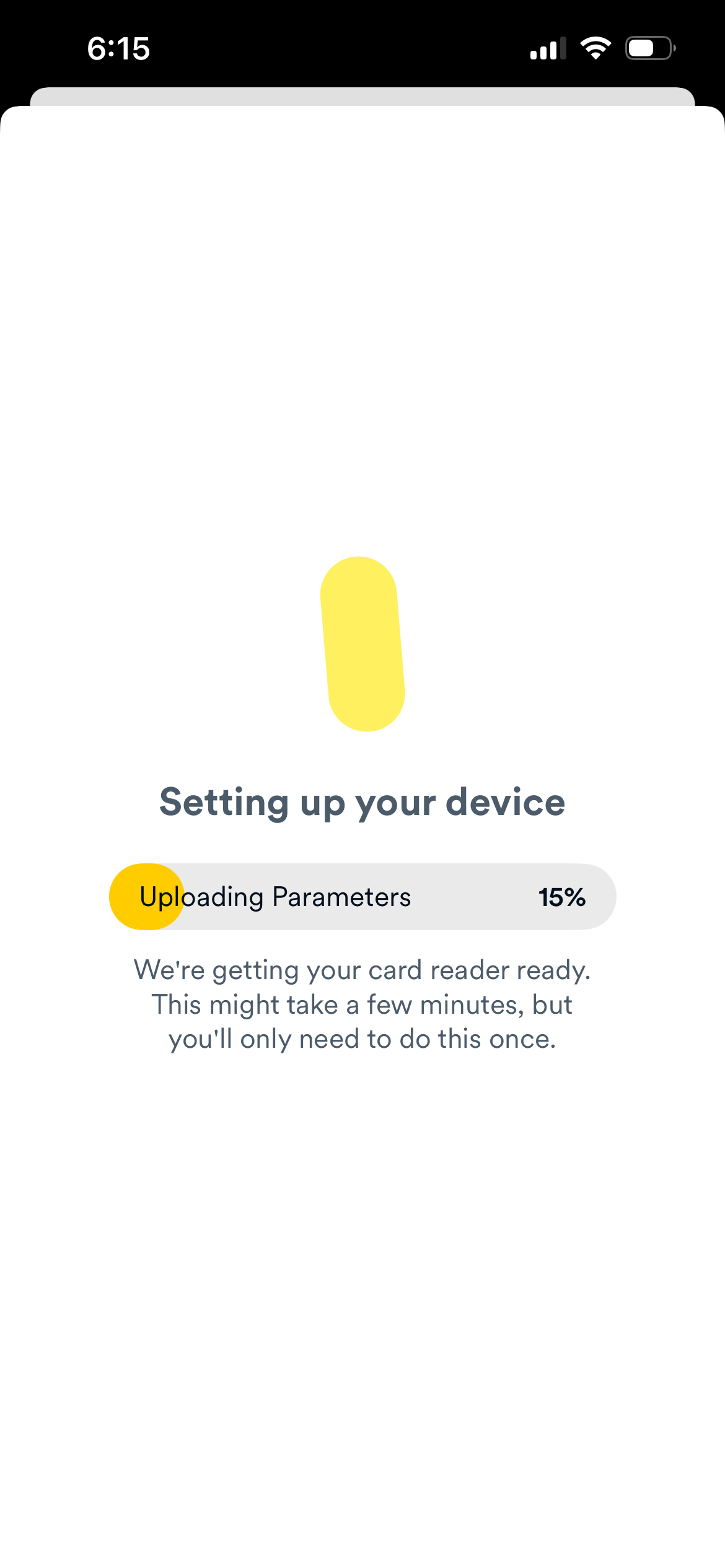
- When the device beeps, setup is complete and you are returned to the Manage Devices screen.
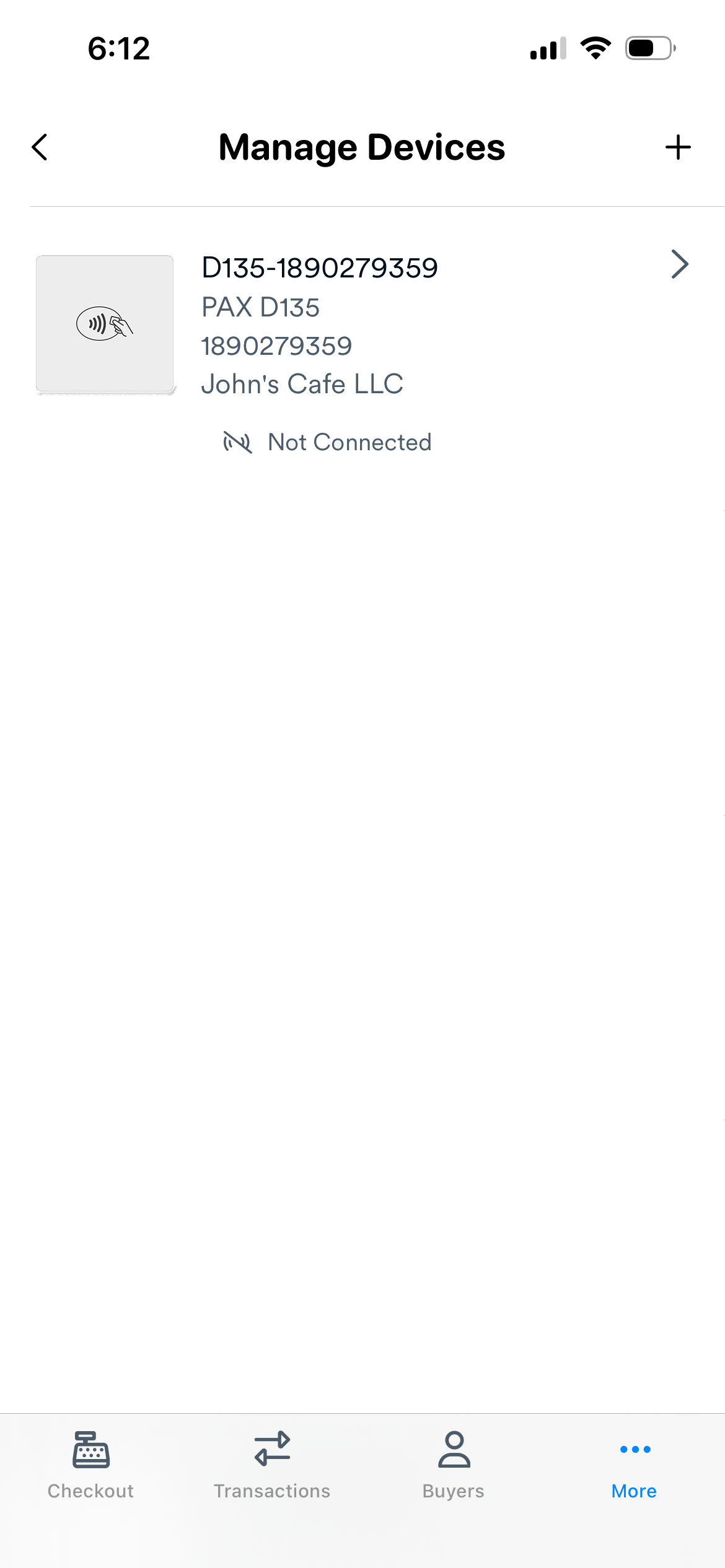
After adding the D135, you need to connect it before taking payments.
- From the Manage Devices screen, tap the device that matches your D135's S/N.
- The Device Details screen displays.
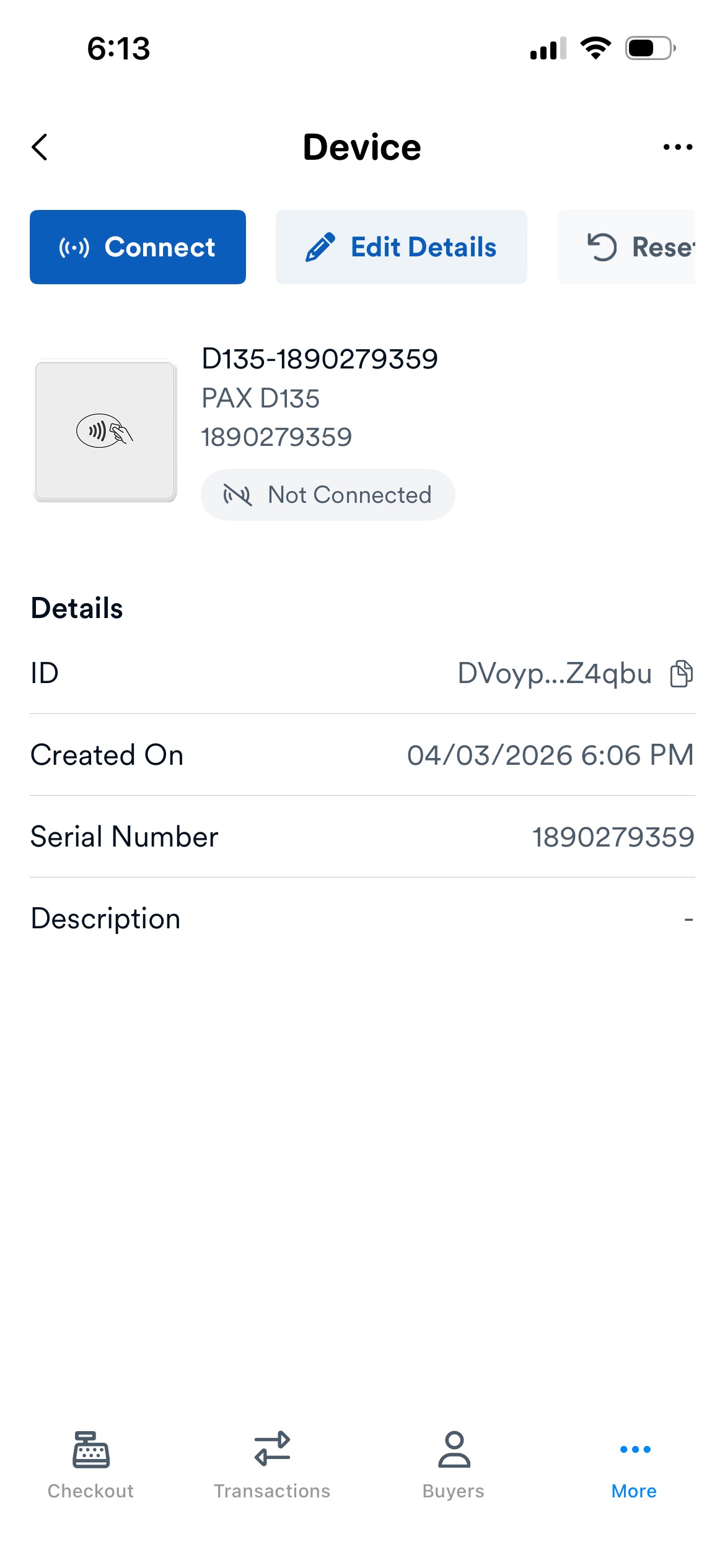
- Tap Connect.
- A Setting up your device screen displays with a progress bar.
- When complete, you are returned to the Manage Devices screen. The device displays a Connected status when the connection is successful.
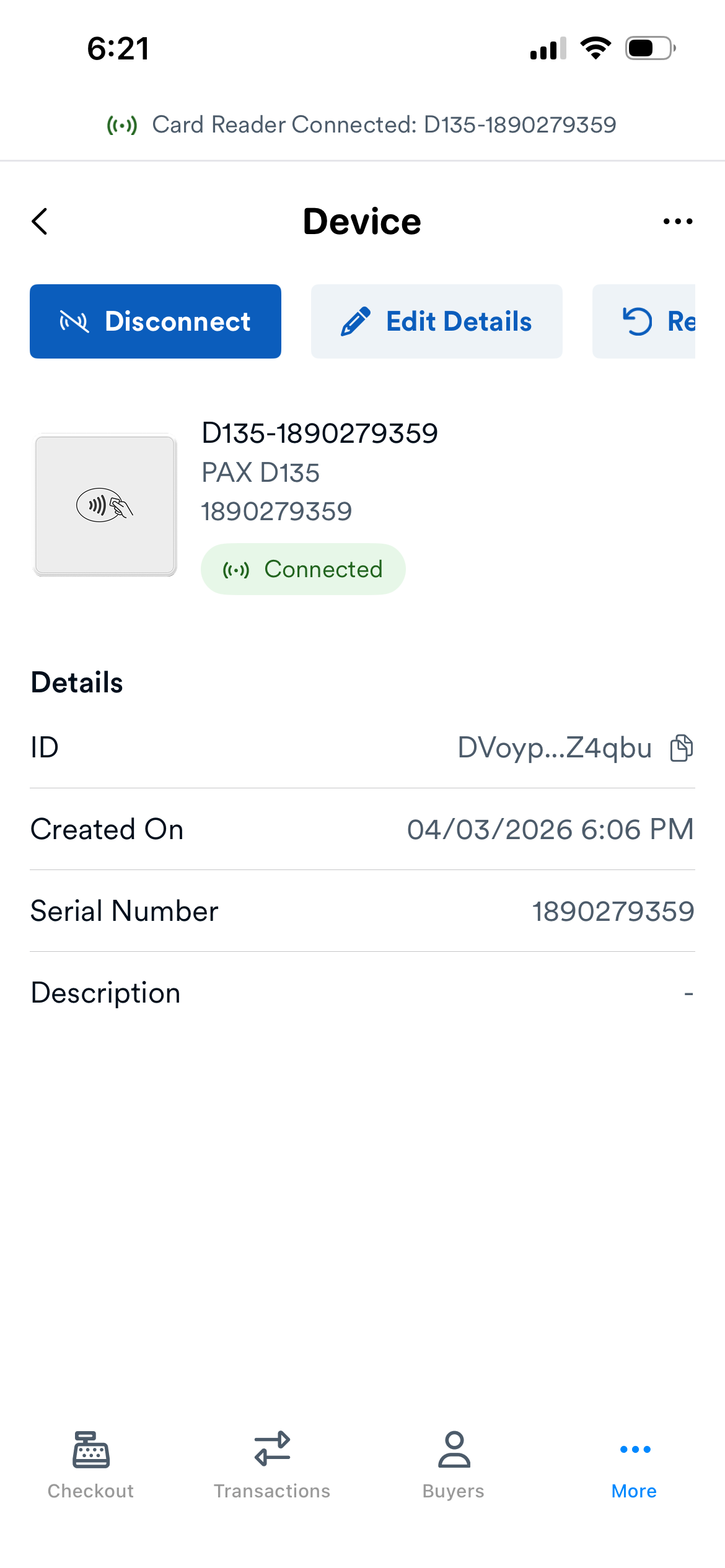
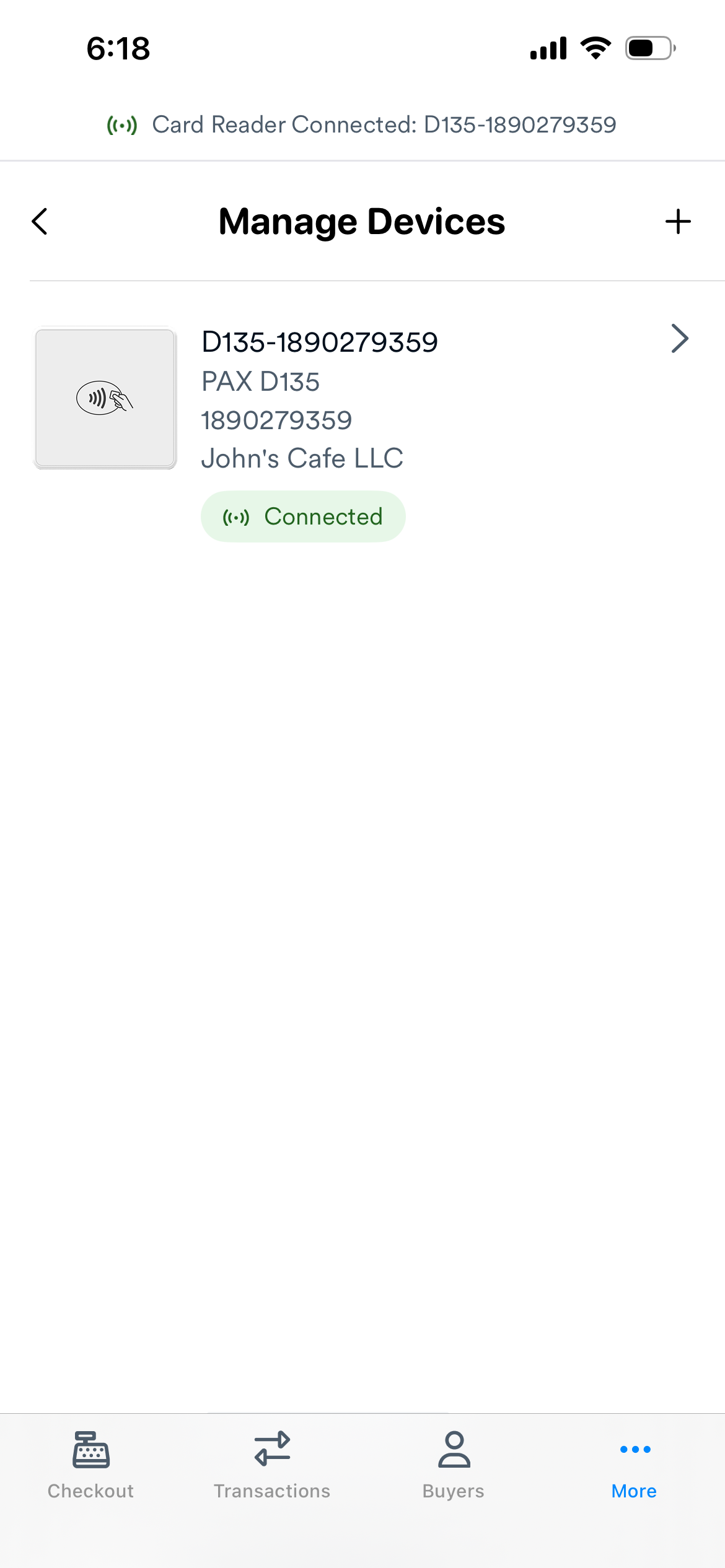
You are now ready to process payments using the D135.
Tap a device from the Manage Devices screen to open its Device Details page. From there, you can:
| Action | Description |
|---|---|
| Connect / Disconnect | If the device is disconnected, tap Connect to reconnect. If the device is connected, tap Disconnect to disconnect it. |
| Edit Details | Tap Edit Details to update the device name or description. |
| Reset Device | Tap Reset Device to factory reset the D135. After resetting, you will need to add and connect the device again. |
| View in Dashboard | Tap ... in the top-right corner to open the device's details page in the Finix Dashboard. |
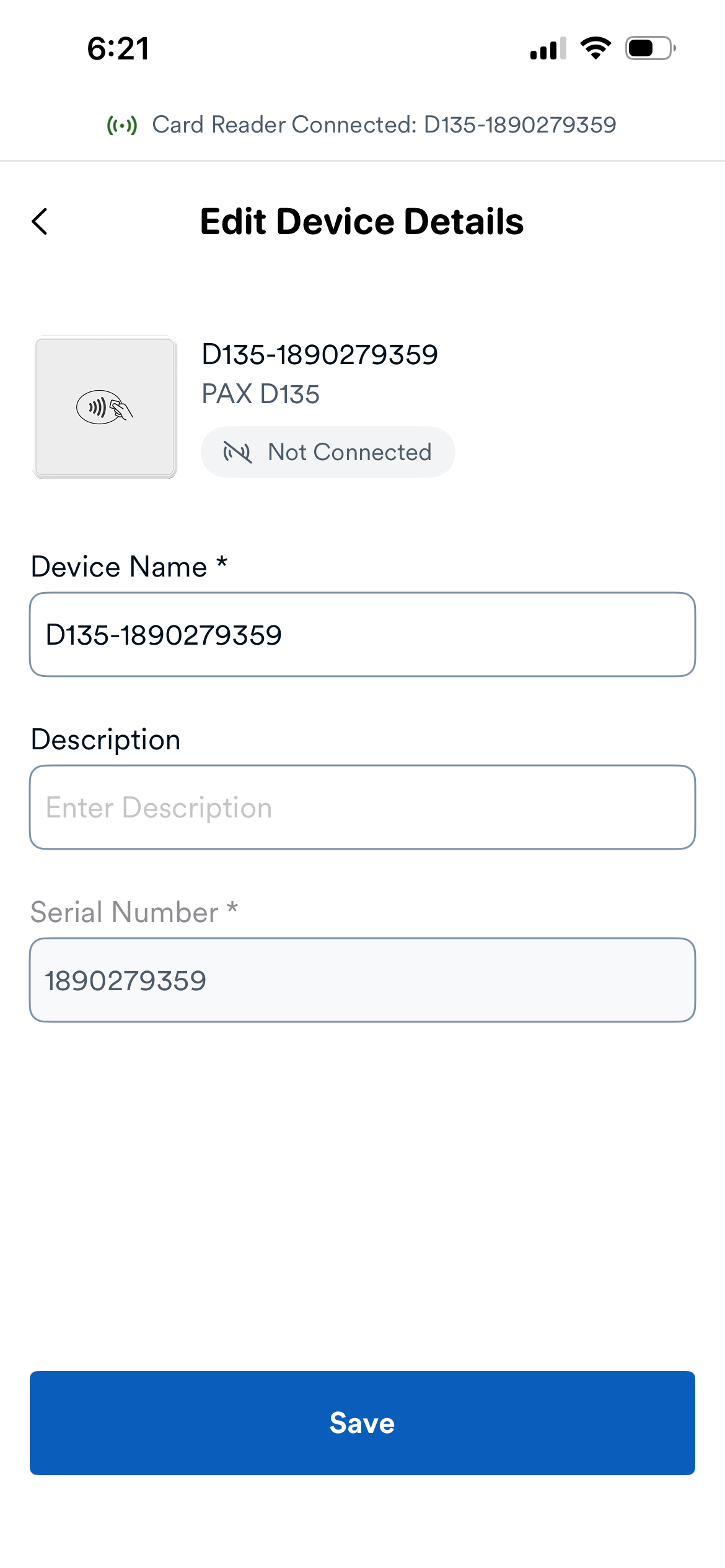
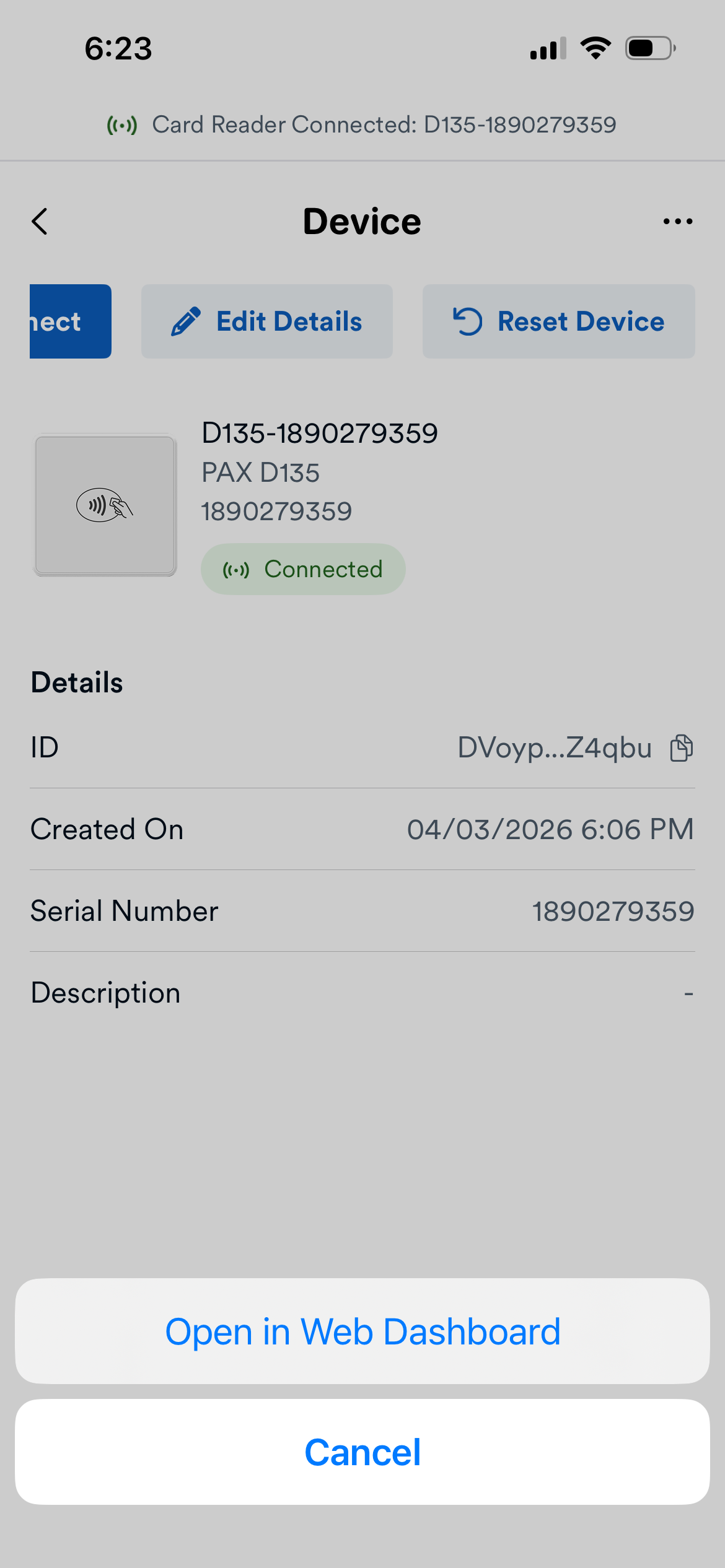
The Device Details page also shows the device name, type (PAX D135), serial number, connection status, creation date, and description.
| Next Step | Description |
|---|---|
| Take a Payment | Process a sale or authorization using the D135. |