Finix allows you to share an Invoice via email or share it directly.
During invoice creation, you may select delivery options to determine how you want to share the invoice with the buyer.
There are two options:
- Automatically send the invoice to the buyer's email address.
- Share an invoice link manually.
When creating the invoice:
- Select a buyer or click + Add a Buyer if they are not in the system.
- The buyer's email address will appear in the Send Invoice To field.
- For Delivery Options, leave Email Invoice selected.
- Optional: You can add more recipients by separating email addresses with a semicolon.
- Optional: You can also add yourself as a recipient.
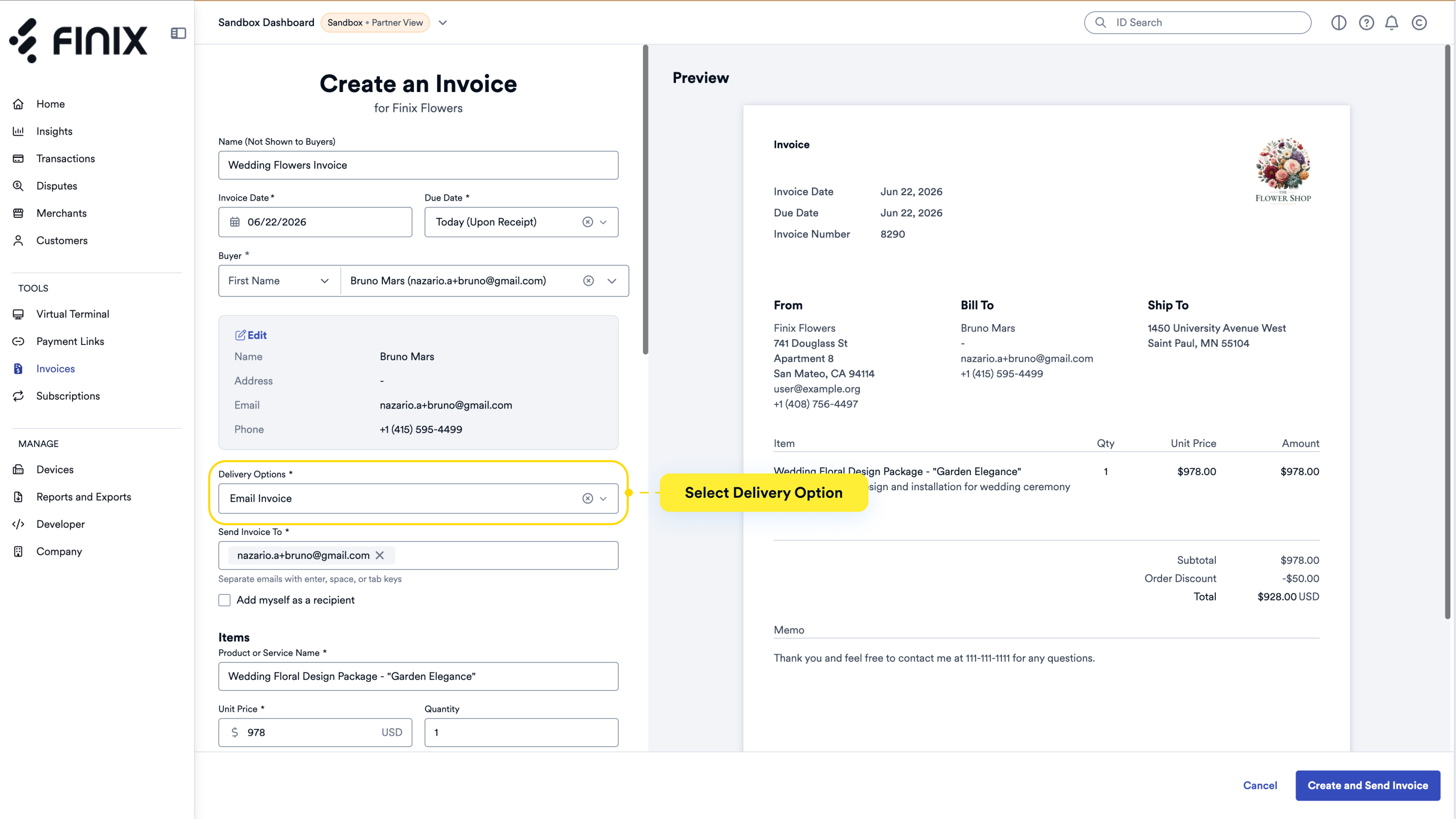
Upon creation, the invoice will be sent to the buyer's email address.
After creating an invoice, you can manually share the invoice link by following these steps:
Navigate to the Invoices list page and select the desired invoice you want to share.
From the invoice details page, click Share Link to access multiple sharing options:
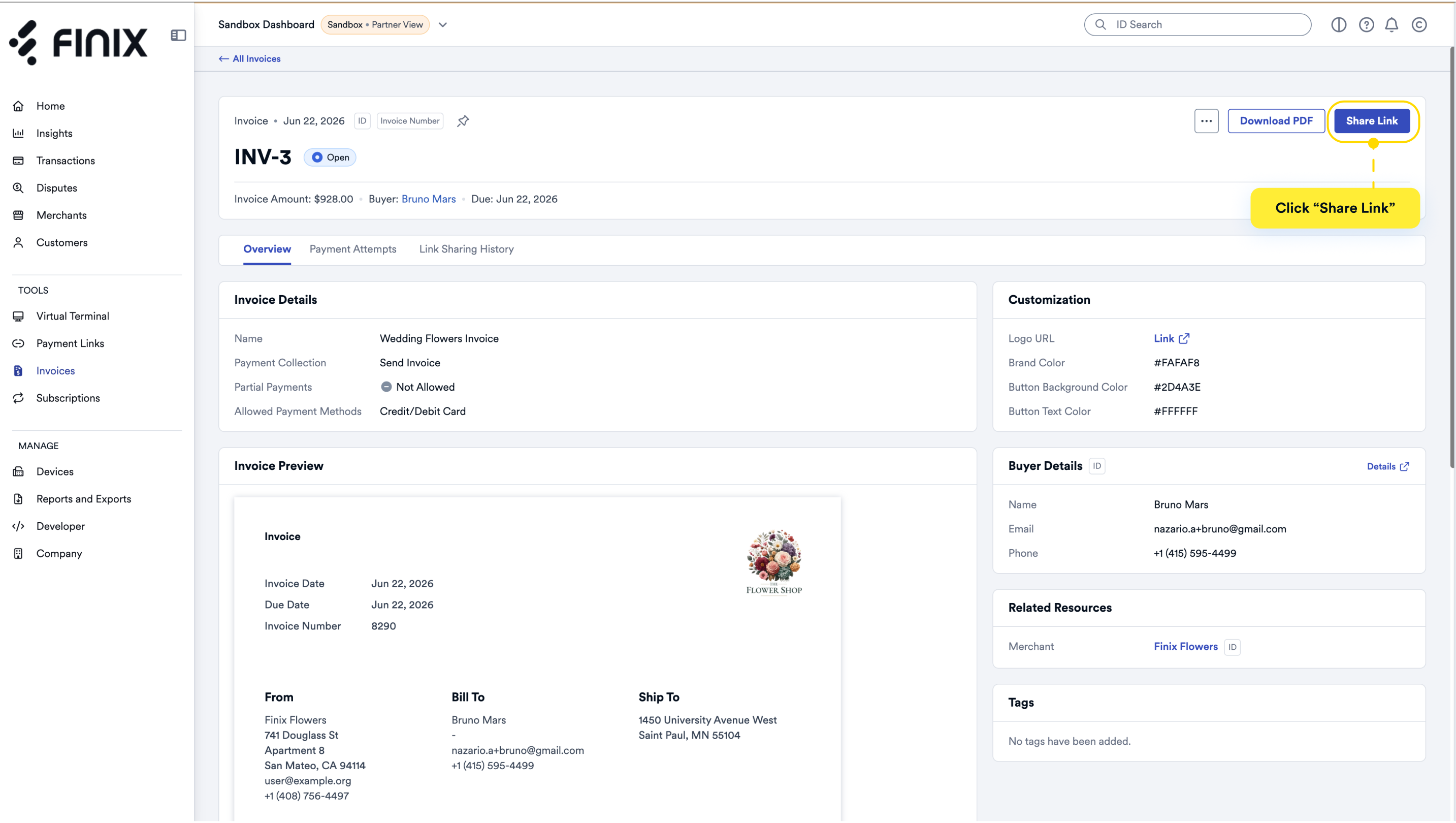
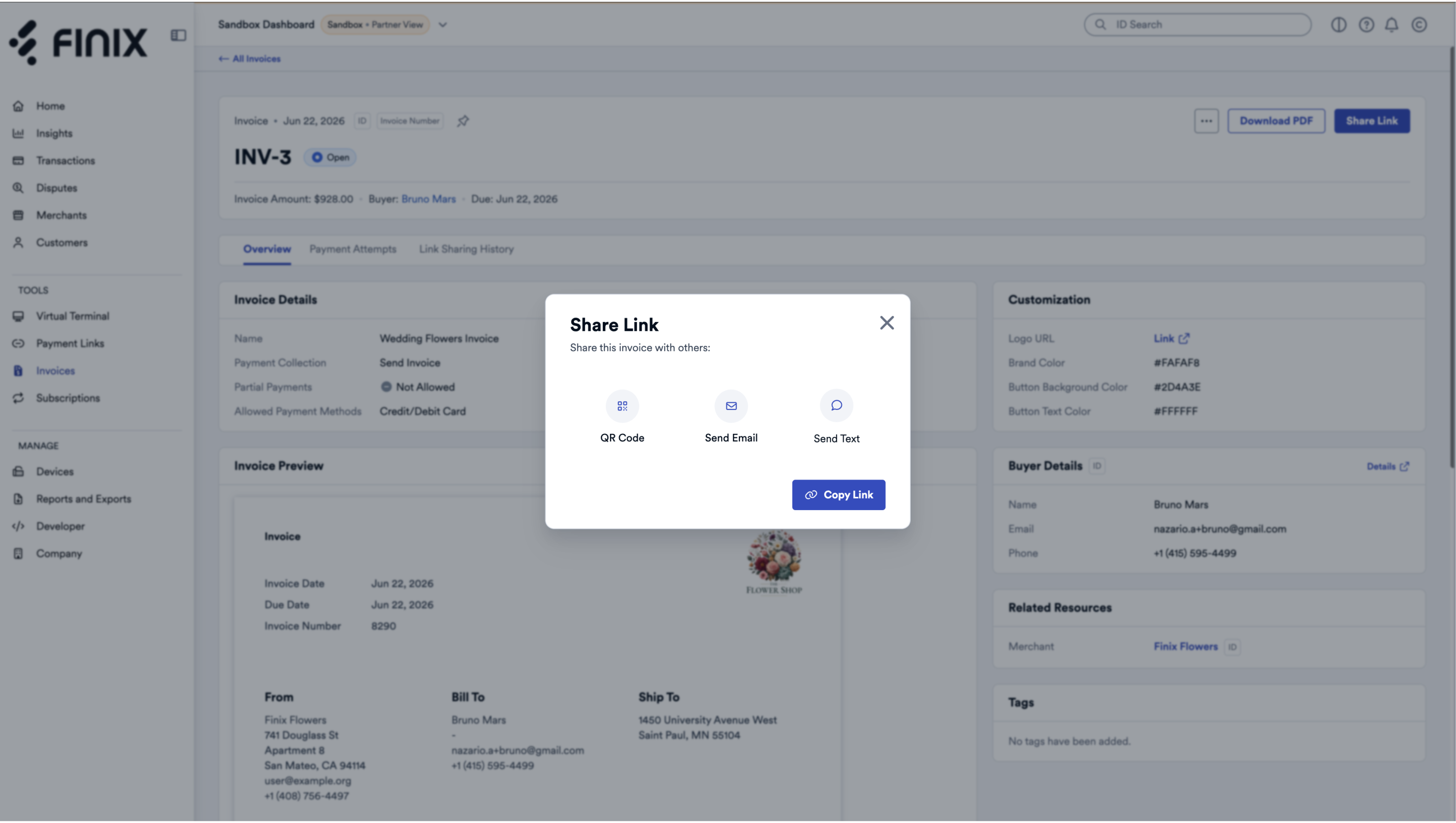
Send the invoice link via email.
Share via SMS or messaging apps.
Generate a scannable QR code.
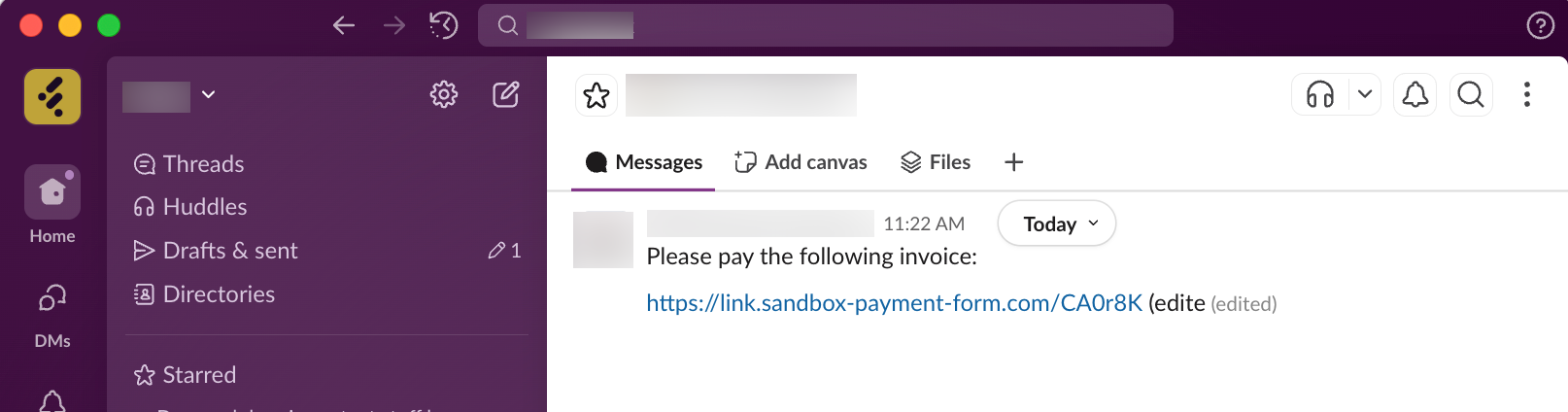
To share an invoice through Slack or another messaging app, copy the invoice URL. Your buyer can then use the link to pay.
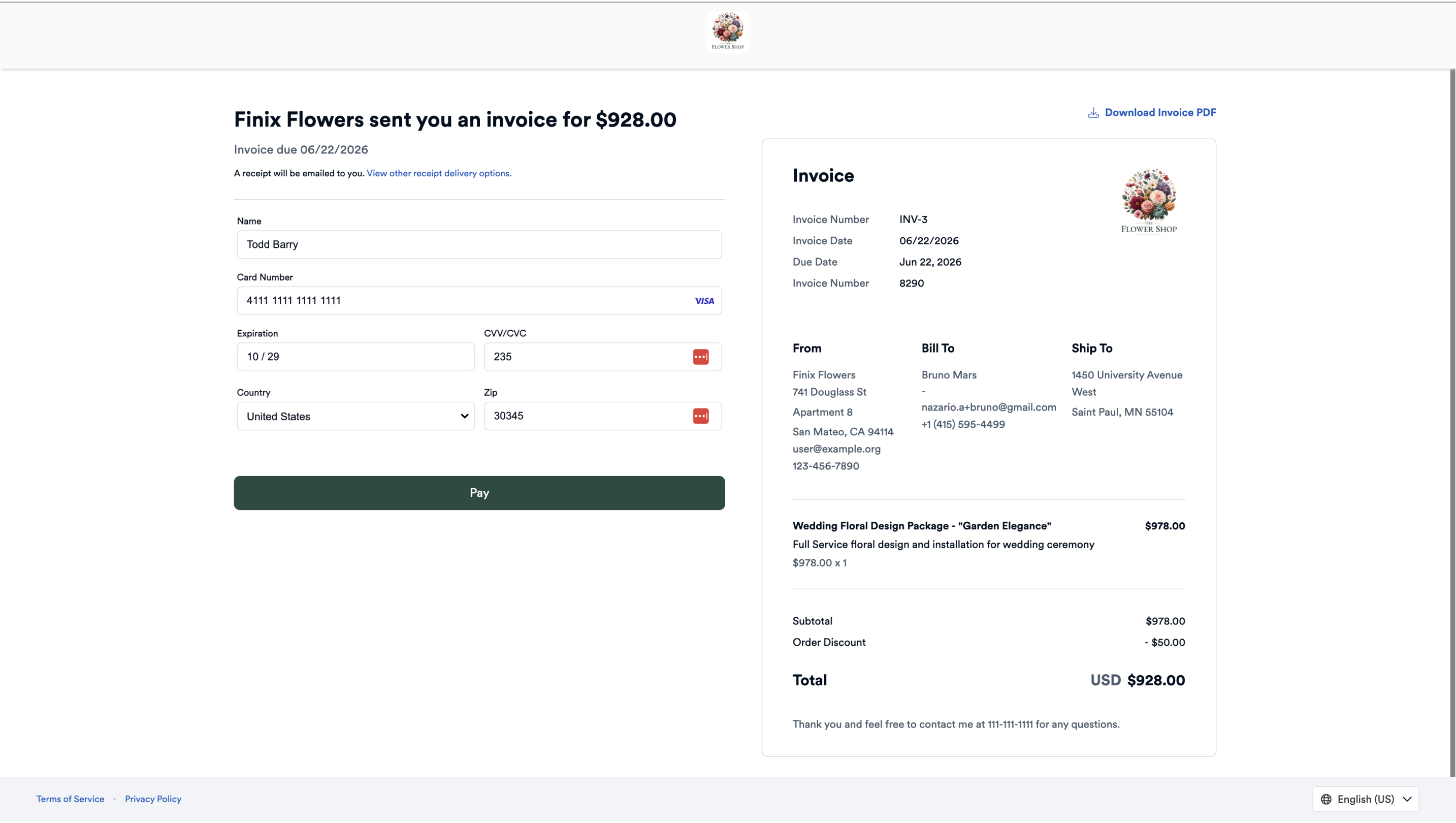
When a buyer clicks the invoice link, they're taken to the payment page where they can:
- Review the invoice details and itemized breakdown
- Enter their billing information
- Select a payment method
- Pay the full amount or a partial payment (if enabled)
Buyers will see a confirmation message upon successful payment.
You can view a record of all invoice shares from the invoice details page. To do so:
- On the dashboard, expand Payment Tools in the left navigation and click Invoices.
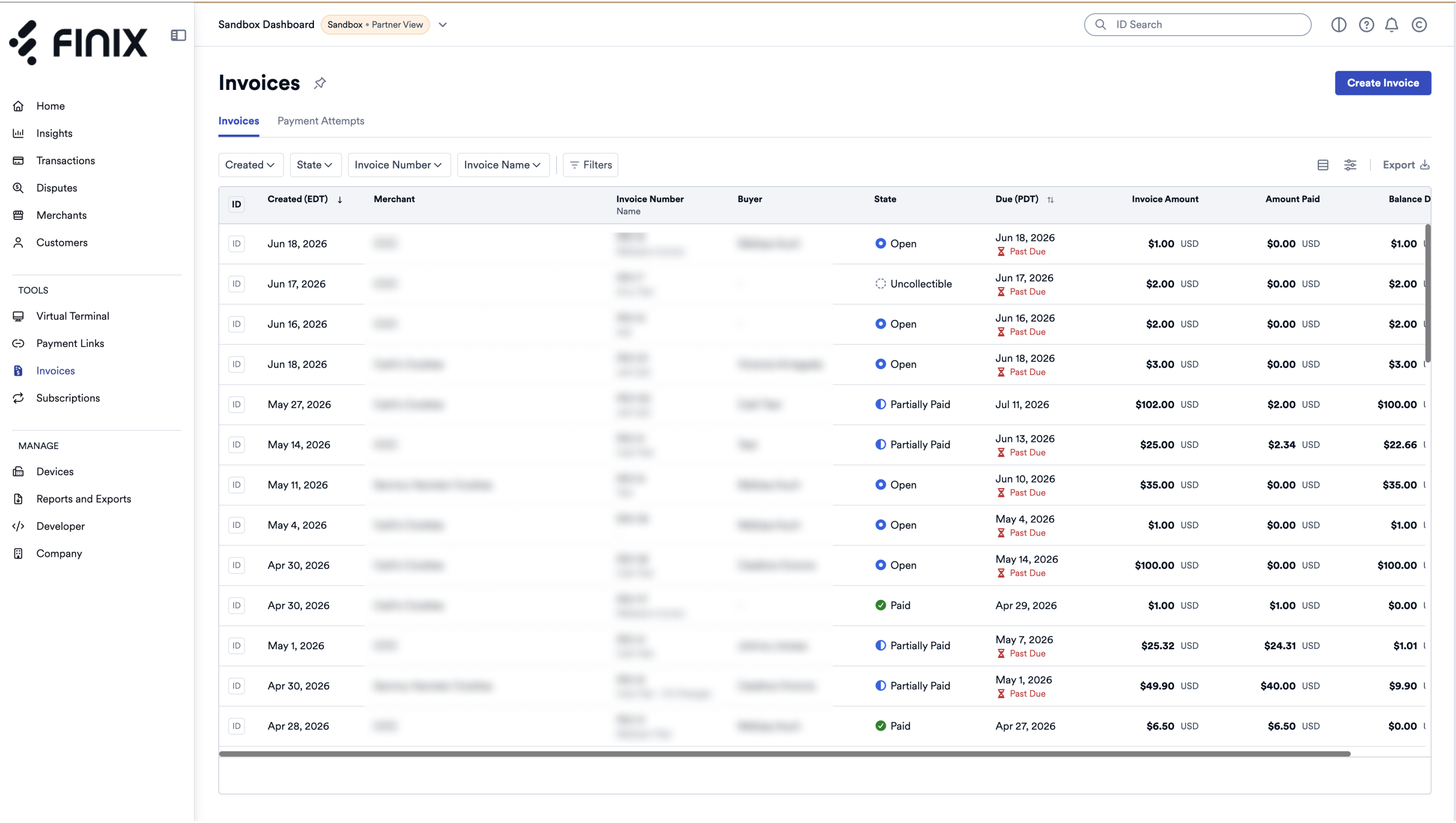
- From the Invoices list page, select the desired invoice.
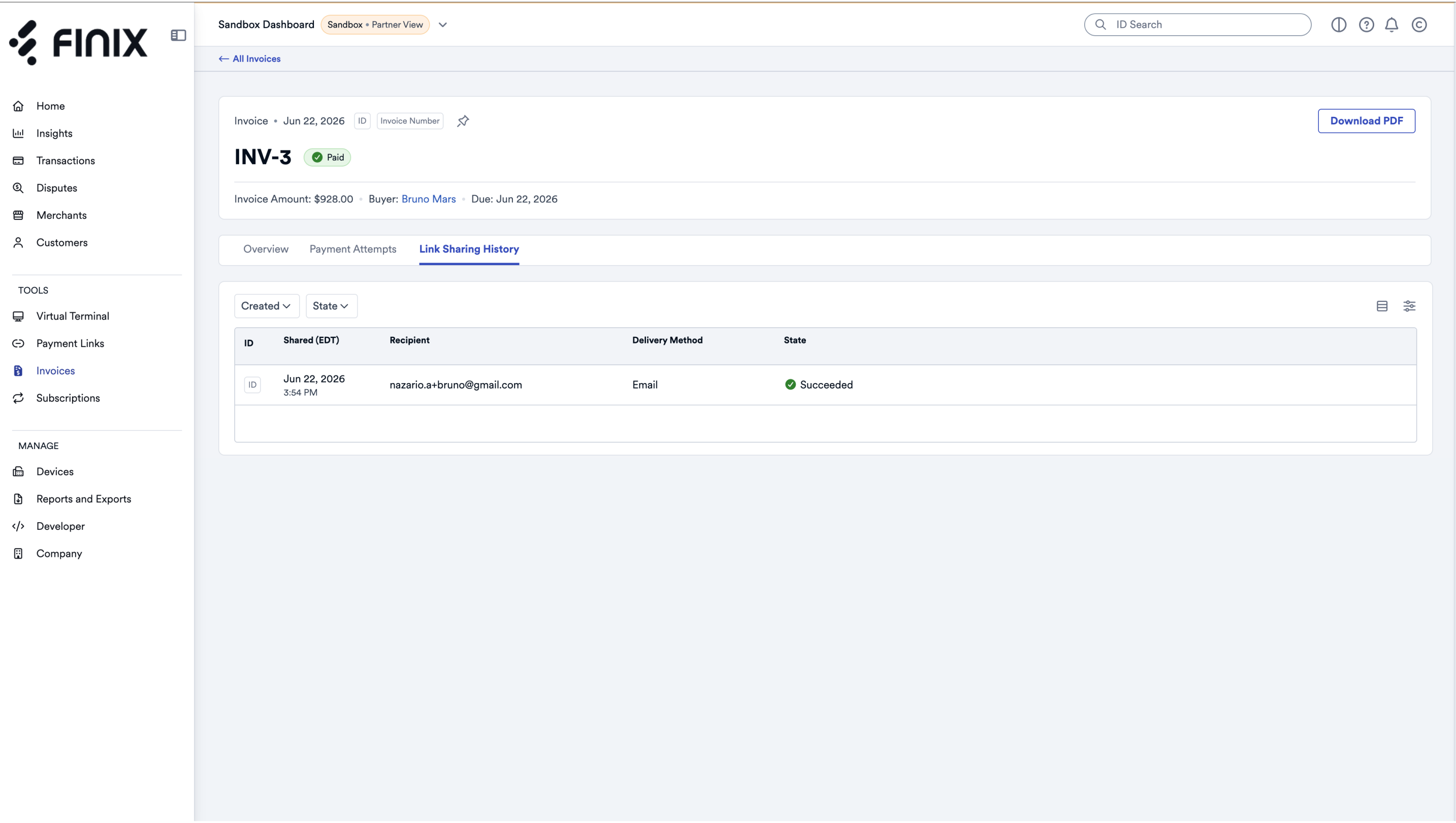
- From the invoice details page, click the Link Sharing History tab to view a record of all invoice shares.
The Link Sharing History displays:
- Recipient - Who the invoice was sent to.
- Delivery Method - How it was sent (email, link, etc.).
- Shared On - Date and time of the share.
- Status - Whether the delivery succeeded or failed.