Once a Subscription is created, you can view all its associated payments from the subscription details page.
To view a subscription's payments:
In the Finix Dashboard, click Subscriptions. Alternatively, search for the subscription by its ID if known.
Click the Subscription you want to view.
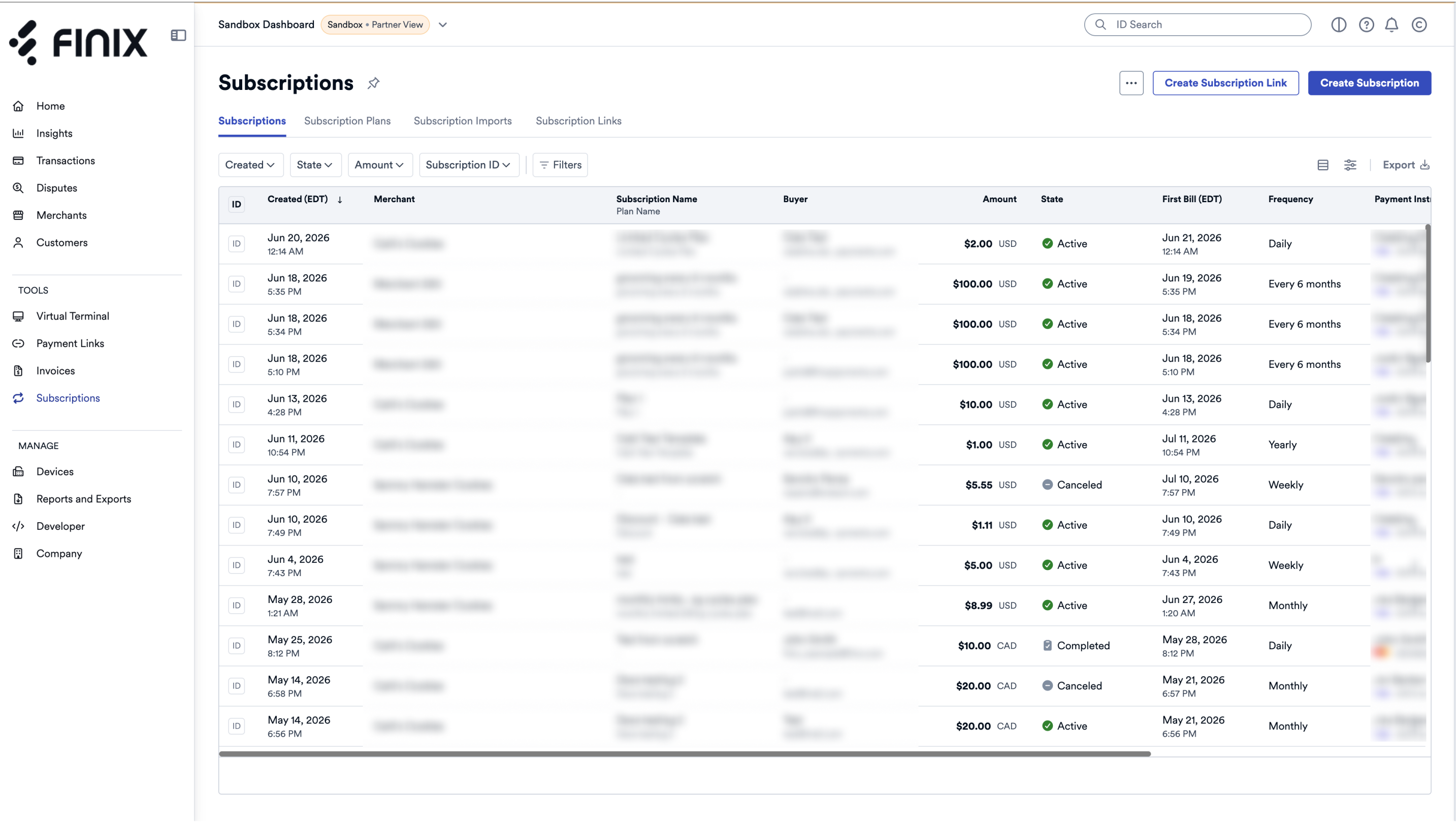
- The subscription details page displays. From this page, you can view all payments associated with the subscription, including when each payment occurred, each payment's status, and the buyer's details.
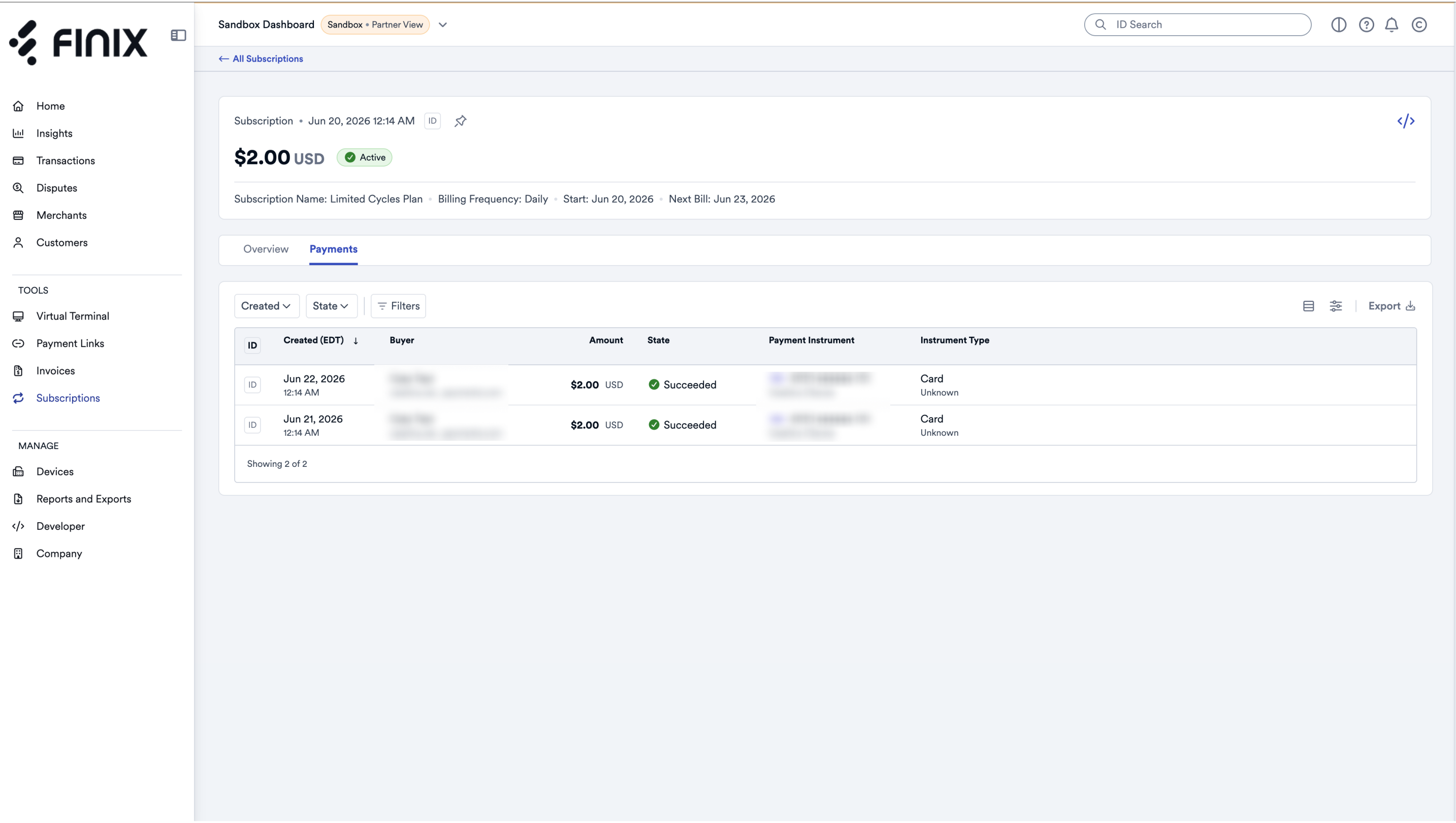
Click a payment to view its details.
- The payment details page displays.
The payment details page gives you a full view of an individual subscription payment.
At the top of the page, the following information is displayed:
| Field | Description |
|---|---|
| ID | The unique ID of the payment (Transfer). |
| Trace ID | A trace ID you can use to track the payment across systems. |
| Amount | The total amount charged, including currency. |
| State | The current state of the payment (e.g., Succeeded). |
| Created On | The date and time the payment was created. |
| Type | The payment method type (e.g., Card). |
| Buyer Payment Instrument | The masked payment instrument used and the buyer's name. |
The transaction flow section shows the lifecycle of the payment as it moves through processing and settlement:
- Payment Succeeded - The payment was successfully processed, showing the payment ID, amount, type, and timestamp.
- Payment Added to Accruing Settlement - The payment was added to an open settlement. Click View Settlement to see the full settlement details.
- Settlement Approved - The settlement containing this payment was approved. Click View Settlement to see the approved settlement.
| Field | Description |
|---|---|
| Settlement State | The current state of the settlement this payment belongs to (e.g., Approved). |
| Ready to Settle At | The date and time the payment became ready for settlement. |
| Created Via | How the payment was initiated (e.g., API). |
| Processor | The payment processor used to process the payment. |
| Authorization Code | The authorization code returned by the card network. |
| Statement Descriptor | The descriptor that appears on the buyer's card statement. |
| Field | Description |
|---|---|
| ID | The ID of the buyer's Identity resource. Click View Recipient Details to open it. |
| Name | The buyer's full name. |
| The buyer's email address. | |
| Billing Address | The billing address associated with the payment. |
| Phone | The buyer's phone number. |
| Field | Description |
|---|---|
| Payment Instruments with Same Fingerprint ID | The number of other payment instruments that share the same card fingerprint. |
| Payments with Same Fingerprint ID | The number of other payments that share the same card fingerprint. |
This section shows the details of the card or bank account used for the payment.
| Field | Description |
|---|---|
| ID | The ID of the Payment Instrument resource. |
| Fingerprint ID | A unique identifier for the card, consistent across tokenizations. |
| State | Whether the payment instrument is Enabled or disabled. |
| Created On | The date the payment instrument was created. |
| Name | The cardholder name. |
| Type | The payment instrument type (e.g., Card). |
| Created Via | How the payment instrument was created (e.g., API). |
| Card Brand | The card network (e.g., Visa, Mastercard). |
| Card Type | The type of card (e.g., Debit, Credit). |
| Masked Number | The masked card number. |
| Expiration Date | The card's expiration date. |
| CVV Verification | Whether the CVV provided matched the card (e.g., Matched). |
| Address | The address on file for the payment instrument. |
| Address Verification | The result of the address verification check (e.g., Postal Code and Street Match). |
| Issuer Country | The country that issued the card. |
This table lists all fees applied to the payment. Click View Fee Profile to see the full fee profile. Each fee entry includes:
| Column | Description |
|---|---|
| ID | The ID of the fee. |
| Created On | The date the fee was applied. |
| Fee Category | The category of the fee (e.g., Processor). |
| Fee Type | The specific fee type (e.g., Card Fixed, Card Basis Points). |
| Amount | The amount of the fee. |
An Estimated Total for all associated fees is displayed at the bottom of the table.
Displays any refunds associated with the payment. Click Issue Refund to initiate a refund directly from this page.
Displays any disputes associated with the payment.
Displays any receipts that have been created or sent for this payment. Click Create Receipt to generate a new receipt.
Displays any tags associated with the payment. Subscription payments automatically include a subscription_id tag that links back to the originating Subscription.