Learn how to enable multi-factor authentication for you and your company.
When you log onto the Dashboard, you have the ability to sign up for multi-factor authentication.
Finix supports SMS and Mobile Authenticator options. Users can opt into either option.
When an individual logs in with multi-factor authentication enabled, they'll be prompted to either enter a Code sent from Finix or enter a code from a mobile authenticator app such as Google Authenticator.
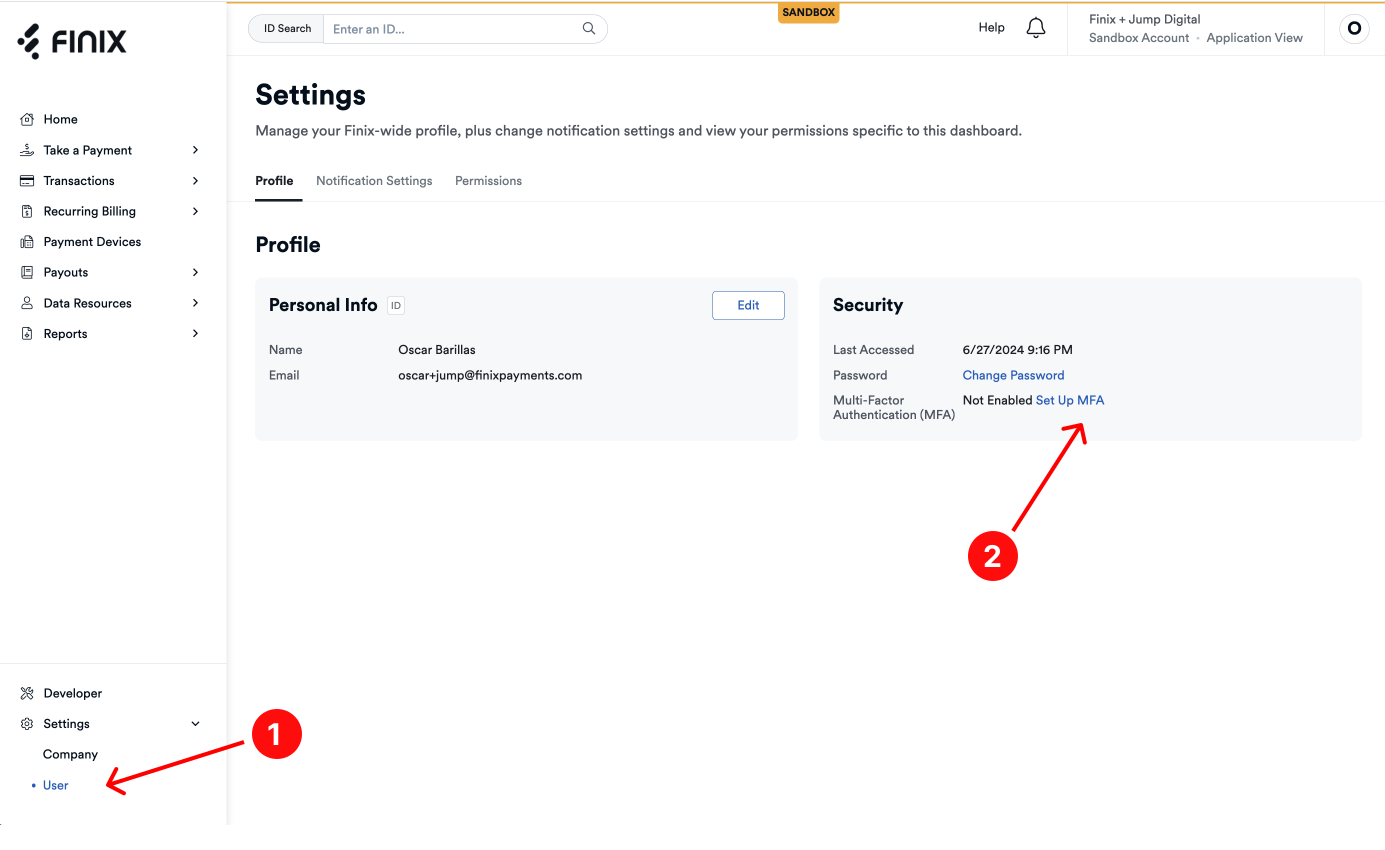
To enable multi-factor authentication for yourself on the dashboard:
- Navigate to the Company > User page
- Click on the Set Up MFA Link
A screen will appear asking whether to enable:
- SMS Authentication
- Mobile Authenticator
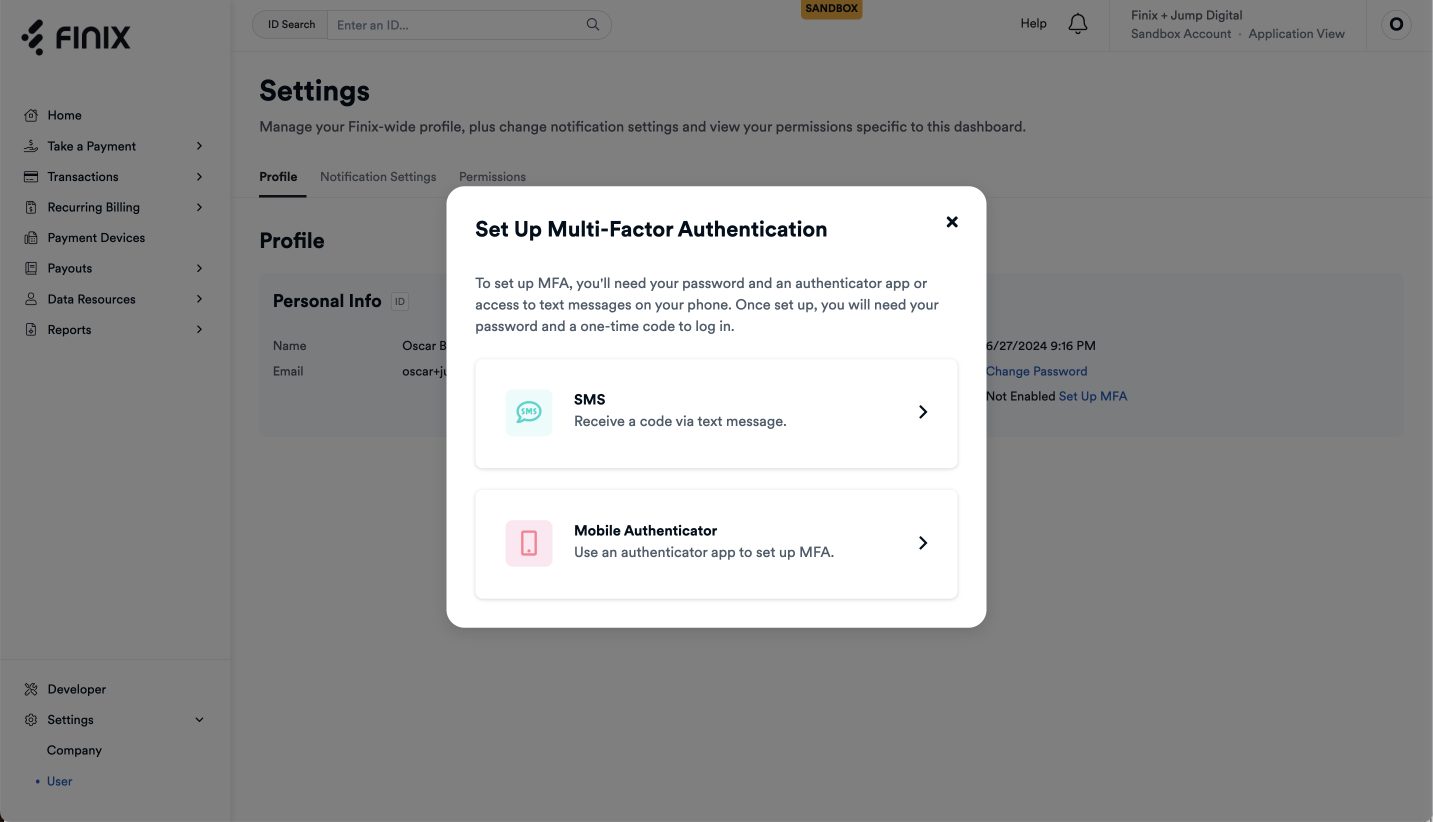
After choosing your selection, you can either:
- Enter a phone number to receive an SMS text (carrier text message rates may apply)
- Set up a mobile authenticator with Google Authenticator, Okta, or another provider.
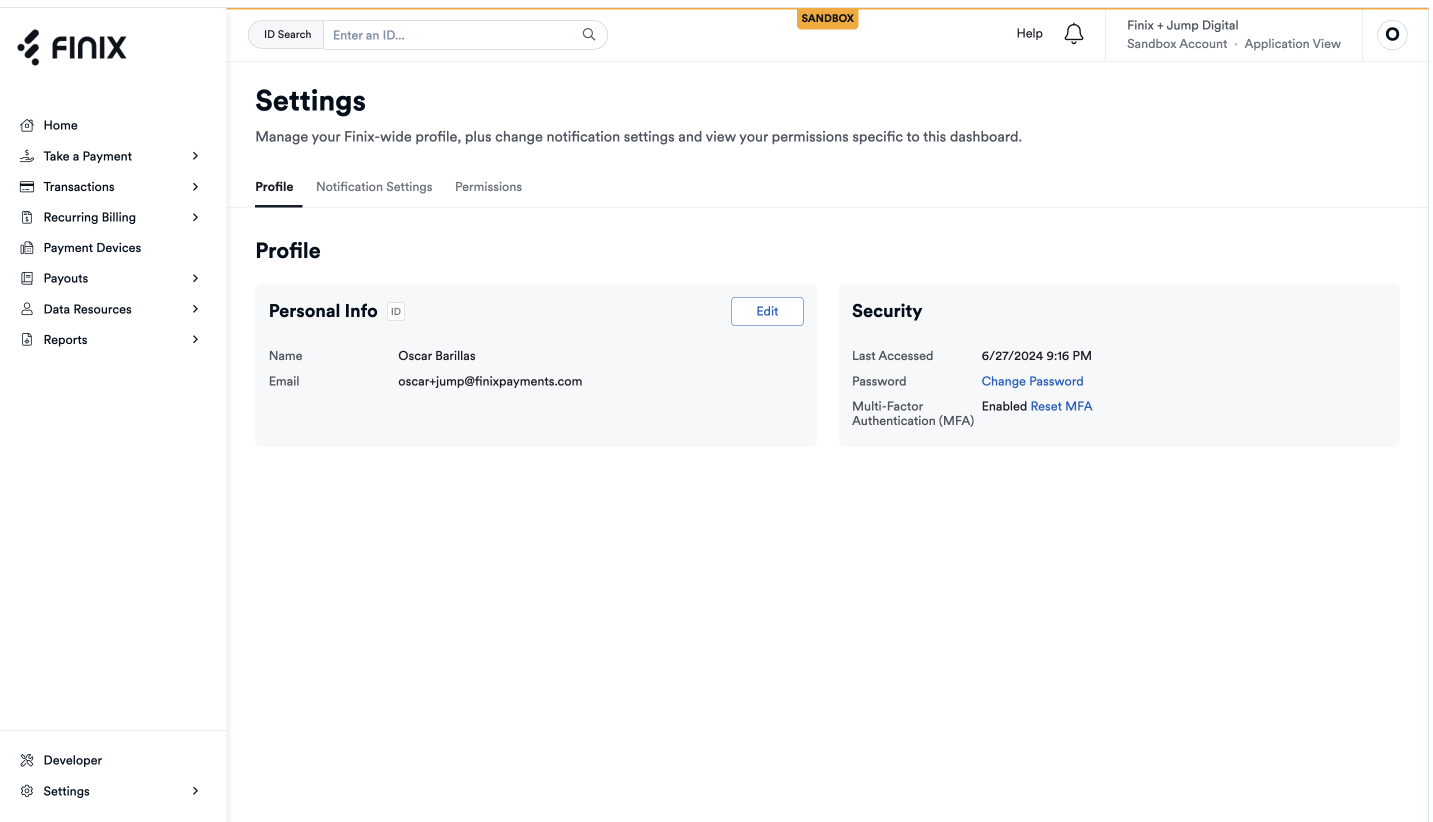
When you have successfully enabled multi-factor authentication, you'll be routed to the same user page.
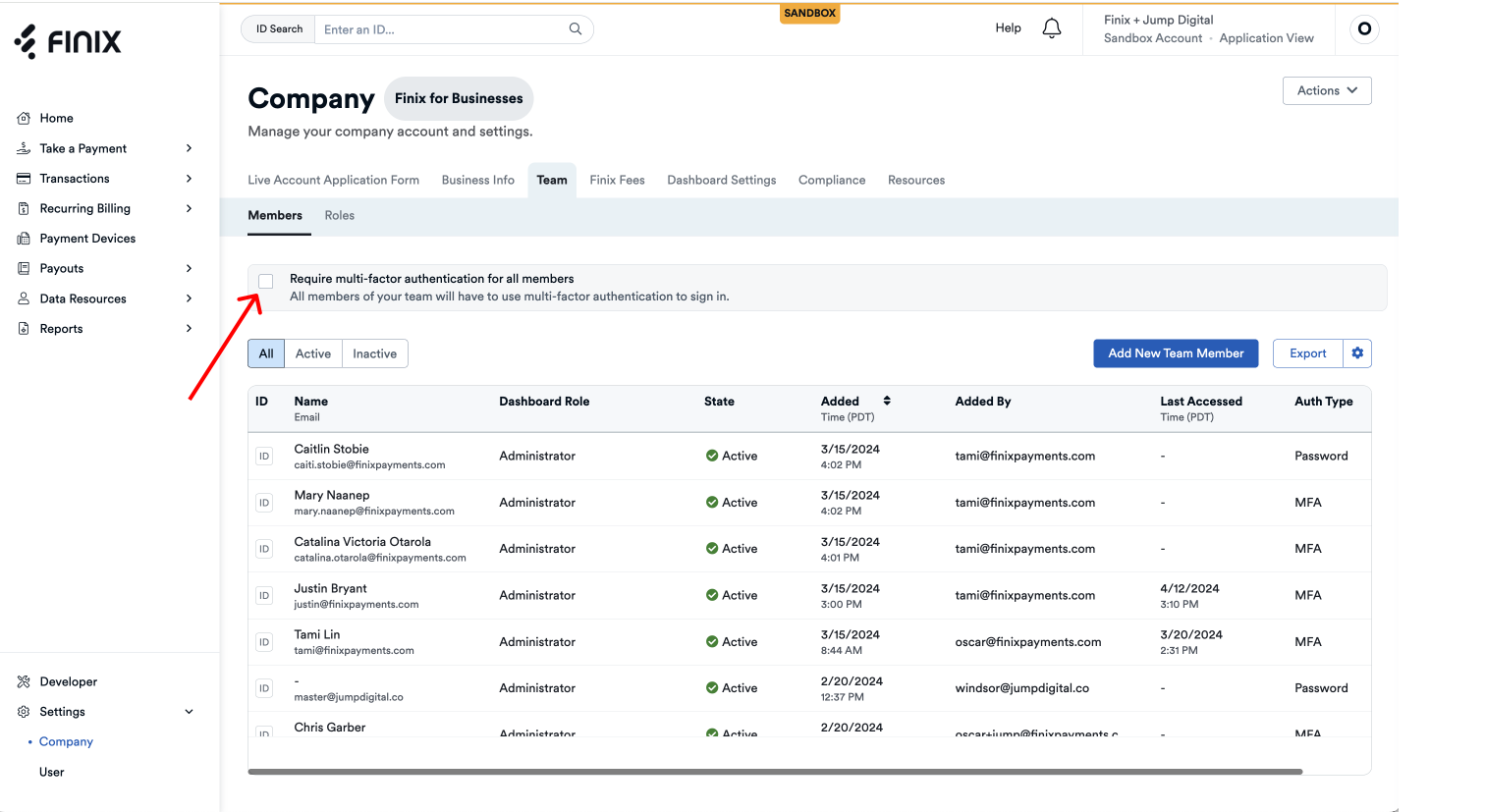
Administrators and User Management Admins can enforce multi-factor authentication for all users at the same access level. This would apply to anyone who appears in the Team page.
To enforce multi-factor authentication:
- Navigate to the Company > Team > Members Page
- Click on the checkbox to enforce MFA
- Confirm you want to enable MFA
When logging into the Finix Dashboard, all Team Members will be prompted to choose to authenticate using SMS or a mobile authenticator.
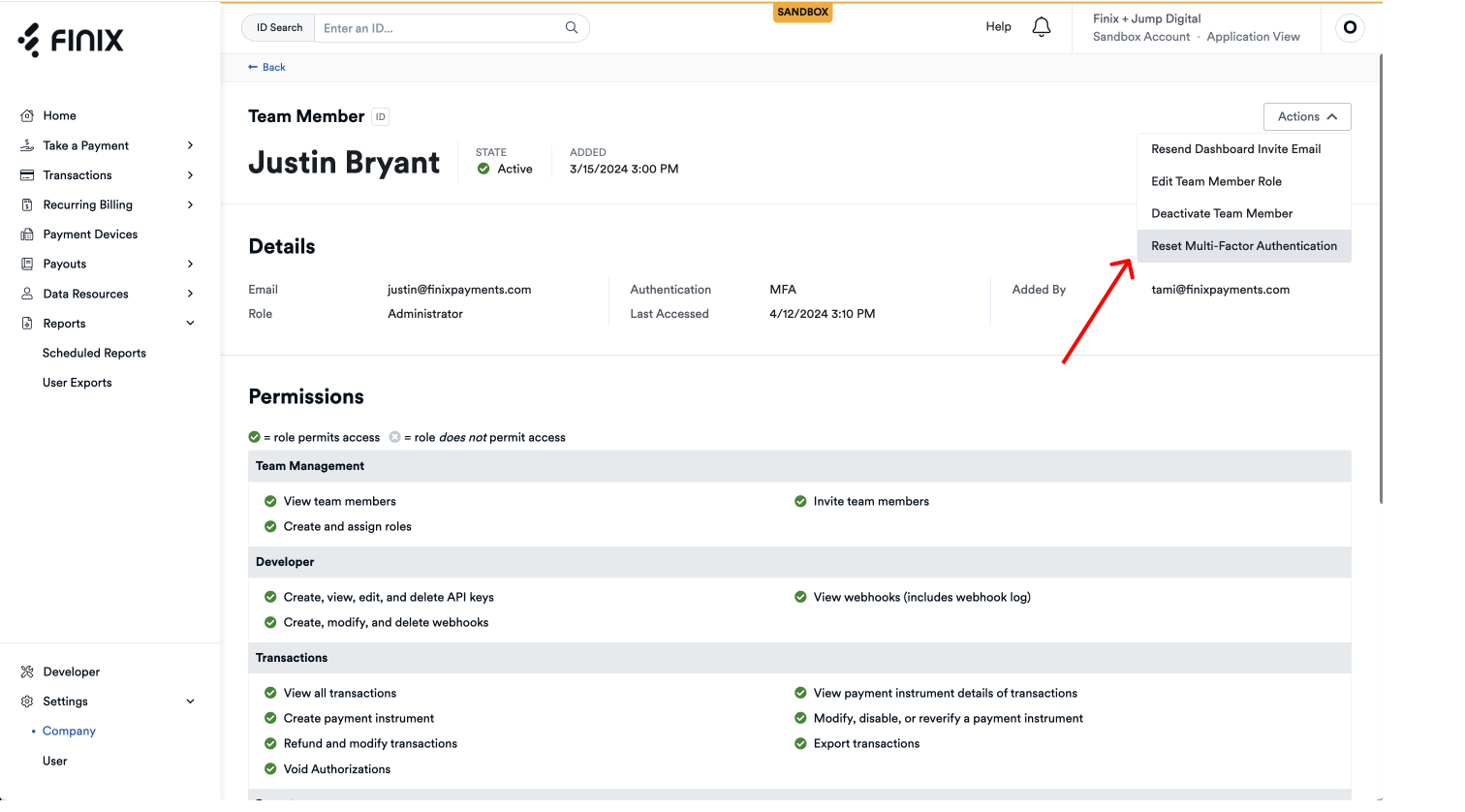
Administrators and User Management Admins can reset multi-factor authentication for an individual team member.
To reset a team member's multi-factor:
- Navigate to the Company > Team > Members
- Click on the Team Member you want to reset
- Click Reset Multi-Factor Authentication