Finix allows you to customize branding in several ways across our No-Code / Low-Code features.
Here's a table of the customizable branding available on our No-Code / Low-Code features:
| Field | Description | Payment Links | Checkout Forms | Subscription Links | Payout Links |
|---|---|---|---|---|---|
| Icon | URL of the logo | ✓ | ✓ | ✓ | ✓ |
| Logo | URL for the logo | ✓ | ✓ | ✓ | ✓ |
| Brand Color | Hex code of branding color. | ✓ | ✓ | ✓ | ✓ |
| Accent Color | Hex code of accent color. | ✓ | ✓ | ✓ | ✓ |
| Button Color | Hex code of button color. | ✓ | ✓ | ✓ | ✓ |
| Branded Subdomain | Subdomain (e.g. acme.payment-form.com) | ✓ | ✓ | ✓ | ✓ |
| Button Text | You can customize the text that appears. | ✓ | |||
| Custom success return URL | A URL to redirect buyers to if the operation was successful. | ✓ | ✓ | ✓ | ✓ |
| Custom failure return URL | A URL to redirect buyers to if the operation was unsuccessful. | ✓ | ✓ | ✓ | ✓ |
| Custom expired session URL | A URL to redirect buyers to if their session expires before completing the operation. | ✓ | ✓ | ✓ | ✓ |
Using the Finix Dashboard, you can configure how your urls appear for Finix's Low-Code / No-Code products (e.g. Payment Links).
Finix will generate a short link with the following structure:
{your-subdomain}.payments-form.comIn your live environment, you'll be able to see the subdomain configured. To request a branded subdomain (e.g., yourbrand.payments-form.com), email support@finixpayments.com with your custom subdomain.
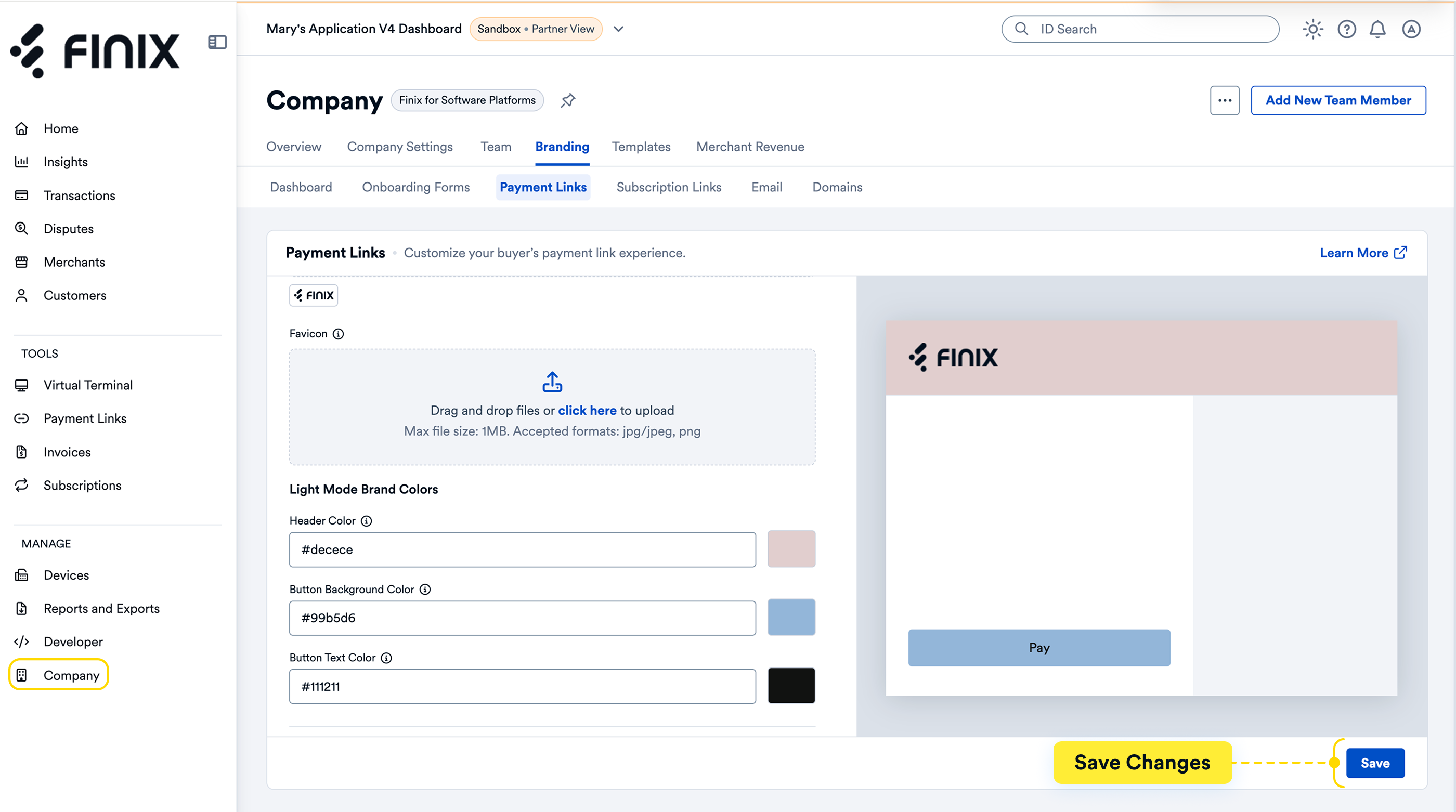
Using Payment Links, you can configure the branding that appears by default. To configure, head to your Company > Branding > Payment Links Tab.
Using Subscription Links, you can configure the branding that appears by default. To configure, head to your Company > Branding > Subscription Links Tab.
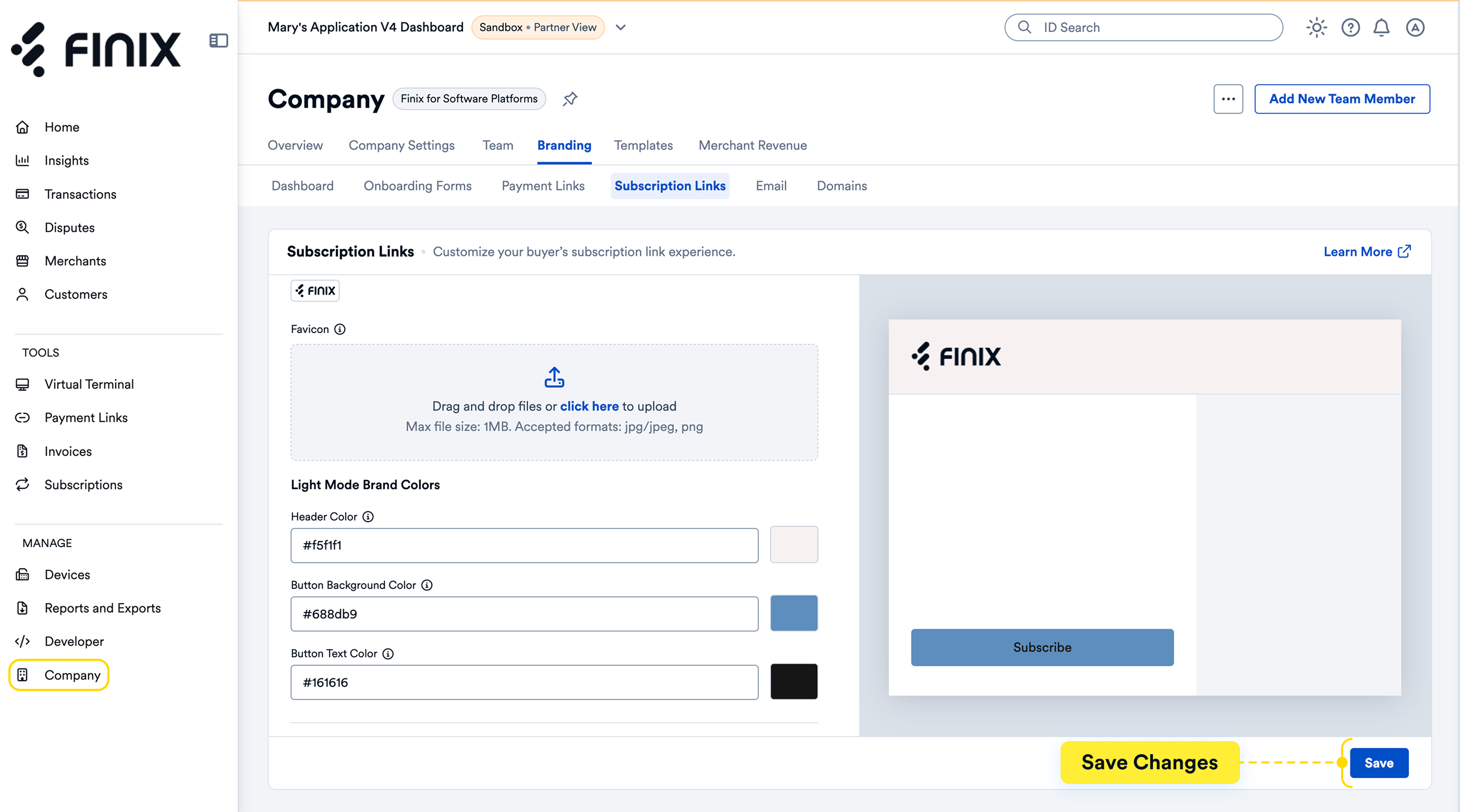
Subscription Links follow a similar branding to Payment Links. To learn more about Subscription Links, see our guide.
Using Payout Links, you can configure the branding that appears by default. To configure, head to your Company > Branding > Payout Links Tab.
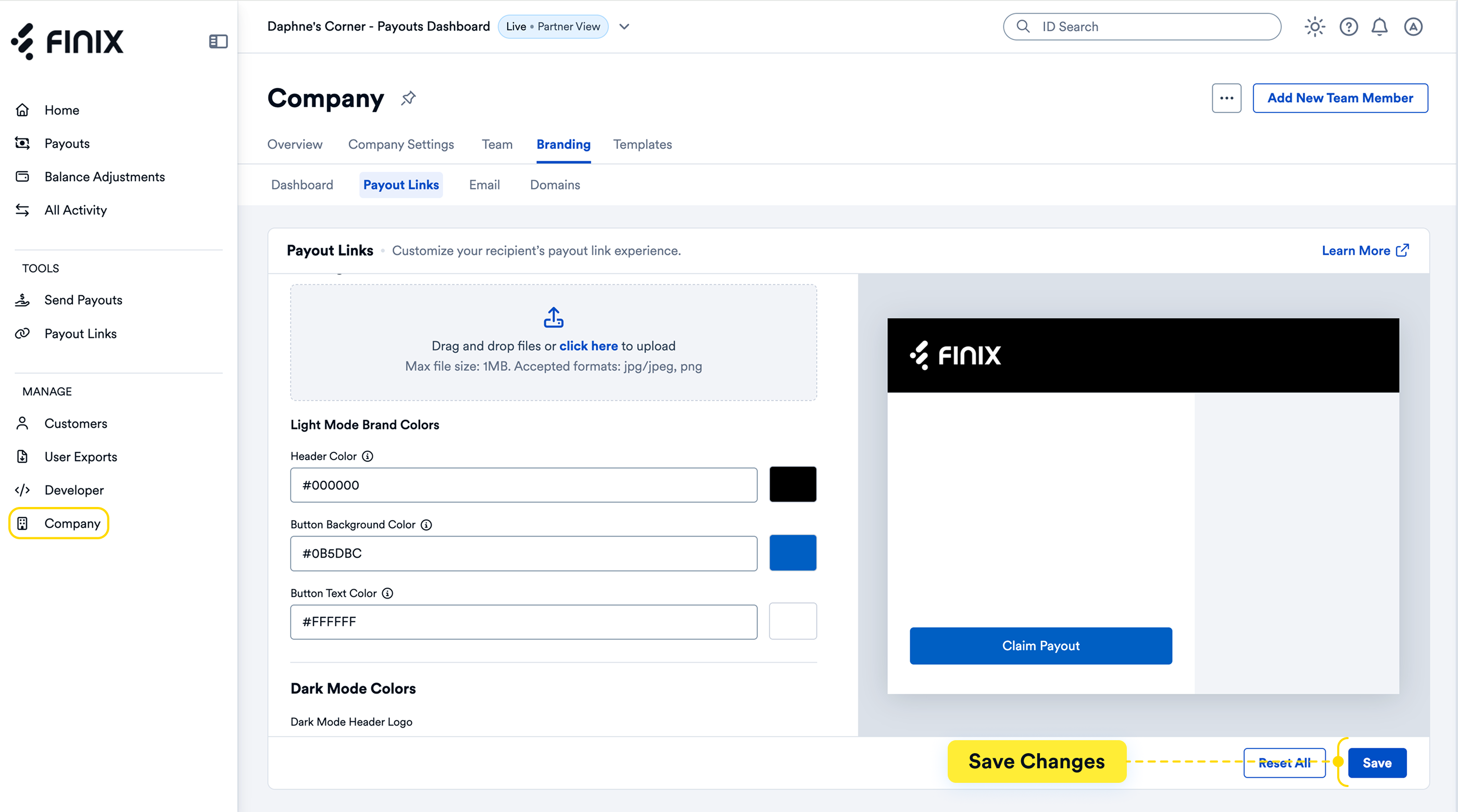
Payout Links follow a similar branding to Payment Links. To learn more about Payout Links, see our guide.