Accept in-person contactless payments on iPhone with no extra hardware. The Finix Tap to Pay on iPhone SDK is built on Apple's Tap to Pay on iPhone technology and handles the full payment through Finix. Your app starts a transaction, the buyer taps a card or digital wallet on the merchant's iPhone, and the SDK returns a completed Finix Transfer.
| Requirement | Value |
|---|---|
| Device | iPhone XS or later |
| iOS version | 18.1 or later |
| Passcode | A device passcode must be set (Settings → Face ID & Passcode) |
| Testing | Physical iPhone required (the simulator cannot accept taps) |
| Requirement | Value |
|---|---|
| Xcode | 16.0 or later |
| Swift | 5.9 or later |
- Membership in the Apple Developer Program with an organization account.
- The Account Holder must submit the Tap to Pay on iPhone entitlement request (see Request the Tap to Pay Entitlement below).
- A Finix account with access to the Finix Dashboard.
- API credentials (username and password) for the Sandbox environment.
- An approved merchant with a Merchant ID (
MUxxxxxxxxxxxxx) and a display name.
Tap to Pay on iPhone is a restricted Apple capability. It is not included with standard Developer Program membership and must be explicitly requested from Apple before you can build or test on a physical iPhone, including in Sandbox.
Apple grants the entitlement in two stages:
- Development — lets you build and test on your team's devices. Required for Sandbox testing. Typical turnaround: 1-2 business days.
- Distribution — required for TestFlight and App Store distribution. Request this later, after your integration meets Apple's App Review requirements. Covered at the end of the Integration Guide. Typical turnaround: 1-2 weeks, usually with a round or two of Apple feedback.
Request the development stage now so approval isn't a blocker later.
The request must be submitted by the Apple Developer account's Account Holder.
- Sign in at developer.apple.com as the Account Holder.
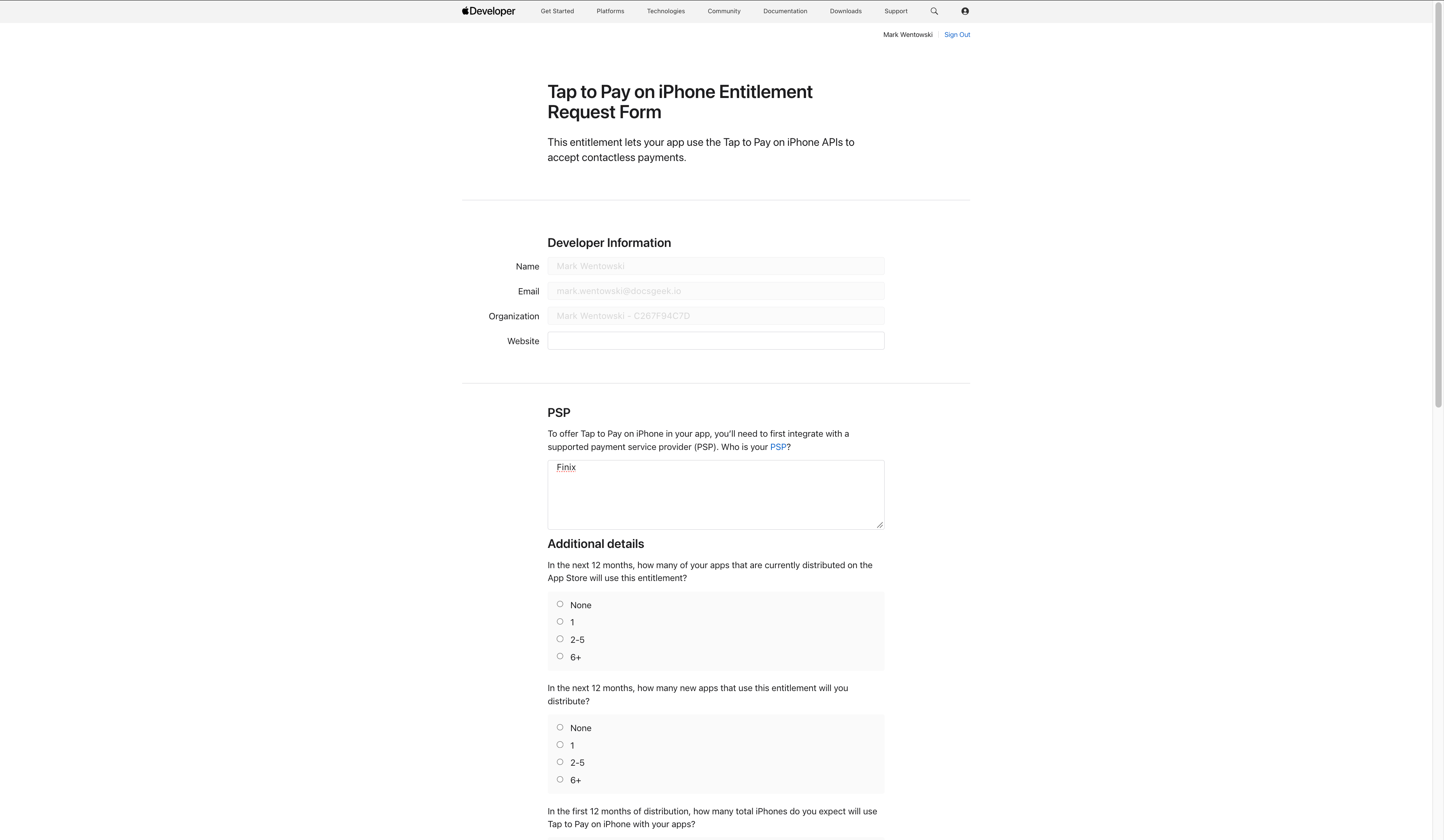
- Complete Apple's Tap to Pay on iPhone entitlement request form.
- Name Finix as your payment service provider and list the countries or regions where you plan to deploy.
- Click Submit.
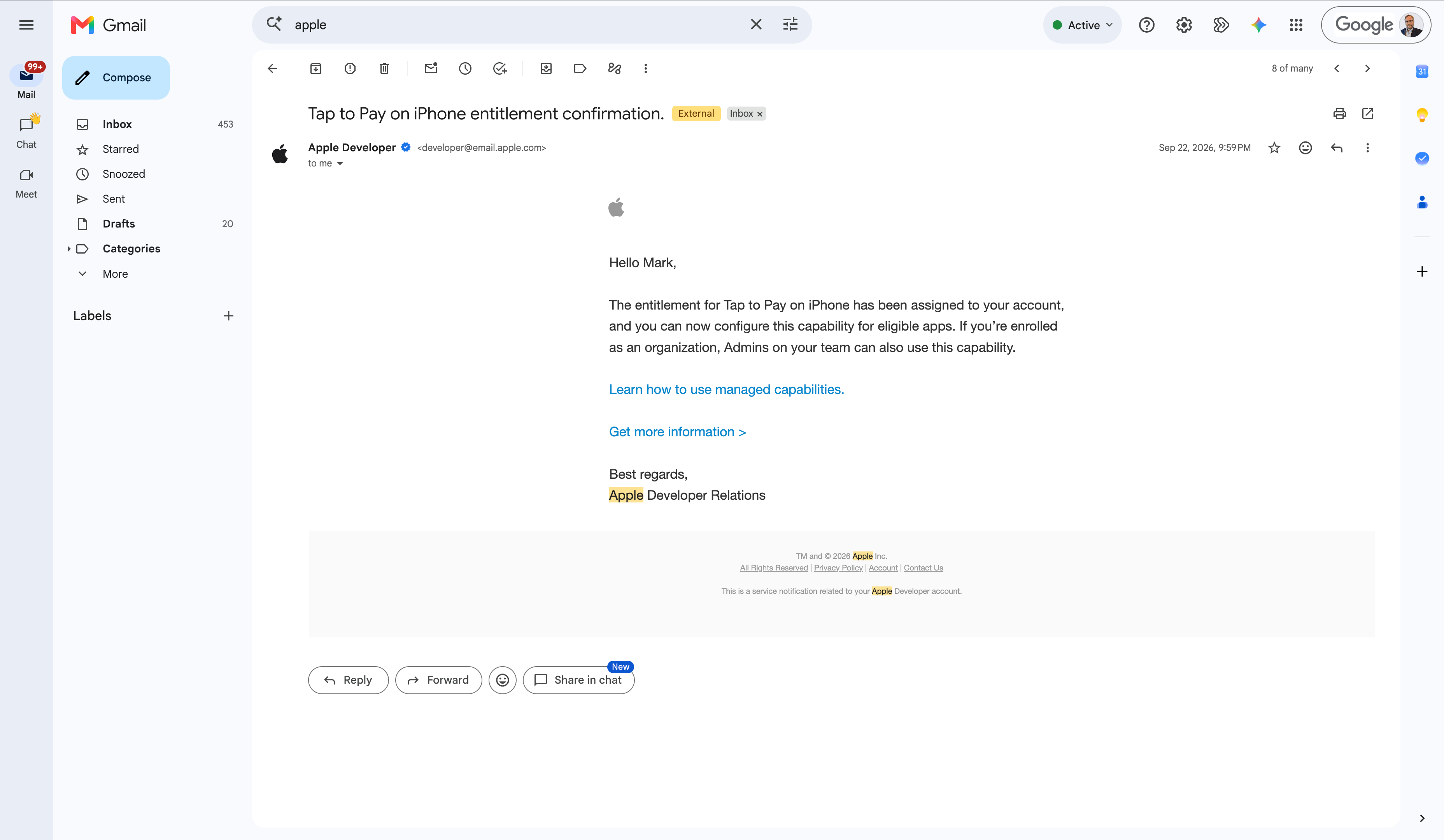
Apple will email you when the entitlement is granted, typically within 1-2 business days.
Complete these steps while waiting for your entitlement approval, or after; they are not blocked by the entitlement.
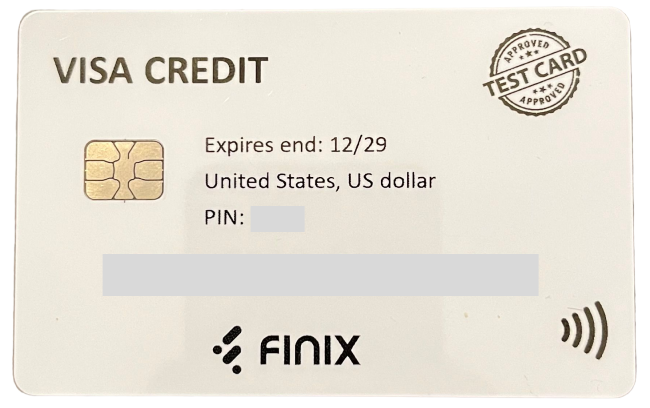
Sandbox testing supports either a physical Finix sandbox test card (recommended) or an Apple Pay Sandbox test card added to Wallet on a second Sandbox-signed-in device as a backup. The physical Finix sandbox test card is specifically configured for Finix Sandbox and cannot be used for live payments.
To request a physical Finix sandbox test card, contact support@finix.com.
Tap to Pay on iPhone Sandbox testing requires an Apple Sandbox Account signed in as the primary Apple Account on your test iPhone.
To create a Sandbox Apple Account:
- Go to App Store Connect.
- Click Users and Access in the top navigation.
- Click the Sandbox tab.
- Click the + icon next to Test Accounts.
- Fill in the form. The email must be a real address that has never been used as an Apple Account before. You can append
+1to an existing Gmail address (e.g.,yourname+1@gmail.com) to create a variation without a new inbox. - Click Create.
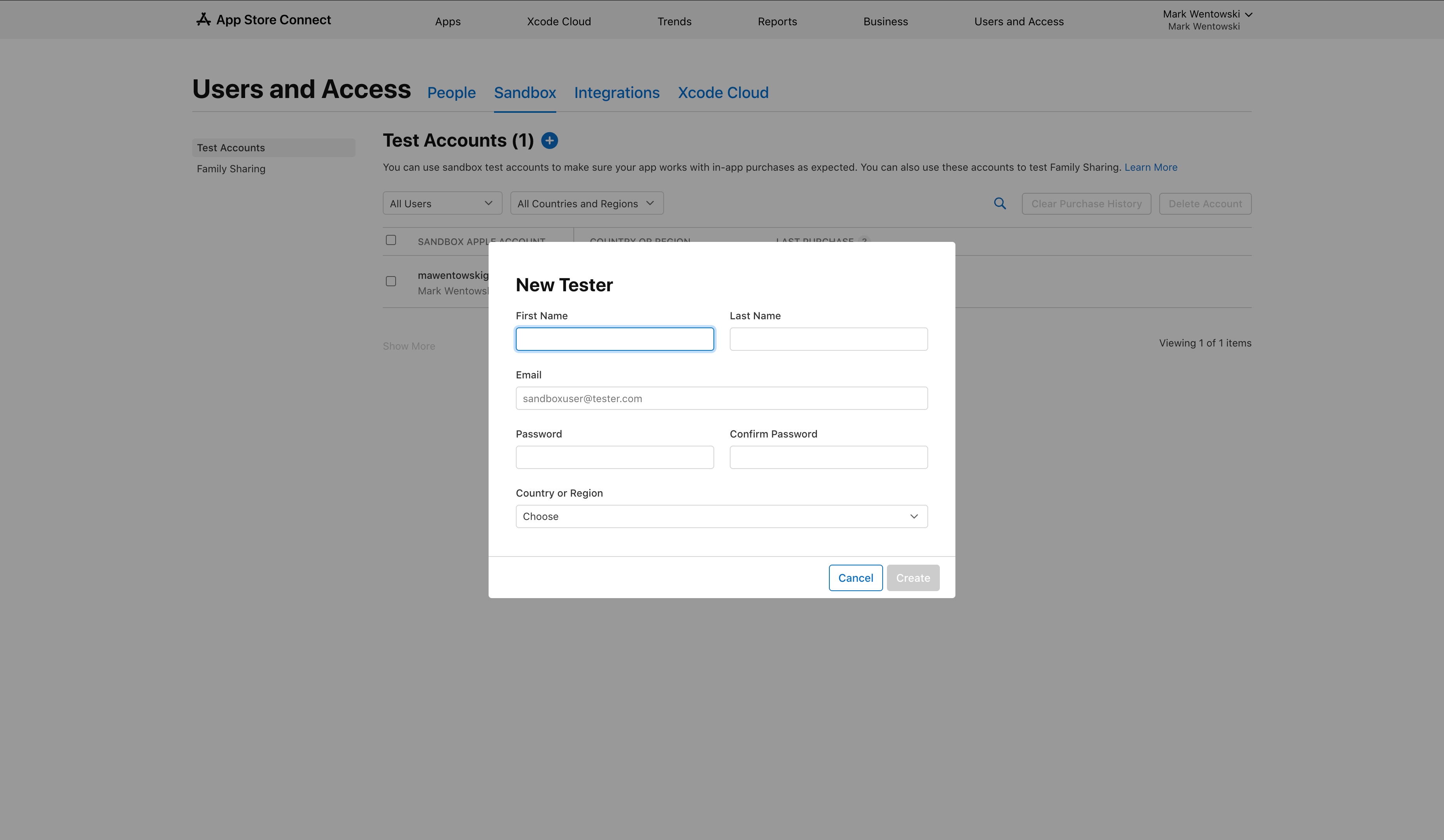
Keep these credentials handy. You'll sign in to your test iPhone with this account before running your first transaction.
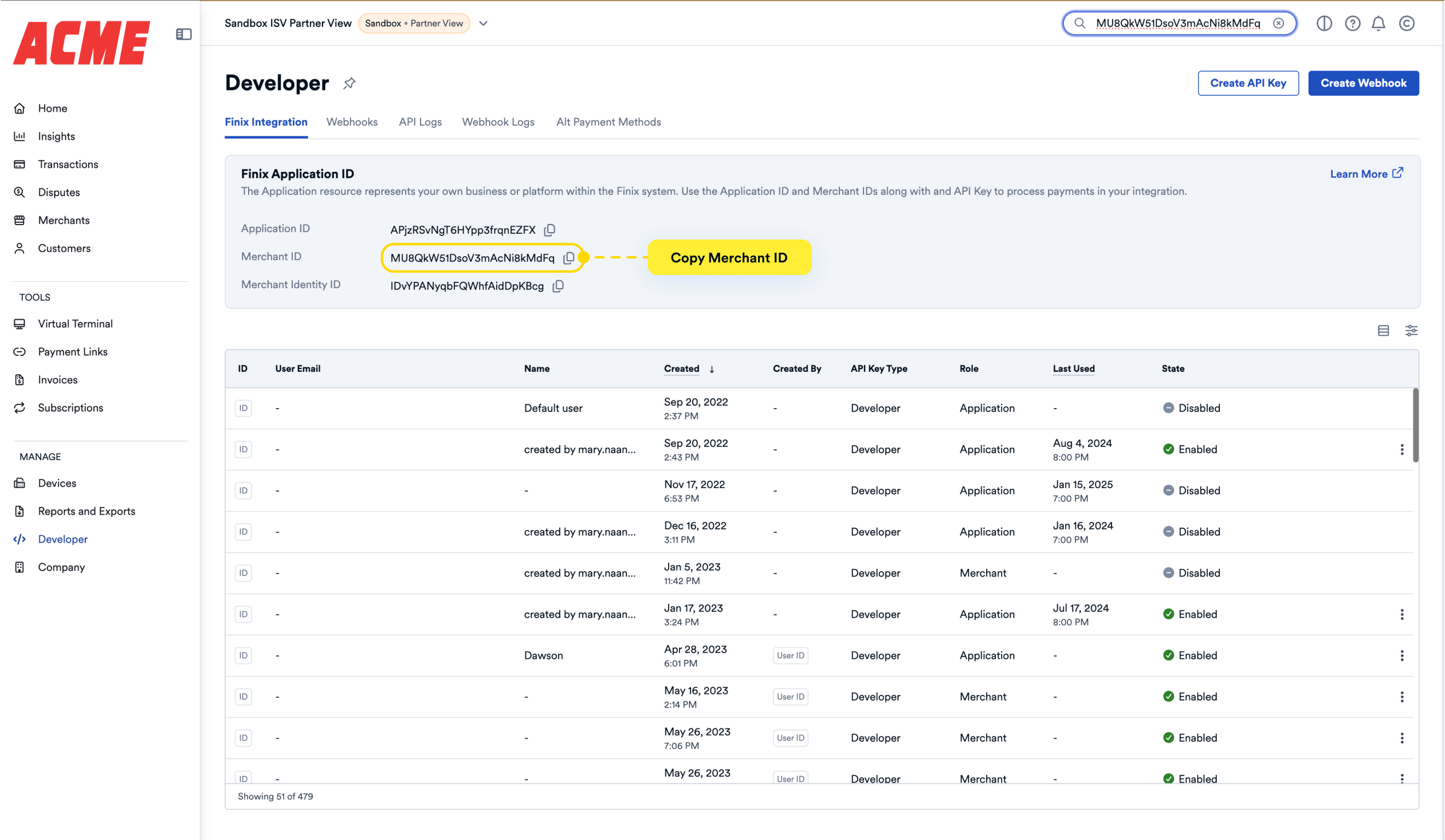
You need the following values from the Finix Dashboard before using either the demo app or your own integration. Save them; you'll use them in the next steps.
- API username (
USxxxxxxxxxxxxx) - API password
- Merchant ID (
MUxxxxxxxxxxxxx) - Merchant display name
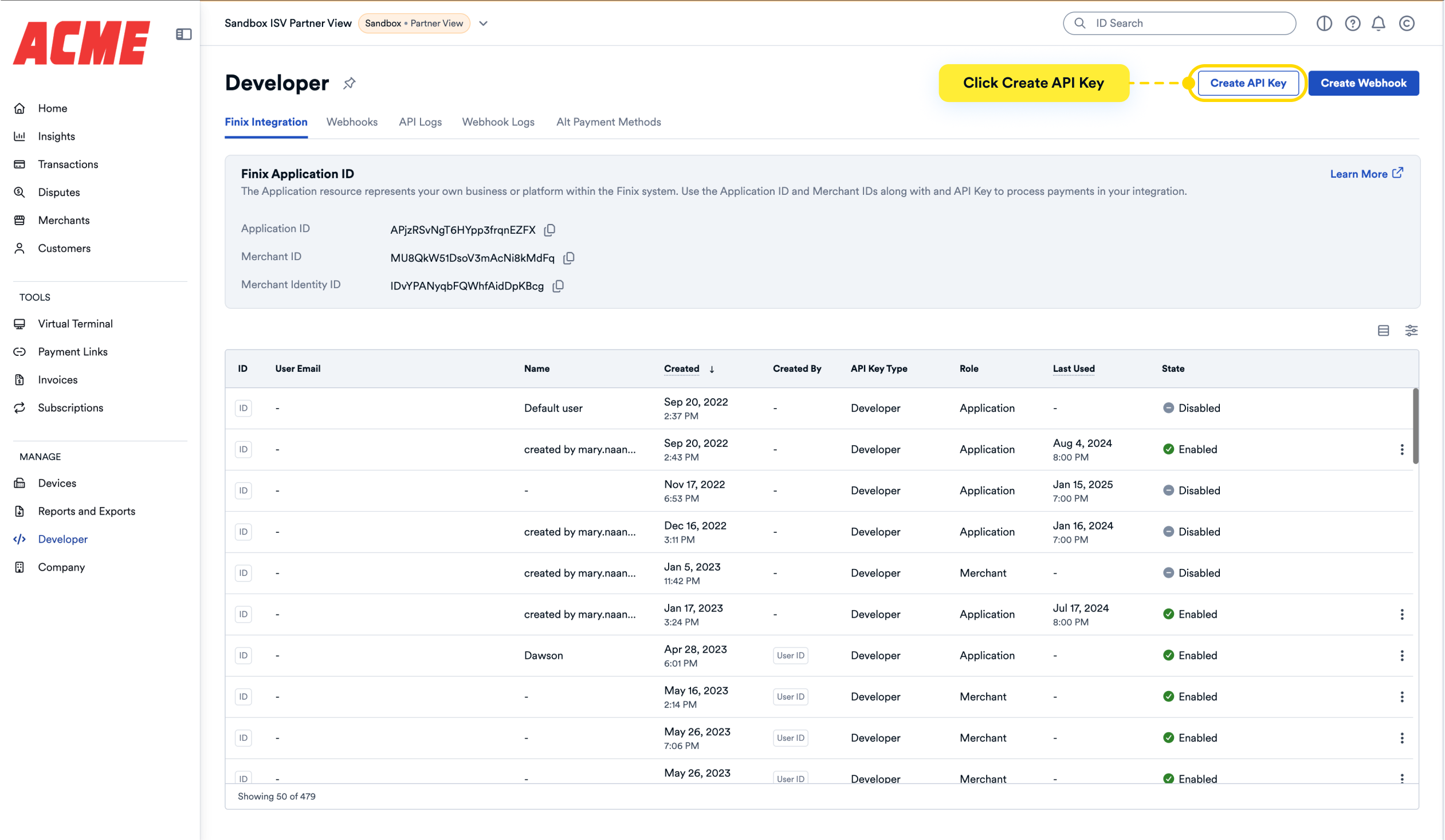
If you do not have API credentials, you can create them from the Finix Dashboard:
- Go to the Developer page.
- Click Create API Key.
- Enter a display name and click Create.
A confirmation displays with your new credentials. Copy both the username and password before dismissing the modal.
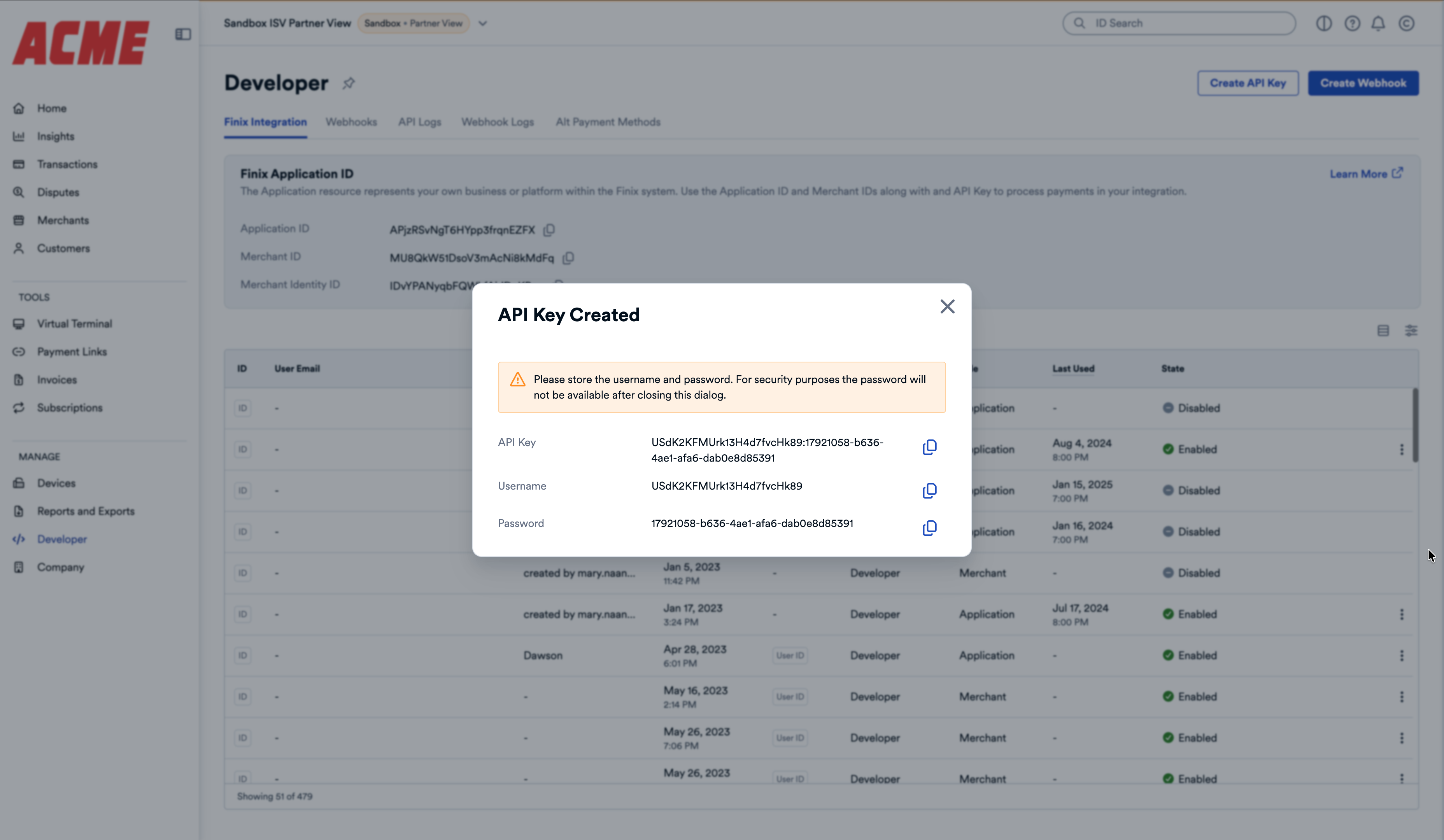
- If not already there, go to the Developer page in the Finix Dashboard.
- Copy the Merchant ID displayed on that page.